- AccuBattery measures the actual battery capacity in mAh and estimates its health against the original manufacturer's capacity.
- The app records daily wear and tear per charge, approximate cycles, and detailed consumption by application and device status.
- Limiting the charge to 80-90%, avoiding 0%, and controlling the temperature reduces degradation and prolongs battery life.
- Continued use of AccuBattery for weeks provides reliable data for adjusting mobile phone charging and usage habits.
If you use your phone constantly and notice that the battery isn't performing as well as it used to, you've probably wondered about its actual health and how much it's degraded . Android doesn't provide this information clearly, so you have to use specialized apps. And among all the options, the one that almost always appears in the recommendations is AccuBattery.
This app has millions of downloads on Google Play and has earned a reputation as one of the most reliable tools for understanding your battery's condition. But beyond simply installing it and looking at a few graphs, the real value lies in learning how to interpret the data to measure actual wear and tear and adjust your charging habits to extend the battery's lifespan.
What is AccuBattery and why has it become so popular?
AccuBattery is an Android app designed to accurately measure battery usage and actual capacity —not what the phone's specifications say, but what your battery is actually capable of storing today. Unlike the standard Android battery panel, which relies on generic profiles the manufacturer loads into the system, this app uses data from the phone's own charging controller to record the energy input and output during each charging session.
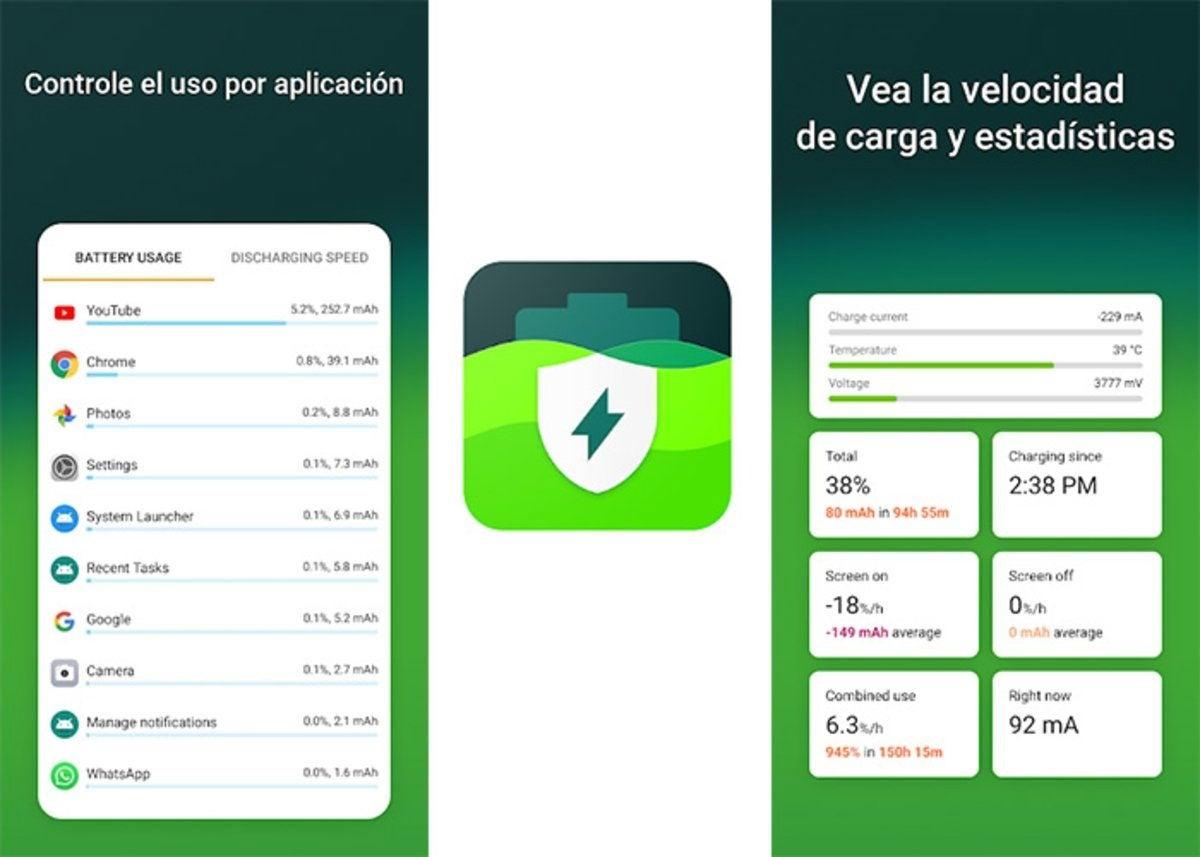
Thanks to this approach, AccuBattery can offer a very detailed overview: estimated capacity in mAh, battery drain per charge, power consumption per application, remaining usage time, and charge and discharge speeds . All of this is presented in clear graphs, designed so that any average user can understand what's happening with their battery without being an engineer.
Another reason for its popularity is that the free version is already very comprehensive. It includes almost all the key features: battery capacity measurement, charging alerts, usage statistics, recent history, and persistent notifications with real-time data . Only a few advanced options (older history, detailed statistics in notifications, or dark themes) are reserved for the Pro version, which is a one-time purchase and removes ads.
Furthermore, the developers insist that they do not ask for sensitive permissions or promise impossible miracles: AccuBattery does not "repair" the battery, but helps you take better care of it by showing real data so that you can decide how to charge and use your phone.
How AccuBattery works: the science behind mAh
To measure actual battery wear, you first need to understand exactly what this app does behind the scenes. AccuBattery relies on the device's charging controller, which reports the current flow (mA) and battery percentage in real time. From this data, the app calculates how much energy has been charged or discharged in each session.
When you charge your phone, the app records the mAh entering the battery from a certain initial percentage to the final percentage . By repeating this process over several days and at different charging levels, it can estimate your battery's actual capacity. For example, if your phone came from the factory with 3.000 mAh and now, according to AccuBattery, it can only store around 2.700 mAh, that means you've lost 10% of its capacity.
Android, on the other hand, typically uses "pre-set" values that the manufacturer inputs into the system: a profile that indicates how much power the CPU, screen, radio, etc., consumes. The problem is that these values are theoretical and often don't reflect reality. AccuBattery avoids this by measuring what actually happens to your battery with your specific apps , not with standard numbers calculated in a lab.
In addition to tracking the energy input during charging, the app also monitors the energy output when you use your phone . This allows it to accurately calculate which apps are the most power-hungry, how quickly the battery drains, and how much battery life you have left with the screen on or off.
Main functions: much more than just seeing the percentage
One of AccuBattery's strengths is the amount of information it provides without becoming overwhelming. Its main screens focus on three main sections: battery health, usage (discharge), and charging . Each of these contains key data that's useful to know if you want to monitor your battery's wear and tear.
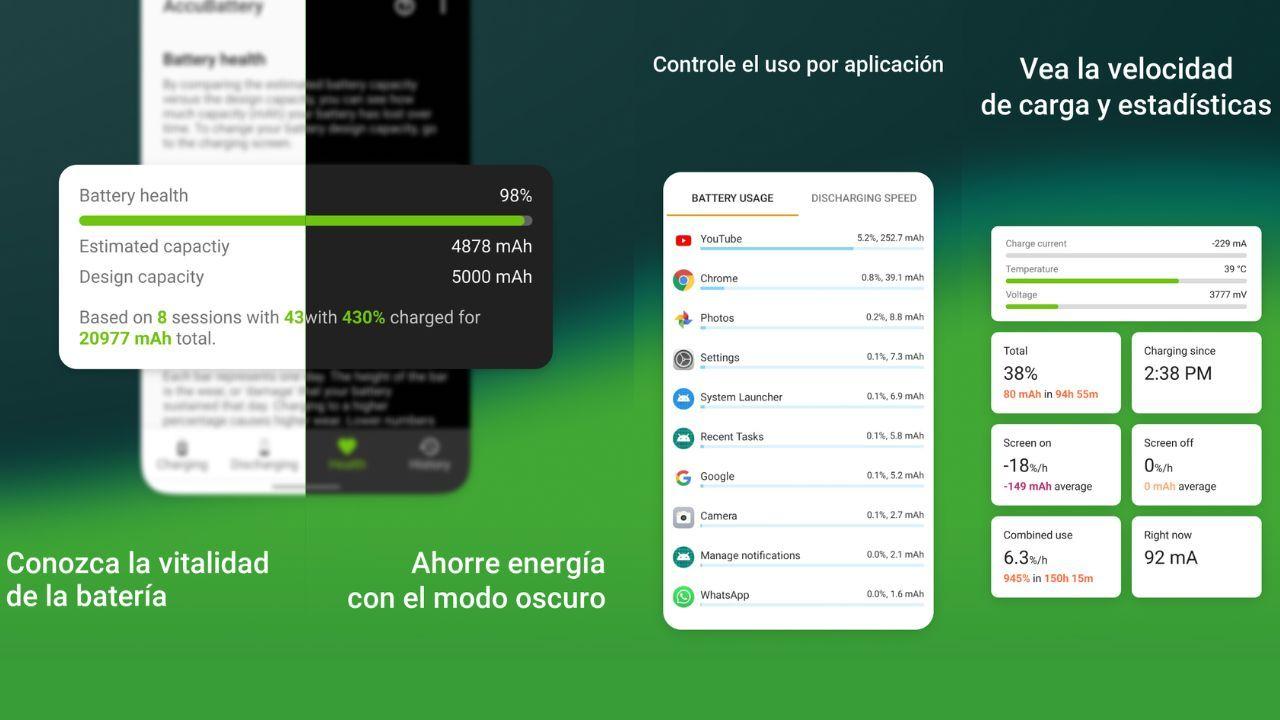
In the health section, you'll see the familiar "estimated capacity" in mAh and the percentage of battery health relative to its original capacity. This section also displays your charge cycle history and the cumulative wear and tear since you installed the app. The longer you've been using it, the more accurate this estimate will be.
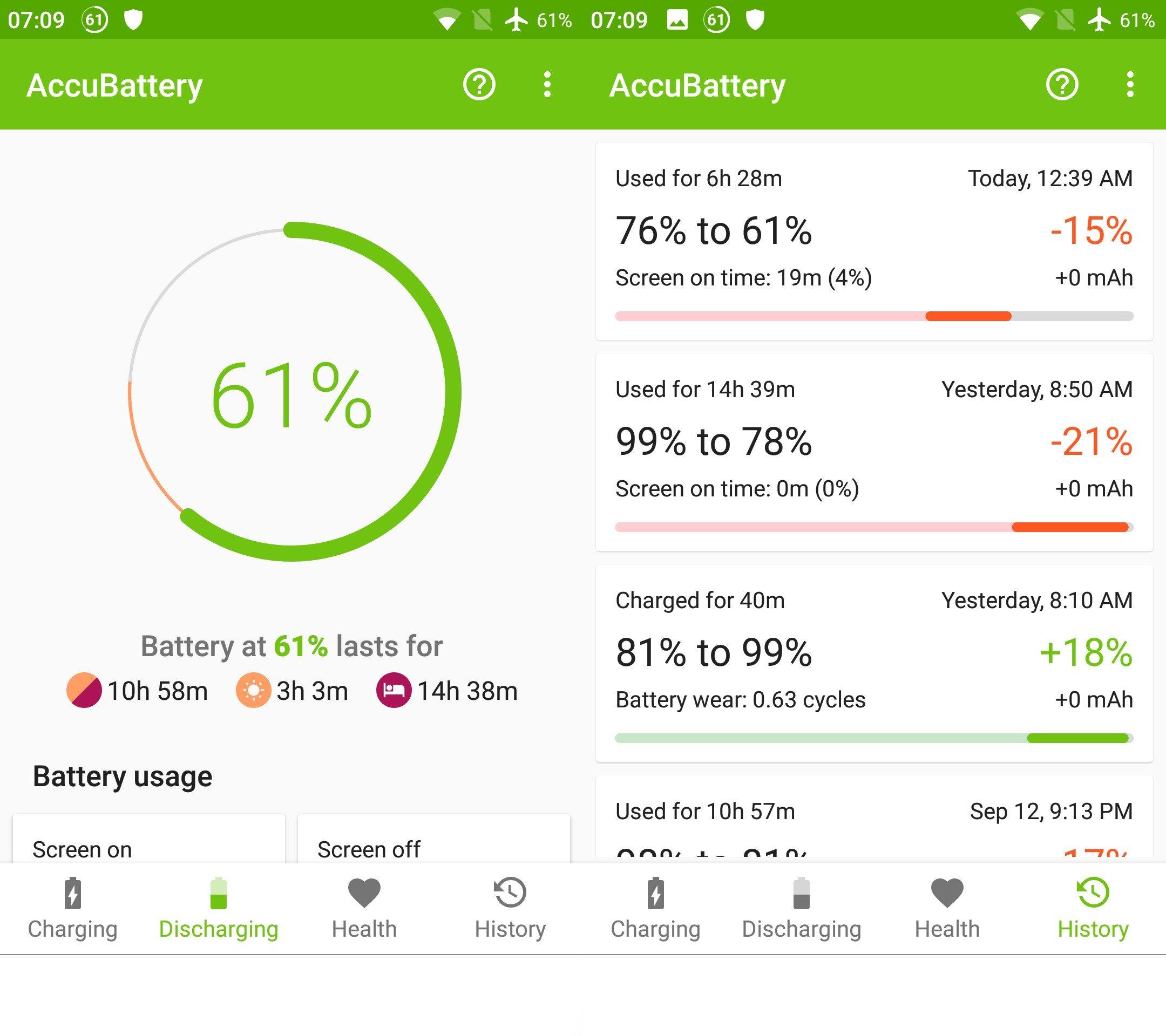
The download tab focuses on daily usage. It shows how much battery each app consumes, how quickly your phone's battery drains with the screen on, how much it uses in standby mode, and what percentage of time it enters deep sleep . This mode is key because it indicates that the phone is consuming minimal power thanks to features like Doze , introduced by Google in Android Lollipop and improved in later versions.
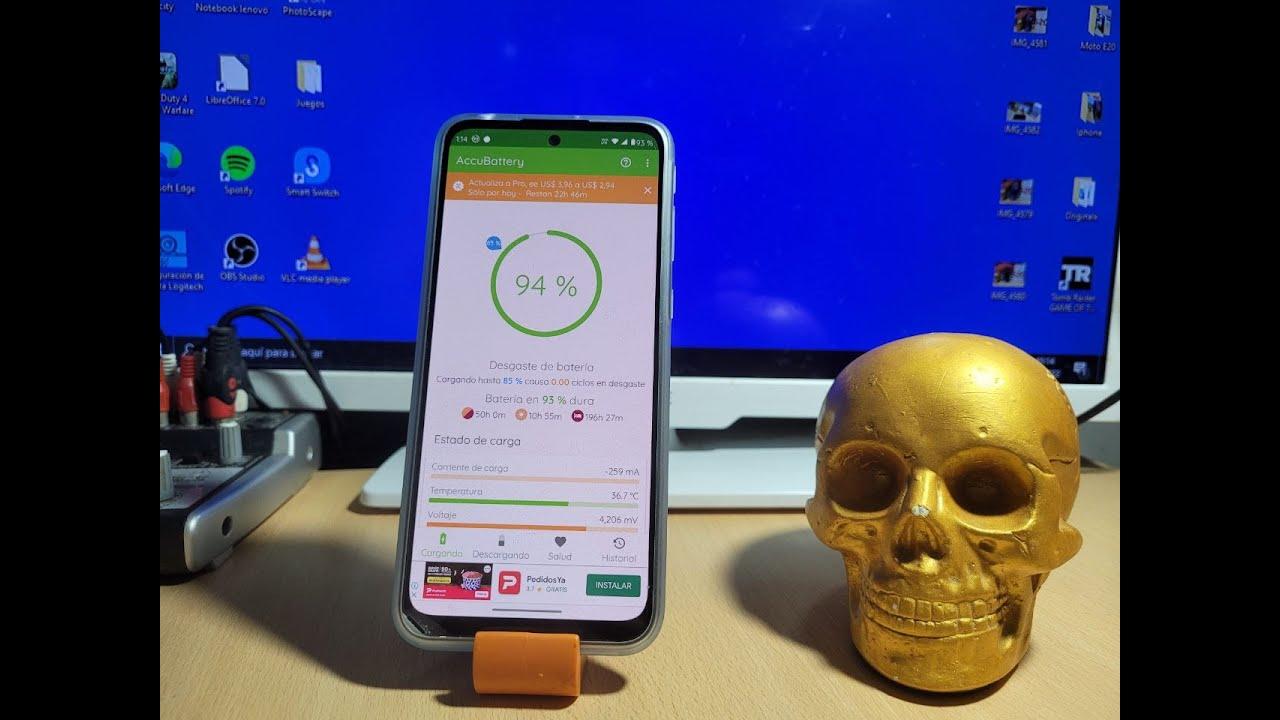
In the charging section, you can see how quickly energy is entering your battery (in mA), how long it will take to reach a certain percentage, and the wear and tear occurring during that charging session. This is where the charging alert comes in: you can set a notification, for example, limiting charging to 80% , so your phone alerts you and you disconnect the charger before reaching 100%, which helps extend battery life.
To complete the package, the app offers a real-time notification that gives you a quick overview of the battery status: current percentage, estimated remaining usage time, current consumption, and various other data. This eliminates the need to constantly open the app.
How to prepare your mobile phone to obtain reliable data
For AccuBattery to accurately measure battery wear, simply installing it and looking at the first reading isn't enough. The app itself and many tutorials recommend following a few initial steps and allowing time for it to collect data . The more charge cycles it records, the more reliable the results will be.
A classic trick for getting a rough initial reading is to perform a controlled full charge. The idea is to let the phone's battery drain completely until it shuts down on its own, connect it to the charger, turn it on, and leave it charging to 100% without interruption , for example, overnight. This isn't something you should do regularly, but this particular charge helps AccuBattery calculate a good initial capacity estimate.
The next morning, when you open the Charging tab , you'll see the number of mAh the app recorded during that session. This figure is the "estimated capacity" for that charge. If you divide that number by your battery's official capacity (the one indicated by the manufacturer: 3.000 mAh, 5.000 mAh, etc.), you'll get an initial percentage of battery health. For example, if it shows 2.896 mAh compared to the manufacturer's 3.000 mAh, you'd be around 96-97% healthy.
It's worth remembering that this initial measurement isn't perfect. Manufacturers rarely deliver phones with exactly 100% of their theoretical capacity, so it's normal for the actual figure to be slightly lower, even on a brand-new phone . The important thing is to monitor the trend over time, not to get fixated on a specific value on day one.
For more accurate readings, it's recommended to use your phone normally and keep AccuBattery installed for at least a week, or even better, for several weeks. The more varied your usage and charging patterns (partial charges, long charges, fast charges, etc.) , the more data the app will have, and the more accurate the capacity and wear estimate will be.
How to check battery health and actual degradation
Once AccuBattery has collected enough data, the Health tab becomes your best ally for understanding the battery's actual wear and tear. At the top, you'll see the current health percentage (for example, 97%), and just below it, the estimated capacity compared to the manufacturer's design capacity. This comparison shows at a glance how much battery life you've lost compared to when your phone was new.
On that same screen, you'll find information about your accumulated charge cycles . The app adds up all the partial charges to approximate how many full cycles you've used. For example, it might show that you've performed 17 charges, which total 30.087 mAh. If your battery is 3.000 mAh, that would be approximately ten full cycles.
Below that is the daily wear section , represented by bars for each day. Each bar shows the wear caused by charging that day. The higher the bar, the greater the wear. If you see days where the value spikes (above 1,40 or higher), it's usually due to days when you charged your phone several times or used very demanding apps while charging , such as resource-intensive games like PUBG Mobile.
These daily bars are very useful for detecting bad habits. If you regularly see high bars, you're probably pushing your battery to extremes of charge or temperature, which accelerates its degradation. The key is to try to keep most of the bars as low and consistent as possible , with occasional spikes only on very exceptional days.
Additionally, in the battery capacity section, you can review how the mAh estimate has changed with different charging sessions. Each point on the graph represents a specific session: the percentage you reached and the estimated capacity calculated by AccuBattery. This is another way to see if the battery health remains stable or if there has been a noticeable drop after a certain time or a period of very intensive use.
What does wear and tear from load mean and how to interpret it correctly?
One of the most common questions when using AccuBattery is how to interpret the battery drain data per charging session and whether it's really worth letting the phone drop to 0% before charging it to a certain level, such as 80%. The app sometimes shows that a charge from 0 to 80% results in battery drain of, for example, 1,10 "units," even though it has actually provided significantly more energy than other partial charges.
At first glance, it might seem more efficient in terms of energy used per unit of wear and tear to always let your phone's battery drain to almost zero and then charge it to 80%. However, this contradicts the classic recommendation to never let a lithium battery reach 0%, because such deep discharges are detrimental to its lifespan.
It's important to understand that AccuBattery primarily measures battery drain related to charging , not so much that caused by daily discharge. The app focuses on how certain charging phases (especially near 100%) are more damaging to the battery than others. That's why it strongly recommends setting the alarm to 80% and avoiding leaving your phone plugged in at 100% for extended periods.
The fact that the app doesn't measure the direct drain from the battery as clearly doesn't mean it doesn't exist. Regularly letting your phone reach 0% is still harmful , even if the app shows that a particular session was "profitable" in terms of energy charged per unit of drained battery. It's reasonable to stay within a comfortable range, typically between 20-30% and 80-90%.
The correct way to interpret this data is as follows: try to avoid consistently charging to 100% and discharging to 0% , and use AccuBattery to see which habits cause the most wear and tear per day. If you notice that your daily wear bars spike when you always charge to 100%, you'll know it's worth starting to unplug at 80% using the alarm.
Use of the app to control consumption, apps and deep sleep
Beyond simply tracking battery drain, AccuBattery is very useful for monitoring which apps are consuming your battery . In the download tab, you'll see a list of apps with their battery consumption in mAh and as a percentage since the last charge. If you notice any apps using a lot of battery despite not being very active, it's a good idea to review their permissions, notification settings, or restrict their background activity.
Another key piece of information is the deep sleep time . This indicator shows what percentage of the time, when the screen is off, the phone has been using minimal power. A high deep sleep percentage means the power-saving system (like Doze) is working well and your phone isn't staying awake all night due to resource-intensive apps.
Conversely, if the deep sleep percentage is low, you may have apps keeping the device active with constant notifications, unnecessary syncing, or poorly optimized processes. Checking this data will help you identify battery drain while your phone is in standby mode and, therefore, reduce the overall wear and tear caused by having to charge it more often.
The remaining usage time information is also useful. AccuBattery estimates how much longer you can continue using your phone with the screen on or off based on your actual usage patterns, not a generic calculation. This way, if you notice a significant drop in battery life on a particular day, you'll know something is consuming more power than usual and can use the other statistics to identify the culprit.
Another interesting section is download speed. Here you can see, for example, how much data a specific game uses, how much consumption increases when you turn the screen to maximum brightness, or when you use mobile data instead of Wi-Fi. All these details are very useful for learning which usage combinations put the most strain on your battery and, consequently, shorten its lifespan.
How to use charging and alarm to extend battery life
One of the key recommendations that appears repeatedly in all AccuBattery reviews is to avoid constantly charging your battery to 100% . Lithium cells are more susceptible to damage when they remain at high voltages for extended periods, which is what happens near 100%. That's why the old habit of leaving your phone plugged in overnight isn't exactly good for your battery's health.
AccuBattery includes a configurable charging alarm to help with this. You can set the alert, for example, at 80% or 90%, so your phone notifies you when it reaches that level and you can unplug it. The app itself explains that limiting the maximum daily charge (especially if your usage doesn't always require reaching 100%) is an effective way to increase the number of charge cycles the battery can withstand without experiencing a significant drop in performance.
Another good practice is to avoid leaving your phone charging while playing games or performing demanding tasks. In these situations, two factors combine to severely strain the battery: high temperature and high charge level . If you need to play very demanding games like PUBG Mobile, it's best to do so without the charger connected and leave charging for when the phone is idle or under lighter use.
It's also a good idea to review your nighttime routine. Instead of plugging in your phone right before bed and leaving it at 100% until the next morning, try charging it to 80-90% a little while beforehand , putting it in airplane mode at night, and letting it use minimal power while you sleep. This reduces the time it spends at 100% and, incidentally, minimizes nighttime battery drain.
All of this won't work miracles or restore an old battery to its lost capacity, but it can make the difference between having a phone that lasts decently for three or four years and one that desperately needs a battery replacement after just two. AccuBattery not only measures wear and tear, but also gives you the tools to change your charging habits before it's too late.
Among the information offered by AccuBattery—including the ability to see the actual mAh capacity compared to the manufacturer's official rating, daily wear graphs, health percentage, estimated cycles, and app-specific consumption data—you get a fairly comprehensive picture of your battery's condition and how you're treating it on a daily basis. With all this information at your fingertips, it's much easier to adjust your routines, avoid extremes, and ensure your battery lasts longer in good condition—something especially useful if you plan to keep your phone for several years and don't want to rely so heavily on the charger.


Passionate writer about the world of bytes and technology in general. I love sharing my knowledge through writing, and that's what I'll do on this blog, show you all the most interesting things about gadgets, software, hardware, tech trends, and more. My goal is to help you navigate the digital world in a simple and entertaining way.