- Limiting battery charging helps reduce the risk of overheating and prolongs battery life.
- Using manufacturer-specific tools allows you to manage battery health in Windows 11.
- Environmental factors, intensive use, and non-original chargers increase thermal risks.
Do you notice your Windows 11 laptop getting hotter than usual when you charge it? Overheating while charging is a common problem that can be worrying for any user, as it not only affects short-term performance but also reduces the lifespan of the battery and other computer components.
Therefore, it's essential to understand the causes and best practices to prevent damage and extend the life of your laptop.
Why does my laptop and charger get hot while charging on Windows 11?
When you plug in your laptop to charge it, it's normal for both the charger and the device itself to get warm, but if the heat is excessive, it could indicate problems with either the hardware or the operating environment. This phenomenon is mainly caused by the way lithium-ion batteries and chargers function, as well as the system's energy consumption.
Modern laptop batteries , especially lithium-ion batteries, are designed for efficiency, but they are also sensitive to heat. As they charge and discharge, they generate heat through internal resistance and energy transfer. While this heat usually dissipates without issue, it can become problematic under certain conditions.
- prolonged use: Keeping your laptop plugged in for hours increases the charger's temperature, especially in hot environments.
- Unsuitable surfaces: Placing the charger on textiles or soft furniture may block ventilation and build up heat.
- Hot or poorly ventilated environments: A poorly ventilated room or one close to heat sources prevents efficient dissipation.
- High energy demands: Performing intensive tasks, such as gaming, editing, or using multiple peripherals, increases power demand and therefore the heat generated.
- Hardware aging: The deterioration of internal components with There decreases its ability to dissipate heat, causing overheating.
Equally important, removing dust, dirt from connectors, using damaged cables, or using non-original chargers can cause abnormal resistance and dangerously raise the temperature of both the charger and the battery.
Common causes of overheating during charging
Overheating, although it can be normal in certain cases, is usually due to a combination of factors that go unnoticed:
- Continuous charging without alternating with the battery: Keeping the equipment plugged in permanently can cause thermal stress.
- Location in poorly ventilated areas: It is important that both the charger and the laptop have sufficient space and flat surfaces.
- Hot environments: High temperatures make dissipation difficult and increase the risk of overheating.
- Coiled or poorly stored cables: Bending or coiling the cable can damage the internal conductor and increase the thermal resistance.
- Degraded internal components: Prolonged use and charging cycles cause the internal materials to lose efficiency in heat dissipation.
- Poor quality or incompatibility of the charger: Uncertified or incorrect adapters increase the risk of failure and excessive heat.
In addition, the self-discharge of lithium-ion batteries and the gradual evaporation of voltage during prolonged storage can damage components and cause thermal problems when reactivating the equipment.
Risks of not controlling battery and charger overheating
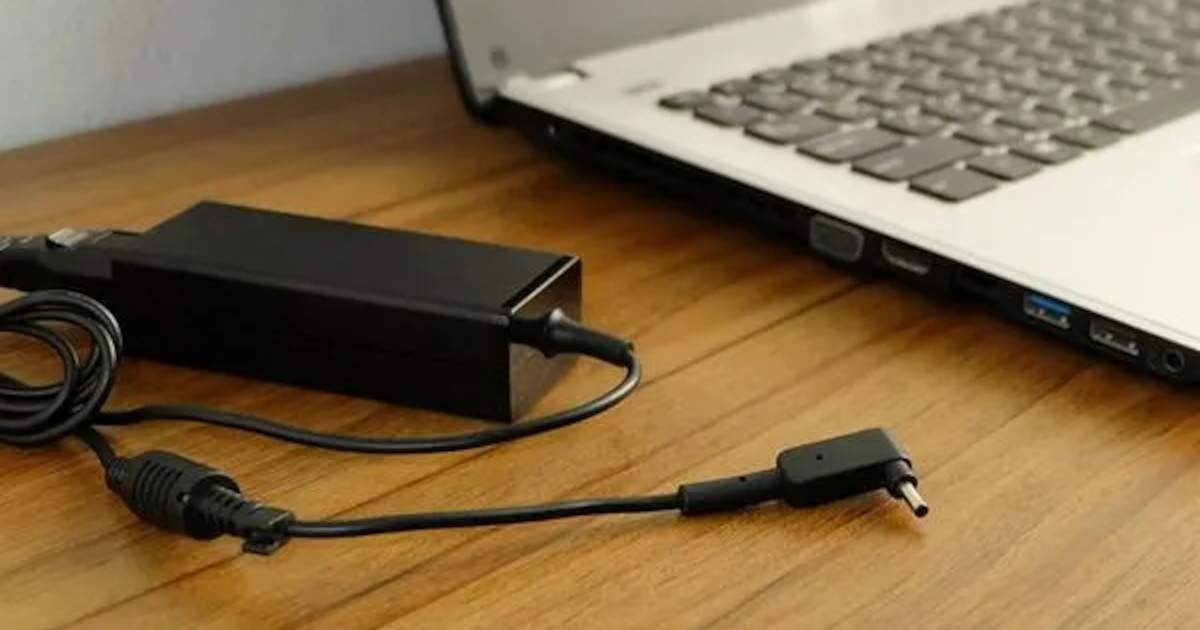
It's not just a matter of minor discomfort or annoyance. Ignoring overheating can lead to accelerated loss of capacity, internal component failures, fires, or irreparable damage to the equipment.
Key risks include:
- Loss of capacity and decreased battery lifeExcessive heat deteriorates internal materials, reducing their efficiency.
- Risk of fire: In extreme cases, overheating can cause short circuits and sparks or fires.
- Damage to internal components: Motherboard, memory and other sensitive components can be affected by heat.
- Inability to maintain load: The equipment may shut down unexpectedly and become unstable.
- performance reduction: To avoid dangerous temperatures, the system may reduce processor speed, limit brightness, or close applications.
How to limit battery charging and prevent overheating in Windows 11
One of the most effective measures to protect the battery and prevent overheating is to limit the maximum charge to between 60% and 80% . This reduces thermal stress and degradation from continuous full charges.
Although Windows 11 doesn't have a built-in feature to set a maximum percentage, many manufacturers offer specific tools depending on the laptop brand . Here's how they work for various brands:
- MSI: Using Dragon Center, under “Battery Master,” select “Balanced Mode” (80%) or “Better for Battery” (60%).
- LG: LG Smart Assistant allows, by activating the corresponding option, to limit the charge to 80%.
- Dell: With Dell Power Manager, you can choose “Mostly AC” mode with a limit of 80% or customize the limit.
- Microsoft SurfaceSurface devices with Windows 11 include Smart Charging, which automatically adjusts charging to maintain battery health.
- Lenovo: Lenovo Vantage allows you to set a charging threshold of 80%, with automatic battery management.
- Asus: Through MyASUS, you can choose between Balanced Mode (80%) or Maximum Life Mode (60%), protecting the battery from unnecessary full charges. It's recommended to check charger compatibility to avoid damaging it.
- HP: Some models allow you to activate in BIOS the “Battery Optimizer” or “Battery Care” and set the charging limit.
- Acer: With Acer Care Center, you can adjust the “Charge Limit” to keep your battery healthy and reduce overheating.
If your laptop does not have these tools, check the manufacturer's official website or update the firmware/BIOS to access these functions.

What smart charging brings to Windows 11
Smart charging isn't natively part of the Windows 11 operating system, but some manufacturers have integrated it into their devices.
This function monitors usage habits and automatically adjusts the charging limit, preventing the battery from remaining at 100% for too long, which helps reduce heat generation and aging.
When active, a heart icon may appear in the taskbar, indicating that charging is limited. The main goal is to improve battery life.
When should you disable smart charging?
As a general rule, keeping smart charging active is recommended for most users . However, in situations such as long trips or when maximum range is essential, you may want to consider deactivating it, always checking the manufacturer's specific instructions.

Tips to avoid overheating during charging
To extend battery life and reduce thermal stress, follow these recommendations:
- Switch between battery and charger: Avoid leaving the equipment always connected, allowing the battery to be used and partially discharged.
- Use flat, well-ventilated surfaces: Avoid soft surfaces or surfaces that block the ventilation of both the laptop and the charger.
- Provide a cool environment: The room temperature should be moderate, and if necessary, use cooling pads or fans.
- Reduces consumption during charging: Close non-essential applications and disconnect unused peripherals to avoid excessive power consumption.
- Use original and certified chargers: This prevents overheating and damage due to incompatibility or low quality.
- Do not twist or kink the cables: Store cables without pressing or bending to prevent internal damage.
- Keep the connectors clean: Dirt can cause contact failures and temperature increases.
- Check periodically: If you notice any deterioration, such as frayed wires or abnormal charging time, contact a technician.
- Store at 50% charge for long periodsIf you won't be using your laptop, store it with a medium charge and recharge it every three months.
Technical considerations according to the manufacturer: Asus as an example
Most manufacturers agree that heat during charging is normal under proper use, provided that original accessories are used and maintenance guidelines are followed.
In the case of Asus, aspects such as:
- Do not exchange adapters between models: Check voltage and current before using a different charger.
- Inspect connectors and ports: Before plugging in, clean or check for debris.
- Do not step on or trip over the cable.: Prevents damage by ensuring it is not bent or pressed.
- Do not charge the battery to 100% when you are not going to use it for a long time.: It is recommended to leave it at half capacity and recharge it monthly to keep it in good condition.
- Use Battery Care Mode: Available on MyASUS, it allows you to limit charging to extend battery life and control temperatures.
Is it normal for the laptop to reduce brightness or close applications while charging?
Occasionally, if the system detects high temperatures, Windows 11 or the hardware will automatically adjust brightness, performance, or close non-essential applications as a protective mechanism . This automatic response, designed to prevent further damage, is also common in smartphones and other devices.
What to do if overheating persists even after following the recommendations
Sometimes, even after taking precautions, the equipment may still overheat. If you notice excessive heat even after implementing these measures, contact a qualified technician.
A professional can check internal components, battery and charger status, identifying possible faults or advanced wear. Don't ignore signs of trouble, such as noises, odors, or abnormal charging times, to prevent further damage to your equipment and prolong its lifespan.
Overheating while charging on Windows 11 laptops can be prevented and reduced with a few simple steps. Limiting charging, alternating battery and power usage, using genuine accessories, maintaining good ventilation, and monitoring the overall health of the hardware are key to longer lifespan. Take advantage of the manufacturers' tools and recommendations and always consult official sources for your specific model. Early attention to these issues will allow you to extend the life of your laptop and avoid unnecessary inconveniences.
Table of Contents
- 1 Why does my laptop and charger get hot while charging on Windows 11?
- 2 Common causes of overheating during charging
- 3 Risks of not controlling battery and charger overheating
- 4 How to limit battery charging and prevent overheating in Windows 11
- 5 What smart charging brings to Windows 11
- 6 When should you disable smart charging?
- 7 Tips to avoid overheating during charging
- 8 Technical considerations according to the manufacturer: Asus as an example
- 9 Is it normal for the laptop to reduce brightness or close applications while charging?
- 10 What to do if overheating persists even after following the recommendations
