- Drivers 570+ and open option are critical with RTX 50; on 24.04 use nvidia-driver-570-server-open.
- On WSL you need a driver with CUDA support, kernel ≥ 5.10.43.3 and glibc distro.
- Control the toolkit version with the repo NVIDIA (12.8 recommended for RTX 50).
- Set PATH/LD_LIBRARY_PATH and check with nvcc to avoid loading failures.
If you work with machine learning, computer vision, or high-performance computing, installing NVIDIA CUDA is almost mandatory to take advantage of GPU acceleration. Choosing the right driver and toolkit version is key to avoiding errors and getting the most out of your hardware from the very beginning.
In this guide, I'll explain, step by step and without any fuss, how to get CUDA ready on both Windows via WSL (Windows Subsystem for Linux ) and Ubuntu 22.04 and 24.04. You'll also see requirements, checks, special cases like the RTX 50 series , and what happens when you install only the driver and an nvcc file for a specific version appears without your permission.
Requirements and compatibility
Before making any changes, it's worth reviewing your starting point. You need at least a CUDA-compatible GPU (refer to NVIDIA's official guide for a list of compatible models), and as a reference, having 6 GB of dedicated video memory is recommended for many AI workflows.
If you're using Windows with WSL, compatibility is extensive: Windows 11 and recent Windows 10 updates (version 21H2 and later) allow you to run ML tools, libraries, and frameworks that use CUDA within a Linux distribution using WSL. This covers PyTorch, TensorFlow, Docker, and the NVIDIA Container Toolkit just as you would on native Linux.
In public cloud environments with NVIDIA GPU instances, it's usually best to start with the VM image provided by the cloud provider. These images already include the appropriate driver and CUDA Toolkit , saving you some delicate steps. If you're installing on your own machine, keep reading.
For GPU functionality in WSL, ensure that the Linux kernel within WSL is up to date. Version 5.10.43.3 or later is required . You can check this from PowerShell with:
wsl cat /proc/versionIf you need to update WSL, go to Windows Settings → Windows Update and click Check for updates. Keeping the kernel up to date prevents incompatibilities with CUDA and other GPU components in WSL.
CUDA on Windows via WSL: Driver, WSL, and Distro
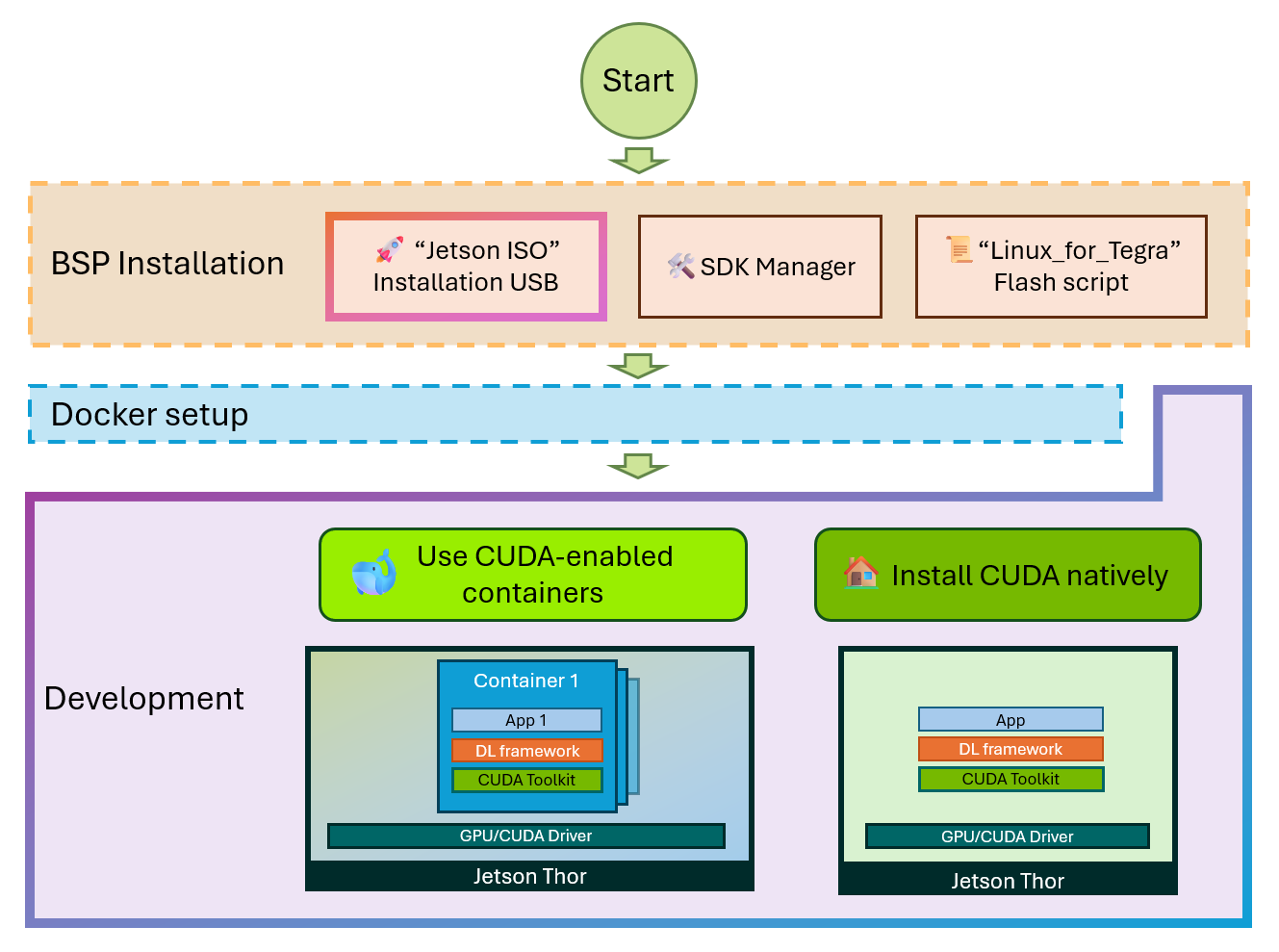
The order matters. First, install the NVIDIA driver with CUDA support in WSL. Download and install the NVIDIA CUDA-enabled driver for WSL that NVIDIA recommends for your GPU and Windows version. This driver enables GPU acceleration within the Linux subsystem.
After installing the driver, enable WSL and install a glibc-based distribution, such as Ubuntu or Debian. With WSL enabled and installed, run updates from Windows Update to ensure the WSL kernel is up to date.
Check the kernel version from PowerShell (or a console) with:
wsl cat /proc/versionIf your kernel meets the requirements (≥ 5.10.43.3), you can already work with ML frameworks and tools like PyTorch or TensorFlow within WSL, as well as use Docker and the NVIDIA Container Toolkit as if you were on native Linux. If you encounter any issues, NVIDIA centralizes feedback and CUDA support for WSL through its community.
NVIDIA Drivers on Ubuntu 22.04 and 24.04 (includes RTX 50)
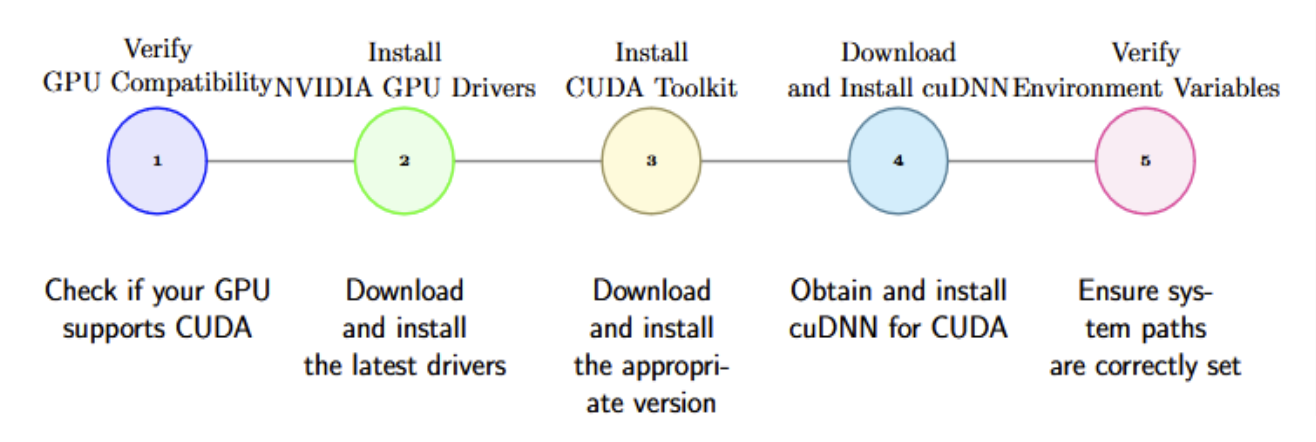
In Ubuntu, the first step is also the driver. There's an important distinction here with the latest GPUs: RTX 50 series GPUs require drivers version 570.xxx.xx or higher . Earlier versions won't work correctly, so traditional installation methods may fail.
In Ubuntu 22.04, it's convenient to use the official NVIDIA installer in .run format. Start with a few prerequisites:
sudo apt -y install gcc makeDownload the installer from the NVIDIA website, grant it execution permissions, and run it. Choose the MIT/GPL option to install the open-source driver and avoid the "No devices found" error after restarting.
wget https://us.download.nvidia.com/XFree86/Linux-x86_64/570.124.04/NVIDIA-Linux-x86_64-570.124.04.run
sudo chmod +x NVIDIA-Linux-x86_64-570.124.04.run
sudo ./NVIDIA-Linux-x86_64-570.124.04.run
When finished, restart your system so that the driver loads correctly :
sudo shutdown -r nowIn some environments, it may be advisable to rebuild the GRUB configuration to ensure the system boots with the correct kernel parameters after driver installation. If you have boot issues , regenerating GRUB often resolves them before you go through a lot of troubleshooting.
Another recommendation that appears in recent deployments with this driver branch is to disable GSP and restart. Disabling GSP can prevent conflicts on certain machines , especially if you observe unusual behavior after installing the 570 drivers.
For Ubuntu 24.04 there's another nuance: the ubuntu-drivers tool may still not recognize an RTX 5090 or offer the appropriate option. In that case, install the correct package manually and remember to include the "open" suffix.
sudo apt install nvidia-driver-570-server-openWithout the postfix open, the system may not identify the GPU and display “No devices found”. After installation, restart for the module to load.
sudo shutdown -r nowIf you prefer, in version 24.04 you can apply the same procedure as in 22.04 using the NVIDIA .run installer. Choose the method that best suits your workflow and environment policies.
Installing the CUDA Toolkit on Ubuntu (12.4 vs 12.8 and environment paths)
Once you have the driver, it's time to install the toolkit. With the current ecosystem, PyTorch works seamlessly with CUDA 12.4 and 12.8 , but if you're using an RTX 50 series card, 12.8 is recommended for advanced features and optimized kernels. Let's look at a robust method using a local NVIDIA repository:
First, download the pin file to prioritize the NVIDIA repo :
wget https://developer.download.nvidia.com/compute/cuda/repos/ubuntu2404/x86_64/cuda-ubuntu2404.pinMove that pin to the APT preferences directory :
sudo mv cuda-ubuntu2404.pin /etc/apt/preferences.d/cuda-repository-pin-600Now download the local repository of the toolkit (example with 12.8.1 for Ubuntu 24.04):
wget https://developer.download.nvidia.com/compute/cuda/12.8.1/local_installers/cuda-repo-ubuntu2404-12-8-local_12.8.1-570.124.06-1_amd64.debInstall it with dpkg and add the GPG key to the Ubuntu keyring so that APT trusts the repository:
sudo dpkg -i cuda-repo-ubuntu2404-12-8-local_12.8.1-570.124.06-1_amd64.deb
sudo cp /var/cuda-repo-ubuntu2404-12-8-local/cuda-*-keyring.gpg /usr/share/keyrings/
Update the indexes and install the toolkit :
sudo apt-get update && sudo apt-get -y install cuda-toolkit-12-8Restart your computer to avoid surprises with the newly installed libraries :
sudo shutdown -r nowAfter installation, verify that CUDA is available and add the paths to your environment. Add the variables to your shell so that nvcc and the libraries are in the PATH in future sessions. For example, in Bash:
echo 'export PATH=/usr/local/cuda/bin:$PATH' >> ~/.bashrc
echo 'export LD_LIBRARY_PATH=/usr/local/cuda/lib64:$LD_LIBRARY_PATH' >> ~/.bashrc
source ~/.bashrc
If you're using Zsh, you can add it to ~/.zshrc, and for non-interactive sessions, to ~/.profile or ~/.bash_profile. The goal is for any terminal or login to have the CUDA libraries located without you having to configure anything each time.
Check the installation with:
nvcc --versionIf you prefer not to manage local repositories, there are additional scripts and resources that can help you when you get stuck. Remember that maintaining consistency between driver and toolkit versions usually solves 90% of problems.
Windows for specific tools: CUDA 10.1 and cuDNN 7.6.4 (Model Builder case)
Some tools require specific, older versions. This is the case with certain image classification scenarios using Model Builder, which require CUDA 10.1 and cuDNN 7.6.4 for version 10.1 . In this context, ensure the following:
- Have an NVIDIA developer account To access downloads.
- Exclusively install CUDA v10.1; no higher versions for that specific scenario.
- Download cuDNN v7.6.4 for CUDA 10.1, unzip and copy the necessary binary.
After downloading the cuDNN zip file, extract it and copy the cudnn64_7.dll file to the toolkit directory. Remember that you cannot have multiple versions of cuDNN installed in the same environment. Example path:
<CUDNN_zip_files_path>\cuda\bin\cudnn64_7.dll -> <YOUR_DRIVE>\Archivos de programa\NVIDIA GPU Computing Toolkit\CUDA\v10.1\binDon't have a local or Azure GPU available? These scenarios can run on CPU, but training will be significantly slower . Consider using a VM with a GPU if time is critical.
Checks, routes and common questions
What version of CUDA do you have on your system? The quick check is:
nvcc --versionIf you're using Ubuntu and have installed a driver with APT (for example, nvidia-driver-525) and see nvcc 11.2 listed without having explicitly installed the toolkit, don't worry. In some configurations, the driver installation may include CUDA packages , or these packages may have already been included in the base system image. You won't always be able to choose the toolkit version if you only install the driver.
If you need to control the exact CUDA version, install the NVIDIA repository and the specific toolkit package (for example, cuda-toolkit-12-8) as described. This ensures that the toolkit version aligns with the driver and the requirements of your frameworks.
Remember to configure environment variables to locate binaries and libraries. In Bash, you could add the following to your ~/.bashrc:
export PATH=/usr/local/cuda/bin:$PATH
export LD_LIBRARY_PATH=/usr/local/cuda/lib64:$LD_LIBRARY_PATH
In Zsh, use ~/.zshrc and, if you want it to apply at logins, ~/.profile or ~/.bash_profile. Without these paths, some applications will not find the CUDA libraries , even if the toolkit is installed.
In Windows, if you're unsure which GPU you have, you can confirm it in several ways. From Settings: right-click on the Start menu → Settings → System → Display → Related settings → Advanced display. The make and model are shown under "Display information ." Alternatively, from Task Manager : go to the Performance tab → GPU to see details.
If you don't see the GPU in Settings or Task Manager but you know an NVIDIA card is installed, open Device Manager → Display adapters → and install the appropriate driver for your GPU . Updates can be found in GeForce Experience, and if that fails, you can always download the latest driver from the NVIDIA website.
In scenarios using WSL, remember: NVIDIA driver with CUDA support in WSL, WSL enabled, glibc-based distribution, kernel 5.10.43.3 or higher, and then your frameworks (PyTorch/TensorFlow) or containers with NVIDIA Container Toolkit. This installation order avoids bottlenecks and difficult-to-debug errors.
On Ubuntu 22.04/24.04, if you're using an RTX 50 series card, stick with the 570 branch. On 24.04, use the nvidia-driver-570-server-open package or the .run installer. Don't forget to restart and, if necessary, disable GSP . For the toolkit, version 12.8 is the safest bet with the RTX 50 series; PyTorch also supports 12.4, but you'll get better optimizations with 12.8.
Once everything is in place, you can run your flows in native Linux or WSL with Docker, or directly with PyTorch/TensorFlow. If something isn't starting, check versions, environment paths, and compatibility before changing half the installation. Many issues are resolved by aligning drivers and toolkits and ensuring the system "sees" the GPU.
This guide brings together in one place the essentials for reliably installing CUDA on Windows (via WSL) and Ubuntu, covering requirements, 570 drivers for RTX 50, installation of toolkit 12.8 with local repository, environment paths and practical checks; with this roadmap, you should be able to get your GPU working with the least possible friction.

Passionate writer about the world of bytes and technology in general. I love sharing my knowledge through writing, and that's what I'll do on this blog, show you all the most interesting things about gadgets, software, hardware, tech trends, and more. My goal is to help you navigate the digital world in a simple and entertaining way.