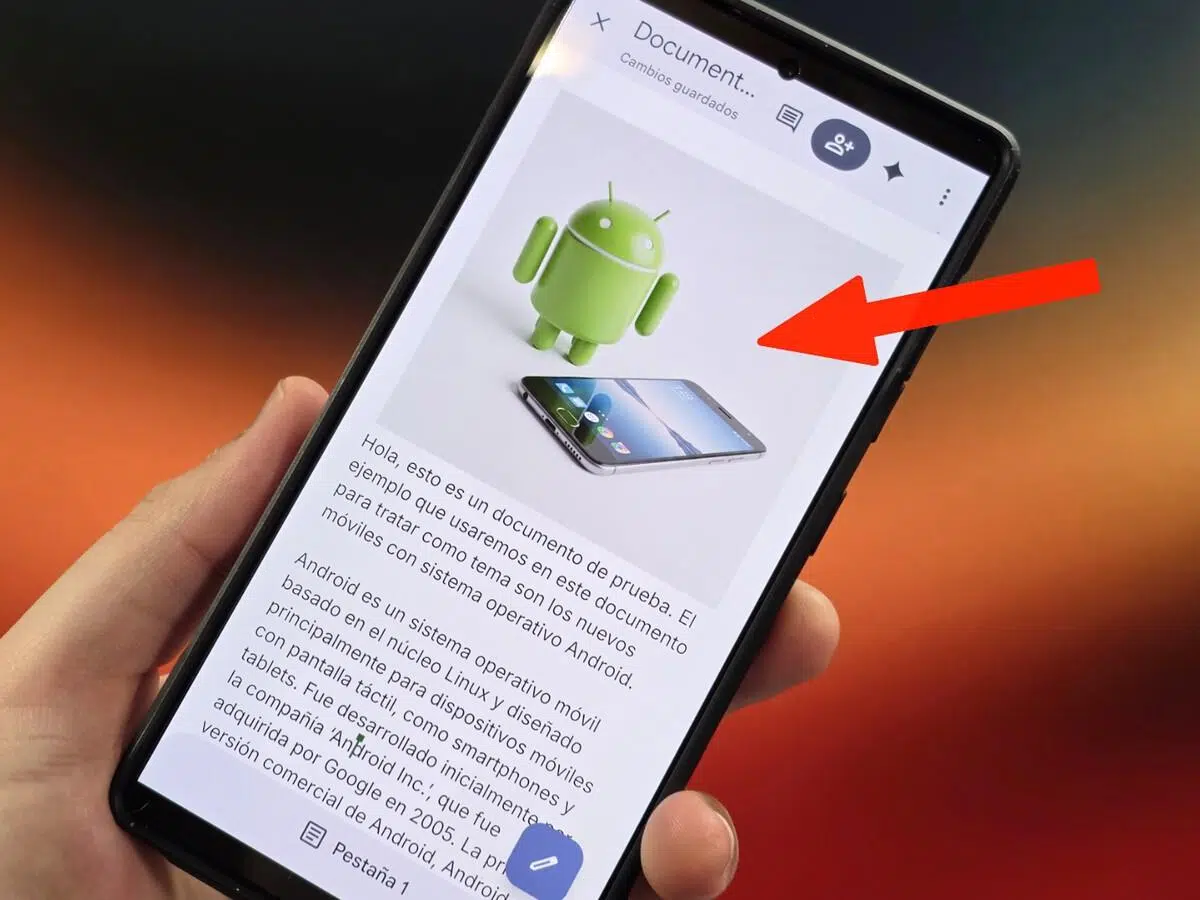
If you work with documents on your mobile device, integrating Google's AI into your workflow is a real advantage: Gemini writes, summarizes, suggests ideas, and even creates images without leaving Docs . This guide explains, in detail and from scratch, how to get the most out of it in Google Docs when using Android, and also what options are available on a computer.
Throughout this article, you'll learn how to launch Gemini, what it can do with Drive files and Gmail emails, what quick actions are available, how to get answers from the web, and how to manage your history and privacy. We'll also explain how to use it on Android to summarize long documents, ask questions, and start typing from your phone , along with tips and limitations you should be aware of.
What Gemini can do within Documents
Google Assistant acts as a creative copilot within the editor: it drafts text, polishes existing text, and adjusts the tone on the fly. If you already have paragraphs written, it can summarize, expand, rephrase, or convert them into bulleted lists.
It doesn't stop there: it summarizes content from your Drive files and Gmail emails to extract key points, ideas, or answers to specific questions. It's especially useful for catching up on lengthy documents or dense email threads.
It can also generate images that you can insert directly into the document. According to Google, images created within Docs can only be used within Google Docs and are intended to illustrate ideas, not necessarily to depict real-life scenes.
Need inspiration? Ask Gemini for brainstorming, alternative approaches, or text structures; Gemini suggests themes, angles, and variations to help you get unstuck and move forward faster.
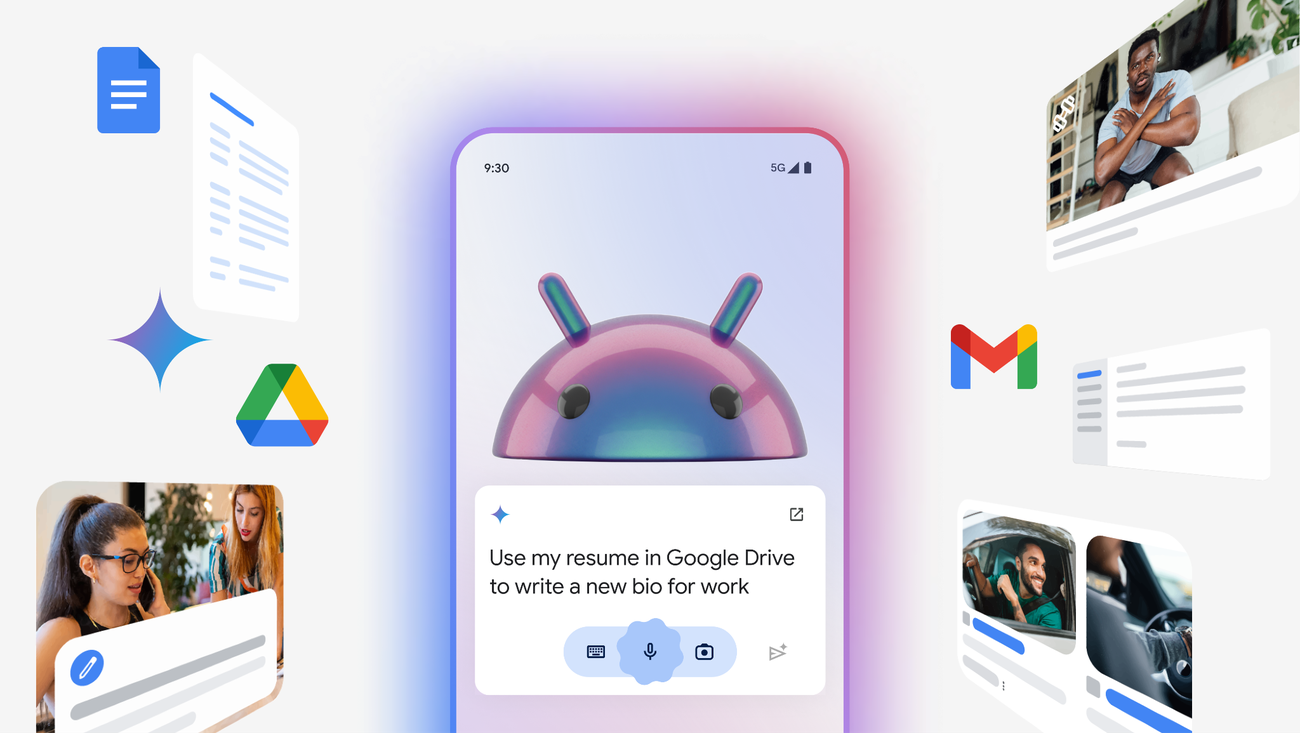
Getting Started: Opening and Chatting with Gemini in Docs
On a computer, activation is straightforward: open a document and, in the upper right corner, you'll find the "Ask Gemini" option. Clicking it opens the side panel where you'll see predefined suggestions or a field to write your own request.
If you choose a suggestion from the list, you can explore more with "More suggestions" and, at the bottom, replace the example text with your instruction before pressing Enter. If you prefer to start from scratch, type your order in the box below and confirm with Enter.
The panel will allow you to insert the generated text into the document, copy it, or request a new version. If you wish, you can clear the recent history from "More options > Clear history" to remove anything you haven't yet inserted.
Important: To avoid losing track of the conversation, insert relevant results into the document. The history will be lost if you refresh your browser, close and reopen the file, or if your computer loses its internet connection during the chat.
Using your files as sources: document links and Drive
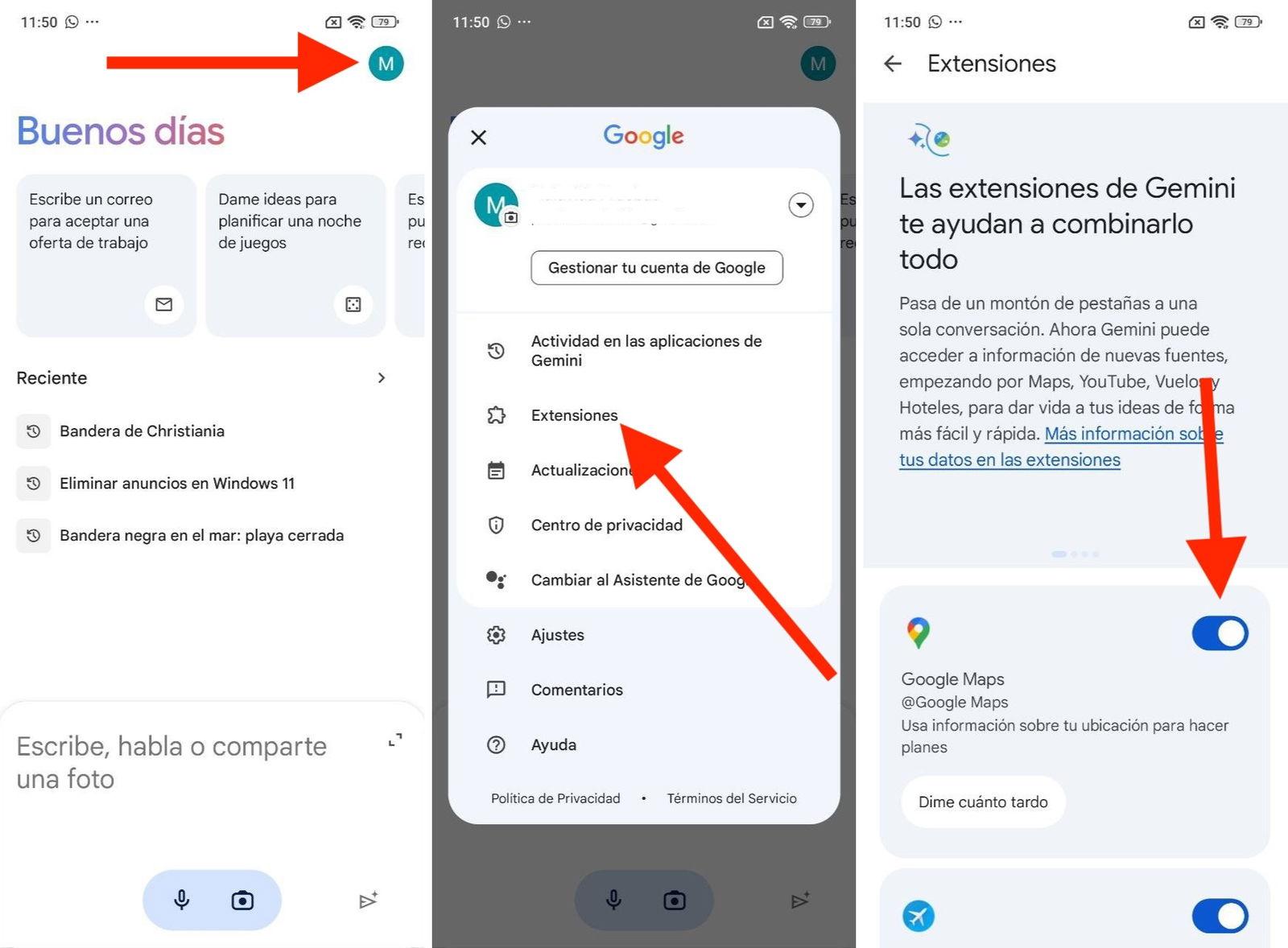
One of the most powerful features is basing your answer on specific materials. From the side panel, tap “Add sources” and choose: use the links already present in the document or incorporate new files from Drive.
When you provide sources, Gemini limits its response to that content. In other words, the assistant responds based on what you've given it as a reference , perfect for precise queries about internal documentation.
If you change your mind at any point, you can remove the selected sources using the corresponding option. Keep in mind that there is a limited context window : if the linked text exceeds the limit, the response may only be based on part of that content.
Another quick way to point to materials is to use the "@" mention in the panel: type @ followed by the file name to open a list of your Drive documents and choose the correct one; from there, you can formulate questions that refer to that cited file.
You can also try Deepseek, the free AI that has revolutionized the landscape on your Windows
Gemini Actions and Controls on the Dashboard
The side panel offers a set of buttons and controls for moving the conversation, inserting results, and adjusting the view. These are the most common options you'll see, paraphrased to help you quickly find your way around :
| Open Gemini | Activate the conversation panel in Documents to start requesting. |
| More options | Clears recent dashboard history and displays new suggestions. |
| Expand / Collapse | Increases the size of the panel or returns it to its original size. |
| CLOSE | Hide the Gemini panel without losing the document. |
| Delete history | Delete generated text and images that you haven't yet inserted. |
| more suggestions | Displays additional prompts to inspire your query. |
| Image suggestions | Suggest generated image ideas for your document. |
| Insert / Insert Image | Place the generated text or image into the document. |
| Copy | Save in the clipboard the selected suggestion. |
| Retry | Ask for another version of the answer to compare options. |
| preview | Review the entire proposal before inserting it. |
| Search with Google | Please try your query again using Search. |
| See more / See less | Enlarges or reduces the visible fragment of the answer. |
| Good suggestion | Submit a positive review to the feedback system. |
| Bad suggestion | Report a problem with the response you received. |
| Save | Access custom wizards for repetitive tasks. |
When you go to insert, you can choose between placing the content as is or generating an alternative before deciding; the preview helps avoid changes that don't fit the tone of your document.
What to ask for: useful examples and best practices
To write from scratch: request a first draft , outline, or a short introduction on a topic. Then, ask them to change the tone (more formal, informal, technical) , summarize, or condense the text into key points if you need a shorter version.
If you're working with existing content, select the text and request rewriting, expansion, or a bulleted version. You can also request a summary with key takeaways to keep the essentials and maintain a clean document.
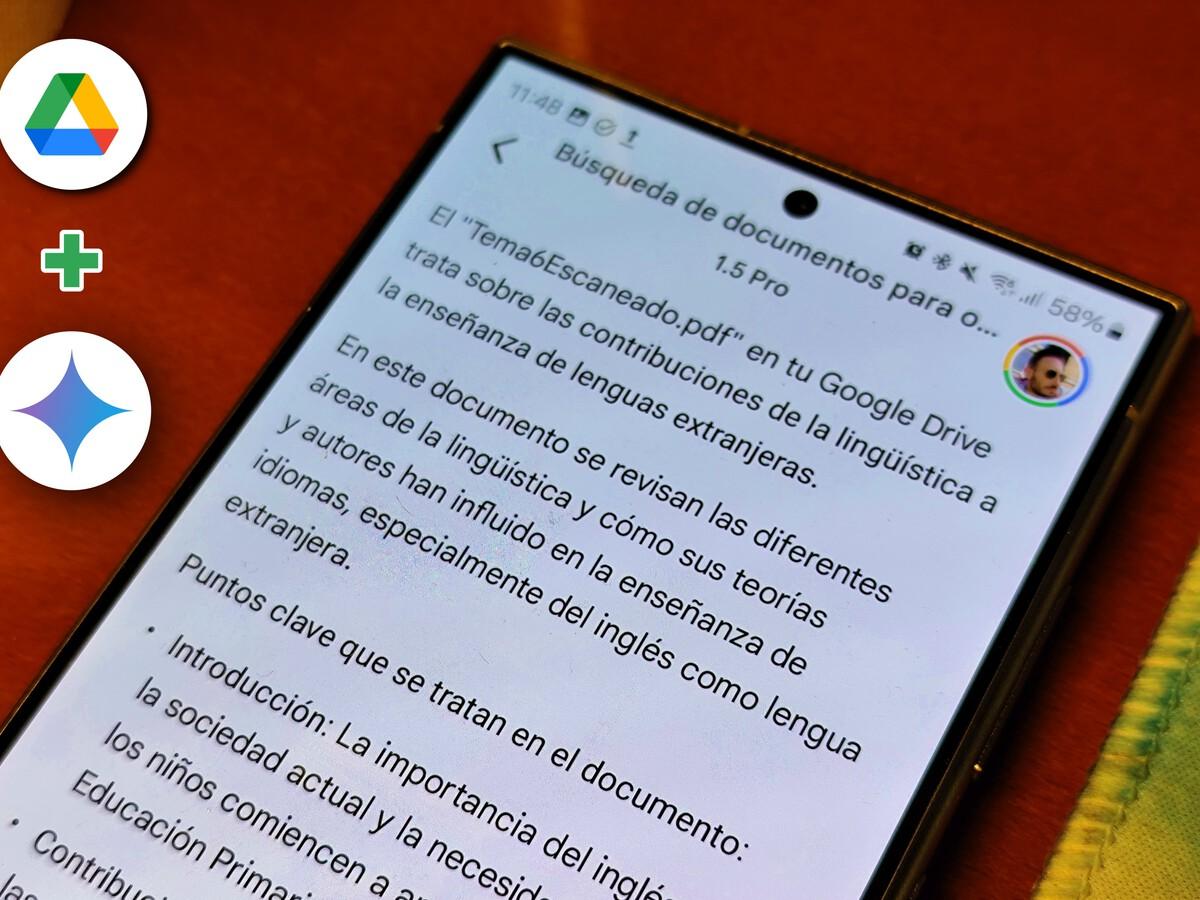
Using Drive and Gmail as support, provide the sources and ask about key points, risks, figures, or pending decisions. This approach makes the response more specific and relevant to your situation , rather than generic.
For images within Docs, describe what you want to see (style, elements, purpose) and review the suggestions. Remember that the generated images are inserted directly into the document and are intended to complement your content.
Getting answers from the Internet in a controlled manner
If you need the assistant to search the web, you must explicitly state this in your instruction with something like "use Google Search" or "using web search." This way, Gemini understands that it should rely on publicly available information to prepare its response.
Typical examples include asking for the current weather in a city or validating a claim based solely on information from the web. In these cases, the clearer you are about the source and scope, the more likely the answer will meet your needs.
Gems: Custom Wizards to Save Time
In the side panel, you'll see a section called "Gems." There, you can choose a pre-configured Gem or create your own to speed up repetitive tasks. If you have a work or school account and your administrator participates in the corresponding program, you'll be able to use Gems in other supported languages.
To start a conversation with a Gem, select the one you want and type your request at the bottom of the panel. If you want to create a custom Gem, do so at gemini.google.com, and it will then be available in both the Gemini app and the Docs sidebar.
How to export content from the Gemini app to Google Docs
If you're chatting directly in the Gemini app and you like the result, there's no need to copy and paste. At the end of the chat, there's a share button that lets you create a Google Doc with one click , making it easy to go from idea to editable file without losing formatting.
Availability and plans: what you should know
Many users see the functionality appear in Docs after subscribing to Google's AI plan , with a notification that may take one or two days to arrive. There are also options within Google Workspace, where AI is integrated into the apps of the professional environment , with trial periods that may vary depending on the plan.
If you're in a business environment, check the offer associated with your work account; for personal use, Google's premium plan is usually the fastest way. In any case, activation depends on the rollout and the region , so the experience may not be the same for everyone.
Android usage: working from your mobile
From your phone, you can take advantage of Gemini for "long documents on your mobile": it helps you summarize the content, answer questions about that text, and get started with an introduction or outline without opening your laptop.
The logic is the same as on desktop: you formulate a clear request and the assistant returns a result that you can insert or reuse. On mobile, the value lies in saving time on commutes, in meetings, or for quick reviews when you don't have your computer handy.
Practical tip: Ask action-oriented questions (“What are the key points?”, “What risks are emerging?”, “What decisions are open?”) to ensure the summary is actionable. Then, request a brief bullet-point version if you need to share it via chat or email.
Privacy, feedback, and feature limits
The suggestions you see in Docs do not represent Google's official position. Do not use the Assistant for medical, legal, financial, or professional advice: it may provide inaccurate or inappropriate information . Treat the responses as support and verify when necessary.
Your conversation with Gemini in Documents isn't saved in the "Activity in Gemini apps" log. Keep in mind that if you clear the history in this panel, it won't delete anything already in the general Gemini app activity ; that's managed separately.
Did you find the answer very good or insufficient? Use the "Good suggestion" or "Bad suggestion" buttons below the generated text. If you select "Bad suggestion," you can provide more details about the problem and additional feedback to help improve the system.
For more general feedback on the feature, go to the Documents help menu and look for the product improvement option. And if you need to report a legal issue, there's a specific request channel for those cases.
Tips for working better with your history
If you don't want to lose the chat context, insert the relevant result before refreshing, closing, or exiting the document. Remember that your connection matters: if your internet is interrupted, you may lose the active conversation in the Gemini panel.
When you start a new topic, clearing your recent history can help you stay organized. However, consider whether it's worth keeping it until you finish a task, because the previous thread provides context and improves the coherence of your responses.
Edit better: styles, tone, and versions
Select a paragraph and request changes in tone (more direct, more formal, more informative), or ask for a shorter or longer version. If you're aiming for clarity, break the block down into bullet points with key ideas and then expand on what truly adds value.
If you're unsure, generate two or three alternatives using "Retry" and compare them. Preview is your friend: avoid inserting content that doesn't fit the document's style, especially in materials that are nearly finished.

It's worth remembering that, although Gemini speeds things up considerably, it's important to maintain good judgment: verify critical data and adapt the text to your voice before sharing or publishing, especially in professional contexts.

Passionate writer about the world of bytes and technology in general. I love sharing my knowledge through writing, and that's what I'll do on this blog, show you all the most interesting things about gadgets, software, hardware, tech trends, and more. My goal is to help you navigate the digital world in a simple and entertaining way.