Managing processes and tasks from the command line in Windows is a skill that can get you out of more than one tight spot, especially when an application freezes or you need advanced system information . Although many users prefer the graphical interface, learning to use commands like TASKLIST and TASKKILL opens up a whole world of possibilities for precisely controlling everything that happens on your computer, both locally and remotely.
In this article, you'll find a complete and detailed guide on how to use TASKLIST and TASKKILL to view, filter, analyze, and close running processes in Windows , whether from the CMD console , scripts, or batch files. We'll also explain key differences between processes and services , advanced combinations, practical examples, and some lesser-known extra utilities. Get comfortable, let's get started!
What are processes and services in Windows and how are they managed?
To understand how TASKLIST and TASKKILL work , it's helpful to first distinguish between two key concepts: process and service . Although sometimes used interchangeably, they are not exactly the same.
- Processing: It's any program or application that's running. It can be in the foreground (you see it on the screen) or in the background (no window is visible). Each process has a unique identifier called PID. Processes can start and stop other processes or even services. A process can be completed ("kill the process"). They usually have a life cycle: from the moment they start until they finish executing.
- Service: An special type of process that normally works in the background, even if no one is logged on to the computer. Services can be started, stopped, paused, resumed or deleted, But It is not usual to "kill" them like a normal process. They are usually permanently active unless an error occurs or they are managed manually.
Both (processes and services) can be viewed, controlled, and terminated using command-line tools such as TASKLIST and TASKKILL , which are key components in advanced Windows administration.
TASKLIST: List and filter processes in Windows from the terminal
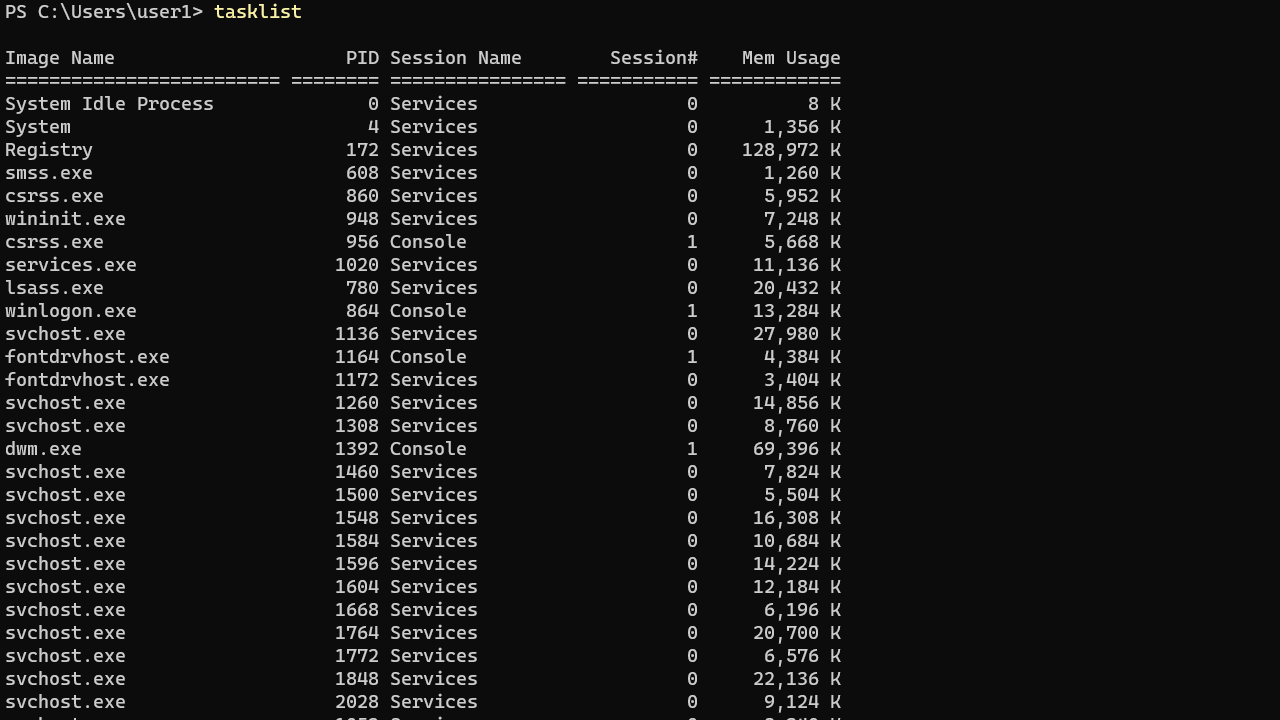
TASKLIST is the ultimate command for obtaining a list of programs, tasks, and services running on your computer, whether local or remote. It's like a "text" version of the Task Manager , but much more detailed and with the ability to filter and export results.
The most basic syntax is as simple as running:
tasklist
This will display a list that includes the image name (executable name), PID , session name , session number , and memory usage in KB. Ideal for quickly checking what's running on your system.
TASKLIST can be launched from CMD, the Run dialog box, the Start menu, or integrated into batch scripts. Here are some useful parameters to get the most out of it:
- /V – Display extended information (user, status, CPU time, window title, etc.)
- /SVC – Report on the services hosted by each process. Very useful for seeing which services are related to system processes.
- /M – Filters tasks that use a specific module (DLL or EXE). For example,
tasklist /M ntdll.dll. - /FO format – Change the output format: “TABLE” (standard table), “LIST” (by lines) or “CSV” (ideal for Excel).
- / NH – If you use “TABLE” or “CSV”, hide the column headers.
- /FI filter – Apply advanced filters to any field (user, memory, PID, image name, status, etc.).
- /S system – Allows you to run the command against a remote computer (ideal for network administration).
- /U domain\user – Run the command with specific credentials (requires using /S to connect to remote computers).
- /P password – Password for the specified user.
By combining these options, you can extract virtually any process-related data . And if you need a quick cheat sheet of all the parameters, you can create a help file:
TASKLIST /? > %userprofile%/Desktop/use-tasklist.txt
Filtering results with /FI: Practical usage examples
The true power of TASKLIST lies in its /FI option , which allows you to search, filter, and limit the information obtained based on multiple criteria. Here are some useful examples:
- List only the processes your user is running:
tasklist /FI "USERNAME eq your_user"
- View processes that are currently active:
tasklist /FI "STATUS eq running"
- Filter by image name (e.g. Firefox):
tasklist /FI "IMAGEAME eq firefox.exe"
- Find processes with allocated memory greater than 15000 KB:
tasklist /FI "MEMUSAGE gt 15000"
- Combine multiple filters to refine your search:
tasklist /FI "IMAGEAME eq notepad.exe" /FI "USERNAME eq user"
- Export the list in CSV format for further processing:
tasklist /V /FO CSV > %userprofile%/Desktop/process-list.csv
You can also redirect the output to a file and easily open it in Excel or Notepad. Perfect for audits or reports!
Monitoring processes on remote computers
If you manage multiple computers on a network, TASKLIST allows you to query processes on remote machines as long as you have the appropriate credentials and the firewall does not block it.
For example:
tasklist /s remote_pc_name /u domain\user /p password
This returns the list of processes on the remote machine. You can add filters, change the format, export results, and so on, just as if it were your own computer.
Advanced filtering and exporting examples
- Processes that use the DLL ntdll.dll on the remote computer srvmain (ideal for detecting malware or conflicts):
tasklist /s srvmain /svc /fi "MODULES eq ntdll*"
- Show only processes whose PID is greater than 1000, in CSV:
tasklist /v /fi "PID gt 1000" /fo csv
- View all processes except those started by the system:
tasklist /fi "USERNAME ne NT AUTHORITY\SYSTEM" /fi "STATUS eq running"
TASKKILL: How to forcefully terminate processes
TaskKill is the perfect partner for TaskList. It can be used to terminate one or more processes using their PID (process identifier) or image name. It's very useful when a program freezes or you need to automate task closure.
The simplest way is:
taskkill /PID 1234
You can also kill processes by name :
taskkill /IM firefox.exe
Beyond this, TASKKILL has many options:
- /F Force Immediate shutdown. Ideal when the process isn't responding!
- /T Ends the process and all its child processes. Very useful if the program launches threads and you want to close everything at once.
- /FI filter – Apply filters like in TASKLIST. For example, you can only terminate processes with a certain user, status, or memory usage.
- /S – Allows you to run the command on remote machines.
- /U y /P – To indicate username and password in case of remote computers.
To view all parameters and create a help file:
TASKILL /? > %userprofile%/Desktop/uso-taskkill.txt
Advanced Filters in TASKKILL and Useful Examples
- Closing Notepad abruptly (even if it is frozen):
taskkill /F /IM notepad.exe
- Kill processes with PID greater than or equal to 1000, whatever they may be:
taskkill /f /fi "PID ge 1000" /im *
- Terminate all unresponsive processes except WhatsApp:
taskkill /F /FI "STATUS eq NOT RESPONDING" /FI "WINDOWTITLE ne WhatsApp"
- Force close scripts in VBScript:
taskkill /F /IM wscript.exe
- Close Windows Explorer and restart it with a 5-second delay:
taskkill /F /IM explorer.exe & timeout /nobreak 05 & start explorer.exe
- Kill processes started by the Administrator:
taskkill /pid 2134 /t /fi "username eq administrator"
- Kill processes on a remote machine with an image name starting with "note":
taskkill /s srvmain /u maindom\hiropln /pp@ssW23 /fi "IMAGEAME eq note*" /im *
As you can see, the possibilities are enormous . You can automate everything from memory cleanups to the daily management of all active processes, both on your computer and on any computer on the network.
Automation with batch files
One of the advantages of TASKKILL and TASKLIST is that you can easily include them in .bat or .cmd files to run automatic actions during Windows startup or scheduled with the Task Scheduler.
Typical example: closing several annoying processes at Windows startup.
@echo off taskkill /F /IM process1.exe taskkill /F /IM process2.exe taskkill /F /IM process3.exe
Then you just need to place your batch file in the Windows startup folder ( shell:Startup in the Run command) and you're done.
Frequently used parameters and supported filters
In both TASKLIST and TASKKILL , filters can be applied to:
- STATUS: eq, ne – Values like RUNNING or NOT RESPONDING
- IMAGE: eq, ne – For example, chrome.exe
- PID: eq, ne, gt, lt, ge, le – To limit by process number
- SESSION / SESSIONNAME: eq, ne, gt, lt, ge, le – By session or session name
- CPUTIME: eq, ne, gt, lt, ge, le – Filter by CPU time (HH:MM:SS format)
- MEMUSAGE: eq, ne, gt, lt, ge, le – By memory consumption in KB
- USERNAME: eq, ne – By username (domain\user)
- SERVICES: eq, ne – By related service name
- WINDOWTITLE: eq, ne – For the window title
- MODULES: eq, ne – By DLL or module used
Some filters, such as WINDOWTITLE and STATUS, are only supported for local computers, not remote ones. Additionally, the wildcard * in /IM only works if a filter is applied.
Services vs. processes: advanced management and monitoring
In addition to processes, Windows allows you to manage and monitor services using tools like the SC (Service Control) command. Services can be viewed, started, stopped, paused, resumed, deleted, created , and more, all from the terminal.
For example, to list active services:
sc query type= service
To show all (active and inactive):
sc query state= all
And to remove a service completely:
sc delete ServiceName
If you have to deal with rogue services or want to create automations, combining SC and tasklist/taskkill will help you a lot.
As you can see, learning to use TASKLIST and TASKKILL at an advanced level gives you much more control over your system. Whether you're a curious user, a power user, a system administrator, or simply want more resources to troubleshoot problems related to poor performance, blocked processes, or automated management, you now know that the command line is your ally. Remember to practice, and you'll gradually see how commands become part of your personal toolbox. Whether you're at home, at work, or managing remote environments, these commands will help you handle any situation!


Passionate writer about the world of bytes and technology in general. I love sharing my knowledge through writing, and that's what I'll do on this blog, show you all the most interesting things about gadgets, software, hardware, tech trends, and more. My goal is to help you navigate the digital world in a simple and entertaining way.