- Storage Sense automates hard drive cleanup and prevents unnecessary file clutter.
- Its configuration is fully customizable and adapts to the user's needs.
- It works in both home and shared environments, optimizing system performance.
Have you encountered the "insufficient space" message on your PC and don't know where to start freeing up storage ? If you use Windows 11 , there's a tool that can become your best friend: Storage Sense. This often-overlooked feature is designed to make managing storage automatic and hassle-free.
Keeping your computer running smoothly and with ample storage space is no longer just for experts . Thanks to Storage Sense, any user can optimize space without having to check each folder individually. If your goal is to get the most out of your computer, keep reading to discover how to activate, configure, and take full advantage of this useful feature.
What is Storage Sense and why is it so useful in Windows 11?
Storage Sense is a native Windows 11 feature designed to automatically manage your computer's storage space . Instead of spending time deleting files one by one, Storage Sense takes care of deleting temporary files , emptying the Recycle Bin, and managing files stored in OneDrive, among other tasks.
Remember the old "Disk Cleanup" or cleanmgr.exe? Storage Sense replaces and improves upon it, offering a more automated and flexible experience . You can configure it to your preferences to run daily, weekly, monthly, or simply when space runs out, allowing you to choose exactly which types of files you want to be deleted periodically.
This feature is especially designed for those who work on equipment with limited storage, such as many budget laptops , or in environments where manual storage maintenance is impractical, such as educational institutions or companies with multiple devices.
Advantages of using Storage Sense on your computer
The main advantage of Storage Sense is convenience: it automates disk cleanup so the user doesn't have to worry about it . Maintaining free space is key to keeping Windows up-to-date, running fast, and preventing errors due to insufficient storage.
Furthermore, using Storage Sense prevents temporary files and outdated content from silently accumulating on your disk . In many cases, Windows updates, program installations, or continued app use generate gigabytes of temporary files that are no longer needed and only take up valuable space.
Do you have multiple user accounts or use OneDrive? Storage Sense also helps you manage space downloaded locally from the cloud, making infrequently used files available only online and preventing them from filling up physical storage.
Moreover, this utility stands out as an essential tool for shared work environments , supporting the automatic deletion of old user profiles and the management of content in shared folders. The user experience becomes much smoother, and technical maintenance is significantly reduced.
How does Storage Sense work and what types of files does it delete?
Storage Sense is designed to delete only files that are safe to delete . Some of the file types it manages are:
- Temporary system and application filesThese files often accumulate after updates, installations, or daily use and are rarely needed long-term.
- Items in the Recycle BinYou can define how many days they remain before being permanently deleted.
- Files in folder Downloads, if you configure it that way. Note that this folder isn't automatically cleaned by default, so you'll need to decide if you'd like it to be cleaned and how often.
- Content from OneDrive or other cloud services that you haven't opened in a certain amount of time. This way, the files stay online but don't take up any local space.
You don't have to worry about it unexpectedly deleting important personal documents , as everything is fully configurable and you can decide which areas of storage you want to keep under control and which you prefer to manage yourself.
Step-by-step guide: How to enable Storage Sense in Windows 11
If you want to make sure your disk never gets filled up with files you no longer use, follow these steps to turn on Storage Sense:
- Open Windows Settings by pressing the Windows + I keysIt is the fastest and most direct way.
- Go to the “System” section and select “Storage”Here you'll see a visual breakdown of your hard drive usage, perfect for identifying what's taking up the most space.
- Look for the “Storage Sense” option. and activate the corresponding switch.
That's it! With these steps, you'll have Storage Sense up and running on your computer, although you can still customize its behavior in detail to suit your needs.
Customizing Storage Sense: Key Settings to Get the Most Out of It
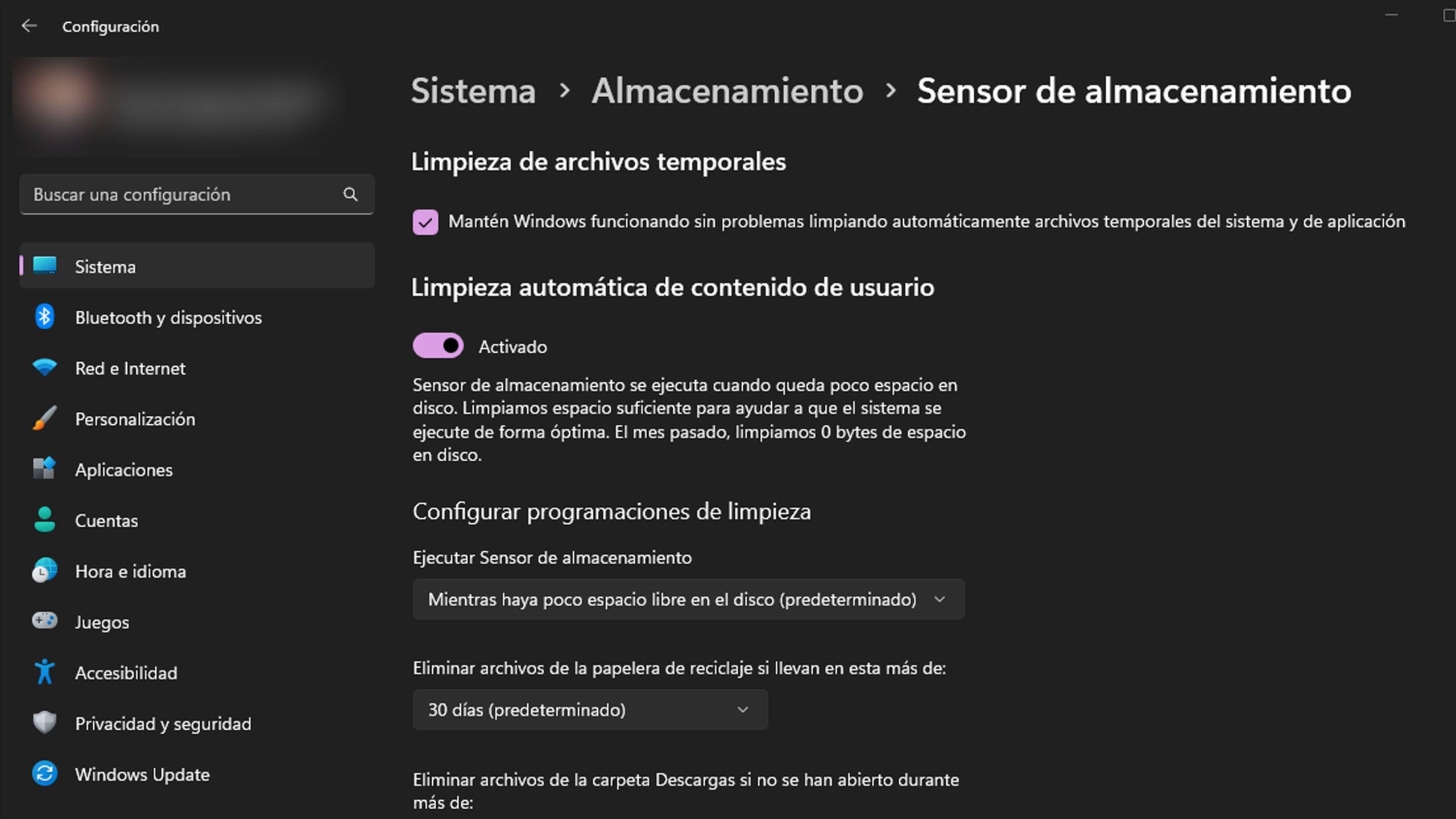
The most interesting thing about Storage Sense is its customization capabilities . You can adjust everything from the cleaning frequency to the minimum number of days a file can remain in the trash before being deleted.
- Choose the execution frequencyStorage Sense can run automatically daily, weekly, monthly, or only when space is low. Select the option that best suits your usage pattern.
- Controls the cleaning of temporary files: Decide whether you want temporary files from apps and the system to be deleted.
- Configure Downloads folder managementBy default, files in Downloads aren't deleted. If you'd like, you can have unchanged files deleted after 1, 14, 30, or 60 days; but be careful—you don't want to accidentally lose something important!
- Adjust the recycle bin: Defines how many days to keep deleted files before they are permanently cleaned.
- Manage cloud files synced with OneDriveYou can make files available online only if they aren't opened for a specified period. Ideal for freeing up space without losing access to your data.
All of these options are accessible from the Storage Sense settings menu. Feel free to explore each setting until you find the one that best suits your needs.

Practical scenarios: Who should use Storage Sense and when?
Storage Sense is especially recommended for devices with limited storage or for shared computers . For example:
- In the educational fieldIn a situation where laptops with limited-capacity drives are used, Storage Sense prevents the drive from becoming full due to downloads, temporary data, or user-installed applications.
- In temporary or shift work environments (healthcare, retail or factories)Where users can't always manually manage space, Storage Sense automates the process and prevents out-of-storage crashes.
- Home users who want to forget about manually cleaning the trash or temporary files and want the system to always run smoothly.
Additional tips for maximizing storage space in Windows 11
In addition to using Storage Sense, Windows 11 offers several other options for freeing up space safely . You can also learn how to delete the Windows.old folder to free up additional space on your system, which can complement the Storage Sense features in some cases.
- Regularly review larger foldersMusic, Videos, Pictures, and Downloads tend to be the largest space-consuming files. You can sort them by size in File Explorer to find the largest files.
- Move infrequently used files to external devices: One unit USB or SD card is the fastest and safest option if you don't want to delete anything but need space.
- Take advantage of OneDrive's features: Set content to be available online only and download only what you're going to use locally, freeing up your device's internal storage.
- Use the user profile and shared folder management toolsIf you manage teams in organizations, there are options to automatically delete old profiles and limit access to certain folders using advanced policies.
What to do if you still need more space: manual methods and recommendations
Storage Sense covers most routine maintenance, but in some cases, you may need to free up space manually . If you continue to experience storage issues, explore the visual breakdown provided in System Settings. From there, you can identify which categories are consuming the most disk space and manually delete large or unnecessary files.
If you have a large number of photos, videos, or personal documents that you don't want to delete, consider making copies on an external drive . This will keep your PC clean, your information safe, and prevent error messages or slow Windows performance due to insufficient free space.
Another complementary option is to use additional cleaning programs or use Disk Cleanup for very specific cases, but Storage Sense will almost always be sufficient for most users.
Related utilities to further your understanding of space management
If you want to take storage management a step further, there are additional utilities that may interest you:
- Cleanmgr.exe (Disk Cleanup): Although it has been deprecated compared to Storage Sense, it is still available for specific tasks and can help you perform advanced manual cleanups.
- Shared team functions: Windows 11 lets you automatically delete old user profiles or restrict access using group policies and CSP settings for increased security and efficiency.
- Advanced Policies for AdministratorsIf you manage a fleet of devices in an enterprise, you can configure Storage Sense by policy and even automate cleanup or data movement using additional Windows options.
Automatic storage management is possible and easy. Thanks to Storage Sense and the numerous configuration options offered by Windows 11, users of all skill levels can forget about space issues and keep their system running smoothly . It's just a matter of spending a few minutes on the initial setup and letting the tool do the work for you.

Passionate writer about the world of bytes and technology in general. I love sharing my knowledge through writing, and that's what I'll do on this blog, show you all the most interesting things about gadgets, software, hardware, tech trends, and more. My goal is to help you navigate the digital world in a simple and entertaining way.