- Ensure correct physical insertion into the PCIe slot and verify the power cables.
- Review the BIOS settings and power saving modes in specific software.
- Perform a deep cleaning of drivers and update the BIOS to correct software errors.
- Identify critical hardware failures by detecting visual artifacts and excessive temperatures.
There's nothing more unnerving than being in the middle of an intense game or working on an editing project and suddenly having your monitor go black or start displaying bizarre things. That feeling of panic when you suspect your GPU has given up the ghost is something any PC user understands perfectly, since the graphics card is the visual engine of our machine.

How to mount the GPU and ensure it is properly seated
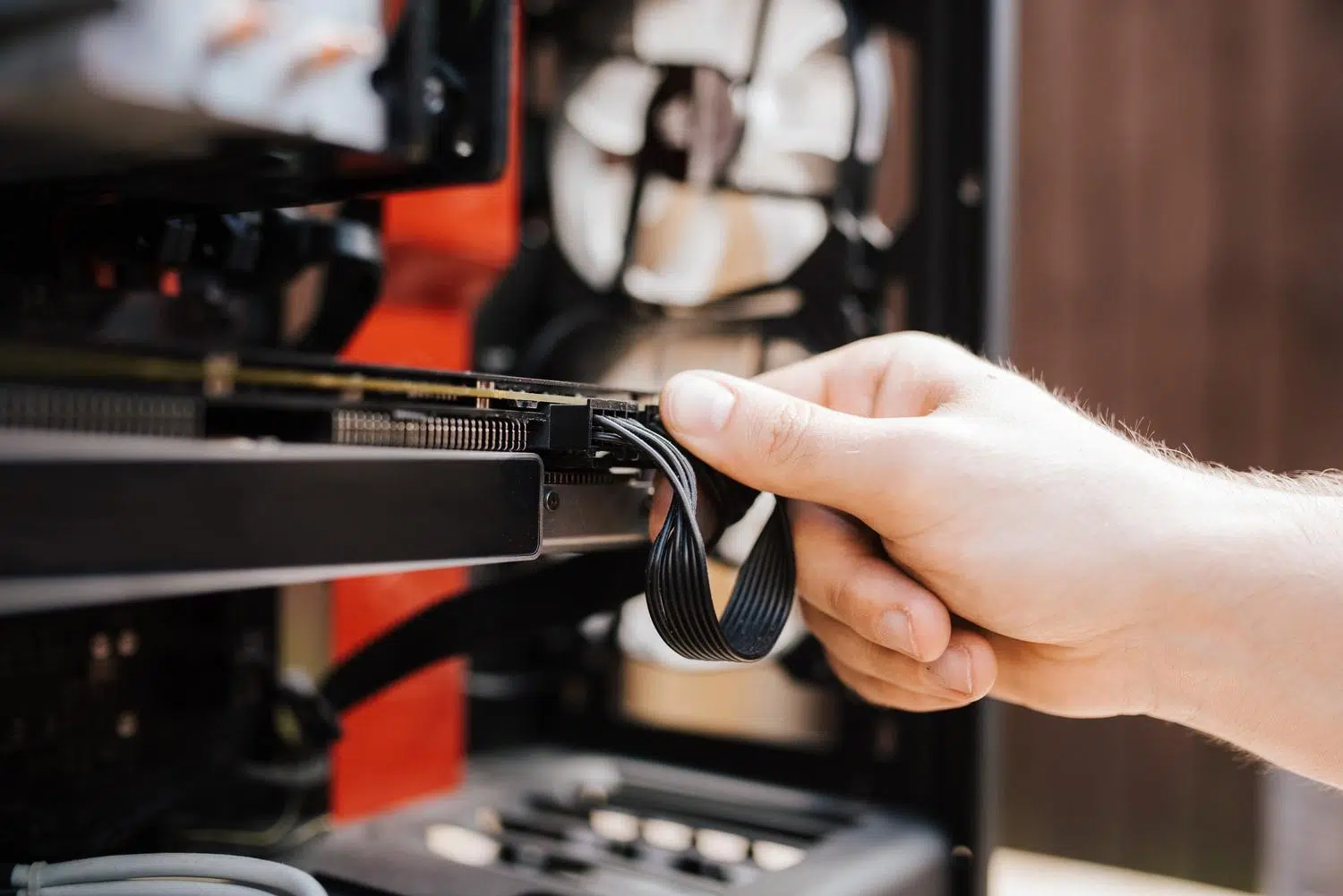
Before panicking, the first thing to do is check the physical components. It's not uncommon for the GPU to shift a few millimeters and lose contact after an accidental bump or simply due to the weight of newer cards. To install it correctly, insert it into the PCIe x16 slot until you hear a distinct click confirming it's properly seated.
It's crucial to ensure the card's back panel is perfectly aligned with the case chassis. If you see a gap, the card likely isn't properly seated and needs a gentle push towards the motherboard. Also, don't forget to check that the power supply cables are securely connected; a cable bent at a very tight angle can cause micro-cuts or even prevent the card from booting.

Troubleshooting when Windows does not detect the card
If your PC turns on but the system ignores your GPU, the first place to look is Device Manager. Sometimes the card appears but is disabled, so simply right-clicking it and selecting " Enable device" should restore everything to normal.
If your GPU is not listed or you only see the Microsoft Basic Display Adapter, try the following:
- Check for hardware changes: In Device Manager, go to the Action tab and select Scan for hardware changes to force the system to scan connected components.
- Power mode management: On gaming laptops (especially ASUS), check out apps like Armoury Crate. If you have it enabled Eco mode, the dedicated GPU is hidden This is all to save battery, so you should switch to Standard Mode.
- Clean driver reinstallation: Don't rely solely on updating. Sometimes it's better Completely uninstall the GPU drivers using DDU and then Download the official drivers from the NVIDIA, AMD or Intel website.

Critical BIOS/UEFI settings
If Windows still doesn't recognize the card, the problem might be one level lower: the BIOS. If you have a CPU with integrated graphics, you can use the motherboard's video output to access the settings and verify that the PCIe slot isn't disabled.
Sometimes, a BIOS update can improve compatibility with new hardware or fix detection errors. If you're having trouble navigating the menus, a safe option is to restore the BIOS to factory settings (Load Optimized Defaults), which eliminates any incorrect settings that might be blocking the GPU. If the BIOS still shows the slot as empty after this, it's very likely a hardware failure.

Symptoms that the GPU is dying (Hardware)
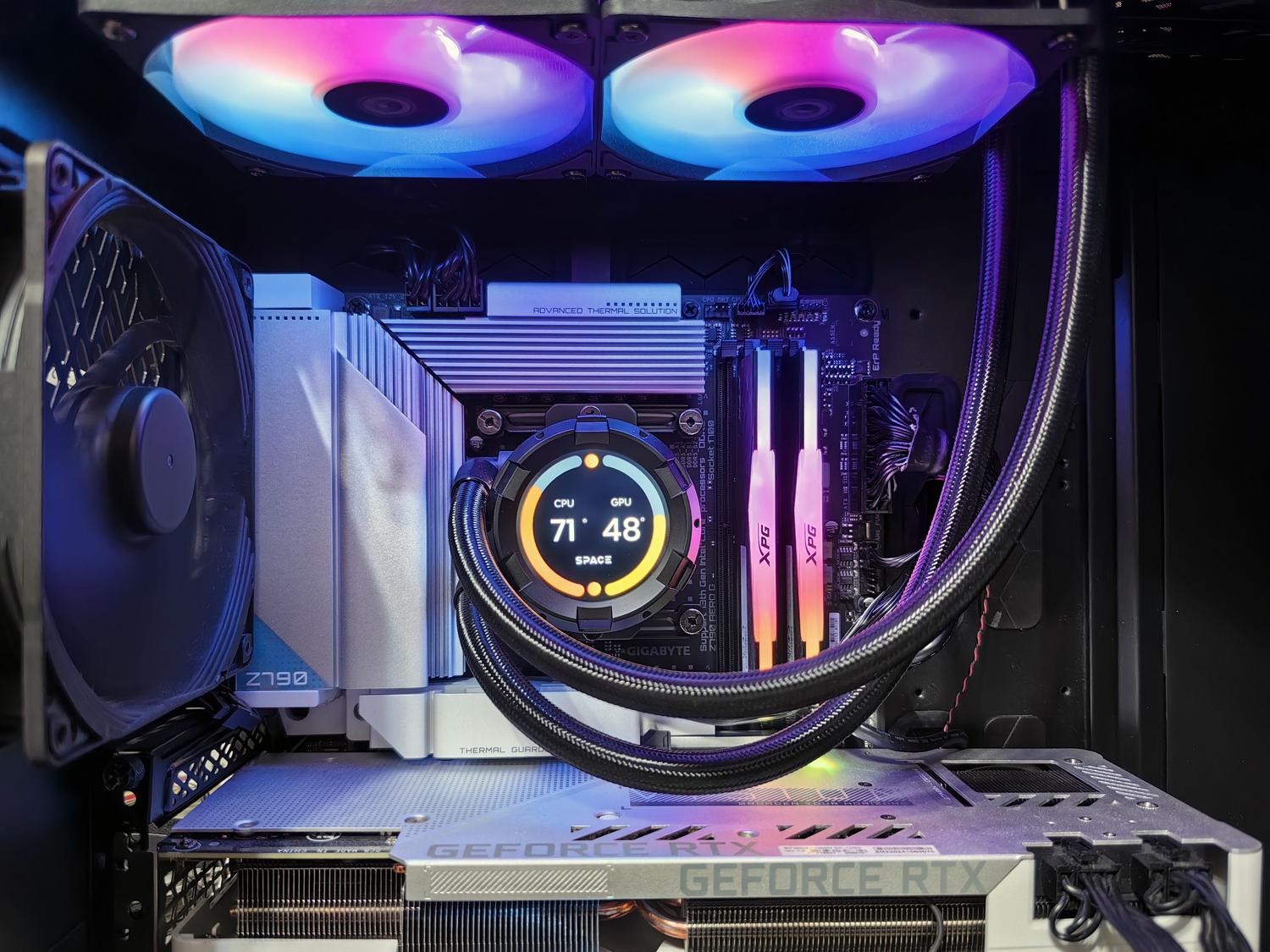
It's not all software. There are clear signs that the hardware is failing and that it might be time to use your warranty. Visual artifacts, such as colored lines or strange squares on the screen, are often the definitive sign that the VRAM is damaged or that you might need to troubleshoot GPU artifacts and rendering problems due to overheating.
Other worrying symptoms include constant blue screens of death (BSODs) with video driver errors, or fans spinning at full speed for no apparent reason from startup. If you notice the card physically bending under its own weight, you might have cracks in the PCB or loose solder joints, causing the GPU to work for a while and then shut down when it heats up.
Maintenance and prevention to avoid breakdowns
To prevent your graphics card from becoming an expensive paperweight, cleaning is key. Dust buildup on the heatsink acts like a thermal blanket, causing temperatures to spike. If your GPU exceeds 80-85 degrees Celsius under load, it's advisable to clean the fans and replace the thermal paste to restore thermal efficiency.
In high-end systems, installing a GPU support bracket is highly recommended ; this prevents stress on the motherboard and warping of the graphics card over time. Likewise, maintaining proper airflow within the case, ensuring that hot air escapes quickly, will prevent premature wear of internal components.
To troubleshoot detection issues, it's best to follow a logical order: first, ensure the physical connection; then, check the BIOS permissions; and finally, uninstall the drivers in Windows. If the problem persists after testing the card on another computer and visual artifacts appear, the hardware is most likely faulty and requires professional repair or replacement.

Passionate writer about the world of bytes and technology in general. I love sharing my knowledge through writing, and that's what I'll do on this blog, show you all the most interesting things about gadgets, software, hardware, tech trends, and more. My goal is to help you navigate the digital world in a simple and entertaining way.