- I/O failures usually result from physical wear of the NAND cells, obsolete controllers, or safety locks in the system.
- Accurate diagnosis using SMART tools and checking physical connections is essential before applying aggressive repairs.
- There are various solutions ranging from modifying read-only attributes using DiskPart to advanced settings in the computer's BIOS.

Imagine you're in the middle of an important file transfer and suddenly the process is abruptly interrupted by an annoying message stating that the request could not be completed due to an I/O device error. Or perhaps you notice your SSD freezing when trying to access certain folders, causing some documents to simply fail to load. These symptoms are not only irritating, but they are often the first warning sign that your storage drive is experiencing serious internal problems that require immediate attention.
To understand what's happening, it's important to know that, unlike mechanical hard drives, SSDs use a controller and NAND flash memory cells. When the system accesses data, an error correction code (ECC) is used, but if the errors exceed the capacity of this system, read and write errors occur . Ignoring these warnings is like playing Russian roulette with your data, as they could indicate anything from corrupted firmware to irreversible physical damage to the memory.

Common causes and symptoms in SSD drives
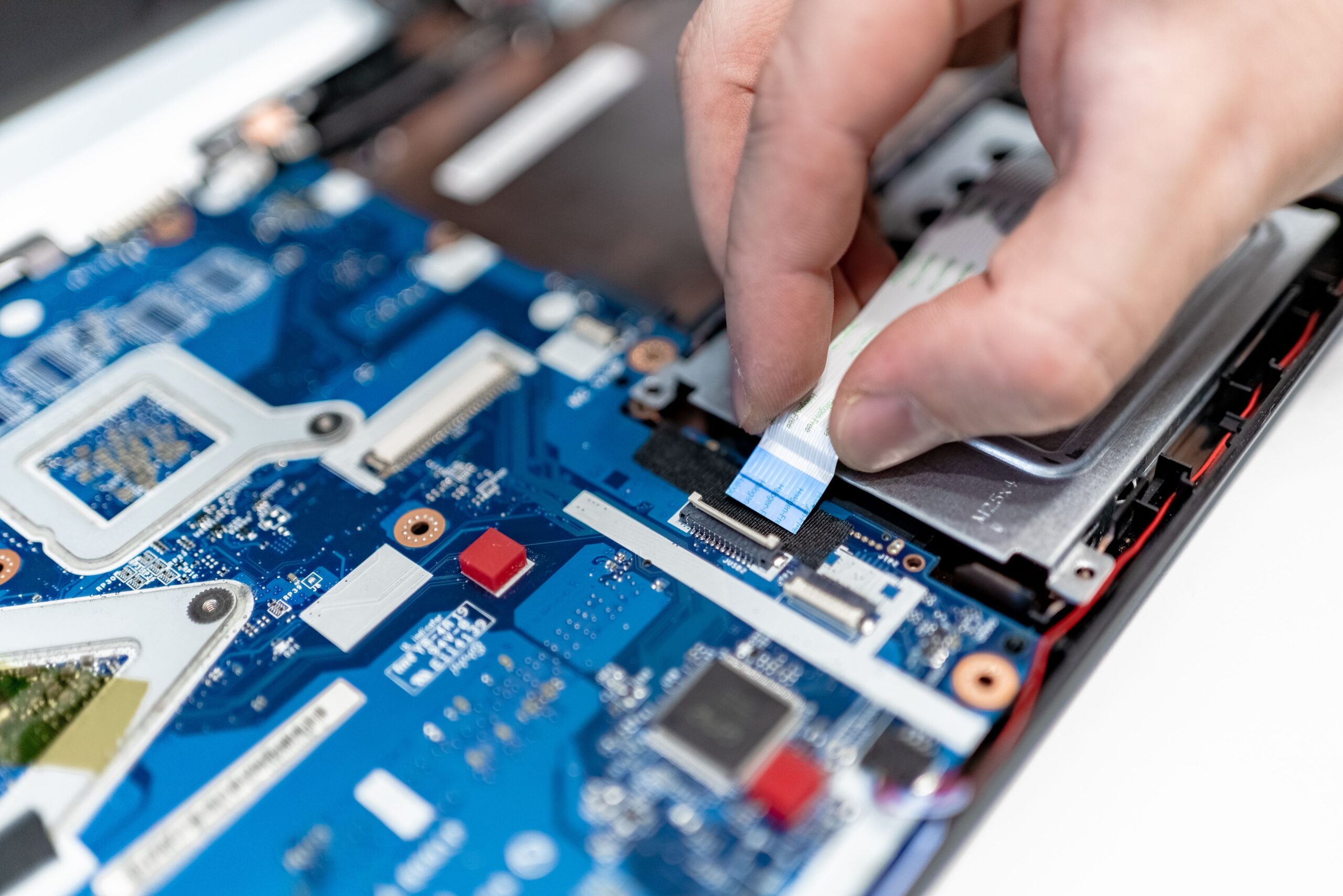
Input/output failures don't always arrive with a bang; sometimes they're very subtle. You might notice your computer slowing down or files taking forever to open , even freezing the system while you're watching a video. This happens when the disk controller can't manage the load or the NAND flash memory is damaged.
If you suspect your drive is failing, the first step is to analyze its SMART status using programs like CrystalDiskInfo. If you see reallocated sectors or CRC errors increasing, it's a clear sign that the hardware is failing. In these cases, attempting to repair the drive with software can be counterproductive, as each write attempt to a damaged drive can permanently erase data.

Steps to diagnose and repair storage

Before panicking, it's best to rule out the simplest problems. Sometimes, the culprit is simply a loose or corroded connector . Try connecting the SSD to a different port or a different computer to confirm whether the problem lies with the drive itself or the communication interface.
If the hardware appears to be working correctly, the next step is to update the firmware and drivers from the manufacturer's official website, ensuring you have the Intel RST VMD driver to prevent disk errors . Outdated management software can cause instabilities that the system interprets as read errors. However, be extremely careful with tools like CHKDSK on physically damaged disks, as attempting to repair bad blocks by writing to them could completely destroy any recoverable data.
Solutions for write protection locking
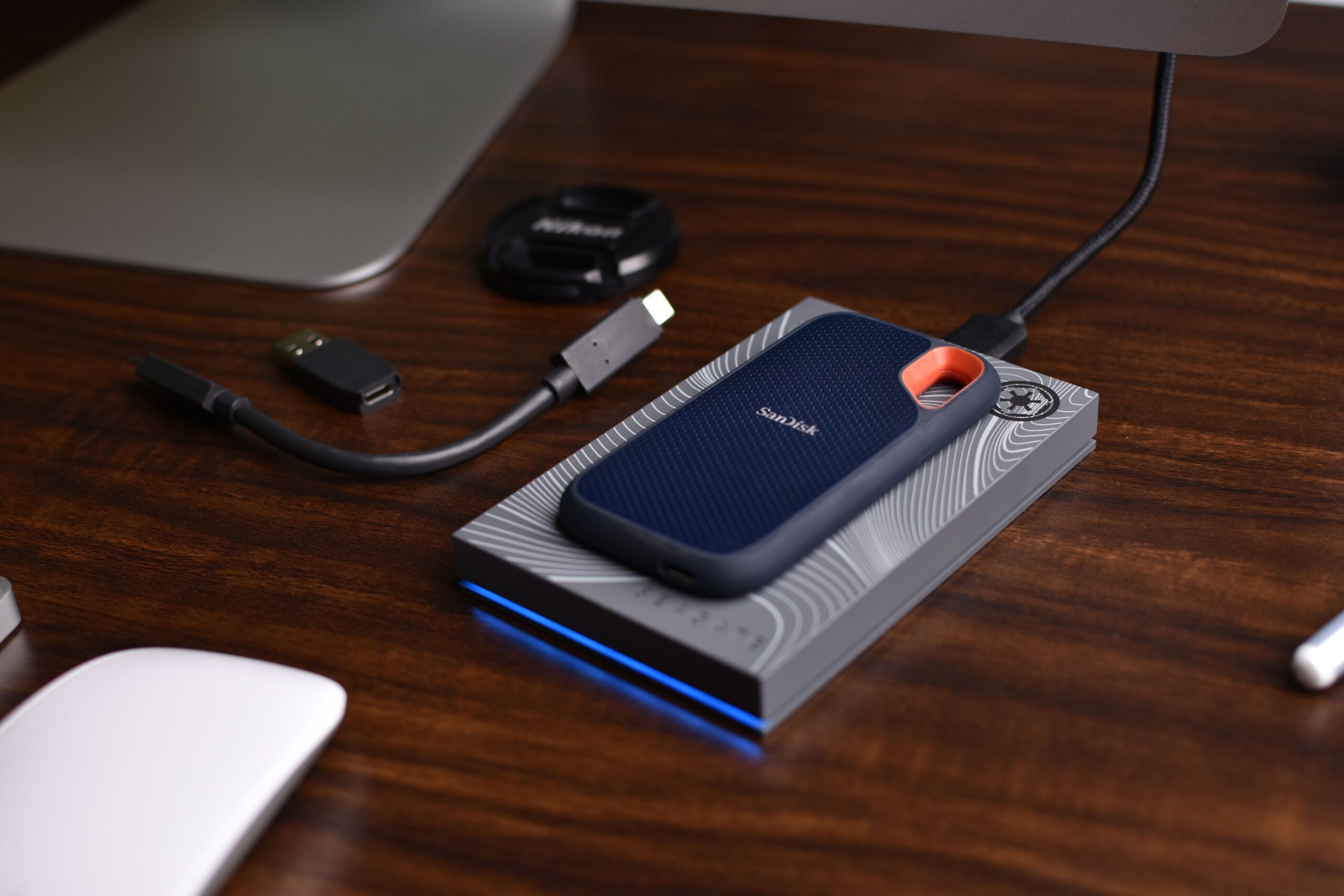
It's very common to encounter the message that the disk is write-protected, especially on USB drives and SD cards. This means the system can read the data, but won't allow anything to be deleted or added . The cause can be as simple as a physical switch on the side of the SD card that has been accidentally moved.

If there is no physical lock, in Windows you can use the tool DiskPart from the console of commands. Executing the command attributes disk clear readonlyYou can force the removal of the read-only attribute. If the problem persists, it could be a key in the Windows Registry (WriteProtect) that is enabled, or even security policies imposed by the administrator on company computers.
Critical errors in server environments and Windows Server

In more professional environments, storage errors manifest themselves through the event log. Identifiers such as Event ID 153 or 129 typically indicate that the storage subsystem is saturated, causing requests to time out. This is usually resolved by redistributing data traffic or reviewing the MPIO (multipath I/O) configuration.
On the other hand, events 55 and 98 suggest that the NTFS file system is corruptIn these scenarios, it is vital to perform a backup before running a chkdsk /f /r, which attempts to locate defective sectors and recover readable information, even if this means taking the volume offline for a while.
SD card management and card readers
When a memory card is not detected or fails, the first step is to clean the metal contacts with an eraser or a soft cloth to remove any dirt. If this doesn't work, it's advisable to check the computer's BIOS settings , specifically the I/O interface security section, to ensure the card reader isn't locked or disabled.

If the problem started recently, using a system restore point can return the controller to a working state. As a last resort, if the card is compatible but macOS won't write to it, check that the format isn't NTFS, as Apple only allows reading in that format; ideally, use exFAT for full compatibility.
Preventive measures to extend the life of the hard drive
To prevent these nightmares from happening again, it's crucial to maintain a stable power supply , as power outages can damage the SSD controller. Additionally, it's advisable to enable TRIM and avoid filling the drive completely , always leaving 10-15% free space for the system to manage cell wear (wear leveling).
Don't forget to keep the drive cool, especially NVMe drives, which tend to get very hot. Finally, remember that backups are essential , and you can use Macrium Reflect to set up incremental backups : having your data in two different locations is the only real guarantee against a catastrophic hardware failure that no software tool can fix.
Restoring a hard drive to working order depends on identifying whether the problem is a logical lock, a driver error, or a physical hardware failure. From cleaning contacts and updating firmware to using DiskPart or adjusting the BIOS, there are multiple ways to resolve read and write errors. However, when NAND cell wear is evident or write protection is permanent, the absolute priority should be backing up the data before the drive becomes completely inaccessible.


Passionate writer about the world of bytes and technology in general. I love sharing my knowledge through writing, and that's what I'll do on this blog, show you all the most interesting things about gadgets, software, hardware, tech trends, and more. My goal is to help you navigate the digital world in a simple and entertaining way.