- Intel RST and VMD manage access to SSDs and NVMe drives; without their driver, the Windows installer may not detect the drives.
- Intel has discontinued the F6flpy-x64 ZIP files (Non-VMD and VMD) and now only offers SetupRST.exe, complicating driver loading during installation.
- The F6flpy packages were essential for Windows to recognize drives in clean installations, especially on HP, Dell, and similar computers.
- The community has resorted to old copies and alternative methods to obtain the Intel RST VMD driver in a format usable by the Windows installer.
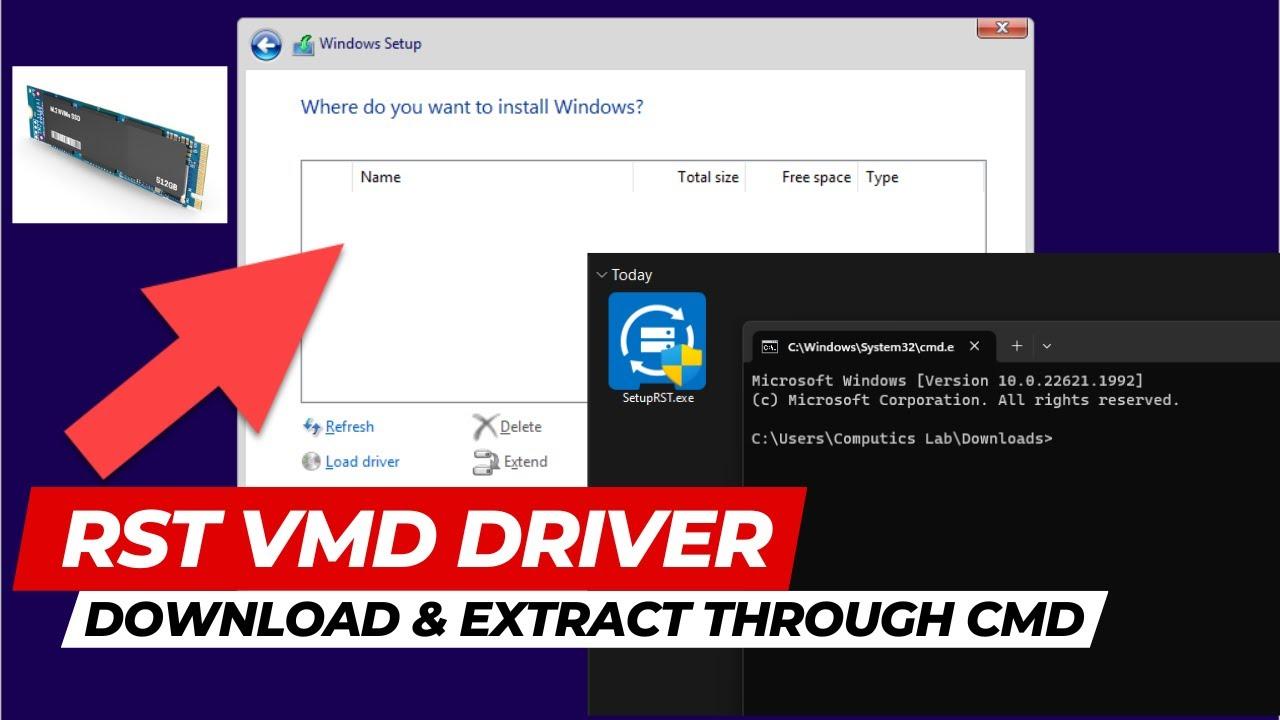
If you're trying to install Windows on a modern computer and the installer suddenly tells you it can't find any available hard drives or SSDs , the problem is most likely related to the Intel Rapid Storage Technology (Intel RST) driver, and in many recent laptops and desktops, its VMD variant. The frustrating thing is that Intel has changed how it distributes these drivers, and now it's much less straightforward to find the right files to load during installation.
In recent years, many users have encountered the same problem: previously, convenient ZIP packages like F6flpy-x64-Non-VMD.zip and F6flpy-x64-VMD.zip were available , specifically designed for use in the Windows disk selection screen. Now, when visiting the official Intel website, the only downloadable file is SetupRST.exe, which isn't as user-friendly, especially when you want to integrate the driver into an installation USB drive created from another operating system, such as a Linux distribution like Ubuntu, or when you simply need the individual INF and SYS files.
What exactly is Intel RST and what role does VMD play in all of this?
To understand why the Windows installer doesn't see any disks, it's helpful to first understand what Intel Rapid Storage Technology (RST) does. In short, Intel Rapid Storage Technology is a layer of software and drivers that manages storage on Intel chipsets and CPUs, especially when RAID, Intel Optane, or certain advanced NVMe configurations are present. It's not just a small program that appears in Windows; it's a key component that allows the operating system to communicate with the storage controller integrated into the motherboard.
In recent systems, especially those with 10th and 11th generation Intel processors and later, a mode called Intel VMD (Volume Management Device) comes into play . This mode reroutes access to NVMe drives (typically PCIe SSDs) through a management device controlled by the CPU/chipset. The practical result is that, without the correct driver, the Windows installer simply won't recognize the NVMe SSDs, even though they appear correctly in the BIOS or UEFI.
That's why, when you start a clean installation of Windows 10 or 11 on many laptops (for example, many Dell or HP All-in-One models), you'll find the "Where do you want to install Windows?" window completely empty, or with drives that can't be selected or formatted. In those cases, the installer needs you to manually provide the Intel RST/VMD driver using the "Load driver" option. This is where the infamous F6flpy-x64 ZIP files used to come in.
Traditionally, Intel offered two separate packages: one for systems without a VMD (Non-VMD) and another for those that did (VMD). These ZIP files contained the typical structure of a storage driver to be loaded during installation: INF, SYS, CAT files, and so on. Simply extract the ZIP file to a folder on the installation USB drive, click "Load Driver," point to that folder, and boom, the drives would magically appear.
These ZIP files greatly simplified life in several contexts:
- Creating an installation USB drive from other operating systemsIf you were using Ubuntu or any other Linux distribution, you could download the ZIP file, extract it, and copy the driver folder to your Windows USB drive without any problems. However, you can't run a Windows EXE directly from Linux, and extracting it with tools like 7-Zip doesn't always give you the structured content as required by the installer.
- Technical work environmentsMany support technicians, especially those who repair or reinstall systems on business laptops (Dell, HP, Lenovo, etc.), used these ZIP files daily when the installer couldn't find a drive. Having F6flpy-x64-Non-VMD and F6flpy-x64-VMD on hand was almost essential for dealing with different BIOS configurations.
- Compatibility with different versions of WindowsThe F6flpy drivers could be used on both Windows 10 and Windows 11 installations, as long as the driver was compatible with the platform. There was no need to run full installers; simply point to the correct folder.
When Intel removed these ZIP files from the official download, many users were left stranded, especially those who didn't save local copies. A typical example is someone who had the ZIP file on their work laptop, used it constantly to troubleshoot installation problems , and suddenly, when trying to download it again, discovered that the official link was gone. Those who did save a copy have even uploaded it to Google Drive and shared it in communities so that others can continue using these drivers during installation.
This practice of sharing the ZIP file on services like Google Drive isn't ideal from a security and software provenance standpoint, but in practice, it's been the only solution for many users who needed the driver in F6 format and couldn't find one in Intel's documentation. The reasonable approach would have been to keep the ZIP files accessible (even in a "legacy" section) or, at the very least, clearly explain how to extract the correct drivers from the installation EXE.
Intel's change: from the F6flpy ZIP to SetupRST.exe
In a relatively recent update, Intel decided to remove the F6flpy-x64-Non-VMD.zip and F6flpy-x64-VMD.zip ZIP files from its website , leaving only the full installer, SetupRST.exe, available. From an advanced or technical user's perspective, this has been a real nuisance. SetupRST.exe is designed to install or update the driver within an already functioning Windows system, but it's not practical when what you need is for the Windows installer to recognize the disks.
Several users have reported that when downloading the official package from the Intel website (links like “Intel Rapid Storage Technology driver installation software with Intel Optane memory (10th and 11th Gen platforms)” ), all they get is the EXE file. When trying to extract it with 7-Zip or other tools, they find that either there's no obvious folder containing F6 drivers, or the contents aren't as straightforward as before. In other words, the structure is no longer designed for the classic "load driver" functionality during installation.
This change has generated quite a few complaints in forums and technical communities. Someone even started a thread on the Intel forum asking for clarification on where to find the F6flpy-x64 ZIP files, and the response was rather unhelpful: no clear alternative was offered, nor was there an official link to the old packages . Many felt that the official stance was essentially, "figure it out yourself with SetupRST.exe and make do."
The practical consequence is that anyone needing to perform a clean Windows installation, especially on machines that came pre-installed with Windows 10 and want to upgrade directly to Windows 11, finds that the installer doesn't recognize the drives. It tries to load the driver from the uncompressed Intel EXE file and doesn't find what it expects. This has happened, for example, on computers like the HP All-in-One 27-dp1877nz with a Core i7-1165G7 processor , 16 GB of RAM, a 2 TB HDD, and a 1 TB SSD, where the installer doesn't even allow formatting, conversion between MBR and GPT, or anything similar, because it doesn't correctly detect the drives.
Some users, finding that neither a Windows 11 nor a Windows 10 USB drive solves the problem, end up searching endlessly without finding a valid driver. They've even tried launching the command prompt (CMD) from the installer to use diskpart and manually manage the disks, but without success: diskpart doesn't list the NVMe drives either, as the correct driver isn't loaded . The entire bottleneck, once again, lies with the troublesome Intel RST/VMD.
Why ZIP F6flpy files were so important (and still are)
The F6flpy-x64 packages were specifically designed for Windows installations. The name comes from the era when the F6 key was pressed during Windows installation to load disk drivers from a floppy disk. Although we now use USB drives, the principle remains the same: to provide the installer with the minimum files necessary for the system to recognize the storage controller.
These ZIP files greatly simplified life in several contexts:
- Creating an installation USB drive from other operating systemsIf you were using Ubuntu or any other Linux distribution, you could download the ZIP file, extract it, and copy the driver folder to your Windows USB drive without any problems. However, you can't run a Windows EXE directly from Linux, and extracting it with tools like 7-Zip doesn't always give you the structured content as required by the installer.
- Technical work environmentsMany support technicians, especially those who repair or reinstall systems on business laptops (Dell, HP, Lenovo, etc.), used these ZIP files daily when the installer couldn't find a drive. Having F6flpy-x64-Non-VMD and F6flpy-x64-VMD on hand was almost essential for dealing with different BIOS configurations.
- Compatibility with different versions of WindowsThe F6flpy drivers could be used on both Windows 10 and Windows 11 installations, as long as the driver was compatible with the platform. There was no need to run full installers; simply point to the correct folder.
When Intel removed these ZIP files from the official download, many users were left stranded, especially those who didn't save local copies. A typical example is someone who had the ZIP file on their work laptop, used it constantly to troubleshoot installation problems , and suddenly, when trying to download it again, discovered that the official link was gone. Those who did save a copy have even uploaded it to Google Drive and shared it in communities so that others can continue using these drivers during installation.
This practice of sharing the ZIP file on services like Google Drive isn't ideal from a security and software provenance standpoint, but in practice, it's been the only solution for many users who needed the driver in F6 format and couldn't find one in Intel's documentation. The reasonable approach would have been to keep the ZIP files accessible (even in a "legacy" section) or, at the very least, clearly explain how to extract the correct drivers from the installation EXE.
What to do if the Windows installer does not detect the disks (practical case with Intel RST/VMD)
If you find yourself at the point where the Windows 10 or 11 installer doesn't show any disks, or gives you errors due to MBR/GPT partition issues but you also can't select or format anything, the usual options involve two paths: using the appropriate Intel RST/VMD driver or disabling RST/VMD in the BIOS/UEFI , if the computer allows it.
On many HP All-in-Ones, Dell laptops, and other OEM systems, the BIOS comes configured in Intel RST mode for storage. This causes NVMe SSDs to appear "hidden" behind the RST/VMD controller. If you don't want to lose this functionality (for example, because you use RAID or because the manufacturer recommends it), you'll need to load the RST/VMD driver during installation.
- Download the Intel RST package corresponding to your platform (10th, 11th generation, etc.) from another computer.
- If Intel only provides SetupRST.exe, try extracting the contents with 7-Zip or another tool to locate the folder containing the INF and SYS files for the F6 driver (in some versions it is called “f6flpy-x64”).
- Copy that folder to the Windows installation USB drive.
- Start the Windows installation, reach the disk selection screen and click on “Load driver”.
- Navigate to the folder where the Intel RST/VMD driver INF files are located and select them.
If everything goes well, the installer should then display your SSD or HDD, allowing you to manage partitions, change MBR to GPT, etc. The problem arises when, upon extracting the EXE file, no clear folder containing F6 drivers appears , or the contents are packaged in a way that the Windows installer doesn't recognize. This is precisely what many users have reported when trying to follow this procedure with the latest Intel packages.
In some cases, you can disable Intel RST/VMD in the BIOS by changing the storage mode to AHCI. This usually allows Windows to detect the drives without additional drivers, although it can have implications if the system was configured with RAID or technologies like Intel Optane. It's not always possible or recommended, but it's another method some have used when the RST/VMD driver isn't available via F6.
On specific computers like the HP All-in-One mentioned, the user also tried booting from a Windows 10 installation USB in case the Windows 11 version was causing problems , but encountered the exact same situation: disks not visible, inability to format or use diskpart effectively, because the root of the problem remained the same, the storage controller.
Intel's response (or lack thereof) and the community's solutions
When some users went to Intel's official forums to ask why the F6flpy-x64 ZIP files had been removed and how they were supposed to get the drivers for their Windows installation, the general feeling was one of considerable disappointment. No alternative download link was provided, nor were there clear instructions for extracting the drivers from SetupRST.exe , effectively leaving users to fend for themselves.
This lack of support has led some members of the community to take the initiative. Some, upon discovering they still had a local copy of the old ZIP files on their laptops, decided to upload them to Google Drive and share the link publicly to help others facing the same problem. In fact, some have explicitly stated their goal is for the link and explanation to rank well in Google search results so others can easily find the file that Intel has removed.
From an SEO perspective, this type of content has become very valuable because it addresses a very specific need: " where to download the Intel RST VMD driver in a usable format for Windows installation ." Many generic guides simply link to the official Intel page, where only the EXE file is available, and don't solve the underlying problem. Therefore, posts that explain the context, detail Intel's change, and provide a working link or a clear procedure for extracting the F6flpy file have been gaining visibility.
However, it's important to remember that downloading drivers from unofficial sources always carries some risk. Ideally, Intel would offer a stable and easily accessible official F6 package for RST/VMD , at least in an advanced downloads section, or clearly document how to obtain these files from the general installer. Until that happens, the reality is that many technicians and advanced users will continue to rely on files shared by the community or on old copies they've kept out of habit.
The frustration is understandable: someone who used those ZIP files "all the time" for work, especially with Dell laptops where the Windows installer couldn't find any drives, suddenly finds themselves without access to those downloads. When the official response is either unsympathetic or overly generic, the community ends up finding its own workarounds , even if they aren't the most elegant or secure solutions.
In this context, having an article that compiles the information, clearly explains what Intel RST and VMD are, why the F6flpy-x64 ZIP files have disappeared, what problems this causes during Windows installation, and what real options the user has, has become especially useful for anyone who reinstalls systems or provides technical support for computers with the latest generation Intel processors.
All of the above paints a picture where, if you have a modern computer with Intel RST/VMD enabled, and you need to perform a clean installation of Windows 10 or 11, but the installer doesn't detect your drives, the key is either to obtain the Intel RST VMD driver in F6flpy-x64 format (either from old backups, a link shared by other users, or by carefully extracting it from the EXE file) or to adjust the BIOS to disable that storage mode. Knowing the background and current limitations of official Intel downloads makes it much easier to make the right decision and avoid getting frustrated thinking the hard drive is faulty or that the problem lies with the USB installation drive, when in reality it all boils down to a simple driver that is no longer provided as it once was.


Passionate writer about the world of bytes and technology in general. I love sharing my knowledge through writing, and that's what I'll do on this blog, show you all the most interesting things about gadgets, software, hardware, tech trends, and more. My goal is to help you navigate the digital world in a simple and entertaining way.