- Differential diagnosis between software failures, such as corrupted drivers, and physical hardware problems.
- Importance of managing thermal and memory resources to prevent CPU and GPU crashes.
- Optimization of operating system and BIOS configuration to ensure the stability of the graphical environment.

There's nothing more frustrating than being deep into an important project or in the middle of a game and suddenly having your computer decide to go on strike. That feeling of the cursor not moving and the keyboard completely ignoring you is a common headache, whether you're using Windows, Linux, or struggling with demanding design software. These freezes, which sometimes force us to force a system restart by pressing the power button, can be caused by a chaotic mix of factors, ranging from a simple software bug to a component that's about to give out.
To bring order to this chaos, it's essential to understand that a frozen system is essentially a computer where the CPU has stopped processing instructions . This can happen because it has run out of memory, because it's overheating, or because two programs are fighting for control of the system. In this article, we'll break down each of these possibilities so you can stop giving up and get your graphical interface running smoothly again, regardless of whether you have a custom-built PC or a brand-name machine.

The resource problem: RAM and Virtual Memory
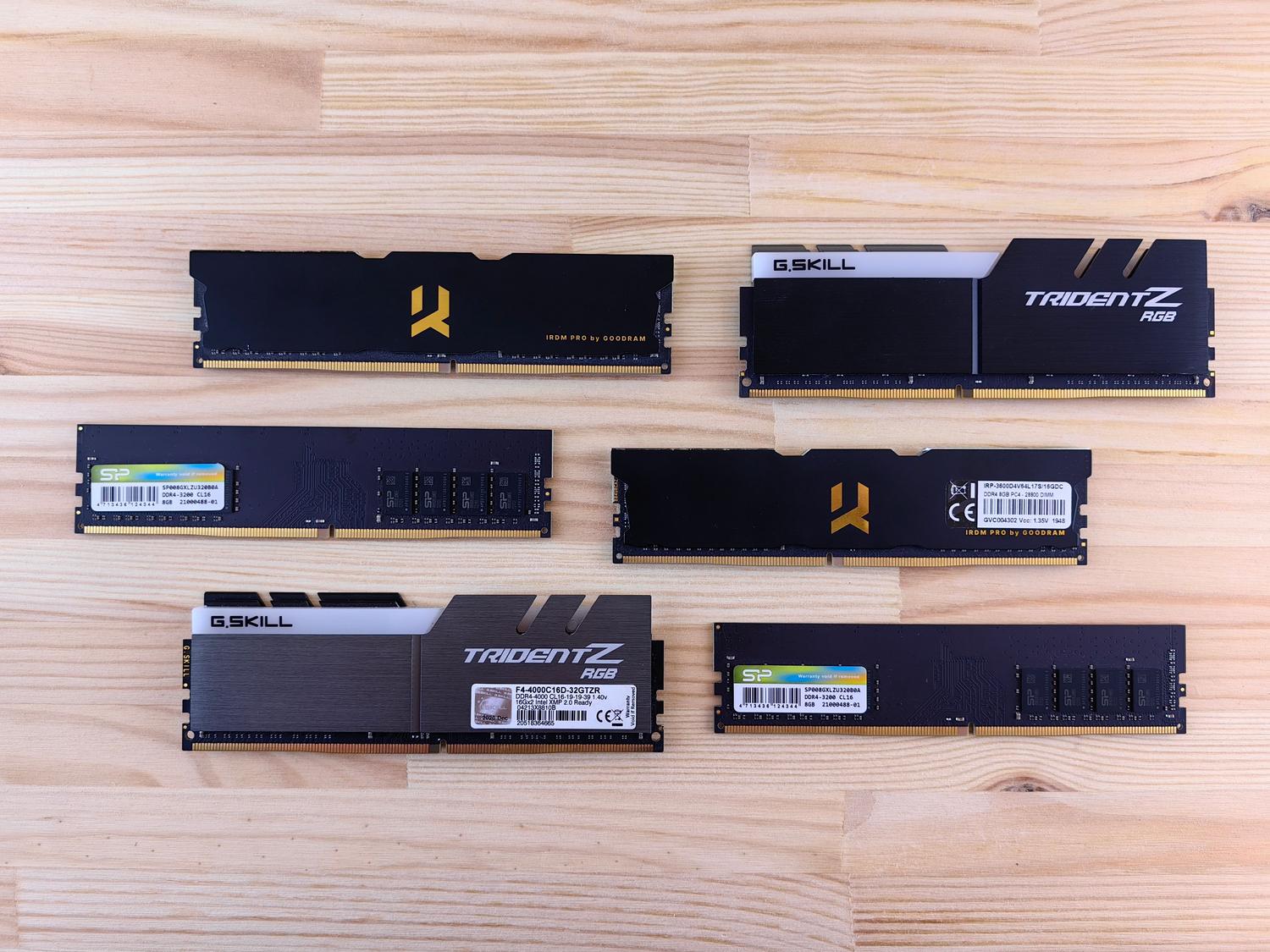
One of the most common causes is that the system runs out of memory. RAM is like your PC's work surface; if you fill it up, there's no room to maneuver. When this happens, the system tries to use the hard drive as virtual memory or a page file . The problem is that, even with a fast SSD, this operation is much slower than using real RAM, which can cause the computer to slow down to the point of crashing.
If you notice your PC freezing when opening many tabs or running resource-intensive programs, you may need to upgrade your RAM or use tools like ISLC to clear the memory queue. Additionally, it's crucial to leave at least 20 GB of free space on your main hard drive, because if storage is at its limit, the system won't have anywhere to write virtual memory, resulting in a complete system freeze.
Controllers, BIOS, and the driver war
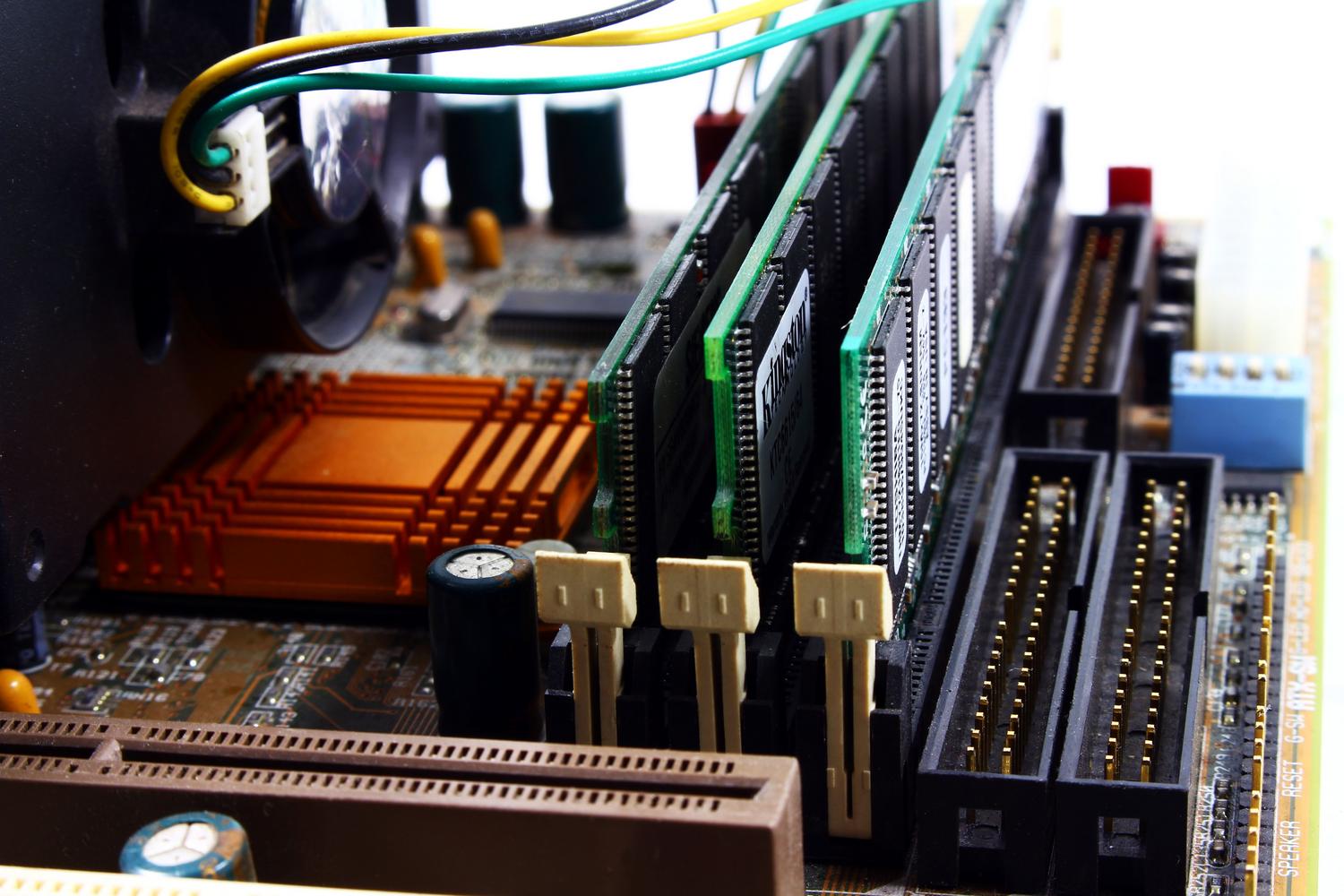
Communication between the operating system and hardware relies entirely on drivers. A corrupted or outdated driver is a recipe for disaster, especially with the graphics card. In professional environments, such as with SolidWorks, using generic gaming drivers instead of certified workstation drivers can cause the graphical interface to freeze when rotating complex models or for pieces of geometry to disappear.

- BIOS update: Sometimes the problem originates at the core. An outdated BIOS can cause instability with the latest generation processors.
- Wayland and Xorg conflict: In Linux distributions like Ubuntu, changing the graphics server or disabling Wayland can fix problems where the cursor freezes.
- NVIDIA/AMD drivers: Make sure to install the stable version recommended by the manufacturer and avoid having two different drivers installed that may conflict.
Keep in mind that BIOS settings can sometimes affect stability. Some users have reported that the TPM module on AMD hardware or the RAM slot order (preferably using slots A2 and B2) influences whether the system remains stable or freezes for no apparent reason.
The invisible enemy: Heat and Dust
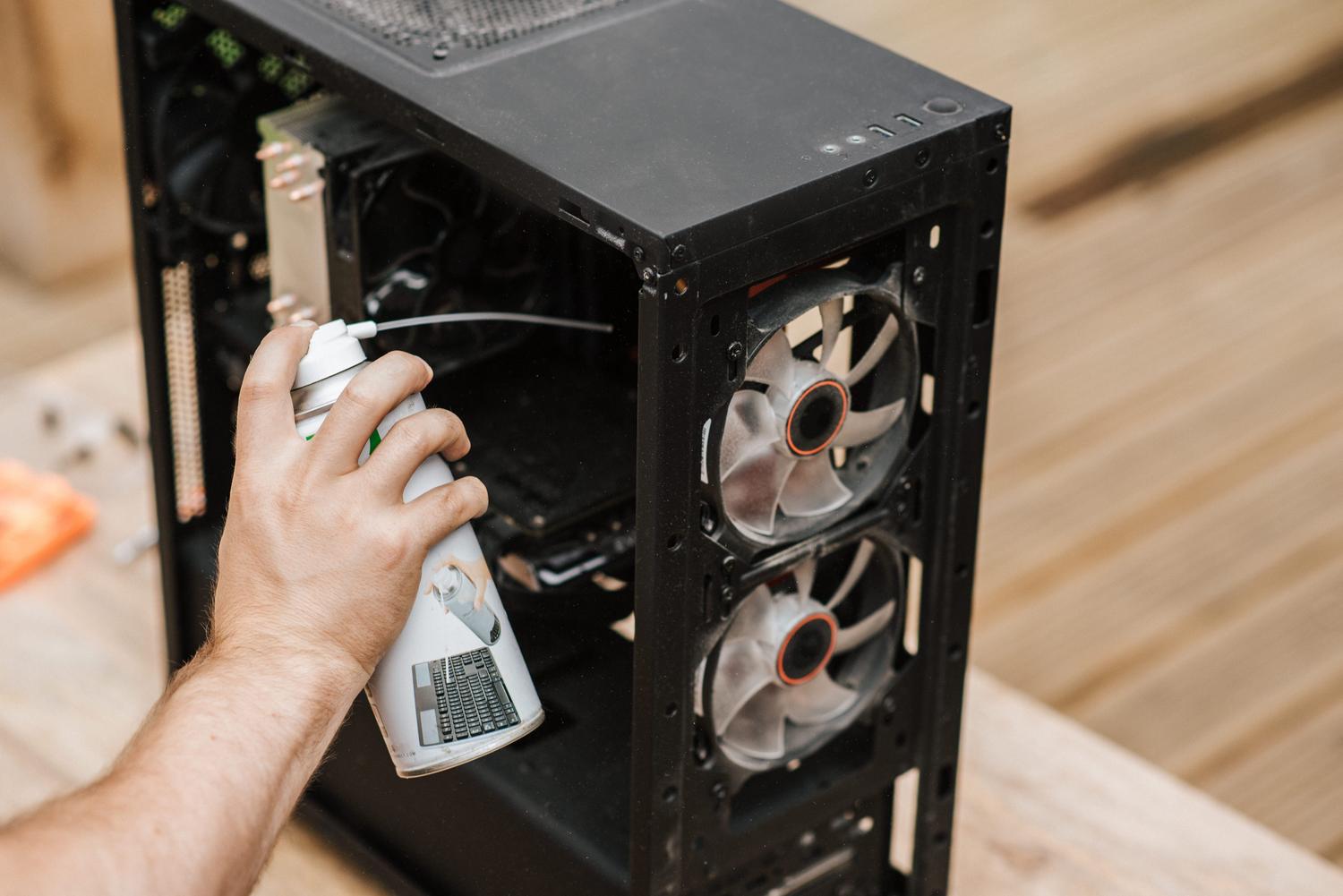
Overheating is a silent killer. When the CPU or GPU reaches critical temperatures, the system activates protection mechanisms that drastically reduce the processor frequency (thermal throttling), which can feel like a momentary freeze of the interface . If dust has blocked the vents or the thermal paste has dried out, the heat has nowhere to escape.
To avoid this, it's advisable to perform a thorough cleaning with compressed air and monitor temperatures with specialized software. If you see your computer exceeding 90-95°C under load, you have a cooling problem. Sometimes, a simple, poorly adjusted heatsink or a broken fan is the culprit behind the computer shutting down or freezing at the most inconvenient times.
Treacherous Hardware and Peripheral Failures

It's not all software-related. Sometimes the problem is physical. A hard drive with bad sectors can cause the system to freeze, waiting for a response that never comes. Tools like CrystalDiskInfo help determine if your drive is healthy or if it's time to replace the HDD with an NVMe SSD , which not only prevents freezes but also speeds up the entire system.
Don't rule out peripherals either. A faulty mouse, keyboard, or USB hub can send erroneous signals that overload the data bus and cause a freeze. If you notice your PC freezing as soon as you connect a device, you likely have a faulty peripheral or a shorted USB port. Testing your computer in safe mode is a great trick: if it doesn't freeze there, the problem is almost certainly software-related; if it continues, something is physically broken.
Malware and Software Conflicts
Having a PC infected with malware can cause CPU usage to spike to 100%, leaving the graphical interface unable to respond. The same thing happens if you make the mistake of installing two antivirus programs at the same time . Both programs will compete for control of the system in real time, creating a resource conflict that can completely freeze your computer.
To maintain stability, it's advisable to perform a clean boot, disabling unnecessary applications that start with the system through the Task Manager. If the Windows registry is severely corrupted due to improper installations, the best solution is usually to reinstall the operating system from scratch, avoiding the use of registry cleaners that sometimes do more harm than good.
To resolve these issues, the best approach is a logical one: first, rule out overheating and insufficient RAM; then, update drivers and BIOS; and finally, check the hard drive for malware. Keeping your computer clean, both physically and digitally, and avoiding overloading virtual memory are key to preventing future problems with the graphical interface and ensuring a smooth workflow.


Passionate writer about the world of bytes and technology in general. I love sharing my knowledge through writing, and that's what I'll do on this blog, show you all the most interesting things about gadgets, software, hardware, tech trends, and more. My goal is to help you navigate the digital world in a simple and entertaining way.