- Desktop environments define the visual basis and resource consumption, ranging from the minimalism of GNOME to the power of KDE.
- The overall aesthetic is modified using GTK or Qt themes and icon packs installed in the user's local folders.
- There are complementary tools such as GNOME Tweaks, Conky, and Starship to take customization to a professional and functional level.

If you're new to the world of Linux, you've probably noticed that there's no single way to do things. Unlike Windows or macOS, where the visual aspect is practically a fixed path, Linux gives you complete freedom to shape your environment to suit your workflow, whether you're looking for something minimalist or a control station worthy of a hacker movie.
The magic lies in the fact that you can change the "face" of your system without having to erase everything and start from scratch. This ability to customize every pixel and animation isn't just about aesthetics; it's about optimizing your productivity, reducing eye strain, and simply making your computer a place where you'll want to spend hours working or playing.
Desktop Environments: The foundation of your experience
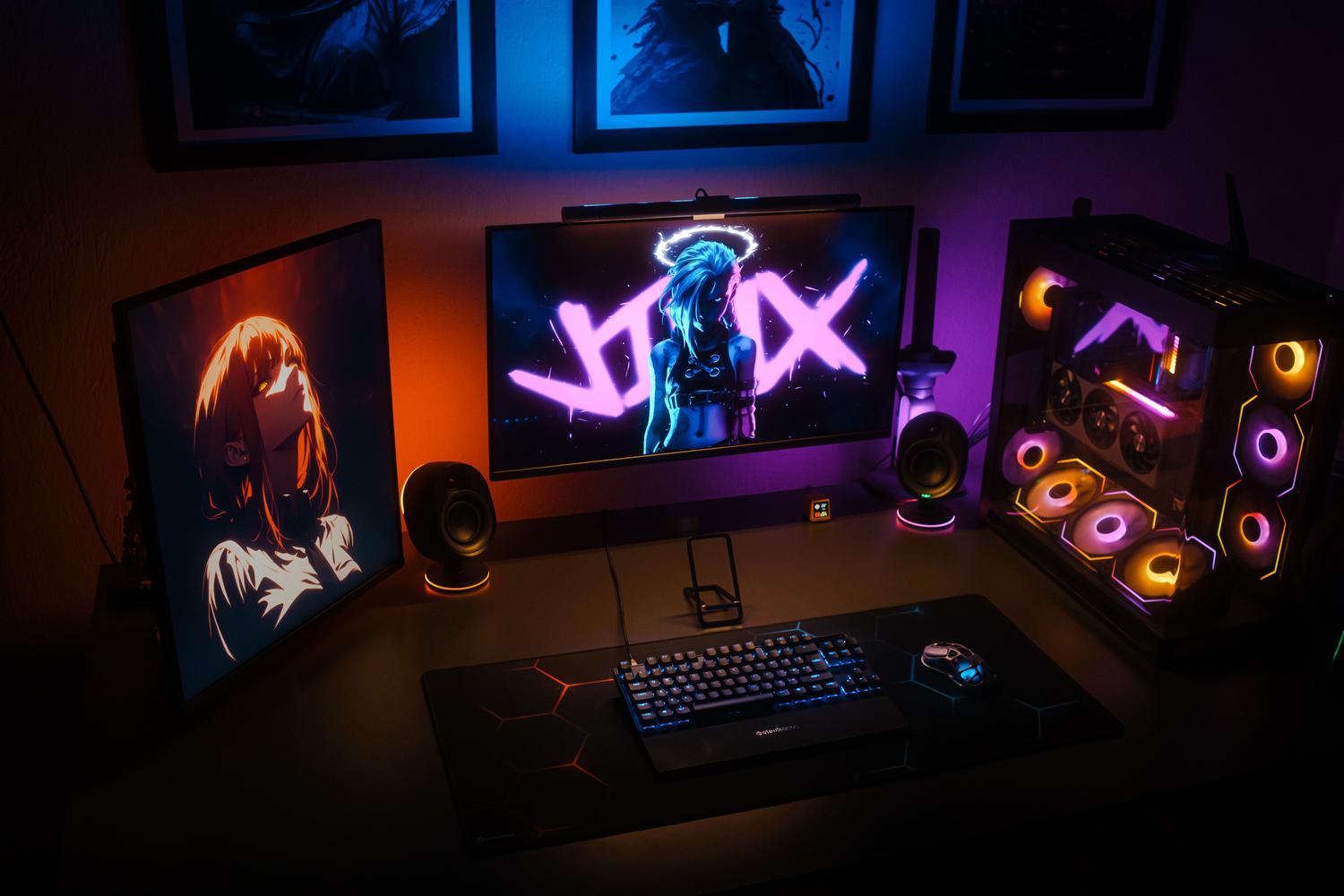
Before tweaking the colors, it's essential to understand that what we see is the Desktop Environment (DE). This encompasses the window manager, panels, application menu, and file explorer. Depending on which one you choose, the interaction style will vary drastically , especially if you decide to install a graphical environment on a minimalist server.
- GNOME: It's a commitment to modern minimalism. Common in Ubuntu and Fedora, it eschews the classic taskbar and aims to focus you on what's important without distractions. It's ideal if you're coming from macOS or prefer a more streamlined interface. clear and fluid visual space.
- KDE Plasma: A paradise for those who don't know where to stop. It's probably the most flexible system in existence, allowing you adjust every detail down to the millimeter without the need to install external plugins.
- Cinnamon: The safe option for those migrating from Windows. With its bottom menu and traditional structure, it offers a almost non-existent learning curve and enviable stability.
- XFCE: The king of efficiency. Although it may seem a bit "vintage" out of the box, it's unbeatable in speed and RAM usage, being the Perfect solution for older hardware or for those who hate that the system consumes resources that should go to games or programs.

The art of changing the appearance: Themes and Icons
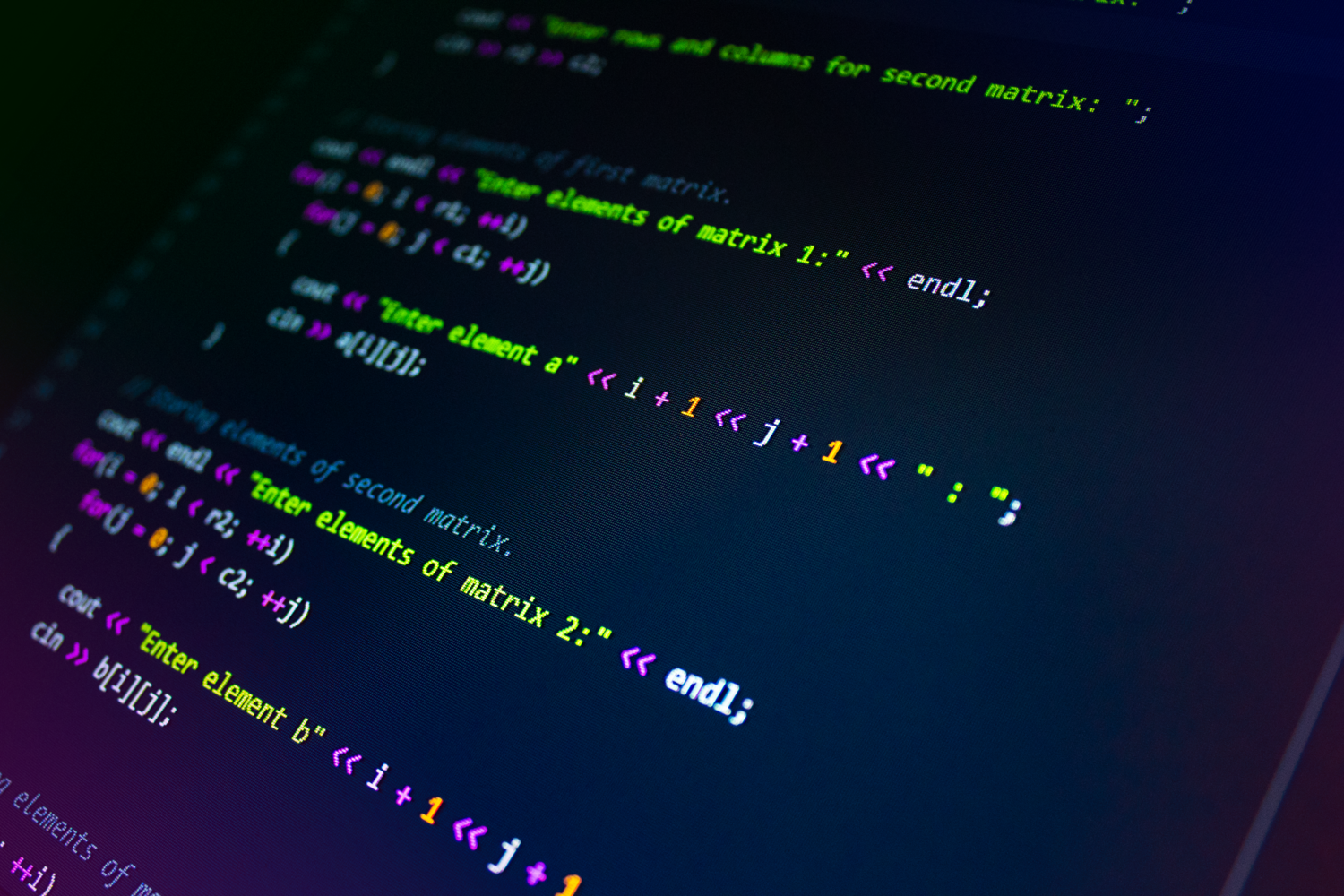
To transform the appearance, we must differentiate between the two main families of graphical libraries. On one hand, we have GTK themes , which affect GNOME, XFCE, and Cinnamon, and on the other, Qt themes , designed specifically for the KDE Plasma ecosystem. Changing the global theme alters everything from buttons and scroll bars to window shadows.
If you want to give it a fresh look, you can explore repositories like gnome-look.org or store.kde.org. Some of the most popular options among the community are: Catppuccin, Dracula or WhiteSur (This last one is if you're looking for the Apple look). Installation is usually simple: just copy the theme folder to
Advanced tools and visual "superpowers"
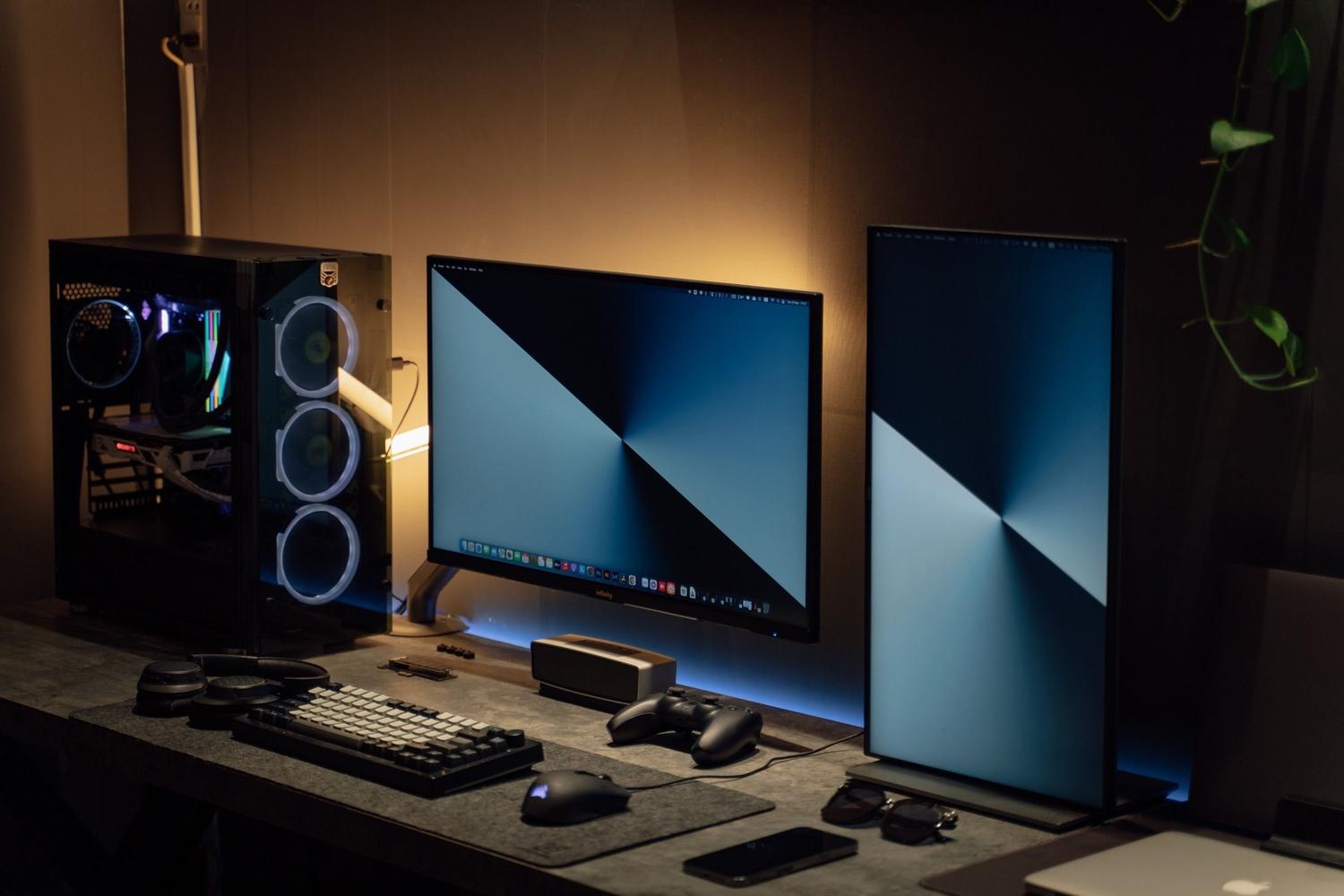
Each environment has its own master key. In GNOME, for example, installing GNOME Tweaks is essential to access settings hidden by the standard configuration. But the real magic happens with extensions, small scripts that allow you to add docks, change the transparency of the top bar, or completely modify the shell's behavior .
If you're looking for something more disruptive, you can install a standalone dock like Plank or Dash to Dock for quick and elegant access to your apps. For the more detail-oriented, Conky is the ultimate tool ; it allows you to draw information widgets (CPU, RAM, network) directly onto the wallpaper, turning your desktop into a professional monitoring panel.

Maximizing the potential of XFCE and the Terminal
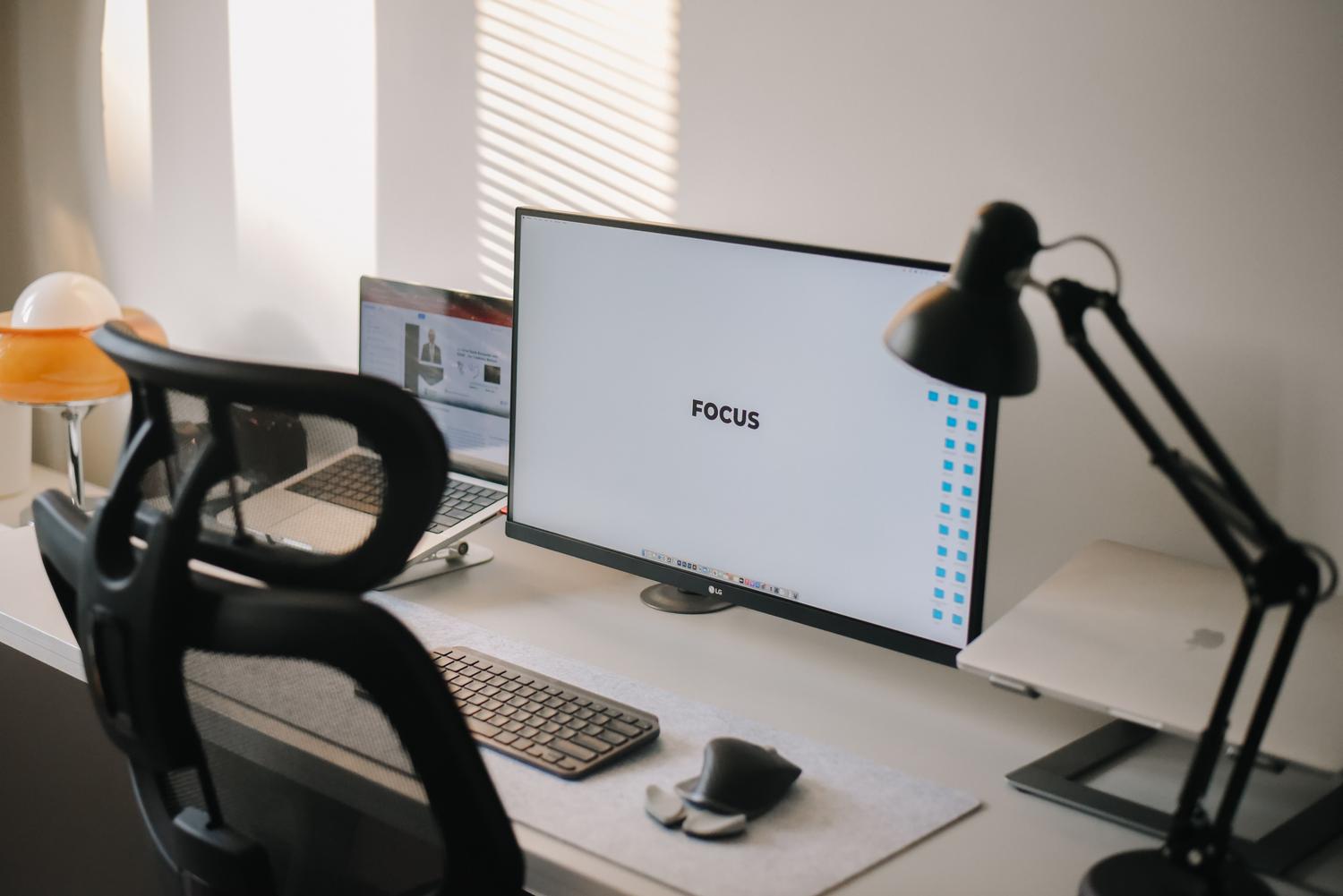
Many believe that XFCE is limited because it's lightweight, but that's a huge mistake. Thanks to its modularity, you can change the window manager or use the Whisker Menu for a quick and organized launcher. Furthermore, the Thunar file manager lets you create custom actions that simplify tasks like bulk resizing images or encrypting folders with a single click.
To complete the customization circle, we can't forget the terminal. Using a shell like Zsh along with Oh My Zsh and the Starship prompt transforms a boring black screen into a smart tool that tells you which Git branch you're on or the Python version you're using, all with consistent colors and a modern aesthetic , allowing you to learn Linux secrets and commands to fully master it.
Ultimately, the choice depends on whether you prioritize raw power, absolute simplicity, or the ability to tweak every aspect of the system. By combining a good wallpaper from sites like Wallhaven, an icon pack like Papirus, and the right configuration tool, any user can transform a basic Linux installation into a cohesive, elegant, and extremely efficient working environment.


Passionate writer about the world of bytes and technology in general. I love sharing my knowledge through writing, and that's what I'll do on this blog, show you all the most interesting things about gadgets, software, hardware, tech trends, and more. My goal is to help you navigate the digital world in a simple and entertaining way.