- El Clipboard Universal relies on Continuity, the same Apple ID, and a stable connection with Wi-Fi, Bluetooth, and Handoff active on all devices.
- Most errors occur when copying and pasting between iPhone, iPad and Mac These issues are resolved by restarting, checking iCloud settings, and reactivating Handoff and Connections.
- If the error is only on the Mac, restart processes like pboard or WindowServer and boot into Safe Mode helps detect conflicts with apps Of third parties.
- When compatibility between versions of iOS And if macOS fails, it's advisable to use note-taking apps, clipboard managers, and cloud syncing as alternatives.
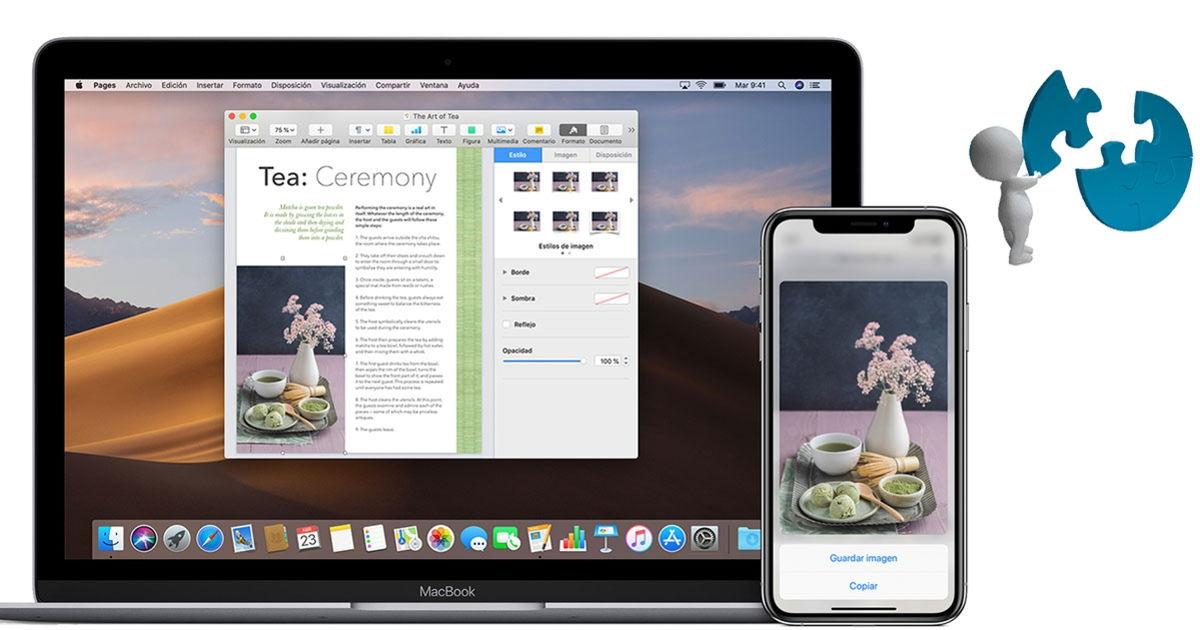
If you suddenly discover that Copying something on the iPhone and pasting it on the Mac has stopped workingDon't worry: you're not the only one this happens to, and it's almost never a serious problem. The so-called Universal Clipboard usually breaks due to minor configuration or connection errors that can be fixed in a few minutes if you know where to look.
In this article you will find a very complete guide to Diagnose and troubleshoot copy and paste problems between iPhone, iPad, and Mac, plus Tricks To fix copy and paste issues on your Mac, understand Continuity requirements, and explore alternatives when your Mac no longer supports the latest version of macOS. Everything is explained in simple language, but with the maximum level of technical detail so you don't miss a thing.
What is the Universal Clipboard and how should it work?
The Universal Clipboard is part of the functions of Continuity and Handoff of the Apple ecosystemThanks to it, you can copy text, images, photos, videos, and even some files from one device and paste them onto another almost instantly, provided that a series of conditions are met. hardware, software and configuration.
In practice, when everything is going well, copies to your iPhone or iPad using the “Copy” option Or simply tap the content, and in seconds you can use "Paste" on your Mac (or vice versa). In many cases, a small notification even appears on your Mac indicating that content has been recently copied to another nearby device.
This feature is integrated seamlessly: It behaves the same as the local clipboard in macOS or iOSThe content is wirelessly synchronized via Bluetooth, Wi-Fi, and iCloud between devices that meet Continuity requirements.
It is important to be clear that The copied content has a limited lifespanIt only remains available for about 2 minutes to paste it on another device. If you wait longer or copy something else, the system will delete that item from the Universal Clipboard.
Continuity functions related to copy and paste
Starting with iOS 8 and macOS Yosemite, Apple began rolling out a whole series of features grouped under the umbrella of Continuity and Handoffdesigned so you can start a task on one device and continue it on another without complications.
Within this set we find several capabilities: App handoff (Safari, Mail, Notes, etc.), calls and SMS on Mac, clipboard transfer between computersAirDrop, and even using the iPhone as a camera or scanner for the Mac in more recent versions.
Of all of them, the one that interests us for this topic is precisely the Universal ClipboardIts mission is simple: copy content on one Apple device and paste it on another, wirelessly, without having to email yourself or use any other software. WhatsApp as a “bridge” between screens.
The important thing is that all these Continuity functions share certain basic requirements: same Apple ID across all devices, active Bluetooth and Wi-Fi, and hardware and operating system compatibilityIf any of these parts fail, the shared clipboard will almost certainly stop working.
Hardware, software, and configuration requirements
For the Universal Clipboard to work properly, your devices must meet certain conditions in terms of both model and system version. It's not enough that it's a "relatively new" iPhone and MacThere are specific minimums.
As for software, you will usually need at least iOS or iPadOS 10-12 on iPhone or iPad (in practice, any current model surpasses them) and macOS Sierra 10.12 or later on MacModern iPhone, iPad, and Mac models are compatible with Continuity out of the box, but if you have older devices, you should check Apple's official list.
In terms of account and connectivity, it is essential that all devices are connected with the same Apple ID in iCloudIf one of them is using a different account, the system understands that they belong to different people and does not share the clipboard for privacy and security reasons.
It is also critical that you have Wi-Fi and Bluetooth are both enabled on all devicesThe Universal Clipboard uses a combination of both technologies to discover nearby computers and securely transfer copied content locally.
Finally, it is mandatory to activate Handoff. On iPhone or iPad, go to Settings > General > AirPlay & Handoff and enable the corresponding option, while on your Mac you need to go to System Preferences or System Settings > General and check the box “Allow Handoff between this Mac and your iCloud devices.” Without this switch, the feature won't work.
How to use the Universal Clipboard correctly
Once you meet all the requirements and have Handoff active, using the Universal Clipboard is very simple: There's no need to manually "turn it on" or install extra appsIt comes integrated into the system and runs in the background.
On the source device, whether it's an iPhone, iPad, or Mac, Select the content you want to copy as you normally would.On iOS or iPadOS, tap and hold the text, photo, or element, adjust the selectors, and tap “Copy.” On macOS, use the shortcut Command + C or the Edit > Copy menu. You can also copy links from multiple tabs, as explained. copy all tab links.
Next, go to the target device and Open the app where you want to paste the content.On iPhone or iPad, touch and hold in the text field or editing area and choose “Paste.” On Mac, select the insertion point and use Command + V or the Edit > Paste menu.
If everything is in order, the system will have invisibly moved the copied content to the clipboard of the other device, so it will paste as if you had copied it locally. Sometimes you will see a notification indicating that The content is available to paste from “iPhone X” or “iPad Y”.
Keep in mind that the Universal Clipboard It works especially well with Apple's native apps (Safari, Notes, Messages, Mail, Pages, etc.). Many third-party applications also benefit from it, but some may have limitations with certain formats or complex data types.
Typical problems when copying on iPhone and pasting on Mac
One of the most frequent scenarios is that Until recently, you could copy on your iPhone and paste on your Mac without any problems. And then, suddenly, one day it stops working without you seemingly having touched anything. Don't panic, it's usually due to a setting that has been deactivated or a temporary connection problem.
Before you go crazy, check the basics: Verify that both devices are still using the same Apple ID In the iCloud settings, both on your iPhone/iPad and your Mac. Sometimes a password change, a closed session, or a second user can break that connection.
Then, check that Wi-Fi and Bluetooth must be turned on on both devices and they must be within 10 meters of each other.Distance and possible interference (walls, saturated networks, etc.) can cause the Continuity signal to not arrive properly.
Don't forget to check Handoff: go to Settings > General > AirPlay & Handoff on your iPhone or iPad, and on your Mac go to System Settings > General and confirm that The Handoff option remains enabledA system version change or a system restore may have unchecked it without you noticing.
If after checking all this you still can't paste what you copy from your iPhone onto your Mac, it's time to move on to slightly more drastic but equally accessible actions: Restart both devices, turn Wi-Fi and Bluetooth off and on, and even sign out and sign back into iCloud. in each one of them.
Quick steps to recover the Universal Clipboard
When the clipboard between devices suddenly stops working, a few simple steps are usually all it takes. quick maintenance actions that do not require advanced knowledge and that you can do at home in a few minutes.
The first thing, and although it sounds basic, is Restart your iPhone, iPad, and MacA simple restart clears background processes, restores Bluetooth and Wi-Fi connections, and often brings back to life Continuity features that had become "stuck".
If that doesn't work, try Turn Bluetooth off and then back on on all devicesYou can do this from the Control Center on iOS/iPadOS and from the menu bar or System Settings on macOS. Do the same for Wi-Fi, and make sure both devices are connected to the same wireless network.
In some cases, toggling Handoff also helps: go to Settings > General > AirPlay and Handoff on your iPhone or iPad, Deactivate Handoff for a few seconds and then reactivate it.On a Mac, do the same in System Settings > General. This forces the system to rebuild the Continuity relationship.
If the problem persists after all this, you can resort to a slightly more radical measure: Sign out of iCloud on both devices and sign back in.Make a backup beforehand just in case, and remember that the first sync after logging in may take a while.
When the problem is only on the Mac: Copy and paste are unresponsive
Sometimes the problem isn't continuity, but rather that Copy and paste stops working correctly only on Maceven within the same application. In these cases, the culprit is usually the internal process that manages the macOS local clipboard: the famous pboard.
A very effective solution consists of restart the pboard process from the Bus TerminalOpen Finder > Applications > Utilities > Terminal, type the command `killall pboard`, press Enter, and close the window. The system will automatically relaunch pboard, and hopefully, your copy/paste will return to normal.
If you prefer to avoid the line commandsYou can do something similar from Activity Monitor. Open Activity Monitor, search for “pboard” in the search boxSelect it and press the close button (X) to force it to exit. The system will recreate it, and you can try again.
In cases where you also notice graphical glitches, frozen menus, or windows that don't update properly, it can be helpful. restart the WindowServer process From Activity Monitor. Note that doing so will close your session and you will have to log back in, but it can fix visual issues affecting shortcuts and copy/paste menus.
If the errors are recurring, you can use maintenance utilities like CleanMyMac to Clean system errors, caches, and background processes that might be interfering with the clipboard. It's not essential, but it can save time if you don't want to delve into more advanced macOS settings.
Safe Mode and conflicts with third-party apps
When restarting pboard or WindowServer doesn't solve the problem, it's worth checking if A third-party app is interfering with the Command + C and Command + V shortcuts. or with the clipboard itself. Keyboard shortcuts Customizations, accessibility tools, or automation apps can cause conflicts.
A very effective way to diagnose it is Start your Mac in Safe ModeBy starting up in this way, the system only loads essential components, disables third-party extensions, and performs a basic disk and cache check.
To enter Safe Mode on a Mac with an Apple Silicon chip, shut down the computer, Press and hold the power button until you see the startup options, select the disk of BootPress and hold the Shift key and tap “Continue in safe mode”. On models IntelThe process changes, but the idea is the same: start with the fewest possible extensions.
Once in Safe Mode, try copying and pasting into various native apps such as Notes, Safari, or TextEdit. If everything works well in this environmentThe problem is most likely being caused by an application or extension that loads during normal startup.
In that case, the recommended course of action is Review the latest installed apps, keyboard utilities, clipboard managers, or "all-in-one" tools and uninstall the suspicious ones, or disable startup items one by one until you locate the culprit.
Common reasons why copy and paste doesn't work
Although from the outside it may seem like a basic function, Copying and pasting depends on several internal system processeskeyboard shortcuts and permissions that, if they fail, can leave you stranded just when you need it most.
Among the most common causes we find temporary macOS or iOS errors, small memory bugs or processes that get stuck and stop correctly registering copy and paste commands until they are restarted.
It is also quite common for third-party applications interfere with the Command + C and Command + V keyboard shortcutseither because they reassign them or because they add extra layers of clipboard management that don't play well with the system.
We must not forget human error: sometimes the problem is as simple as typing too quickly, a key that doesn't press properly, or a poorly configured keyboard (incorrect distribution, language, etc.), which causes the commands not to be interpreted as you think.
In rarer scenarios, Malicious software or unauthorized tools can alter system permissions or block basic functions, also affecting the clipboard. And, of course, trying to copy from media or apps that don't allow it (for example, certain read-only disks or protected documents) will cause the operation to fail or appear as if nothing is happening.
When iOS and macOS versions no longer speak well to each other
In recent years there have been cases of users who, after update your iPhone or iPad to a new version of iOSThey have seen how their older Mac, stuck on the latest supported version of macOS, stopped communicating correctly with the Universal Clipboard.
The curious thing is that, in many of these cases, The feature continues to work perfectly between iPhone and iPad.However, this breaks down completely in the iPhone-Mac or iPad-Mac pairing. Everything points to internal changes in the Continuity implementation that exclude older versions of macOS, even though, in theory, they still meet the "minimum version" documented by Apple.
It's difficult to know from the outside if it's a bug that Apple could fix with a future update or a deliberate compatibility decision, but the feeling for the user is the same: overnight a function that they depended on to study, work or take notes disappears.
In these scenarios, the possibilities are limited: if your Mac no longer receives major updates and your iPhone or iPad does, It is possible that the Universal Clipboard will cease to be reliable among themIn the absence of a fix from Apple, we'll have to look for alternatives.
Among the most practical solutions are resorting to Note-taking apps synced by iCloud, cloud-based clipboard managers, or services like AirDrop, email, or messagingThey are not as immediate as the built-in clipboard, but they allow you to continue moving text and images between screens without too much friction.

Passionate writer about the world of bytes and technology in general. I love sharing my knowledge through writing, and that's what I'll do on this blog, show you all the most interesting things about gadgets, software, hardware, tech trends, and more. My goal is to help you navigate the digital world in a simple and entertaining way.