- Identify the program's absolute path from the shortcut with 'Open Location' or 'Properties' and copy the address without errors with 'Copy as Path'.
- Set Explorer to always show the full path and rely on Search, Run, browser or CMD when the shortcut is not clear.
- To apps from the Store, learn about Windows Apps and how to view their content; with processes running, use the Task Manager to open the actual folder.
Locating the actual folder where a program resides in Windows using its shortcut can be a little tricky if you don't know the right techniques , but it's not rocket science. With a couple of clicks, you can open the exact location or copy the full path and use it wherever needed; the important thing is knowing where to start and which method works best in each case.
In this guide, you'll see several ways to do this, from the quickest (right-clicking the shortcut) to lesser-known but very useful options (extended context menu, Command Prompt , Windows Search, Run dialog box, browser, Task Manager), and how to handle apps from the Microsoft Store, which store their files in a protected folder. I'll also explain how to configure File Explorer to always show the absolute path, how to copy paths without errors, and what to do if you can't access the WindowsApps folder.
What is a route and why does it matter?
Before we get started, it's important to be clear about what we're looking for: the path is the complete address that indicates the drive, folders, and file. In Windows, it might be C:\Program Files\ProgramName\program.exe , for example. Knowing this path allows you to open, copy, share, or automate actions from the command line without ambiguity.
There are two key types: absolute path (from the root of the drive to the file) and relative path (from the folder you are already in). An absolute path example would be C:\Users\YourUsername\Downloads\example.pdf , while a relative path could be Downloads\example.pdf if you are already in C:\Users\YourUsername . To identify a program's installation folder, we need the absolute path.
Starting from the shortcut: the fastest
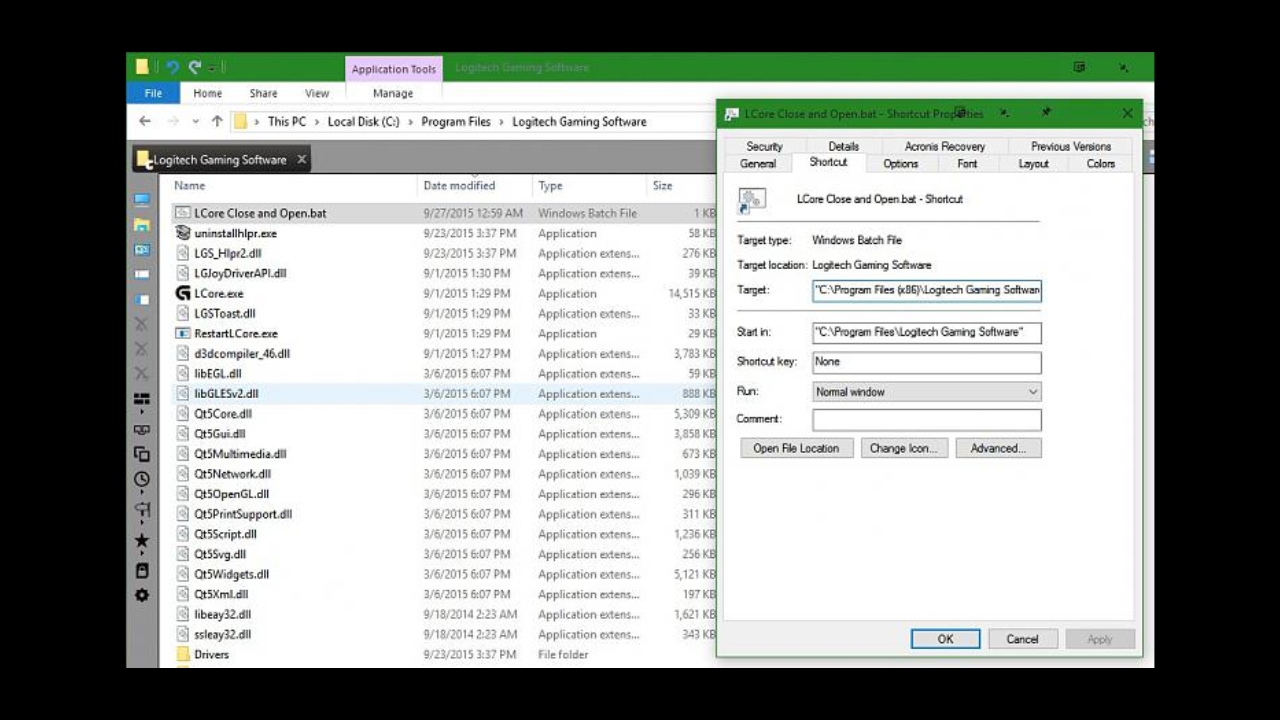
The most direct way to access the actual folder using a shortcut is through its menu. A shortcut typically points to the main executable or a program launcher , and Windows provides shortcuts to access it directly; if you need to move programs between drives safely, see Moving programs between drives.
- Right click on the shortcut and choose 'Open file location' If the option appears, this action takes you to the folder where the executable file the shortcut points to is located.
- If you don't see that option, go to 'Properties' and open the tab 'Shortcut'. In the countryside 'Destination' You will see the path of the executable; from there you can press 'Open location' or copy the text by hand to navigate later. The 'Start in' field also gives clues to the program's base folder.
- Another shortcut: hold down the key Shift while right-clicking on the shortcut and use 'Copy as path' to take you the complete route to clipboard. Then paste it where you need it..
Sometimes the shortcut might point to a launcher or an intermediate file. If opening the location leads to an executable file that isn't what you expected, navigate up or down a level in the folder tree or repeat the process on the executable itself to find the main installation folder.
Make Explorer always show the full path
File Explorer can be configured to display the absolute path without any further configuration. This greatly speeds up verifying that a shortcut has taken you to the correct location. Once enabled, the top bar will display the full path of the current folder , and you can pin folders to Quick Access.
- Open any Explorer window, click on 'View' and enters 'Options' (on the right of the tape).
- In the window that opens, go to the tab 'View', search 'Advanced settings' and check the option 'Show full path in top bar'. Apply and accept to save.
Additionally, you can choose where File Explorer opens by default: Start (Quick access) or 'This PC' . If you prefer to access your drives directly, go to View more > Options > Open File Explorer to: 'This PC' and confirm with 'Apply' . This makes it easier to navigate when working with paths.
Address bar, Properties and 'Copy as path'
Once you're in the folder the shortcut took you to, there are three useful tricks to capture the exact path. All of them complement opening the file location :
- Address bar: Click inside the Explorer bar and you will see the absolute path. So you can select and copy it in a second..
- Expanded context menu: With the folder or file selected, press Shift and right click to display 'Copy as path'. It will be copied to the clipboard with full format.
- Properties: right click > 'Properties'. On the tab 'General', field 'Location' Shows the folder; if you want the file path, add its name and extension at the end or check the tab 'Security', which usually shows the full path. It's not the most comfortable option for copying, but it works..
Command Prompt: Find and list full paths
If you have many subfolders or don't know the exact name of the executable, the console can save you time; and if you want to open the terminal from within the folder, see Opening the terminal from within the folder . The 'dir' command allows you to search recursively and returns only full paths.
- Open the Command Prompt (CMD) from the Start menu.
- Usa
dir /s /bto search all subdirectories and display only the absolute path. For example:dir /s /b C:\Ruta\Inicial\*nombre*. '/s' scans subfolders and '/b' returns only the clean path. - If you know part of the name, a wildcard works:
dir 'File11*' /s(you can write it without quotes if there are no spaces). The output will show the exact routes that match.
This method is ideal when the shortcut is unclear or points to a launcher, and you need to identify the actual .exe file within the program's folder. Simply copy the path you need, and you're done.
Run Window and Windows Search
The Run dialog box is another handy trick. Open it with Windows + R , and if you drag a file or folder from the Desktop or File Explorer into it, its full path will appear . Copy the contents and close the dialog box if you don't want to run anything; you're just using it to extract the path.
Windows Search can also help. Type the name of the program, file, or folder; right-click on the relevant result and choose 'Copy full path' if it appears. This is quick when you only remember the name and don't have the shortcut handy.
Modern browsers can open local files. Drag the file to the browser's address bar or use 'Open with' and choose your browser (if the file type is supported). You'll see an address like file:///C:/Users/Username/Downloads/file.pdf . This string gives you the full path, ready to copy.
Please note that the browser may not display some formats; in that case, you can see the path in the address bar or it will prompt you to download (it will create a copy). If you only want the address, you don't need to confirm any download.
From Task Manager
If the program is running and you don't have its shortcut handy, Task Manager can save the day. It's a reliable way to open the actual folder of the active process.
- Open the Manager with Ctrl + Alt + Delete or searching for it. If it appears compact, enter 'More details'.
- In the 'Processes' o 'Start', locate the program, right click and choose 'Open file location'. The executable folder will open.
- If you want to always see routes, right click on the column headers and activate 'Command line'. That column shows the path with which each process was launched.
Microsoft Store Apps and the Protected WindowsApps Folder
Apps installed from the Microsoft Store don't always behave like traditional programs. Their files reside in 'WindowsApps', a hidden and protected folder within 'Program Files' . If you need to inspect it, you must enable the view of hidden files and request permissions; if you encounter a permissions error, see how to resolve the "access denied" error.
- Open Explorer and go to C: \, then 'Program Files' (o Program Files).
- In the 'View', go into 'Options' and then in 'Change folder and search options'. In 'See', active 'Show hidden files, folders and drives'. Apply and accept.
- You will see the folder 'WindowsApps', but when you try to open it it will ask you for permissions. In 'Properties' > 'Security' > 'Advanced Options', change the owner to your user (enter your local account name or your Microsoft account name) and confirm.
- Once you are the owner, grant total control and apply. You will now be able to see the content and locate the packages for each app.
Note: This folder is protected. Avoid deleting or modifying its contents unless you know exactly what you're doing . For most users, simply using 'Open file location' from the Start menu shortcut or system search will allow you to access app links.
Classic Shell: View the full default path
If you want to go a step further, there are utilities that enhance Explorer. Classic Shell (and its derivatives) allow you to display the full path in the address bar, without breadcrumbs, and add practical options. For our purposes, it's useful to force the absolute path to always be visible.
- Install Classic Shell and during the wizard make sure to check 'Classic Explorer'. Uncheck what you don't need.
- Open your settings and activate 'Disable breadcrumbs' (crumbs). Apply the changes.
- From that moment on, the Explorer bar will show the full path without having to click on it. Ideal for copying and pasting without errors.
Share routes by email: drag or hyperlink
Sometimes you need to send someone the location of a file on your PC (for example, within your network). You can drag the file from File Explorer to the body of the email , and many applications will insert the path or an internal link. It's fast and saves typing ; if you need to share over a network, see Sharing a network folder in Windows 11.
- Compose the email and have the Windows Explorer.
- Right click on the file and drag it to the message; drop and choose 'Create hyperlink here' if the email client offers it. This is how you insert the route as a link.
Remember that sharing local paths reveals information such as your username or folder structure. Use it only in environments where it makes sense (e.g., an internal network) and when the recipient has access permissions to that location.
Final tips for different situations
Depending on the type of program and where you're starting from, one method or another will be more suitable. If you're starting from the shortcut, the 'Open file location' option and the 'Shortcut' tab are the quickest . For running processes, the Task Manager is invaluable. If you only remember the name, use Search or Command Prompt.
- When you need copy the path with quotes (for scripts), use Shift + Right Click > 'Copy as Path'. Avoid mistakes with spaces.
- If you work a lot with routes, activate in the Explorer 'Show full path' or install an upgrade like Classic Shell. It will save you clicks every day.
- For Store apps, keep in mind WindowsApps and its permit system. Only enter if you really need it..
Finding the installation folder from a shortcut shouldn't take more than a few seconds when you know the options Windows offers: directly opening the file location, copying the path from the context menu, reading it in Properties, or always seeing it in the Explorer bar . And if it gets complicated, you have shortcuts like CMD, Run, Windows Search, the browser, or Task Manager to finish the job without wasting time.

Table of Contents
- 1 What is a route and why does it matter?
- 2 Starting from the shortcut: the fastest
- 3 Make Explorer always show the full path
- 4 Address bar, Properties and 'Copy as path'
- 5 Command Prompt: Find and list full paths
- 6 Run Window and Windows Search
- 7 Open with the browser to see the route
- 8 From Task Manager
- 9 Microsoft Store Apps and the Protected WindowsApps Folder
- 10 Classic Shell: View the full default path
- 11 Share routes by email: drag or hyperlink
- 12 Final tips for different situations
