- OneNote allows you to export pages or sections to PDF, but it adapts the infinite canvas to fixed-size pages.
- There is no native option to generate a single giant PDF with all the "infinite fabric" without cuts.
- Preservation of structure and links is partial, and internal links do not always work outside of OneNote.
- It is key to plan the content and monitor the size of the notepad to avoid cuts and space problems.
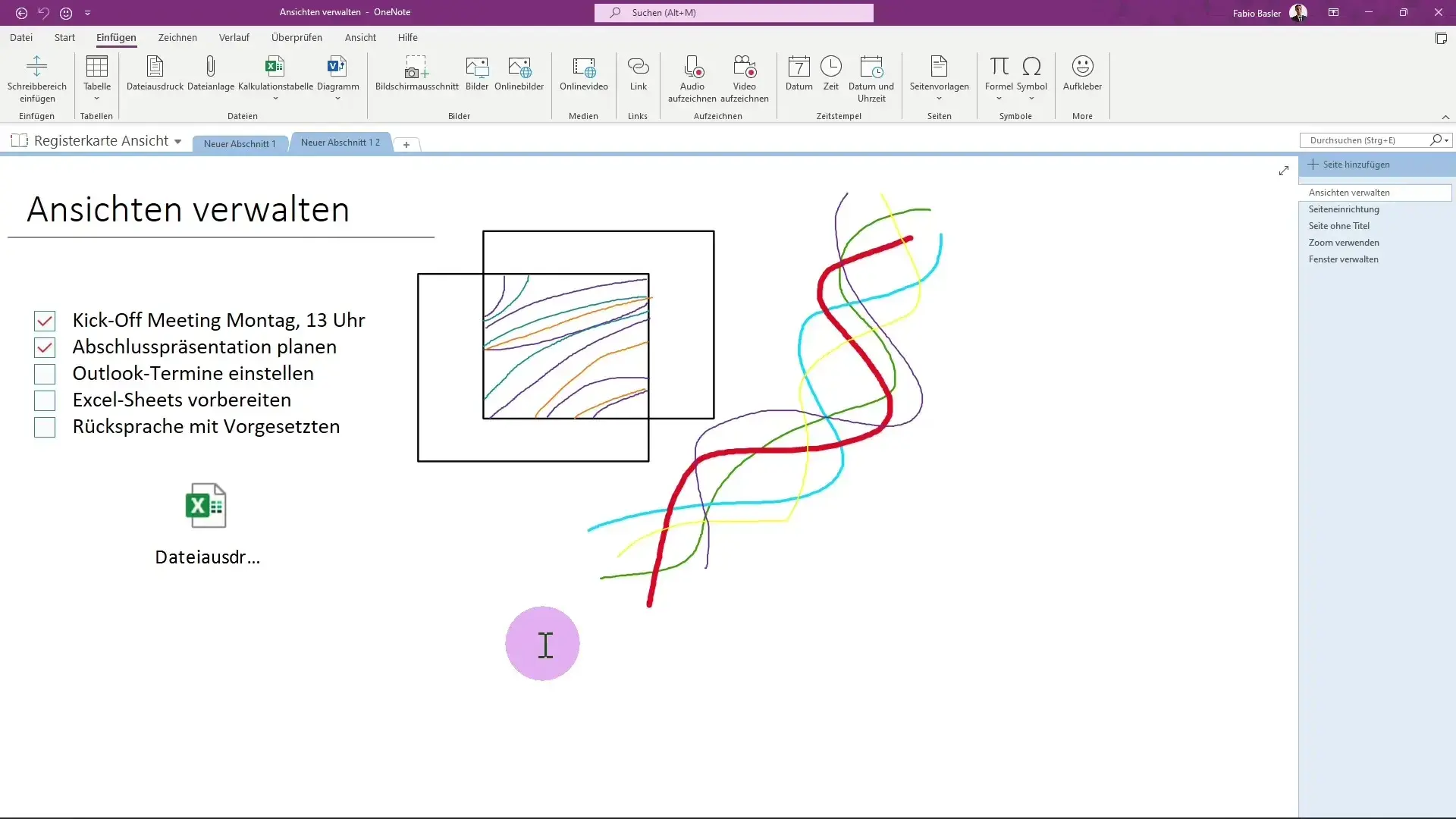
If you use OneNote daily, you've probably wanted to share your notes as a PDF more than once without giving full access to your entire notebook. And that's where the headaches begin: pages that get cut off, links that stop working, sections that get lost, and the infamous "infinite canvas" that never fits entirely into a single PDF document.
In this article, we'll take a detailed look at what you can and can't do when exporting OneNote notes to PDF while preserving sections, structure, and links . I'll explain the options Microsoft offers, the actual limitations (including the infinite canvas), some tricks, and workarounds to make your PDF look as much like your original OneNote as possible.
What does exporting OneNote to PDF really mean?
When we talk about exporting from OneNote to PDF, it's not just about "digital printing." The idea is to preserve as much of the content and structure of your notes as possible: text, images, attachments, sections, subpages, and, where possible, internal and external hyperlinks.
The problem is that OneNote is designed as a continuous workspace, almost like an infinite whiteboard where you can scroll without limits , while a PDF is based on fixed-size pages. This difference in philosophy is what causes it to seem as if the program "cuts" or "crops" your notes when you export.
Furthermore, many people only want to share a portion of their information. For example, it's common to need to send a document to a colleague who doesn't have OneNote or doesn't need to see the rest of the notebook. In that scenario, the PDF format is ideal because it's standardized, easy to open on any device, and doesn't expose the rest of your content.
It's also common to need to attach your notes to a work or academic report. In those cases, exporting to PDF allows you to integrate your notes as a formal appendix , maintaining the visual appearance and annotations you already had in OneNote.
How to export notes to PDF from OneNote step by step
OneNote includes a built-in feature to export your notes directly to PDF without installing anything extra. The process is simple, but it's a good idea to understand which export option you're using to avoid surprises with the result.
To begin, navigate to the part of the notepad you want to share. This could be a page, a complete section, or even the entire notepad, but it's most common to export only the page you're working on , especially if you only want to send a specific part.
Next, open the options menu. In desktop versions of OneNote, the standard path is File > Export . Within this section, you'll see various settings that determine what content is saved and in what file type.
In the section labeled something like "Export current item," you'll find different export levels, such as page, section, or notebook. Here, you must carefully choose which fragment of OneNote you want to convert to PDF , because this will determine the size of the final document.
Once you've decided on the scope (for example, only the active page), select the output format. To generate a PDF, choose the PDF (*.pdf) option from the list of available file types and confirm the action with the export or save button, depending on your version of OneNote.
Choosing the element to export: page, section, or block
One of the most important decisions in the entire process is choosing whether to export only the current page, a complete section, or the entire notebook . Each option has different implications for the PDF size, internal organization, and how manageable the file will be.
Exporting only the current page is useful when you need to share a single set of notes (for example, today's meeting, a specific class session, or a particular outline) without any extraneous information. In this case, the PDF will be smaller and easier to send by email or other means.
If you choose the entire section, OneNote will attempt to include all the pages within that section in a single PDF. This allows you to maintain a coherent thematic unit , such as a project, a course module, or part of a report. Keep in mind, however, that the number of pages in the PDF may increase considerably.
On the other hand, exporting the entire notepad usually results in a very large document, both in the number of pages and the file size. While technically possible, it's not always practical, as it can be unwieldy for the recipient and slow down opening on less powerful devices.
In practice, it's most common to work with page or section exports. This way, you maintain a balance between organization and file size , and avoid sending information the recipient doesn't need or shouldn't see.
Saving the PDF file and best practices
After selecting the item to export and the PDF format, OneNote will open a system window allowing you to choose the folder where you want to save the file . Here you can take the opportunity to create a logical file structure (for example, a specific folder for PDFs generated from OneNote).
In the "Save As" dialog box, give the file a descriptive name that's easy to find later . Instead of leaving the default name, it's a good idea to include information such as the date, the subject of the notes, or the project they belong to.
Once you've chosen the location and name, confirm the operation by clicking the save button. OneNote will then convert the visual information of the page or section into a set of PDF pages , preserving the original layout as much as possible.
Once the PDF is generated, it's advisable to open it with your usual reader or edit a PDF without installing any software to review the result. This way, you can check if all relevant parts of the notes have been included , if any areas have been cut off, or if there are elements that haven't been displayed as expected.
If you detect cropping or layout problems, in many cases you will need to adjust the content in OneNote before re-exporting, as the program does not offer the granular page size settings that a professional layout tool would.
The problem of the “infinite fabric” and the cut-out pages
One of the most frustrating aspects is that, when exporting, OneNote seems to "cut" pages wherever it wants . This happens because the OneNote canvas is virtually infinite, while PDFs are made up of pages with a specific paper size (A4, letter, etc.).
When you take notes without worrying about margins or width, it's very easy for your content to extend too far to the sides or bottom. When converting, OneNote has to adapt that "infinite canvas" to a page layout , which in practice results in unsightly cut-offs or page breaks.
That's why many people wonder if there's a way to export the page as is, like a giant canvas, in a single PDF, similar to what you can do with some design programs like Photoshop. The reality is that OneNote isn't designed to generate a single PDF with an enormous page area.
The export engine interprets the information on the OneNote page as something that should be adjusted to standard sizes. There is no official option in the settings to tell the program "don't crop anything, create a PDF of the required length, without dividing it into traditional pages."
This behavior makes you feel like OneNote is cropping your notes, when in reality it's forcing them to fit a conventional print format . And, unfortunately, this approach severely limits the possibility of a truly continuous PDF canvas.
Can the entire page be exported as a huge PDF?
Many people suspect there must be some hidden trick or advanced option to get a PDF containing the entire "infinite fabric" without cuts . However, with OneNote's standard tools, this possibility doesn't exist.
OneNote does not include any official functionality that allows you to define an unlimited or single, gigantic page size for the resulting PDF. The program is designed so that the content adapts to pages of finite dimensions , because exporting to PDF is fundamentally based on a logic similar to printing on paper.
Unlike graphic design or layout programs, which do allow you to configure huge surfaces or custom canvases and convert them into a single large-format PDF, OneNote does not give access to that level of control over the output.
Some users have tried to circumvent this limitation by experimenting with PDF printing options (for example, using virtual printers with custom page sizes). However, even in these cases, it's difficult to fit all the OneNote content onto a single page without loss of data or resolution issues.
To date, Microsoft has not incorporated a specific mode that guarantees a seamless export of the entire canvas. Therefore, if your goal is a very large, continuous PDF, you will usually have to use additional tools or design solutions more geared towards that type of output.
Alternatives and tricks when OneNote falls short
Given the lack of a native function to generate a continuous canvas PDF, many users wonder if there's a third-party program that can do it for them . While there are third-party utilities focused on improving export, there's no universal tool that effortlessly converts any endless OneNote page into a single, perfect PDF.
One possible strategy is to export in well-controlled sections . This means reorganizing your notes across several pages within OneNote, so that each page occupies a reasonable area. Then, you export each page to PDF and, if needed, merge those PDFs using a specialized editor to create a single document.
Another option is to use design or image editing tools. Some people capture snippets of the OneNote page as high-resolution images, assemble them into a large document within a program like Photoshop or similar software, and then generate a large-format PDF that acts as a "full canvas."
It's a more laborious method, but it offers greater control over the final result: you can adjust scales, decide how the screenshots are linked, and create a PDF truly tailored to your content , instead of relying on how OneNote divides the pages.
In any case, it's always worth considering whether the extra effort is worthwhile. For many everyday uses, it's sufficient to export to PDF in the standard way and accept that the notes will be spread across several traditional pages, as long as the essential content remains legible and organized.
Preserve sections and structure when exporting
Another key aspect to consider is the extent to which OneNote preserves the internal organization of your notebook when you convert it to PDF. This includes sections, pages, subpages, and any headers you use.
When you export an entire section, OneNote includes every page of that section in the final PDF, usually maintaining the order they appear in the navigation pane . This helps to transfer the conceptual structure of your notes, albeit as a linear sequence of pages.
However, the PDF doesn't replicate the exact experience of navigating sections and subpages that you get in OneNote. Instead of tabs and visual hierarchies, you get a linear document where page breaks dictate the order . If you want clearly differentiated sections, you'll have to rely on titles, headings, or cover pages within your own notes.
It is therefore advisable to design your OneNote pages with how they will look in PDF in mind: use clear titles, separators, white space and, if necessary, specific pages as an index or division between thematic blocks.
Although the export isn't perfect in terms of replicating the interactive OneNote experience, with minimal internal layout planning you can achieve a PDF that's quite faithful to the conceptual structure of your original notebook.
What happens to links when converting from OneNote to PDF?
Hyperlinks are another sensitive issue. In your notebooks, you can have internal links between OneNote pages , links to other sections, or shortcuts to external websites and files stored in the cloud or other locations.
When exporting to PDF, OneNote tries to preserve mainly external hyperlinks , that is, those that point to web pages or email addresses, so that in the PDF they remain clickable and take you to the corresponding browser or email client.
However, internal links that depend on the notebook's structure don't always transfer as effectively. In many cases, they become meaningless outside of OneNote because PDFs don't recognize the concept of a "notebook page" and can't directly open another section of the application.
For this reason, if you need a PDF with rich internal navigation (for example, an index with links that jump to specific chapters), it's often better to build that linking logic within the PDF itself using a specialized editor, rather than relying on OneNote to do it automatically.
In contexts where internal OneNote links are crucial, it may be more practical to maintain shared access directly to the notebook (with well-controlled permissions) rather than relying entirely on PDF export, which is more limited in that regard.
Export notes as PDFs in OneNote for the Web
Not everyone uses the desktop version of OneNote. The browser-based edition, known as OneNote for the Web, also allows you to generate PDFs from your notes , although with certain limitations and, sometimes, fewer options than the full application.
The general logic is similar: you choose the content you want to export (usually the open page) and use the corresponding option to save or print it as a PDF . The interface varies slightly depending on the platform, but the result is still a document that captures the visual appearance of your notes.
However, the web version may rely more heavily on the browser and its print manager to generate the PDF. This means that some behavior, such as adjusting margins or paper sizes , is controlled more by the browser than by OneNote itself.
If you're working exclusively from a web browser, it's advisable to experiment with different print-to-PDF settings to see which best preserves your content's layout . In some cases, the results will be very similar to the desktop application; in others, there may be slight variations.
Despite these differences, for easily sharing notes with someone who doesn't use OneNote, the web version remains a practical solution, especially if you're used to working directly from the cloud and from your browser.
Large notebooks and size issues when exporting
Over time, your OneNote notebooks tend to grow almost without you noticing. Between embedded documents, scanned images, inserted PDFs, and audio and video clips, you can easily end up with notebooks that are several gigabytes in size.
When you try to export very large amounts of content, creating the PDF can take a long time and sometimes even fail if your computer doesn't have enough hard drive space to handle all the temporary data generated during the process.
Before you start downloading or exporting large files, it's a good idea to check your available storage. Make sure you have several gigabytes of free space to avoid the operation being interrupted midway due to lack of space.
If the process is interrupted for this reason, you have no choice but to free up space (by deleting unnecessary files, moving content to another drive, or optimizing your storage) and restart the export from scratch . There is no built-in system for partially resuming these tasks.
As a best practice, when you know you're going to export something large, it can be more sensible to work in smaller blocks (such as specific sections) instead of trying to generate a single, gigantic PDF with the entire notepad. This minimizes the risk of errors and results in more manageable files.
Ultimately, using OneNote as a source of documentation and PDF as a distribution format is a powerful combination, provided you understand its limitations and possibilities . Understanding how the infinite canvas is cropped, what happens with links, and how it affects the size of your notebooks will allow you to get the most out of the tool and share your notes more effectively with those who don't use OneNote.


Passionate writer about the world of bytes and technology in general. I love sharing my knowledge through writing, and that's what I'll do on this blog, show you all the most interesting things about gadgets, software, hardware, tech trends, and more. My goal is to help you navigate the digital world in a simple and entertaining way.