- Un PDF With bookmarks and a clickable index, it improves navigation, accessibility, and the professional appearance of the document.
- set up correctly Word (or LibreOffice) with header styles and export options is key to preserving the index in the PDF.
- Tools like Acrobat, PDFelement, AutoBookmark, or DocHub allow you to create or refine bookmarks and tables of contents directly on the PDF.
- Combining a good index design in the text editor with a well-configured PDF export ensures long documents are easy to use.
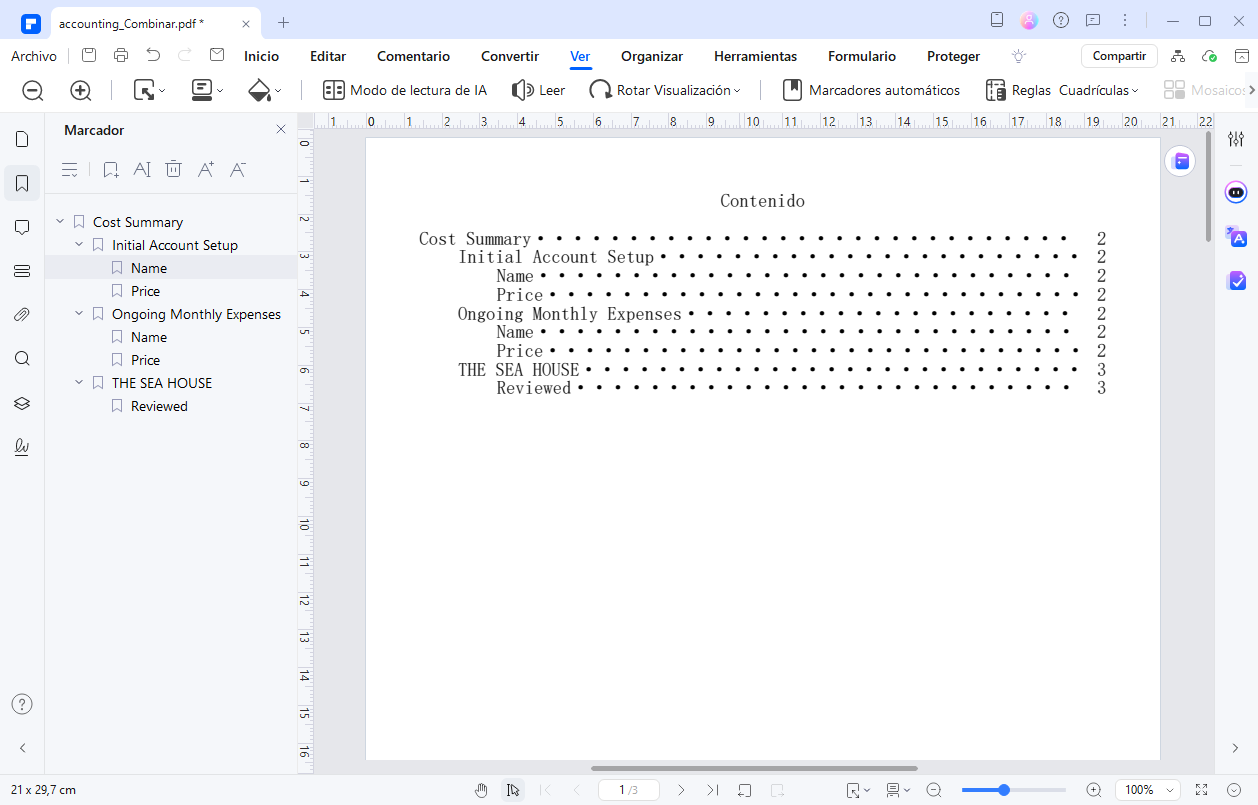
If you frequently work with long documents, you've probably wanted to export a Word document to PDF while preserving the clickable table of contents and bookmarks . When this doesn't work, the PDF ends up as a simple stack of pages, and navigating it is a real pain, especially with lengthy reports, manuals, or course outlines.
The good news is that you have several ways to create an interactive PDF with bookmarks, hyperlinks, and a navigable table of contents , both from within Word and using dedicated PDF tools, add-ins, and free or open-source online options. Let's look, step by step and in detail, at everything you need to know to ensure your PDFs are well-structured and easy to use.
Why is it so important to keep the index and bookmarks in the PDF?
A PDF table of contents functions as an interactive map of the document . Instead of forcing the reader to flip through page after page, it allows them to jump directly to the section they need with a single click.
When a PDF includes well-configured bookmarks and a linked index , navigation is much faster, which is key in reports, e-books, technical manuals, or extensive notes.
Furthermore, a good index improves the professional appearance and organization of the file , giving the impression of a carefully crafted document intended to be consulted, not just read from beginning to end.
We must also not forget accessibility and content flow : a PDF labeled with bookmarks and correct structure facilitates the use of screen readers and reading on mobiles or small screens.
Finally, having a functional index makes updating and reviewing specific sections much easier , since quickly locating a chapter or section greatly reduces the time you spend looking for where to change something.
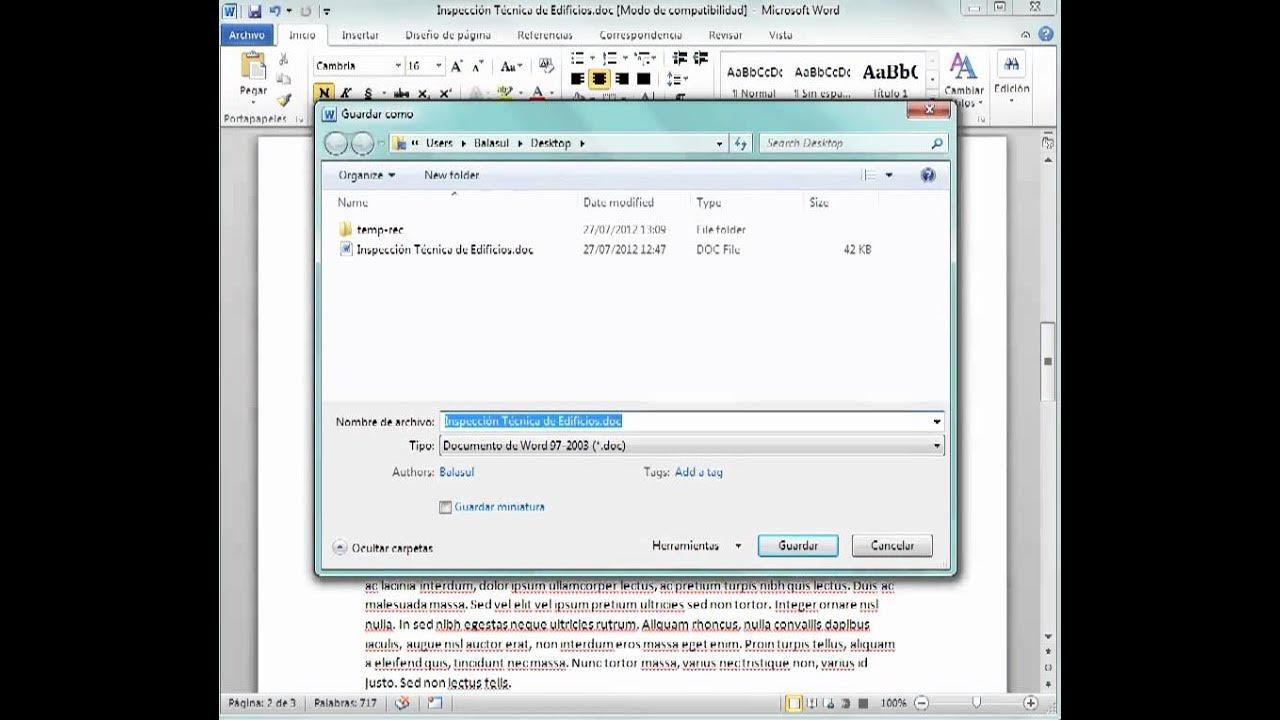
Export from Word to PDF with bookmarks and active index
If you're writing the content in Word, it makes sense to take advantage of the automatic table of contents and styles tools before generating the PDF. This way, Word itself, or the add-in you're using (Acrobat, Kofax, etc.), can convert headings and tables of contents into bookmarks.
For this to work, it's essential that the Word document has correctly applied heading styles (Heading 1, Heading 2, Heading 3, etc.). If the headings are handwritten with manual formatting, the system won't recognize them as structure.
Enable bookmark creation with Adobe Acrobat in Word
If you have Adobe Acrobat integrated into Word, you'll see an "Acrobat" tab on the ribbon . From there, you can control how the PDF will be created and which elements will become bookmarks and hyperlinks.
Within that tab, click on the “Preferences” option for PDF creation . A dialog box with several tabs will open where you should review some key settings.
In the main settings section, make sure the "Convert document data," "Create bookmarks," and "Add links" boxes are checked. This allows titles, references, and links to remain navigable in the PDF.
It's also important to select the option "Enable accessibility and reflow with tagged Adobe PDF file" . This will result in a tagged PDF that is more accessible and performs better in terms of readability.
In the Word tab within that same box, you should select all available boxes , so that fields, hyperlinks, comments, and other elements you want to keep are respected.
Choose which Word styles will become bookmarks
In the Bookmarks tab of Acrobat for Word preferences, you can decide which types of headings will be bookmarked within the PDF. This gives you considerable control over the navigation tree.
The most common practice is to specify the use of Heading styles (Heading 1, Heading 2, etc.) and index styles , so that the document structure is reflected exactly in the PDF bookmarks panel.
If needed, you can also assign other custom Word styles to specific bookmark levels , for example, converting a "Document Title" style into a top-level bookmark.
This configuration allows you to avoid creating unnecessary bookmarks (for example, for unimportant mini-headings) and focus on a clear and useful hierarchy for the reader.
Export the document from Word with the correct options
Once you've configured your preferences, it's time to save the Word file as a PDF . To do this, go to the File menu and select "Save As," choose the destination folder, and select PDF as the file type.
Before finalizing, click the "Options..." button in the save dialog box . It's crucial to ensure that the "Enable accessibility and reflow with Adobe PDF labeling" box is checked, or equivalent options depending on your version.
Thanks to this markup, the final PDF will retain structure, bookmarks, links, and document properties much more reliably than a basic conversion.
If instead of Acrobat you use other solutions like Kofax PDF integrated into Office, you will have a specific tab in the ribbon (for example, “Kofax PDF” with the “Creation Settings” tool ) where you can also activate bookmark export and review PDF options.
With these steps properly configured, every time you export a well-formatted Word document you will have an interactive PDF with a bookmarks panel, clickable index, and internal and external hyperlinks.
Create and manage the table of contents directly in PDF
There are situations where the original document isn't in Word or you can't edit it, and you need to work directly on the PDF . In that case, several tools allow you to generate bookmarks and a table of contents from the existing content.
With this approach you can start from a "flat" PDF and turn it into a much more navigable document, with automatic or manual TOC , without redoing everything from scratch.
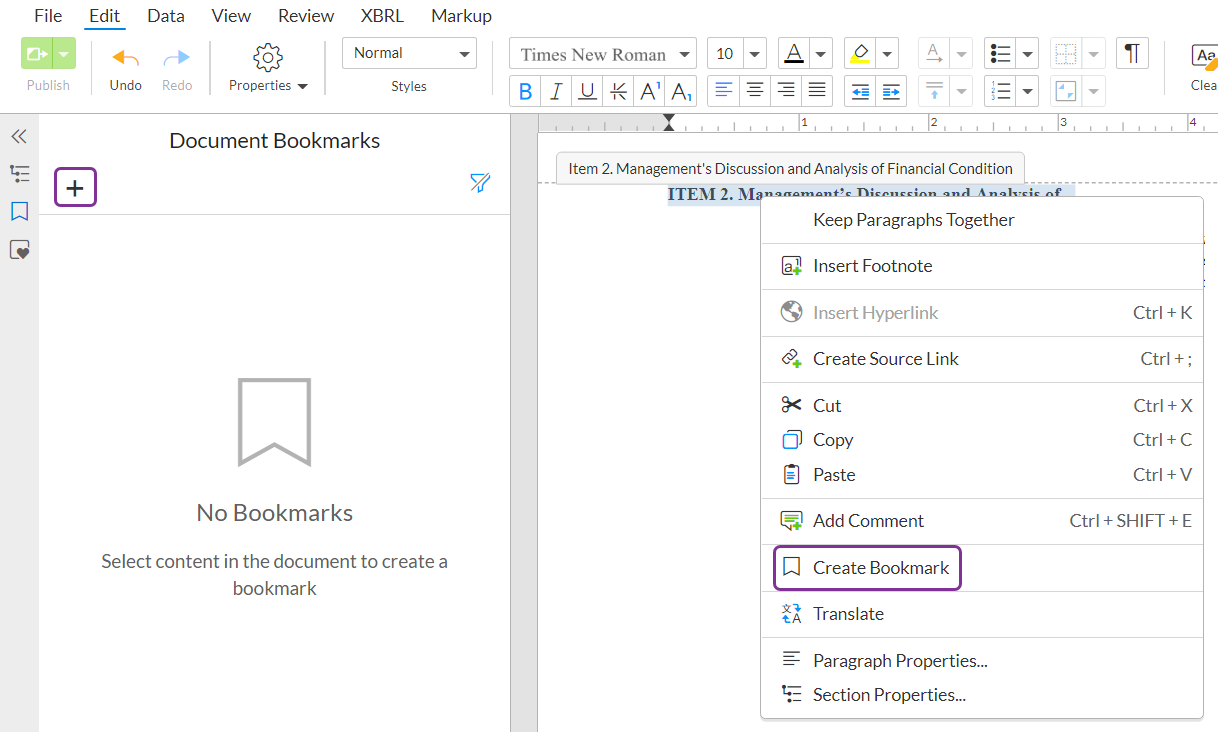
Generate an automatic table of contents with PDFelement
PDFelement is a versatile solution for those who frequently need to edit, annotate, and organize PDFs . One of its most useful features is the automatic creation of bookmarks and content pages based on them.
The general flow consists of opening the document in PDFelement and running the "Auto Bookmark" function , usually available in the viewing tab or similar.
By activating this option, the program analyzes the PDF and detects titles or sections that can be turned into bookmarks , automatically generating a hierarchical structure in the side panel.
Once created, you can review these bookmarks, rearrange them, change the text or the hierarchical level, so that you have a clean and coherent structure with the actual content of the document.
Once you're happy with the bookmarks, simply right-click on them and select "Create a content page from bookmarks" . PDFelement will then generate a new table of contents based on that structure.
The result is an index page where each entry is clickable and leads directly to the corresponding section of the PDF, ideal for extensive reports, manuals, and corporate documentation.
Advantages of using PDFelement for indexes and bookmarks
The strength of PDFelement is that you don't need to be an advanced user to get a well-organized PDF: the interface is quite intuitive and the automatic assistants make the task much easier.
Furthermore, the resulting table of contents usually looks neat and professional , which is very useful if you're going to share the PDF with clients, colleagues, or students.
When working with bookmarks, you have a side navigation panel always available , useful even if the reader does not use the embedded table of contents as a page within the document.
Overall, it's a recommended option if you frequently work with large PDFs and want a balance between automation, customization, and ease of use without relying solely on Word.
Create a manual table of contents in Adobe Acrobat with AutoBookmark
If you already work with Adobe Acrobat and need very detailed control, you can use specific plugins like AutoBookmark™ to generate a table of contents linked to the pages.
This add-on requires Adobe Acrobat to be installed, not just the reader , and integrates as an additional menu (Plugins) from which you can access advanced link and index creation functions.
The basic process begins by opening your PDF in Acrobat and going to Plugins > Links > Generate Links > Link Table of Contents to Pages… . From that wizard, you can configure how the table of contents will be identified.
AutoBookmark offers several predefined table of contents formats, such as bulleted lists, spacing, all caps headings, or more free-form formats , to suit the visual style of your document.
It also allows you to define the range of pages to be analyzed , so as not to process the entire file if the index is only found in a specific section.
Within that range, you can select the option to process only the text within a specific area of the page . To do this, draw a sample rectangle, and the plugin will be limited to that block—ideal if the index occupies a well-defined area.
In addition, you can customize the appearance of the links: type (visible or invisible), highlight style, line thickness, stroke type, and color, giving you ample room to make the index fit with the overall design of the PDF.
Once the wizard is complete, the plugin automatically generates hyperlinks in the table of contents entries, pointing to the correct pages . The index becomes fully interactive, making it much easier to navigate large or complex documents.
Generate PDF tables of contents using online tools
If you don't want to install additional software or need to do a specific task from any computer, there are online solutions that allow you to upload a PDF, edit it, and add a table of contents.
These tools are usually more limited than a desktop program, but they can be very practical for quick touch-ups or for users who don't need advanced features on a daily basis.
Use DocHub to add an index to a PDF in your browser
DocHub is an online service that allows you to open, annotate, edit, and share PDFs directly from your browser , without installing anything. Its features include the ability to create a table of contents.
The process begins by uploading your file to the service: simply import the PDF and wait for it to open in the editor . From there, you can modify text, add annotations, or insert new elements.
Among the editing tools is the option to add a table of contents to the document . The interface is quite simple and includes undo functions to correct mistakes on the fly.
Once the table of contents is ready, you can download the PDF, save it to the cloud, or share it with others , depending on what suits you best at the time.
According to the service itself, special attention is paid to the security and privacy of files , an important aspect when uploading sensitive documents to an online platform.
On the other hand, the customization of the index may be more limited than in desktop solutions like Acrobat or PDFelement, but for quick and simple tasks it fulfills its function without too many complications.
Create the index in Word (or another editor) before converting to PDF
A very effective strategy, especially when you already have the text in editable format, is to build the table of contents in the word processor itself and only then generate the PDF with the index already done.
This approach gives you complete control over the layout, heading levels, and index formatting , and then you just need to make sure that the PDF export preserves the links.
Create a table of contents in Word step by step
If your starting point is a PDF, you can first convert it to Word using a tool like PDFelement or another compatible converter . After conversion, open the document in Word to prepare the table of contents.
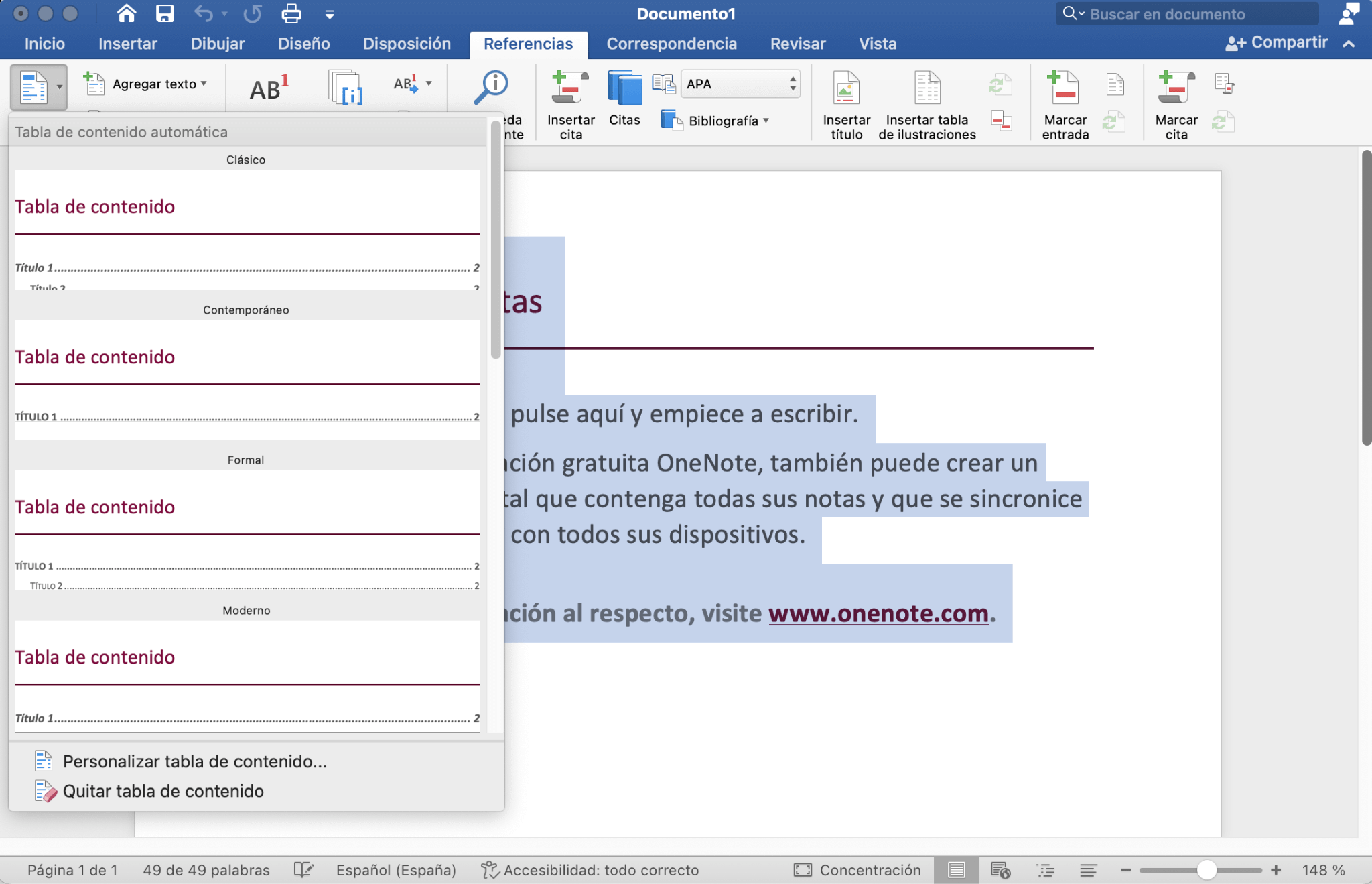
Place your cursor where you want the table of contents to appear and go to the "References" tab in Word to use the "Table of Contents" command . There you can choose one of the automatic styles that update themselves.
Next, go through the document applying heading styles to the different titles : Heading 1 for main chapters, Heading 2 for subsections, Heading 3 for more specific sections, and so on according to your needs.
Word uses these styles to automatically populate the table of contents with titles and page numbers . Each entry becomes an internal link, so clicking on the index takes the reader to the corresponding section.
Once the index is complete and up-to-date, simply go to File > Save As and select PDF as the file type. Word will generate a PDF in which the table of contents will still be clickable.
It's a very convenient solution because it allows you to edit the text and design of the index in Word (which is usually more user-friendly) and then export a PDF that preserves that entire structure.
Use LibreOffice and other open-source alternatives
If you prefer not to rely on paid software, open-source word processors like LibreOffice Writer also allow you to create powerful tables of contents and export them correctly to PDF.
The procedure is similar to that of Word: first, you have to apply heading styles (Heading 1, Heading 2, etc.) to the document headings, so that the program can recognize the hierarchy.
Then place the cursor where you want the index and go to Insert > Table of Contents and Index > Table of Contents . There you can configure the appearance, the levels to include, whether you want leader points, indents, etc.
Once the table of contents is generated, LibreOffice allows you to update it automatically when you change the text or add sections . Simply right-click on the index and choose "Update Index/Table of Contents," or use the option to update all indexes from the Tools menu.
Once you have your document ready, use LibreOffice's built-in PDF export function , which also preserves bookmarks and structure if properly configured.
This alternative is ideal if you need a free, cross-platform solution that is powerful enough to create documents with a navigable index without paying for licenses.
Other options and practical recommendations
In addition to the tools already mentioned, there are other add-ons and utilities that integrate with Office applications, such as Kofax PDF solutions for exporting directly from Word or Excel with configurable bookmarks.
In these cases, there's usually an extra tab on the ribbon (such as "Kofax PDF") that includes a "Creation Settings" option . From there, you can adjust how the bookmarks will be generated and which document elements will be taken into account.
Regardless of the tool you use, it is always advisable to test the final PDF in different readers (Acrobat Reader, browsers, mobile apps …) to check that the bookmarks, index and links work correctly.
It is also advisable to avoid overly cluttered indexes: a good practice is to limit bookmarks to truly important heading levels , so that the navigation panel does not become an endless list that is difficult to follow.
Finally, when sharing PDFs in corporate or academic settings, it's a good idea to inform users that the document includes a bookmarks panel and clickable table of contents , because many people don't explore these features if no one tells them about them.
Taking a few minutes to properly configure PDF creation, apply header styles consistently, and take advantage of tools like Acrobat, PDFelement, DocHub, or LibreOffice makes a huge difference: your documents go from being simple static files to well-structured resources that are easy to navigate and much more convenient to consult , both on desktop and mobile devices.


Passionate writer about the world of bytes and technology in general. I love sharing my knowledge through writing, and that's what I'll do on this blog, show you all the most interesting things about gadgets, software, hardware, tech trends, and more. My goal is to help you navigate the digital world in a simple and entertaining way.