- Voice.ai instantly transforms your voice and offers cloning and soundboarding.
- Voice Universe brings together thousands of UGC voices with compatibility in games and apps.
- Freemium model: free changer and premium plans with extra voices and quality.
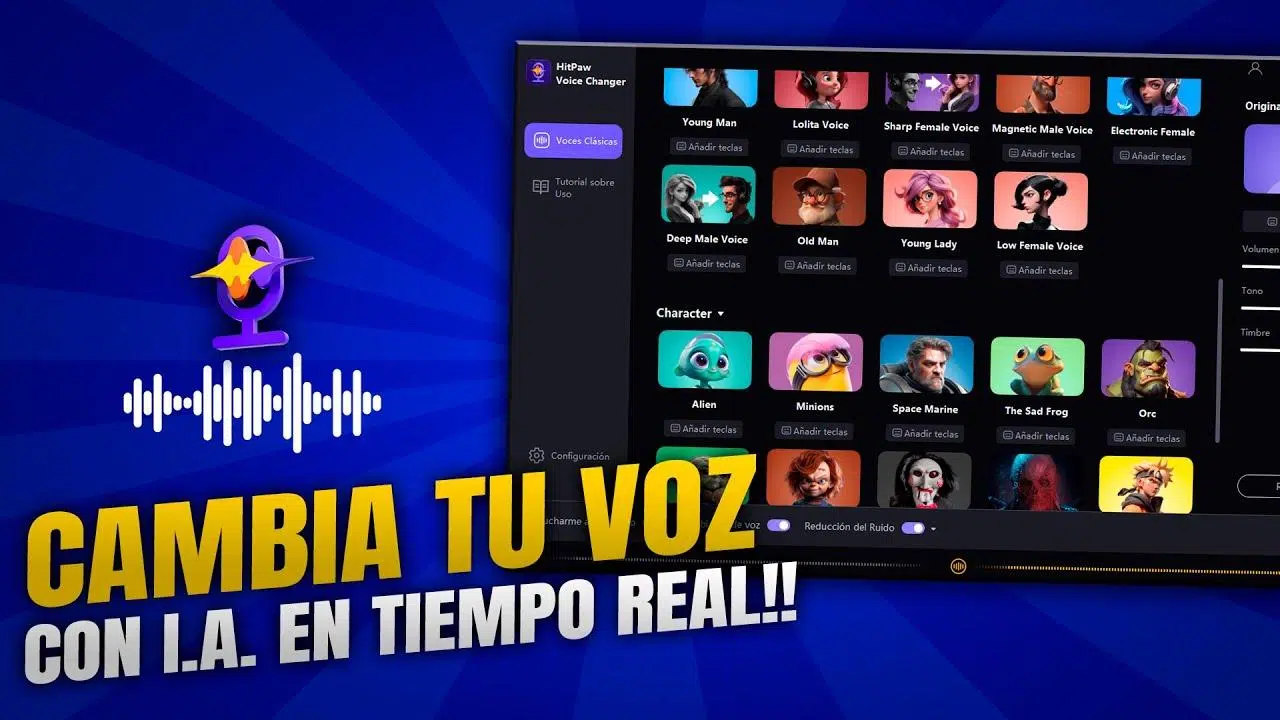
If you're drawn to the idea of speaking with a different voice or playing with famous voices, Voice.ai lets you transform your voice in real time with surprisingly natural results. It's an app focused on creativity and entertainment that also fits perfectly into professional contexts: from live streams and video calls to social media content.
Beyond its fun aspect, its power lies in its simplicity: you choose a model, speak, and the tool instantly modulates your voice . You can also explore thousands of voices created by the community, clone timbres, and take advantage of features like a soundboard with clips and effects. Below you'll find a complete guide with features, pricing, and a step-by-step tutorial to master it, as well as a free video editing alternative if live performance isn't your thing.
What is Voice.ai and why does it stand out?

Voice.ai is a real-time AI voice-changing software designed for gaming, streaming, conversation, or simply experimenting. Its key strength is its instantaneous sound: you speak into your microphone and the app emits another voice with no perceptible delay, crucial for streaming or online gaming.
It works on Windows and Mac , and is compatible with popular tools. In games like Minecraft , Roblox, Fortnite , and Among Us, and in messaging and meeting platforms such as voice changers on Discord , Zoom, Skype, and WhatsApp , the integration is seamless so you can use your new voice without changing your routine.
The community is another key element: the Voice Universe is a repository of user-created voices (UGC) with thousands of options that grows daily. You can choose voices inspired by celebrities, cartoon characters, or politicians, and if you're feeling inspired, upload your own for others to try.
In addition to transforming your timbre, it's possible to clone voices using reference recordings. This approach allows you to replicate nuances or create unique sonic identities for podcasts, role-playing, or creative projects. Always use common sense and respect for rights and obtain consent when dealing with third-party voices.
As if that weren't enough, it includes an advanced soundboard for triggering sound effects and clips during gameplay or live streams. Add layers of humor, emphasis, or atmosphere without touching your mixer—all from the same app.
Key features worth knowing
The magic of Voice.ai lies in several modules that, when combined, open up many possibilities without requiring any technical expertise. These are the most relevant pieces and how they fit together for a versatile and engaging workflow.
- Live voice changer: Modulate your voice while speaking, with low latency for live streams and chats.
- Voice cloning: It creates custom models from clean, well-calibrated recordings.
- Voice Universe (UGC): access to thousands of voices created and shared by the community.
- Sounding board: Play effects and clips instantly to liven up your sessions.
- Wide compatibility: Popular games and social apps, without complex setups.
- Simple interface: quick installation, voice selection, and intuitive controls.
- Free changing room: Real-time use without a basic subscription; paid plans with extras.
The real-time voice changer feature shines especially brightly if you're streaming : you can switch between voices depending on the moment, without interrupting the broadcast . It offers a lot of possibilities for role-playing or storytelling.
Cloning allows for serious customization: by providing clear samples (without noise and with a variety of intonations), you'll obtain more faithful and stable models . This works both for replicating your own voice and for designing a new sonic identity for your channel.
The UGC ecosystem, with over 4 AI-trained voices , offers a wide range of options. You'll find superheroes, horror voices, cartoonish styles, and realistic tones. And if none of those fit, you can upload your own to fill the gap.
The soundboard adds a very useful layer: it assigns shortcuts and triggers effects or phrases at key moments. Ideal for livening up games or reinforcing jokes during live streams without losing momentum.
Pricing: Free and premium options
Voice.ai offers a free real-time voice changer mode that covers the basics. If you need more, there are subscription plans and a one-time lifetime payment option with expanded features.
- Free plan: access to the live switcher and essential functions.
- Quarterly Plan: $5,99 USD/month (billed quarterly) with advanced voices and pro options.
- Annual plan: $2,99 USD/month (billed annually), the most economical option if you use it extensively.
- Single payment: $99,99 USD for lifetime access to premium features.
The figures provided point to a flexible model, designed for different uses. If your goal is to experiment and play occasionally, the free version may be sufficient; if you're looking for extra quality and exclusive voices , the paid plans are worthwhile. As always, it's advisable to check prices and updates on the official website before making a decision.
Step-by-step guide: how to convert your voice in real time
Below is a practical guide to get you started from scratch. The steps combine experience from both Windows and Mac, and include configuration tips that make a real difference in quality and stability.
Step 1: Download and install
Go to the official website and download the Voice.ai installer (or use the App Store on Mac). Open the file, accept the terms (including any potential beta phase), and complete the installation. Make sure you have at least 1,2 GB of free space to avoid interruptions during the model download.
Step 2: First boot and permissions
When you open the application for the first time, Windows usually loads the app directly; on a Mac, the system may ask for permission to run it . Grant it to continue without interruption. Look for the icon on your desktop or in Launchpad to launch it quickly.
Step 3: Registration and login
If this is your first time using this service, tap "Sign Up," enter your email address, and set a secure password. If you already have an account, log in instantly . This step will grant you access to Voice Universe and your synced settings.
Step 4: Get to know the interface
Locate the recording area using the "Click to Record" button and the voice selector. From there, you can speak and listen to the recording in real time. Navigate through the audio input and output settings to select the microphone, latency, and quality, and avoid conflicts with other audio programs.
Step 5: Choose and test voices
Enter the Voice Universe and filter by style or popularity. You'll find voices inspired by celebrities, comic book characters, sinister tones, or neutral voices for professional use. Activate one and speak: the app processes your microphone and delivers the chosen voice instantly.
Step 6: Clone your voice (optional)
If you want a unique sound, record clear samples (varied phrases, at a consistent volume and without background noise). The tool uses this material to train a model that you can use in real time or for voiceovers. The more variety of intonations and pauses, the better the result.
Step 7: Calibration and fine-tuning
Experiment with tone, formant, and gain controls to suit your specific version. Adjust the mix between the direct and transformed signals to comfortably hear yourself through the monitors without annoying latency. If the vocals are clipping, lower the input level; if they sound muffled, carefully increase it.
Step 8: Use the sound box
Prepare effects and short clips that you can trigger during games or chats. Assign keyboard shortcuts and learn how to fire them at key moments to enhance interaction without interrupting your flow.
Step 9: Save and export audio
After recording, you can save the audio clip and organize it for projects. Switching between recordings and managing them by folders prevents you from losing anything if you produce content frequently.
Step 10: Integrate with your apps
Configure Voice.ai as your input device in Discord, Zoom, Skype, or WhatsApp Desktop. Open the app settings, select the Voice.ai virtual microphone, and verify that the meter is working. In games like Minecraft or Fortnite, also check the game's voice chat to select the same device.
Step 11: Live visual filters
If you're also on camera, combine your transformed voice with real-time image filters to give your character a more coherent look. This is especially useful for streamers or creative presentations.
Step 12: Gather feedback and optimize
Ask colleagues or your audience for feedback: Is it clear? Is there echo or noise? Does the voice match the content? With that feedback, adjust latency, pitch, and voice choice to refine your sound until everything flows smoothly.
Use cases: from gaming to the office
For gaming, alternating voices adds dynamism to roleplaying; for streamers, it reinforces the narrative of the live broadcast; for meetings, it can be a way to protect privacy or break the ice in informal settings. And at live events, an unexpected voice instantly grabs attention.
It's also useful for content production: you can create recurring characters for videos or podcasts, each with their own voice, or add voiceovers to presentations . Add the soundboard feature, and you have a whole mini studio for sketches and comedy, all within the same app.
Quality and performance tips
A good microphone makes all the difference: if possible, use a USB or XLR microphone with an interface. Attach a pop filter and record in a quiet environment . Reducing background noise improves the intelligibility of any voice recording.
Control levels: avoid peaks in the input and maintain a margin. If the monitor mix is distracting, lower the direct volume and increase the monitoring of the processed voice . The goal is to hear yourself naturally without any imbalances.
Try out different models and save presets for each situation: one for relaxed conversation, another for humor, another for a serious tone. This way you can change the atmosphere with the touch of two buttons.
Before going live, do a private test with Discord or Zoom to make sure your voice is clear and uninterrupted. If there's latency, close apps that are using a lot of CPU or network resources, and reduce the game's graphics settings if you're using a low-end computer.
Alternatives for video editing: CapCut (free)
If you're looking to transform your voice in post-production (not live), the desktop video editor CapCut is a free alternative with several interesting extras. Its AI-powered voice changer works well for polishing videos intended for social media.
- Versatile voice changers: Character filters and diverse styles to adapt the tone to the content.
- Text to speech (TTS): It generates natural voiceovers without recording, by choosing different voices.
- One-click noise reduction: Cleans noisy environments for clearer audio.
- Singing voice enhancements: tools for tuning and enhancing musical voices.
- Extensive music library: Tracks and effects to complete the editing without leaving the editor.
How to apply it in CapCut simply and directly: import your video, separate the audio, open the voice changer panel , choose an effect, adjust pitch and speed, and export. If you only want the audio, uncheck "Video" and select "Audio" during export.
Useful tips for nailing the effect: try various filters, fine-tune the pitch, combine effects if you're looking for a unique result, control the volume to avoid distortion , preview in real time, and save your favorite presets so you don't have to start from scratch in your next project.


Passionate writer about the world of bytes and technology in general. I love sharing my knowledge through writing, and that's what I'll do on this blog, show you all the most interesting things about gadgets, software, hardware, tech trends, and more. My goal is to help you navigate the digital world in a simple and entertaining way.