Have you ever been typing in Word and thought it would be so much more convenient if you could convert your voice directly to text, or have the program read the content aloud for you? Text-to-speech and reverse dictation features in Microsoft Word have been a huge leap forward in productivity and accessibility, for students, professionals, and people with visual or reading difficulties. This guide introduces you in detail to all the possibilities that Word and Windows offer for controlling your text with your voice, combining dictation and reading aloud, with practical explanations and tips for using it on any device.
Integrating accessibility technologies, such as speech recognition and text-to-speech, is no longer a luxury: it's an essential tool in everyday digital life. Whether you want to review your documents, easily correct errors, take notes without typing, or simply rest your eyes, thoroughly understanding the dictation and TTS (text-to-speech) options in Word will completely transform your experience. Here's everything you need to know, from activation to expert use on any platform.
What is the text-to-speech and dictation feature in Word?
For years, Microsoft Word has included two key features to help you interact with your documents more efficiently: voice dictation and text-to-speech. These technologies allow you to convert your voice into written text (dictation), or have the program read any of your documents aloud (text-to-speech), which is especially useful for reviewing documents, improving content comprehension, or enhancing accessibility.
Dictation is ideal for creating long texts, taking quick notes, or drafting emails without typing . Reading aloud, on the other hand, allows you to listen to your writing to detect errors, understand it better, and make corrections easier.
How to enable and use text-to-speech in Microsoft Word
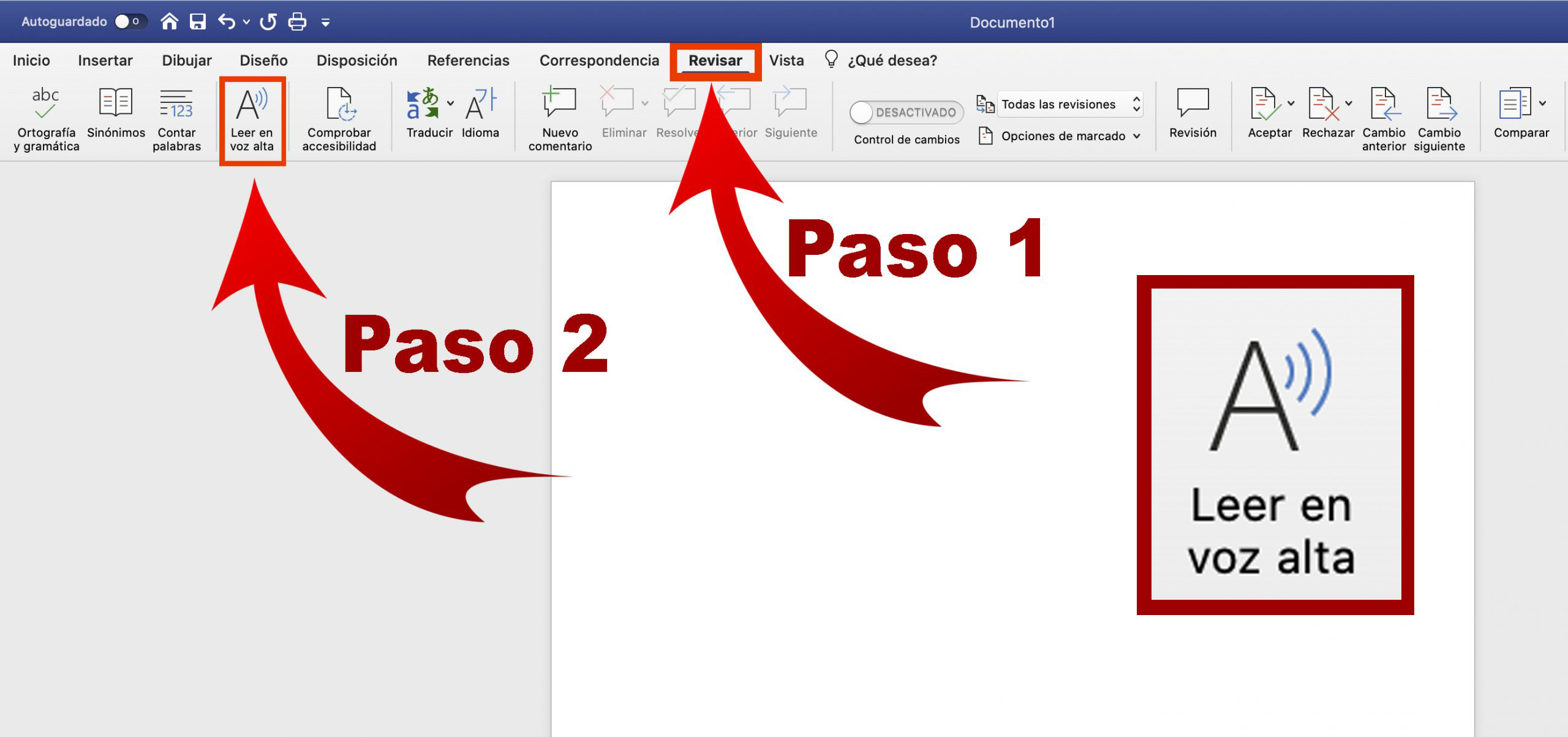
- Nowadays, all modern versions of Word (Windows, Mac, Office Online) have the "Read aloud" function, which you can access from the tab Check on the ribbon. Select the text you want to hear and click the corresponding button to have Word begin reading it in the voice configured for your system.
- If you want to speed up the process even more, you can add the read aloud button to the quick access toolbarThis way, you'll always have it at hand, without having to navigate through menus.
- It is possible to customize the voice, speed and language of the readingThese options are adjusted from the Control Panel (on Windows) or from System Preferences on Mac, allowing you to choose between male and female voices and adjust the speed to your liking.
Additionally, you can use keyboard shortcuts to start or pause reading aloud (for example, Ctrl + Down Arrow on some systems), and this feature is also available in Word for mobile devices (Android/iOS), facilitating mobility and multitasking.
Reverse Dictation: Automatically convert your voice to text in Word
Reverse dictation, also known simply as dictation, instantly transforms your voice into text . In Word, this feature is available from the Home tab under the microphone icon and the "Dictate" option. All you need is a working microphone and an internet connection for Word to transcribe what you say in real time.
Language recognition is extensive, and you can also easily switch between them from the dictation options. This is especially useful for writing bilingual texts or working in different languages.
What can I dictate besides “normal” text?
Word understands a wide variety of voice commands and allows you to insert punctuation marks, mathematical symbols, currency symbols, emojis, and special characters as you dictate. For example, you can say "semicolon," "opening quotation mark," or "euro sign," and the program will insert the corresponding symbol into your text.
Some of the recognized expressions for dictating special symbols and signs:
- Point: say "period" or "full stop"
- Eat: say "comma"
- Two points: say "colon"
- Exclamation mark: say "exclamation"
- Question mark: say "interrogation"
- Parentheses, quotation marks, asterisks, equals, plus, minus, slash, euro symbol, dollar symbol, at sign, etc.: Word recognizes virtually all of these commands.
Customization and advanced tricks
Word's dictation panel also lets you turn on automatic punctuation , which makes it easy for transcribed text to contain commas, periods, and other punctuation marks without you having to pronounce them, as Word inserts them based on the natural pauses in your speech. If you prefer, you can add punctuation marks manually by speaking the corresponding command.
Insert symbols, special characters, and emojis using your voice
One of the great advantages of dictation in Word is that you can add symbols and special characters simply by speaking . This is key when writing technical or mathematical documents, or when typing passwords, emails, and so on.
Examples of commands for dictating symbols in Word:
- "Left parenthesis" or "open parenthesis"
- "Right key" or "close key"
- Percentage sign
- "Asterisk"
- "Euro sign"
- "Apostrophe"
- "Plus sign"
- "Underscore"
- Smile emoji
In addition, Word allows you to spell words and symbols letter by letter , using commands like "spell" or "spell that," which is ideal when you need to enter unusual names, usernames, emails, or foreign words that are uncommon in the dictionary.
Set up and customize dictation in Word for any user
Word's dictation and text-to-speech features are designed to be as inclusive as possible , promoting accessibility for everyone. You can adjust the language, voice, and speed, turn automatic punctuation on or off, and filter profanity to prevent offensive terms from being transcribed.
How to change the dictation language:
- In the dictation bar, access the configuration options
- Look for the "Spoken Language" option and choose the one you prefer.
- You can quickly switch between languages depending on the content of your document.
If you want to control the privacy of your data or prevent certain words from being dictated verbatim , you can activate the profanity filter in the dictation settings. This will automatically replace offensive words with a sanitized version.
Shortcuts and tips for using dictation and text-to-speech on any device
- Keyboard shortcuts: Start dictation with Alt + ` (grave accent) or Alt + H, D depending on your version and operating system.
- On mobile (Android/iOS): Activate the on-screen keyboard, look for the microphone icon, and start speaking. You can change the dictation language from the keyboard's settings menu.
- On Mac: Press Command + F6, navigate to the dictation option with the arrow keys, and activate it with Control + Option + Spacebar.
- In the web version: Go to Word Online, open the dictation menu from the Home tab, and follow the prompts.
Remember that you can use dictation and the keyboard simultaneously , which is useful for correcting or completing text while dictating without interrupting your workflow.
Read aloud: review, learn, and improve with the TTS feature
The "Read Aloud" feature helps you review the content of your documents while listening, ideal for catching typos, improving comprehension, or multitasking . The reader can also be invaluable for users with dyslexia, low vision, or reading difficulties, as well as for those who want to create impromptu audiobooks.
Some advantages of using reading aloud:
- Most effective review: Listening to your texts helps you detect errors that may go unnoticed when reading on screen
- Improved pronunciation and intonation: useful for learning languages and preparing presentations
- Increased accessibility: Any user, regardless of their visual or reading ability, can access the content
Text-to-speech is compatible with most languages installed on your system . You can install additional voices from your Windows or Mac settings for a personalized experience.
External solutions to improve the TTS experience
In addition to the tools built into Word and Windows, there are external solutions like Speechify that take the text-to-speech experience a step further . These platforms allow for even greater voice customization, highlighting text as it's read, offline functionality, a choice of multiple languages and realistic voices, and the ability to read content from PDFs, emails, and web pages.
Speechify, for example, allows you to:
- High-quality voices in multiple languages
- Full control over reading speed and the option to listen offline
- Multi-device integration to read any content, from browsers to mobile devices
- Visual highlighting of text while audio is playing, improving comprehension

Passionate writer about the world of bytes and technology in general. I love sharing my knowledge through writing, and that's what I'll do on this blog, show you all the most interesting things about gadgets, software, hardware, tech trends, and more. My goal is to help you navigate the digital world in a simple and entertaining way.