- Activate native protections (Safe Browsing, HTTPS, Secure DNS) and pass the security check.
- Control sensitive data: passwords, third-party cookies, permissions, and extensions.
- Strengthen your defenses with tools such as: blockers, password managers, VPN and private search engines.

The internet is full of everything: reliable sites, deceptive pages, intrusive ads, fake downloads , and malicious extensions. Properly configuring your browser is your first line of defense , because it's the gateway to the internet and the place where you unknowingly leave behind the most personal data.
Throughout this guide, you'll learn how to raise the bar for security in Chrome, Edge, Firefox, Safari, and Internet Explorer, which extensions can help, and why it's beneficial to enable features like Secure DNS, password verification, and HTTPS connection mode. We integrate native browser measures, best practices, and advanced settings so you can browse with greater peace of mind, without sacrificing performance.
What does it mean to strengthen browser security?
Modern browsers work with services that crawl the web to detect dangerous sites and files. In the Google ecosystem , Chrome checks websites and downloads with Safe Browsing , a technology that maintains lists of threats ( phishing , malware , malicious extensions, social engineering, and deceptive ads) and warns you before you make a mistake.
Chrome offers three levels of protection: Enhanced Protection , Standard Protection , and No Protection (not recommended) . With Enhanced Protection, the browser can send Google the full URL, a minimal sample of the content, and technical signals (such as extension activity) for risk analysis, even when the threat is new. The sole purpose is security , and if you sign in and enable the option for your account, the protections also extend to other services like Gmail.
With Standard Protection , Chrome partially obfuscates URLs and passes them through privacy servers before querying Google. This way, neither the intermediary server sees your IP address nor does Google see the full URL. Only if something seems suspicious does Chrome send the full address and snippets of the page for further verification. Disabling protection, on the other hand, removes these safeguards: it's not a good idea.
Even if a warning appears, you can always proceed at your own risk. It's important to take these warnings very seriously ; ignoring them could result in problems with your data or equipment.
In addition to antimalware and antiphishing filtering, your browser stores a lot of sensitive information : browsing history and searches, cookies, logins, forms, credit card details, notification permissions, and geolocation data. Minimizing autofill and reviewing permissions is key to reducing the risk of phishing and data breaches.
Alongside these native features, there are tools that enhance privacy: browsers that prioritize blocking trackers (for example, Brave with built-in blockers, anti-tracking, and extra features like VPN in its mobile app), search engines that don't profile you (DuckDuckGo, which doesn't associate your IP address or location with your browsing history), and VPNs to encrypt traffic and hide your real IP address from networks and providers. When chosen carefully, these tools form an extra layer of protection on top of your browser settings.
Configuration can also help you stop scripts that execute techniques like XSS or clickjacking . Blocking them by default and only allowing them on trusted websites greatly reduces the attack surface, although it requires a bit more interaction on your part. And, as a golden rule, keep your browser and its extensions always up to date to patch known vulnerabilities.
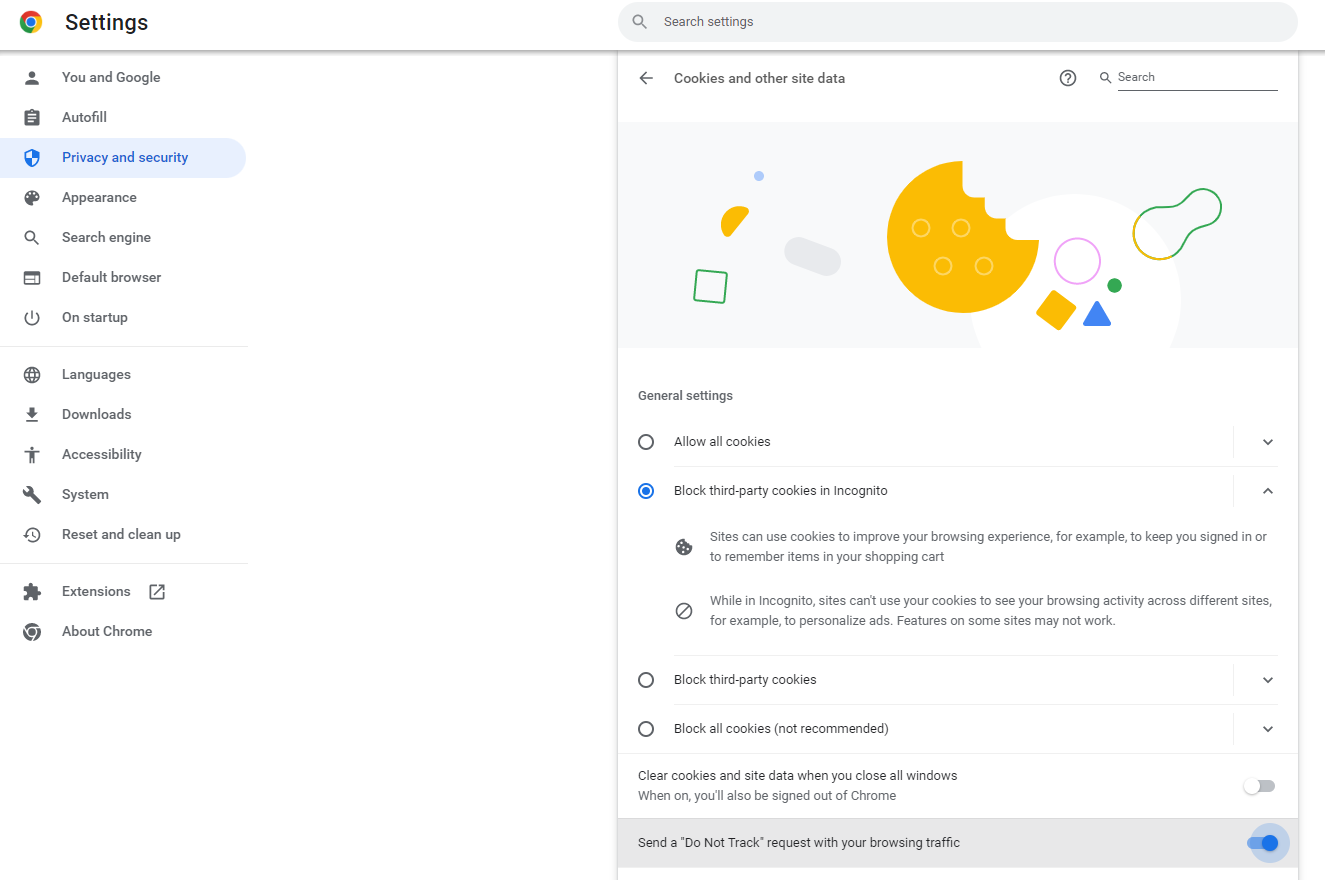
Google Chrome: Security and Privacy Step by Step
Chrome includes a comprehensive security panel and automatic risk assessment. Start by choosing the Safe Browsing level that best suits you, and then activate the advanced protections we'll discuss below.
- Change the Safe Browsing level: Open Settings > Privacy and security > Security and choose between Enhanced protection, Standard protection or No protection (not recommended).
- What Enhanced Protection Offers: Proactive warnings of dangerous sites, downloads, and extensions (including new threats), verification of compromised passwords, and deeper analysis of suspicious downloads.
- Standard default protection: Obfuscated URL query via privacy servers; only escalates analysis when it detects suspicious signals.
To keep everything under control, Chrome includes a Security Check that reviews critical points and suggests actions if it detects problems.
- Weak, reused, or exposed passwords.
- Safe Navigation status and reminders to check it.
- Pending browser updates.
- Potentially unwanted or misleading permissions and notifications.
- Permissions for unused sites (which Chrome can automatically revoke).
- Potentially harmful extensions.
To run it: Settings > Privacy and security > Security check > Go to Security check . If any warnings appear, go to the problematic item and follow the instructions until the issue is resolved.
In addition, there are several advanced settings you might want to enable. " Always use secure connections" (HTTPS mode) forces websites to attempt to load using HTTPS and warns you before you visit pages that don't support it. You can choose whether you want warnings only on public websites or also on intranets.
Enable the option to receive alerts for compromised passwords in Settings > Privacy and security > Security > Advanced. Chrome will securely compare your credentials against known leak databases and notify you if any have been compromised.
Secure DNS (DoH) encrypts domain name queries to prevent prying eyes during resolution. It's automatically enabled in "automatic" mode, but you can select a compatible provider or a custom one in Settings > Privacy and security > Security > Advanced settings > Use secure DNS. If your device is managed or has parental controls, you might not be able to use it.
Chrome also allows you to manage the V8 optimizer (JavaScript Just-in-Time) to improve security in high-risk environments at the expense of performance: Settings > Privacy and security > Security > Manage V8 security. It's recommended to leave the optimizer enabled, but you can disable it globally or define lists of allowed/blocked sites according to your needs.
If you use FIDO/U2F security keys for logins, go to Settings > Privacy and security > Security > Advanced > Manage security keys to create a PIN, manage login details, manage fingerprints, and reset the key when needed. On some Windows computers , this management is also available in the system settings, and if necessary, consult how to manage digital certificates in different browsers.
In high-risk environments (journalists, activists, system administrators), consider Google's Advanced Protection Program, accessible from Settings > Privacy and security > Security. It adds stricter sign-in requirements and defenses against targeted phishing and malware.
Other useful features include automatic updates (Chrome updates itself as soon as a new stable version is available), and on-device password encryption to unlock your password manager using your device's credentials or your Google account, provided device encryption is enabled. It's also helpful to know how to back up and restore browsers when needed.
Finally, a round of permissions and privacy tips useful for everyday use: review granted notifications and disable annoying or misleading ones; control which websites have access to your location, camera, or microphone; and reduce tracking by limiting third-party cookies or deleting cookies when you close your browser if it fits your workflow.

Microsoft Edge: Enhanced security and site controls
Edge includes a specific feature called Enhanced Security that hardens the browser against memory-exploiting attacks by disabling JavaScript's Just-in-Time (JIT) and adding operating system protections such as hardware stack protection and ACG. The goal is to reduce the attack surface , especially on sites you don't visit often or that are unfamiliar.
There are two modes: Balanced (recommended) and Strict . In Balanced mode, Edge applies extra protections to infrequently visited sites, but leaves out those you visit regularly to avoid breaking functionality. In Strict mode, protections are applied to all sites by default , which can affect certain parts of web pages that rely on advanced JavaScript features.
To activate it: Settings & more > Settings > Privacy, search & services > Security > Improve web security and choose your preferred browsing mode. You'll see the "Added security" indicator to the left of the address bar when the feature is active on a particular site.
You can also create site-specific exceptions to either disable or enforce enhanced security. Go to Privacy, Search & Services > Security > Enhanced Security Site Preferences and add domains to either "Never use enhanced security for these sites" or "Always use enhanced security for these sites." From this same screen, you can edit or remove entries from the list as needed.
In addition, Edge offers practical settings: blocking pop-ups, Send Do Not Track requests (although many sites don't respect them), disable Cortana's help in the browser, and keep SmartScreen enabled to block downloads and malicious websites. For advanced performance, there's the menu about:flags with options like TCP Fast Openwhich can speed up page loading in certain environments.
Firefox, Safari, and Internet Explorer: Useful Settings and Add-ons
Firefox is known for its frequent updates and focus on privacy. Before installing extensions, adjust its native settings : in Settings > Privacy & Security, use "Enhanced Tracking Protection mode," select "Use custom settings," block third-party cookies, and enable history deletion on close. If you prefer, you can also enable Persistent Private Browsing to avoid leaving any local traces.
In the security section, make sure you keep warnings about dangerous sites and add-on installations enabled . Regarding passwords, disable saving if you prefer to use an external password manager; if you choose the Firefox password manager, use a strong master password and only enable synchronization if it's convenient for you. And, of course, leave automatic updates enabled.
Among the notable Firefox add-ons, NoScript allows scripts to run only on trusted sites using whitelists; BetterPrivacy helps with "super cookies" or LSOs; WOT displays site reputation using a traffic light system; and Ghostery blocks common trackers. Use them wisely to avoid breaking essential sites, and if a critical portal goes down, adjust permissions on a domain-by-domain basis.
Safari on macOS is known for balancing security and performance, but it's not immune. Review Autofill and uncheck anything you don't need (especially forms and cards), block pop-ups, and require confirmation before submitting insecure forms. In Security, you can limit or disable JavaScript and plugins on untrusted sites, although disabling JS entirely will affect many websites , and we only recommend it in very restrictive contexts.
More
In all browsers, it's worth remembering the obvious: Update to the latest stable version And keep your extensions clean. If an extension isn't essential or you don't trust it, it's best to remove it. Regarding performance, clear the cache periodically. keep few tabs open Avoiding heavy add-ons will save you RAM and prevent crashes. In Firefox, for example, you can use about:memory and click “Minimize memory usage”; in Edge or Chrome, disable unnecessary features and check their usage from the Task Manager of the browser. It's also useful optimize browser to reduce memory usage.
Regarding the "aggressive" adjustments that are sometimes recommended: completely blocking JavaScript speeds things up and reduces risks, but breaks basic functionality on many websites; if you choose this approach, do so with carefully curated allow lists and be aware of what you're doing. The same applies to cookies: blocking all of them can leave you unable to log in; a reasonable approach is to limit third-party cookies and clear data when logging out or closing the browser.
Cross-browser extensions that help with any browser: ad blockers (improving privacy and reducing malvertising), script blockers/filters to control what runs, VPN extensions for specific tasks (if you don't need to tunnel your entire system), and password managers to generate strong, unique passwords for each site. With these tools, the leap in privacy and security is significant.
In Chrome, there was a time when it was queried chrome://plugins/ to disable components; It is obsolete todayManage extensions from chrome://extensions/ and check permissions. In Edge, some of the advanced performance settings are exposed in about:flagsAnd in Safari you can enable the developer menu to disable extensions or try without them if the browser is running slowly.
An important note: Vulnerabilities affecting the storage of sensitive browser data , such as saved cards or passwords, are occasionally made public . The best mitigation is multifaceted: don't store more than absolutely necessary, protect your device with a username/password or biometric authentication, encrypt your device, use reputable password managers and apply patches as soon as they become available , and know how to disinfect a browser hijacker when needed.
If you prefer to stick with your usual browser, remember that there are official support pages with guides for checking privacy and security: Chrome (Settings > Privacy and security), Firefox (Settings > Privacy and security), Safari (Safari > Settings > Security/Privacy), and Microsoft Edge (Settings > Privacy, search, and services). These paths will take you directly to the most important controls.
Finally, for any questions or issues related to cybersecurity in Spain, you can contact INCIBE's Cybersecurity Helpline (017) , as well as their WhatsApp (900 116 117) and Telegram (@INCIBE017) channels. It's a free resource and can be invaluable if you're facing a problem with your browser or privacy.
With all of the above in mind, you have a clear plan: activate your browser's built-in protections (Safe Browsing, Enhanced Security, HTTPS, Secure DNS), run the security check, manage permissions and passwords, limit third-party trackers and cookies, consider using a private browser and a VPN, and always keep your browser updated. With a few clicks and a little care, your browser will go from being an open book to a much more secure tool for navigating the web.


Passionate writer about the world of bytes and technology in general. I love sharing my knowledge through writing, and that's what I'll do on this blog, show you all the most interesting things about gadgets, software, hardware, tech trends, and more. My goal is to help you navigate the digital world in a simple and entertaining way.