- RAID 5 allows you to combine three or more disks to achieve a balance between capacity and security through parity.
- Windows offers the Storage Spaces tool as the most modern and simple native option for implementing this system.
- Software configuration is a viable alternative when the motherboard hardware is incompatible or risky.
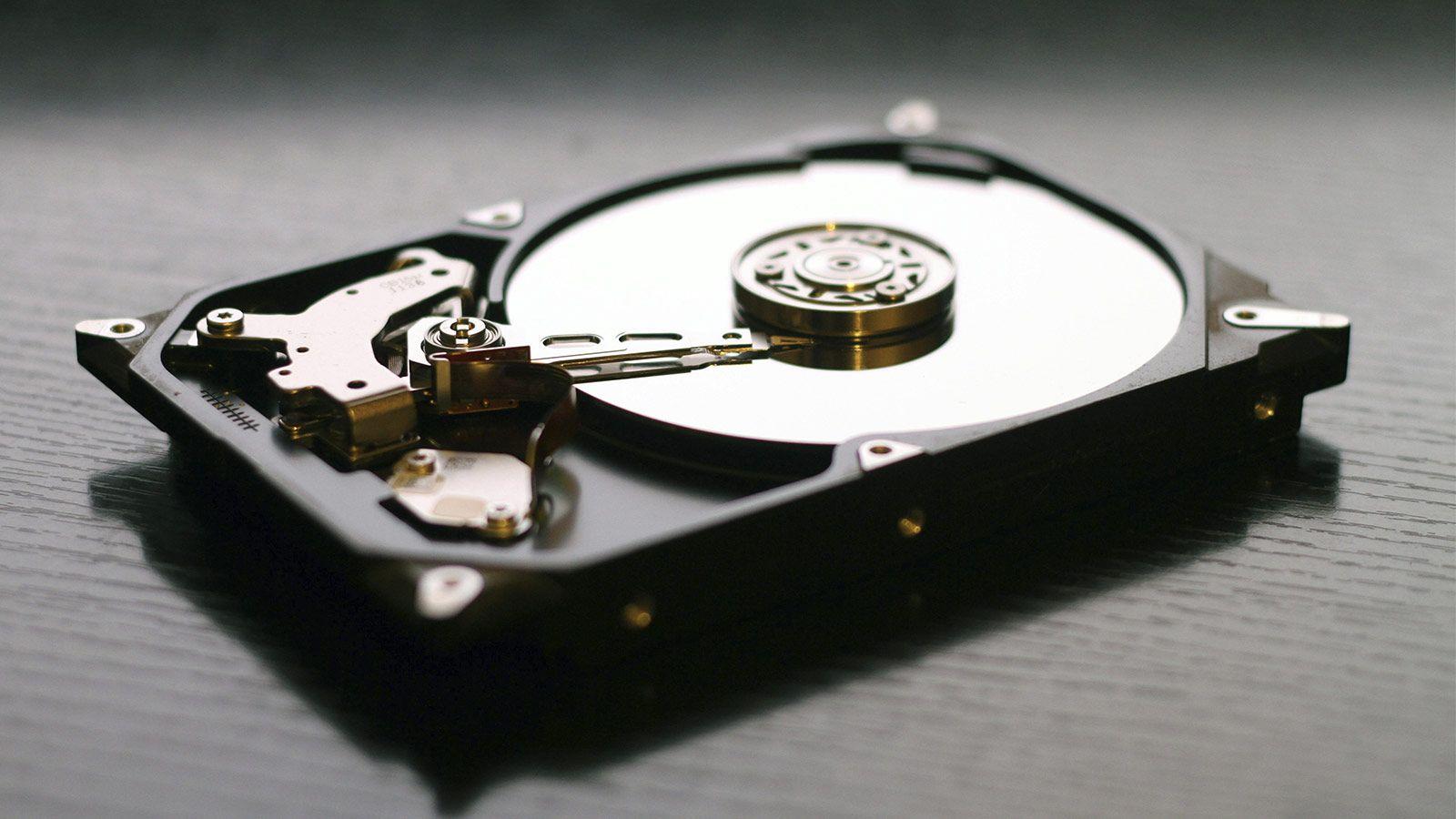
Sometimes we find ourselves in a situation where we need our data to be secure, but we don't want to complicate things with expensive controller cards or temperamental BIOSes. Setting up a redundant storage system might seem like a computer expert's dream, but the reality is that Windows has built-in tools that allow us to manage our disks without having to spend a fortune on specialized hardware.
If you have a couple of hard drives lying around and want to maximize performance and security , you've come to the right place. We're going to explore how to go from having separate drives to a robust volume that can withstand the failure of one drive without you panicking about losing your files.

Understanding how RAID 5 works
To begin with, we can't proceed blindly. RAID 5 is a system that seeks the right balance. Unlike RAID 0, which prioritizes speed but is a recipe for digital suicide if a disk fails, or RAID 1, which simply clones everything, RAID 5 uses a mathematical calculation . This means that the data is distributed across at least three disks, and a mathematical calculation is stored that allows the data to be reconstructed if one of the drives fails.
It's crucial to understand that you'll need the same type and capacity for this deployment . Ideally, they should be the same model and capacity, because if you mix a 2TB drive with a 4TB drive, the system will rely on the smaller one, and you'll end up wasting space. Also, remember that this process will erase all the content on the selected drives, so make a backup before starting, or you'll bitterly regret it.
Implementation through Storage Spaces
In the most recent versions of Windows, especially Windows 11, the crown jewel is the Settings app . This tool has evolved considerably and now boasts a modern interface (WinUI) within the Settings menu, making everything much more intuitive. There's no longer any need to struggle with the cryptic menus of the old Control Panel, although it still exists for those who are nostalgic.
To access this section, simply go to [location missing ]. There you'll find the advanced settings section where Storage Spaces are located. The first thing you need to do is create a [location missing] , which is simply the physical set of drives that will populate your virtual volume.
Once the group is created, the crucial step is defining the RAID array . To achieve RAID 5, you must select the appropriate option . Choosing "Simple" would result in RAID 0; choosing "Mirror" would result in RAID 1. By selecting Parity, Windows manages the necessary redundancy to ensure your volume is secure.
The process ends by assigning a drive letter and formatting the volume, preferably with the NTFS file system . If you're going to store very large files, such as 4K videos or databases, I recommend increasing the size of the drive to 100% or more to ensure lightning-fast read and write speeds.
Advanced alternatives: Dynamic Disks and DiskPart

If for some reason Storage Spaces doesn't suit you, or if you're using older versions like Windows Server, you can use dynamic disks . This method is more traditional and is managed through Disk Management. The process requires you to first convert your basic disks to dynamic by right-clicking on them.
For those who prefer the console and feeling like real hackers, From the command line, you can run the sequence to convert the disks to dynamic and then launch the command It's a much faster method if you know exactly what you're doing, although a typo can be catastrophic.
It's important to mention that, being a RAID array , the system's intelligence resides in the operating system. This means that if the disk where Windows is installed fails, you could have problems accessing the RAID array unless you reinstall the system and re-import the disk group. This is a key difference to consider compared to hardware RAID arrays, which are independent of the operating system.
Disk fault management and replacement
Nobody sets up a RAID 5 array expecting a disk to fail, but that's what redundancy is for. When a drive starts giving warnings or fails completely, Windows will display a warning in the storage section. The first thing to do , and if you have the minimum number of drives, is to add the new disk to the array before removing the old one.
The process can take hours depending on the size of your disks. During this time, system performance may decrease slightly, but it is vital not to turn off your computer or put any unnecessary strain on the disks. Once the status changes to "safe ," your data will once again be protected against any further unforeseen failures.
If you encounter errors where the volume appears as RAW or is not displayed, there are specialized tools that can rescue the RAID structure even if the file system has been severely corrupted.
To master storage on your PC, simply know that RAID 5 is the best option when you're looking for security without wasting half your capacity on exact copies, as long as you use the Storage Spaces tool or dynamic disk management to manage parity between at least three physical drives.

