- Scrolling screenshots allow you to save content that exceeds the length of the screen, such as long websites or chats, in a single image.
- iOS It offers full-page capture in Safari and compatible browsers, while for apps Scrolling usually requires third-party tools like Tailor or LongShot.
- En AndroidMany layers include extended capture as standard and Google Chrome It adds its own function for websites; if the mobile device doesn't include it, apps like LongShot or Scroll Capture cover that gap.
- By combining native methods and external applications, it is possible to easily create long, shareable screenshots on virtually any current device.

I'm sure you've found yourself taking multiple screenshots in a row more than once because what you wanted to save wouldn't fit in a single image. Endless WhatsApp conversations , social media threads, incredibly long web pages… and in the end, you end up with a ton of screenshots that are a nightmare to share or save.
The good news is that nowadays it's very easy to create long or scrolling screenshots on both iOS and Android. Some phones have this feature built-in, while others require a little help from third-party apps, but in all cases the process is quite simple. Let's see, step by step and without missing a thing, how to capture entire web pages and long screenshots on your phone.
What is a scrolling screenshot and what is it used for?
When we talk about a scrolling screenshot, we're referring to an image that captures more content than fits on the screen at a single glance. Instead of taking multiple screenshots and mentally stitching them together, the system scrolls the screen vertically while "stitching" everything into a single image.
This type of screenshot is ideal when you want to save or share continuous content : a chat conversation, an entire webpage, a long document, a list of system settings, or any app with vertical scrolling. You avoid sending 10 images in a row and consolidate everything into a single, easy-to-read file.
On Android, many manufacturers already integrate the native scrolling screenshot function , while on iOS things are divided: for web pages the system does offer an integrated option, but for almost all other apps you need to use third-party solutions that "paste" several normal screenshots into one.
How to take long screenshots on iOS
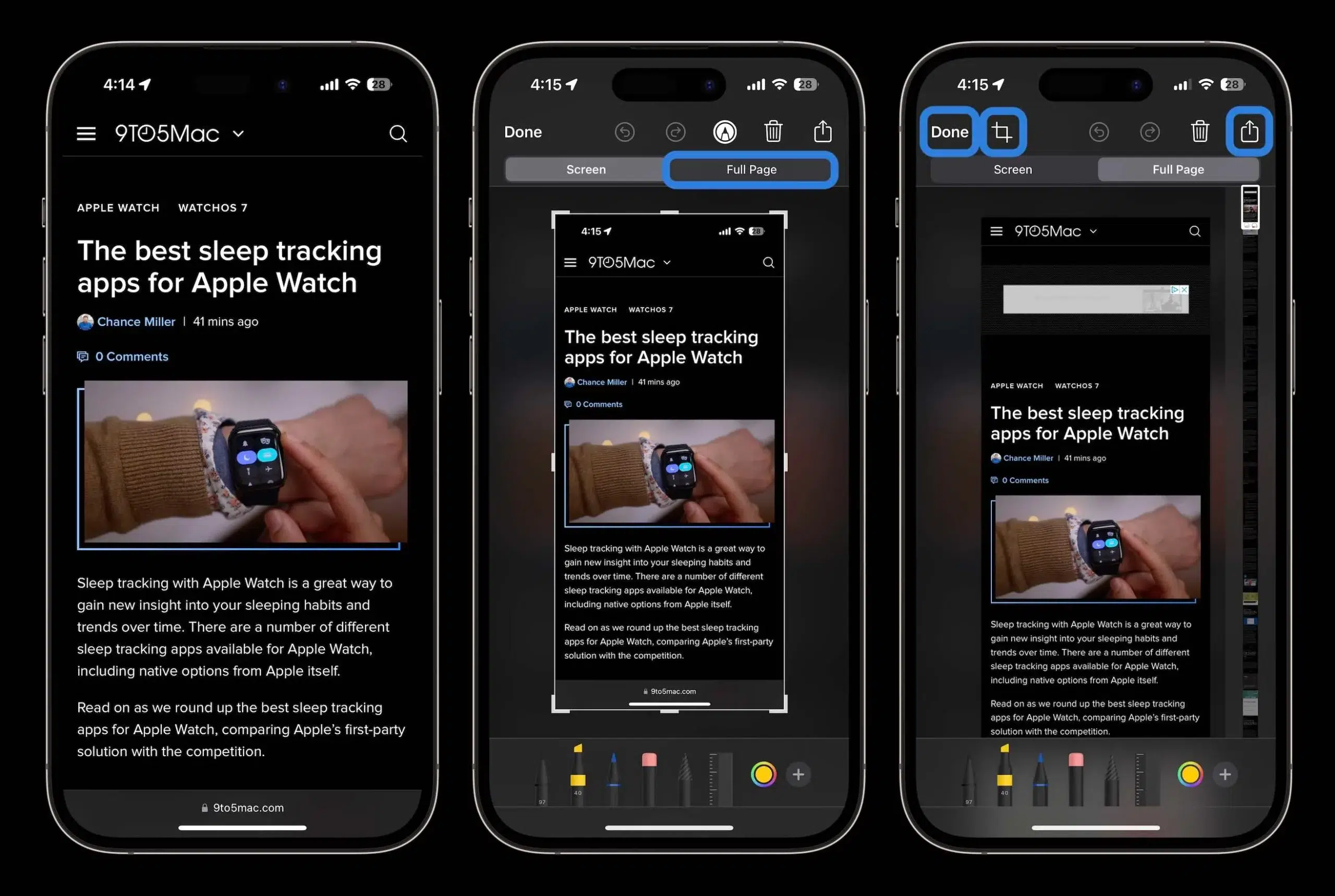
On iPhone and iPad , the method for creating extended screenshots changes depending on whether you are in the browser (Safari or compatible) or within any other system or third-party application.
iOS has included a very handy feature for several versions now that lets you capture the entire page when the content you're viewing in Safari or other browsers is longer than the screen. No installation is required, and the process is quite straightforward.
To use this feature, first open the webpage you want to capture in Safari or other browsers that support this option (such as Google Chrome or DuckDuckGo in many recent versions). Scroll to the desired portion of the page as if you were taking a regular screenshot.
Once you have the area on the screen, take a traditional screenshot . On an iPhone with Face ID, press and quickly release both the side button and the volume up button. On a model with a physical Home button, press and release both the side button (or top button, depending on the model) and the Home button.
In the bottom left corner of your iPhone, the typical screenshot thumbnail will appear . Tap it before it disappears to enter the editing screen. At the top, you'll find two tabs: one called "Screen" or something similar, and another called "Full Page ." Select the latter to activate extended capture mode.
When you choose the full-page option, you'll see a vertical preview bar on the right showing the total length of the capture. You can scroll through this preview by dragging your finger to check which part of the website has been included, and even make sure you haven't missed anything important.
If you don't need all the content, iOS lets you crop the area you want to save . Simply use the crop handles located at the edges of the preview to adjust the start and end points of the image. This is very useful when you only want to capture a specific section of the page and avoid margins or irrelevant elements.
Once you're happy with your screenshot, you can decide how to save or share it . If you want to keep it as an image in your gallery, tap the options button and choose "Save to Photos" when available. If you prefer a document that you can archive or send, tap the share icon, select "Save PDF to Files," and choose the folder where you want to save it.
This full-screen capture feature isn't limited to Safari: in many cases, it also works with third-party browsers like Google Chrome or DuckDuckGo. However, the specific behavior may vary slightly depending on the iOS version and the app itself, so it's best to test it on your specific device.
Take long screenshots of any app on iOS
When you exit the browser and enter apps like Settings, the App Store, social media, or chats, iOS doesn't offer a native scrolling screenshot feature by default . To achieve a similar effect, you have to use specific apps that combine several regular screenshots into a single image.
One of the oldest and simplest tools for this is Tailor . Although it's not a built-in system feature, the app is quite intuitive: its job is to detect several consecutive screenshots of the same screen and automatically stitch them together to create a single, long screenshot.
The basic workflow is very simple: first, open the app you want to capture (for example, your iPhone settings, a messaging conversation, or a social media feed) and take regular screenshots from top to bottom. It's important that each image overlaps slightly with the previous one so that Tailor can align them properly.
Once you have all the necessary photos, open the Tailor app on your iPhone . The app automatically scans your camera roll for consecutive photos that appear to be part of the same series and, upon detecting them, combines them without you having to crop or adjust anything manually.
After the merging process, you'll see the result as a single, elongated image that recreates the original vertical scrolling. From there, you can save it back to Photos, share it via your favorite apps, or save it to cloud services. This way, you can combine several separate screenshots into a single, easy-to-read file.
Tailor is available for free download from the App Store, although the free version includes a watermark at the bottom of the generated images . If this bothers you or you plan to use the app extensively, you can make an in-app purchase to remove the watermark. The functionality remains the same: the only thing that disappears is the watermark embedded in the final image.
How to take long screenshots on Android
On Android, the situation is quite different: many phones already include the scrolling screenshot function natively in the manufacturer's own interface, and there are also specialized apps that expand the possibilities when the phone does not have this option as standard (for example, there are methods to control the Android screen with scrcpy from a PC).
Use the native scroll capture function
On many modern Android phones (Samsung, Xiaomi, Realme, Oppo, OnePlus, and many other brands), you can create extended screenshots without installing anything. The system or custom interface includes a dedicated button right after you take a screenshot.
To check if your phone already has this option, first go to the screen you want to capture: for example, the end of a conversation, the top of a webpage, a long settings menu, or any scrollable screen. Choose the point where you want to start saving the content.
Take a screenshot as you normally would. On most devices, this is done by pressing the power and volume down buttons simultaneously, although some models also allow you to use gestures or shortcuts in the notification bar. Use your usual method on your phone.
Right after taking the screenshot, a floating thumbnail usually appears with several icons next to it (edit, share, delete, etc.). Look closely because on many models you'll see a vertical arrow, a scroll icon, or a button with text like "Capture More," "Scroll," "Extend," or "Scroll." That's the access point to the function you need.
On phones running Android 12 or higher in a "clean" version, you'll usually see a "Capture More" button . Tapping it opens an interface where you can navigate the area to be included in the capture and crop the exact section you want before saving the final image.
In interfaces like Samsung's One UI , the behavior may vary slightly: after taking a screenshot, you'll see a bar at the bottom with several buttons. Among them is a specific elongated screenshot icon (usually a rectangle with downward-pointing arrows) that you have to tap repeatedly as many times as you want the system to continue scrolling and capturing more content.
On phones from brands like Realme or Oppo, with their respective custom interfaces, the process also relies on that initial screenshot thumbnail . In some cases, you have to drag the thumbnail slightly upwards to reveal the long capture option; by activating the vertical arrow, the phone starts scrolling automatically and saves everything in a single image until you stop it.
The result of this process is a vertical image saved to your gallery that includes everything captured during the scrolling process. From there, you can crop, edit, draw, add annotations, or share it through any app. The best part is that you don't need any extra software: everything is done using the phone's built-in features.
If, after testing, you find that your device doesn't display any scroll or "Capture More" buttons after taking a screenshot, it's most likely that your model or Android version doesn't yet include the feature. In that case, you'll need to use specific apps.
Capture entire web pages with Google Chrome on Android
In addition to the methods offered by each manufacturer, the Google Chrome browser for Android provides its own tool for taking scrolling screenshots directly from its share menu. This is very useful if you want to focus solely on websites.
With the page open in Chrome, tap the menu button and then the "Share" option . In the panel that appears, among the different actions, you should find a button called something like "Scroll Screenshot" or similar, depending on the version of Chrome you're using.
Tapping it lets you select which part of the page you want to include . You can navigate the webpage within this interface and adjust the area to be captured. Once you've chosen the area, you can save the result only to your device or share it directly with other installed apps.
The advantage of this tool is that it allows you to work without leaving your browser and without having to rely on the manufacturer's customizations. It's a good alternative if your phone doesn't have the extended capture option built-in or if you prefer manual cropping.
Use LongShot and other apps for long captures on Android
If your smartphone doesn't have a native scrolling screenshot option, or if you want more control, there are apps on Google Play designed to replicate that function. One of the most popular is LongShot for long screenshot , which offers several ways to create long screenshots by scrolling or combining images.
When you open LongShot, you'll see three main sections: screenshot with scrolling , web page capture, and selection of saved images. Each has its own mechanics, but they all share the same goal: to obtain a single vertical image from content longer than the screen.
To capture what's on your screen, you can use the "Capture Screenshot" option. First, you'll need to grant the necessary permissions (access to storage and, if you want automatic mode, accessibility and permission to overlay other apps). Once configured, tap the blue camera icon, confirm that LongShot can record what's displayed on the device, and the system will start recording your scrolling in the app you want.
In the case of the "Capture Web Page" option, LongShot functions as a small, integrated browser . You enter the URL of the page you want to save, the app loads the site, and you scroll to the end or to the point where you want to stop capturing. When you tap the "End here and capture" button, the application will automatically generate an image with all the loaded content.
LongShot's third feature lets you select screenshots or photos already in your gallery and combine them into a single file. This is useful if you've previously taken several screenshots of a conversation or menu and then want to paste them together without having to repeat the capture process.
Another interesting app is Scroll Capture , which greatly simplifies the process when you're only interested in web pages. When you open it, you'll see a browser interface: simply enter the URL, wait for it to load, and click the capture button. The app then generates a full image of the webpage without you having to scroll manually.
In addition to these, there are alternatives like Stitch & Share, which works similarly to LongShot by combining multiple screenshots into one, or tools like Screenshot Joint, designed specifically to stitch two images together , either vertically or horizontally. While none of these solutions typically offer as seamless an experience as the system's native feature, they are a good workaround when your phone doesn't have the built-in option.
Capture long screenshots of entire websites and apps on iPhone and Android with LongShot
While each platform has its own quirks, some users prefer a "unified" solution that works on both iOS and Android . In that context, LongShot is also available for iPhone and offers similar tools for creating elongated screenshots of almost any content.
On iOS, once you install LongShot from the App Store, opening it will display an initial screen with a "Start My Journey" button that takes you to the app's main panel. At the bottom, you'll see three sections: a tutorial explaining how it works, a camera icon to start taking photos, and a projects section where your work is saved.
The part you're interested in is the camera icon. Tapping it will alert you that everything on the screen, including notifications , will be recorded. Ideally, you should activate "Do Not Disturb" mode at this point to prevent unwanted alerts from interrupting the recording. When you're ready, confirm with "Start Streaming" and return to the website or app you want to capture.
With the stream active, simply scroll across the screen to include everything you want. When you reach the end or the point you're interested in, stop the stream using the notification at the top of the system. LongShot will process the internal video and generate a long image summarizing your scrolling.
On Android, as we've already seen, LongShot combines automatic modes with manual options so you can adjust the capture to your needs . Once you have the final image, on both iOS and Android you can crop it, make minor edits, or simply share it with whomever you want through your usual apps.
This third-party app-based approach is especially useful if your device doesn't natively support scrolling captures, or if you want extra control over the process (for example, by combining captures taken at different times or pasting specific sections).
With all these options on the table, both native and third-party, it's very easy to transform what used to be many individual captures into a single continuous image , whether for a whole website, an endless conversation, or any app that scrolls vertically.

