- Calibration allows the operating system to display the actual percentage of remaining power, preventing unexpected shutdowns.
- There are native Windows tools and specialized software to monitor battery wear and health.
- Keeping the charge between 20% and 80% and avoiding extreme temperatures are key to prolonging the lifespan of the hardware.
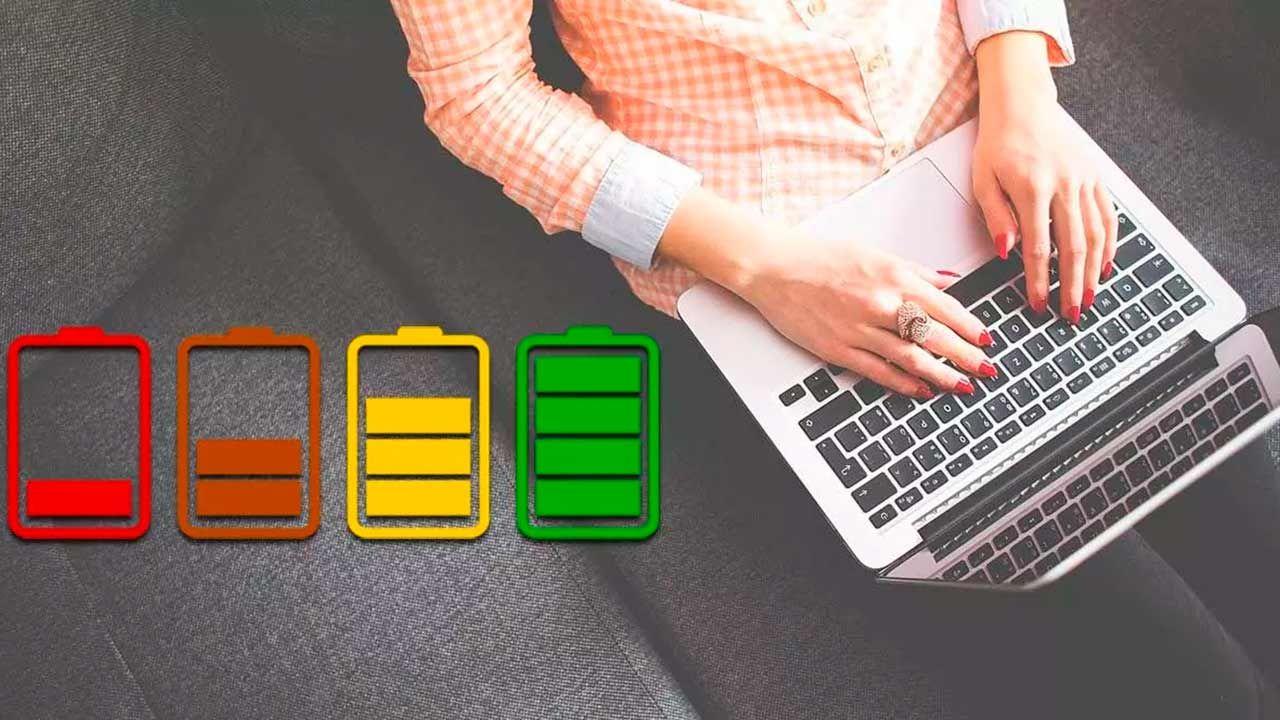
I'm sure it's happened to you before: you glance at the corner of your screen, see you have 30% battery left, and suddenly, bam!, the computer shuts down without warning. It's not that the PC is possessed; it's most likely that the battery reading system is completely malfunctioning and can't tell how much voltage is actually left in the cells.
This problem is very common in older laptops, as the chemical components degrade and the battery's internal microprocessor starts providing inaccurate data. To resolve this issue, the best solution is to perform a manual recalibration process that resets the counters and provides an accurate battery life reading.

What does calibrating the battery actually involve?
Calibrating a battery doesn't mean it will regain its original capacity; that's physically impossible because lithium depletes over time. What we do is adjust the energy meter so that the percentage shown in Windows matches the actual chemical charge. It's like zeroing a scale that's giving an inaccurate reading.
Doing this periodically, approximately every two months, helps the system manage energy better and prevents those sudden shutdowns that can cause us to lose important work we hadn't saved. If you notice the battery level dropping in sudden jumps (from 80% to 40% in an instant), it's a clear sign that it's time to calibrate.

Detailed steps for performing manual calibration
For this process to work, we need to complete a full deep charge and discharge cycle. First, plug in the device and charge the battery to 100% . Once it reaches full charge, don't unplug it immediately; leave it plugged in for at least two or three extra hours to ensure the cells are fully saturated.
The next step is to prevent your PC from shutting down prematurely due to power-saving settings. Go to Control Panel, enter Power Options, and in Advanced settings, select "Never" for sleep and screen timeout, whether the computer is on battery or plugged in. Additionally, it's recommended to set the critical battery level to 5% and configure the system to automatically hibernate the computer.
Now comes the tedious part: unplug the laptop and use it normally until it runs out of power. To speed up the process, you can run resource-intensive programs or turn the screen brightness up to maximum. The important thing is that the computer shuts down automatically or hibernates when it reaches the minimum power level. Once it's off, leave it unplugged for about 5 or 6 hours.
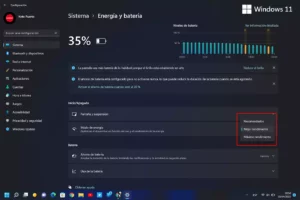
Finally, reconnect the charger and let the battery charge to 100%. If the laptop was off, let it fully charge before turning it on. Once charged, remember to reset the power plans to their default settings so your laptop doesn't drain the battery unnecessarily when you're not using it.
How to measure wear and load cycles
If you want to know if your battery is dying or still has life left, Windows has a hidden trick. Open the Command Prompt (CMD) as administrator and type the command ` powercfg /batteryreport` . This will generate an HTML file that you can open with any browser, giving you a detailed report on your battery's usage and capacity.
If you prefer something more visual and straightforward, there are some very powerful external tools available. For example, HWinfo32 is fantastic for viewing the "Wear Level," comparing the factory capacity with the current charging capacity. Another option is BatteryMon , which shows you real-time graphs of power consumption, or Smarter Battery , which is ideal for monitoring charge cycles and the component's serial number.

Tips to make your battery last much longer
To prevent rapid degradation, manufacturers suggest keeping the charge within an intermediate range. Ideally, the battery should be kept between 20% and 80% . Preventing the device from frequently reaching 0% reduces chemical stress on the lithium cells.
Another critical factor is temperature. Heat is electronics' worst enemy, so it's vital to use your laptop on well-ventilated surfaces and avoid very hot places while it's charging. If you have an older model with a removable battery and you're going to leave the device plugged in for weeks, it's best to remove the battery to avoid unnecessary charging cycles.
Regularly monitoring the battery's health status, combining manual calibration with the use of diagnostic tools and good charging habits, is the best strategy to avoid having to spend money on a replacement prematurely and to ensure that the Windows power indicator is always reliable.


Passionate writer about the world of bytes and technology in general. I love sharing my knowledge through writing, and that's what I'll do on this blog, show you all the most interesting things about gadgets, software, hardware, tech trends, and more. My goal is to help you navigate the digital world in a simple and entertaining way.