- Blocking chats in Messenger prevents certain contacts from sending you messages or calls, without needing to delete your account or clear your chat history.
- The app offers alternatives such as muting, ignoring, or restricting contacts to reduce annoyances without completely cutting off communication.
- You can manage locks and unlocks from both your mobile phone and computer, and also adjust the overall privacy of your account.
- Proper use of blocking and privacy settings increases your security and gives you more control over who can contact you.

If you use Messenger daily, you've probably thought about how to organize things and gain privacy by blocking certain chats . Whether it's because of annoying people, conversations you no longer want to see, or simply because you want to disconnect without deleting your account, blocking chats on Facebook Messenger is a very useful option that many people aren't fully aware of.
In this guide, you'll find a step-by-step explanation of all the ways to control and block your conversations on Messenger : from blocking contacts completely to muting, ignoring, limiting what they can see about you, and managing these options on both your phone and computer. The goal is that, by the end of this guide, you'll know exactly what to do in every situation to feel much more comfortable using the app.
Blocking chats on Facebook Messenger: what exactly does it mean?
Before you start messing around with settings, it's worth understanding what blocking a chat in Messenger means and how it differs from similar features like muting or ignoring conversations. Each option has different effects on messages, notifications, and your relationship with the other person.
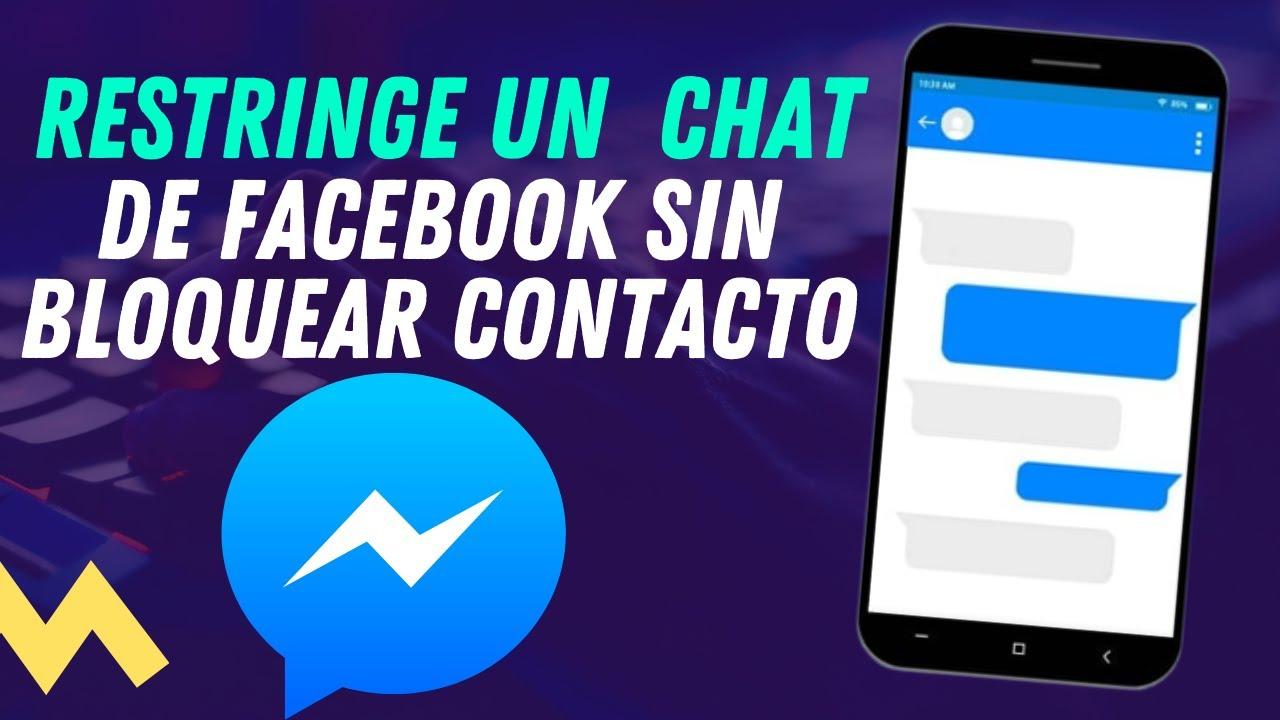
When you block someone on Messenger, that person can no longer message you . If they try to send you a message, it won't reach your inbox. Furthermore, you also won't be able to start a new conversation with that contact while the block is active. It's a fairly drastic measure, designed for situations where you simply don't want to continue interacting that way.
It's important to know that blocking on Messenger isn't always the same as blocking on Facebook . You can block someone from messaging you on Messenger but still have them as a friend on Facebook, see their posts, or chat with them in the comments. And vice versa: you can block someone on Facebook (so they can't see your profile or posts) and still have old conversations on Messenger, although the interaction will be very limited.
In addition to blocking them completely, the app offers other features for managing annoying chats without cutting off contact entirely . For example, you can mute notifications to avoid alerts, move conversations to a less visible folder , or restrict someone's access to your activity. Each tool has its purpose depending on the problem you want to solve.
Another key point is that blocking someone on Messenger is completely reversible: you can unblock them whenever you want from the same privacy settings section. However, any messages they tried to send you while you were blocked are not recovered; what's blocked, stays blocked.
How to block a chat on Messenger from your mobile device (Android and iPhone)
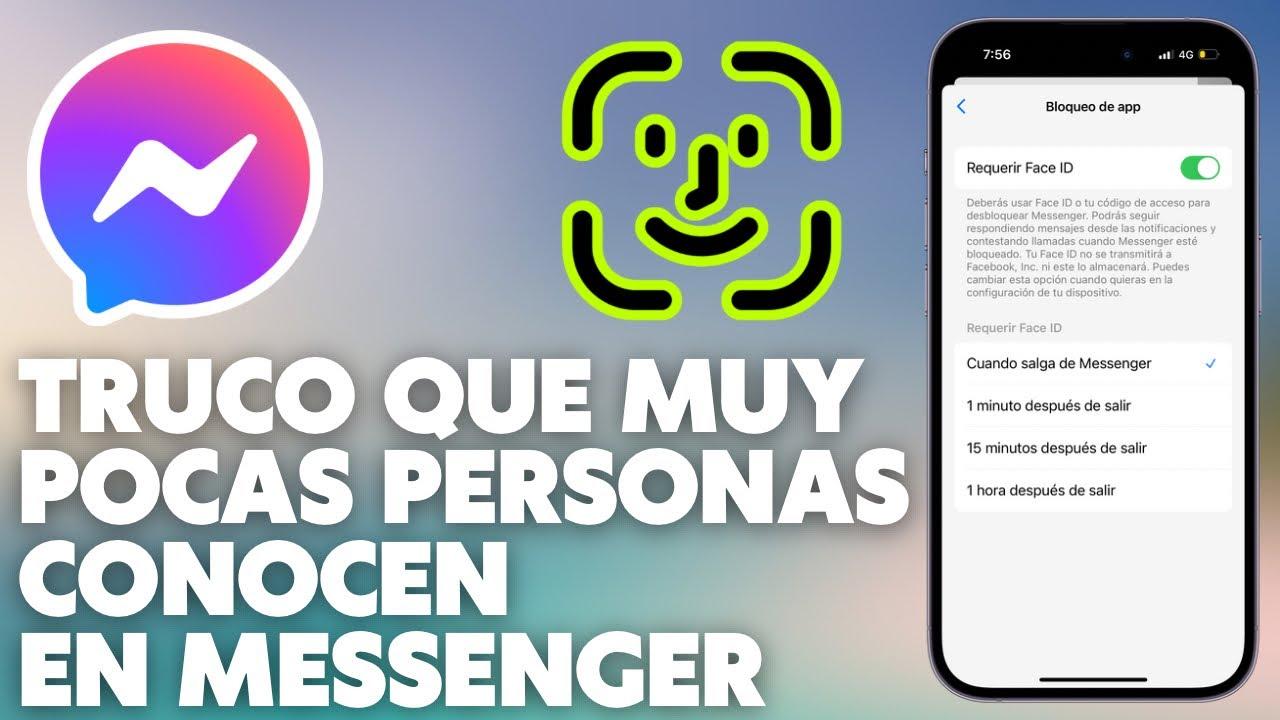
Most users access Facebook Messenger from their phones, so you'll most likely want to block chats directly from the mobile app , whether on Android or iOS. The process is very similar on both systems, and you'll have the contact blocked in a few seconds.
To begin, open the Messenger app and make sure you're on the main chats tab. Next, locate the conversation with the person you want to block. You can scroll down through your chat list or use the search bar at the top to quickly find their name.
Once you're in the conversation, tap on the contact's name or profile picture, usually located at the top of the screen. This will open a screen with chat information and options , including settings like notifications, disappearing mode, theme, emojis, and also the privacy and lock options.
In that list of options, you'll see a section called something like "Block," "Block on Messenger," or "Privacy and Support," depending on the app version. Go there, and the app will show you the different ways you can block that person: block them only on Messenger, block them on Facebook as well, or apply other restrictions.
If you want to prevent them from messaging you again, select the block option in Messenger . The app will display a confirmation message explaining that the person will be unable to send messages or call you, and that you will also be unable to contact them through Messenger while the block is in effect. Accept the confirmation, and that's it: the chat will be blocked.
If you also want to prevent that person from seeing your Facebook profile, commenting on your posts, or easily finding you, you can activate the block option on Facebook from the same menu. This restricts contact both in chat and on the main social network.
How to block chats on Facebook Messenger from your computer
If you usually use Messenger from your browser or the desktop version, you can also easily block chats from your PC . The procedure differs slightly from the mobile app, but the final options are the same.
First, go to the Messenger website or Facebook and open the messages section. Once you're viewing your list of conversations, click on the chat with the person you want to block. Just like on your phone, you can use the search bar to quickly find the contact's name if you have a lot of messages.
Within the chat, you'll see the user's name and some settings icons at the top. Click on the contact's name to open a side panel with chat information and settings options . Depending on the current design, this panel may appear on the right side of the screen.
This side menu displays the most common options: changing the chat color, adjusting emojis, turning notifications on or off… If you scroll down a bit, you'll find a section dedicated to privacy or blocking , where the "Block" or "Block messages and calls" option usually appears directly.
When you tap that option, the platform will ask you to confirm if you want to prevent that person from messaging or calling you on Messenger . In many cases, a link or button will also appear to manage the block on Facebook globally, in case you want to prevent that person from interacting with you on any Meta service.
Once you confirm, the block will be active. The conversation may still appear in your list of old chats, but you won't receive any new messages or calls from that user. If you change your mind later, you can easily unblock them from the same chat information panel.
Differences between blocking, ignoring, muting, and restricting in Messenger
Many people confuse the different privacy options Messenger offers and end up using the wrong feature. To avoid confusion, it's helpful to understand exactly what each of these tools does to your conversations and notifications.
On one hand, there's the classic blocking option: when you block someone, they can't send you messages or call you through Messenger. It's a firm decision, intended for situations of harassment, constant spam, or people you simply don't want to have contact with. It's reversible, but while it's active, it cuts off virtually all chat communication.
Another common option is to mute a chat . In this case, the person can still send you messages as normal, and you'll see them if you open the conversation, but you won't receive push notifications or sounds. This is ideal for very active groups or contacts who write a lot, but with whom you still want to maintain an open relationship.
There's also the option to ignore messages or send a conversation to the "Message Requests" or "Spam" folder. This means that new messages from that person won't appear in your main inbox, but rather in a secondary folder where they're much less noticeable. The other person won't receive a notification that you've ignored them; they'll simply see that you haven't read their messages.
Finally, there are mechanisms for restricting or limiting contacts , which are integrated with Facebook's general settings. By restricting someone, you can make them see less information on your profile, prevent them from commenting on certain posts, or greatly reduce their activity with you, without having to delete or block them outright.
Choosing between blocking, muting, ignoring, or restricting depends on how much you want to cut ties with the relationship and whether it's a one-off problem of annoying notifications or something more serious, like disrespect or constant persistence.
What happens when you block someone on Facebook Messenger
A common question is what the other person sees when you block them and what changes you'll notice in how the chat works . Although the app tries to make it a discreet process, there are certain details you should know to avoid surprises.
First, the person you've blocked doesn't receive any direct notification that you've blocked them. They don't get a notification or a message like "this person has blocked you." However, if they try to message you, they'll find they can't have a normal conversation and will eventually figure it out.
From your end, the conversation may still appear in your chat list, but it will be frozen. No new messages will come in, and no calls will be initiated from that contact. If the other person tries to send you something, it won't reach your inbox, and therefore you won't see anything new in that blocked chat.
Blocking someone doesn't automatically delete old messages: you can still read the conversation history unless you choose to delete it manually. This is useful if you need to keep evidence of inappropriate behavior or remember something that was said, even after ending contact.
In some cases, when you block someone only on Messenger but remain friends on Facebook, you might still cross paths in groups, comments, or posts. However, individual chat interaction will be prohibited for the duration of the block , and if the situation is serious, it's advisable to extend the block to Facebook as well for added security.
If you change your mind and unblock the person, the conversation will resume, but any messages they tried to send you while you were blocked will not be recovered . Once you unblock them, the chat will function like any other normal conversation.
How to unblock a chat or contact in Messenger
You might accidentally block someone in the heat of the moment, or later want to reconnect. Luckily, unblocking a chat on Messenger is easy and can be done from both the mobile app and the web version.
On your mobile device, open Messenger and tap your profile picture or the menu icon, usually located in the top corner. There you'll find a "Privacy" or "Privacy and Security" section, which includes a specific area for blocked users on Messenger . Entering this section will show you a list of the people you've blocked.
Simply tap on the name of the person you want to unblock and select the corresponding option. The app will ask if you're sure, because that person will be able to text and call you again . Confirm, and the block will be lifted instantly; the chat will reappear like any other active conversation.
From a computer, the process is similar, although the menus are slightly different. Open Messenger or Facebook, go to your account settings, and look for the sections related to blocking or privacy . There you can review the lists of users you've blocked on Facebook and Messenger and make any changes you want.
In any case, unblocking someone doesn't send a direct notification, but if that person tries to message you after being blocked, they'll notice that messages are now possible . It's up to you whether you want to resume the conversation or keep your distance even though the block has been lifted.
Advanced privacy management in Messenger chats
Beyond simply blocking, Messenger offers a range of settings that allow you to fine-tune the privacy level of your conversations . If you frequently chat with people you don't know well or receive a lot of unwanted messages, it's worth reviewing these options.
One of the key elements is configuring who can message you on Messenger . From your Facebook account privacy settings, you can decide if anyone can message you , if only friends of friends can, or if you want to limit it to specific contacts. This significantly reduces the number of random or marketing messages you receive.
You can also control how message requests are displayed. Instead of every message going directly to your inbox, you can have messages from unknown senders placed in a separate folder , which you only access when you want. From there, you have the option to accept the conversation, ignore it, or block the sender.
In addition, some versions of Messenger include extra features such as ephemeral chat modes , which make messages disappear after a certain time, or security alerts when you receive messages from suspicious accounts. All of this contributes to better control over who can message you and what happens to those conversations.
If you also use Instagram and have your accounts linked under Meta, you'll see a unified settings section where you can manage who can contact you from both platforms. This is a convenient way to avoid having to adjust settings app by app and helps you maintain the same privacy policy across all your messages.
Security tips and best practices for blocking chats
Blocking chats is a powerful tool, but what's truly important is that it helps you feel safe and secure when using Messenger . Beyond the specific steps, it's worth keeping in mind some general recommendations to get the most out of these features.
If someone disrespects you, harasses you, constantly insists on talking to you, or sends you inappropriate content, don't hesitate to block them immediately . You're not obligated to put up with uncomfortable behavior, and Messenger offers these options precisely to protect its users.
In more serious cases, such as threats, identity theft, or clear fraud attempts, in addition to blocking the account, it is highly recommended to report the profile or messages using Facebook and Messenger's internal reporting tools. This allows the support team to review the case and take action against the offending account.
It's also a good idea to periodically review your blocked contacts list and privacy settings. Over time, it's easy to forget who you've blocked or what settings you've enabled, and a quick review allows you to update your blocks to reflect your current situation , unblock those who are no longer a problem, and better manage who can message you.
Finally, remember that blocking someone on Messenger only affects that platform. If someone is also bothering you through other channels (calls, texts, other social media), you'll need to take similar measures on each service or even contact the authorities if it's persistent harassment. In these cases, saving evidence and screenshots is crucial.
Understanding how chat blocking works in Facebook Messenger, knowing the differences between it and options like muting or ignoring, and taking advantage of the app's privacy settings gives you real control over who you talk to and how . With a few simple adjustments to the settings and without overcomplicating things, you can keep your conversations much more organized, reduce annoying messages, and use Messenger with the peace of mind that you're in control.

Passionate writer about the world of bytes and technology in general. I love sharing my knowledge through writing, and that's what I'll do on this blog, show you all the most interesting things about gadgets, software, hardware, tech trends, and more. My goal is to help you navigate the digital world in a simple and entertaining way.