- BIOS/UEFI: Activate Restore on AC/Power Loss or Next Boot After AC Power Loss and save with F10.
- Windows and LinuxAvoid blocking with bcdedit and automate scripts with cron/systemd or setpci if applicable.
- Red and hardwareUse WOL from your mobile phone and, if necessary, use the motherboard button or pin bridge with caution.
- Continuity: a UPS mitigates micro-outages, protects equipment, and keeps routers and services operational.
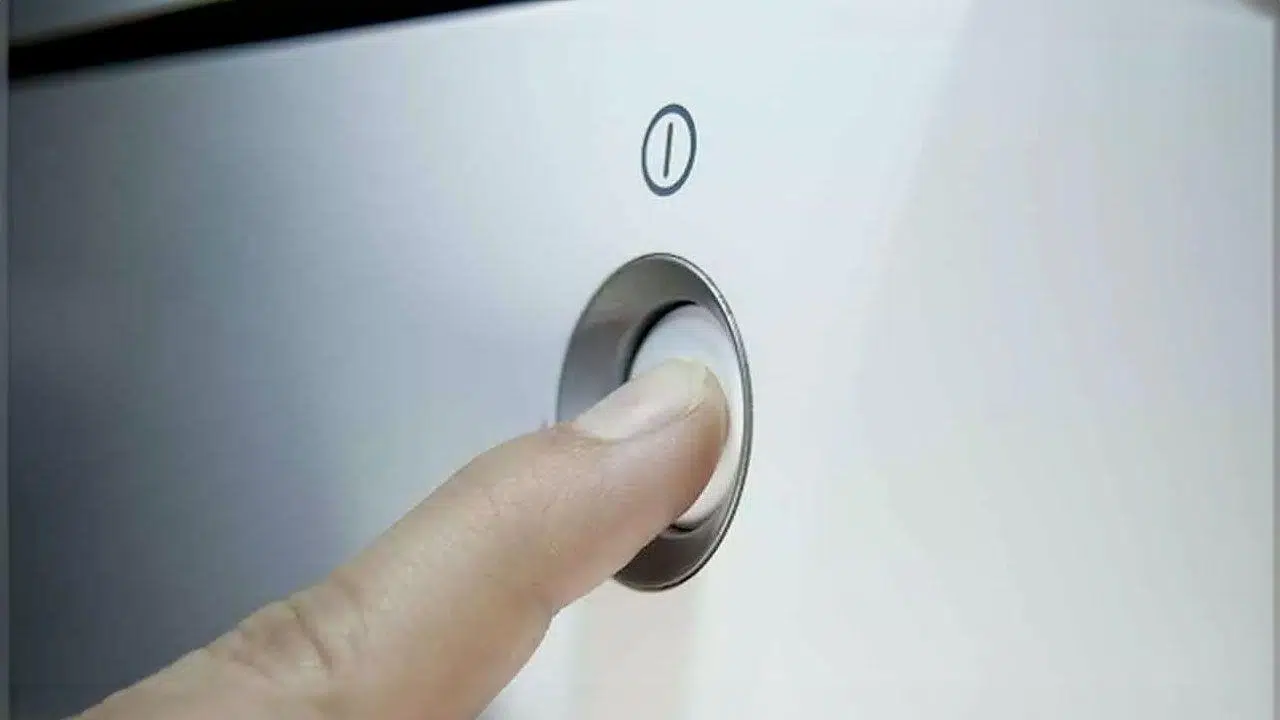
If you live in an area with frequent power outages and need your computer to restart as soon as the power returns, there are several ways to do so remotely. From BIOS/UEFI settings to software tricks in Windows and Linux, as well as network options (WOL) and hardware solutions , you can configure your computer to boot automatically when the power comes back on.
This issue doesn't just affect desktop PCs: it can arise with older laptops without batteries that are always plugged in , small home servers, mining rigs, firewalls, or even if you host a WordPress site and want it to remain online 24/7. The idea is that, after a power outage, the computer restarts automatically without the power button being pressed and resumes its tasks as quickly as possible.
Options to make the PC turn on automatically when power is restored
In general, you'll be navigating one of four main paths: BIOS/UEFI configuration, operating system settings (Windows or Linux), network methods like Wake-on-LAN (WOL), and hardware alternatives (from built-in buttons to jumpers on the power supply or motherboard). Each scenario has its nuances, and whether you can apply one or another will depend on your system.
It's worth noting that not all BIOSes offer a "recovery after power loss" option , especially on some laptops. However, additional resources like Wake-on-LAN (WOL) or a UPS can help minimize downtime and quickly restart services without requiring a physical trip.
BIOS/UEFI: Restoring power after power loss
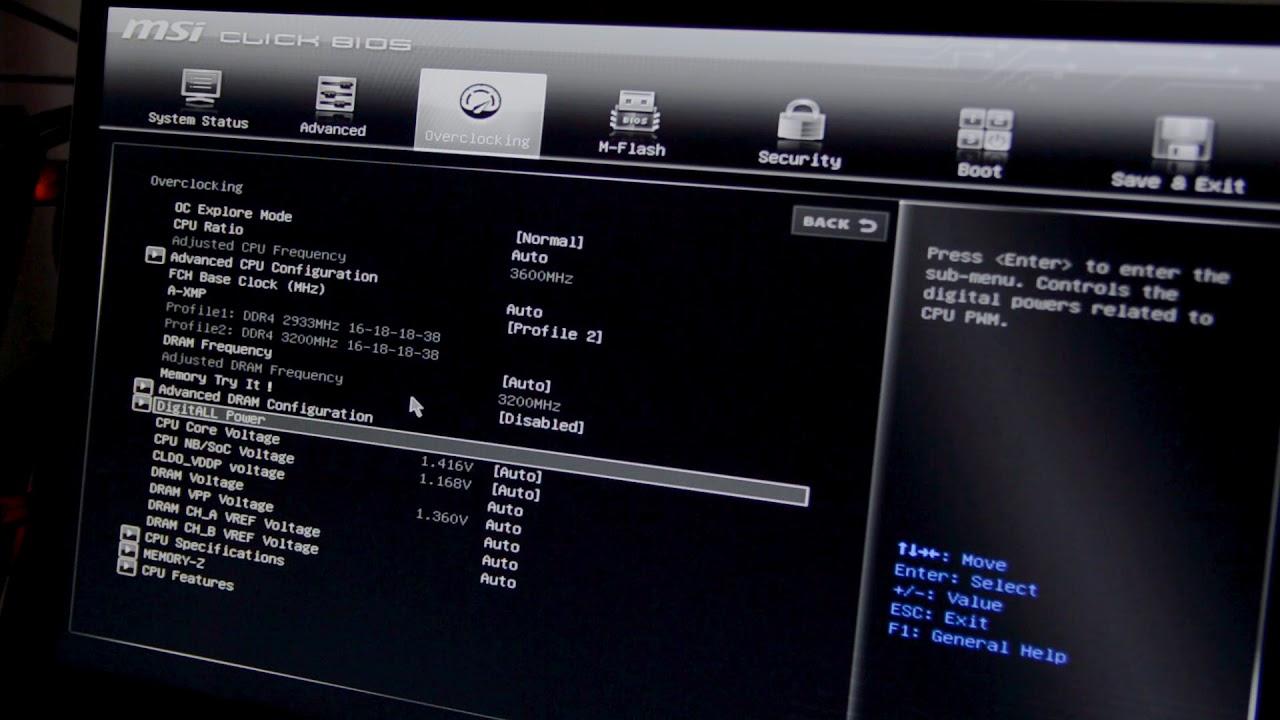
The most reliable way is usually to enable it at the firmware level. Even before the operating system boots, the BIOS/UEFI can command automatic power-on as soon as the power comes back on , so the computer starts without any input. To access the firmware, restart and try the usual keys: DEL, F2, F1, or F10 (this varies by manufacturer; DEL and F2 are the most common).
Once inside, navigate through menus usually labeled Power, ACPI Configuration, or BOOT . There you should find a setting with a name very similar to Restore on AC/Power Loss or Next Boot After AC Power Loss . The first is usually a simple On/Off switch, while the second adds modes like "Normal Boot" or "Fast Boot ." If this option exists, "Normal Boot" is generally recommended so that the UEFI can perform its full check and prevent incomplete startups.
When finished, save the changes with F10 and confirm. With this setting enabled, the PC will automatically power on as soon as the power supply receives power again , ideal if you're not present when the power returns. If you have a desktop motherboard (for example, an ASRock B450M Pro4-F ), the option is usually found in "Power Management" or a similar section; if it's not there, there's no standard way to force it from the BIOS on that specific model.
Keep in mind one important limitation: some laptops don't include a power loss recovery setting in their BIOS , so you won't find it no matter how hard you look. In that case, you should consider alternatives like Wake-on-LAN (if the hardware supports it), a UPS, or, if the computer is very specific, software methods to prevent boot freezes.
Prevent Windows from getting "stuck" after a shutdown
When there's a power outage, Windows may enter disk repair routines or display recovery options ; if you want to delve deeper, you can analyze the Windows startup process . The problem is that, if you're not present, the process gets stuck waiting for a response and the PC doesn't finish booting. To bypass this issue, you can tell Windows to ignore "unsafe shutdowns" and boot normally without stopping.
Do this: Open Command Prompt as administrator (search for "CMD", right-click and select "Run as administrator" ). Then run the following command:
bcdedit /set {default} bootstatuspolicy ignoreshutdownfailuresAfter pressing Enter, you'll see a success message. With this setting, the system won't freeze at startup after a power outage . Note: This doesn't resume in-process work (like a partially completed render), but it will return you to the desktop unattended in most cases.
To automatically resume activity, configure your key services or apps to start with Windows . Download clients, servers, monitoring tools, or anything critical to you can launch automatically when you log onto the desktop. Keep in mind that if you use your PC for other tasks, opening too many apps at startup can be annoying , so strike a balance between essential and non-essential applications.
Linux: “server” mode and script startup
In Linux there are also ways to force server behavior to restarting the machine after a power failureIn specific hardware such as a Mac mini of a certain generation with Ubuntu, the use of setpci to activate that “server mode”. In that practical case, the effective call was:
sudo setpci -s 00:03.0 0x7b.b=19This value, however, does not persist across reboots , so it's advisable to automate it at startup. One direct way is to use cron with the `@reboot` keyword to run a script at boot:
@reboot /ruta/a/tu/script.shCheck that the cron service is active (in Debian/Ubuntu it is usually called “cron”): sudo systemctl status cron and enable it if necessary with sudo systemctl enable cron. Thus the setpci command (or any preparation) is executed on every boot and you don't depend on remembering.
Another solid option in distros with systemd This involves creating your own service that invokes your script. A minimal unit file could specify the network dependency (if applicable) and the path to the script. ExecStart=Then enable it with sudo systemctl enable nombre-del-servicio. systemd offers fine control over the startup order and conditionsThis is very useful if your server needs the network up before starting processes.
The classic method of /etc/rc.d/rc.local It still exists in some distributions, but in others The rc-local service is inactiveSo you'll have to activate it or choose systemd or cron. The important thing is that the script that "resets" your server state always runs without intervention.
Wake-on-LAN (WOL): Turn on your PC via network or from your mobile device.
Wake-on-LAN (WOL) allows the network card to listen for a "magic packet" that triggers the power-up process, even when the computer is powered off. To use it, there are two steps: enabling it in the BIOS/UEFI and configuring the operating system not to block the network event.
On Windows, enter the Device administratorOpen the network adapter properties and check the advanced options. Activates the "Wake on magic packet" feature (on systems with S0ix it may appear as "Wake on magic packet when system is in the S0ix") and verify that the power management allows the card to "wake up the device". Note the IP and MAC addresses. ipconfig /all to configure your client app.
With that done, you can use your mobile phone to send the magic packet. On Android , there are apps like “Wolon – Wake on LAN Widgets,” and on iOS , “iNet WOL – Wake on Lan .” Usually, it's enough to be on the same network and configure the PC's MAC address; if you want to do it from outside the network, you'll need to have the network properly exposed/routed. WOL is very convenient if the power button isn't working or if the computer is far away.
Hardware methods: motherboard button, pins, and jumper on the power supply
Some motherboards, especially mid-range and high-end models, have a power button integrated directly onto the PCB . If yours has one, simply press it to turn on the computer, being careful not to touch other components. It's usually located near the RAM slots or in the lower right corner of the board and is often easily recognizable by its color or shape.
If your computer's power button is broken or you can't reach it, you can force a startup by shorting the two "POWER_SW" pins on the motherboard's front panel. Disconnect the connector from the case and, using a flathead screwdriver with a plastic handle , briefly touch both pins simultaneously: the PC should power on immediately. Do this in a well-lit area to avoid static electricity and ensure you're doing it correctly.
There is a more radical method, useful in specific scenarios: bridging the ATX power supply so that it activates automatically upon receiving power . On the 24-pin ATX connector, the "PS_ON" wire is usually green . Connecting it to any black (ground) wire will turn on the power supply. Traditionally, this is done by bridging the green pin to a black pin, positioning the connector with the tab facing upwards for orientation. This allows the power supply to deliver energy to the computer when power is restored, enabling it to boot without a power button.
However, there's a catch: if you leave the jumper permanently connected, the power supply will remain "on" even after you shut down the operating system , and to restart your computer you might have to cut the power using the power supply's switch or unplug and replug it. It's a compromise for situations where you absolutely need your PC to boot up when the power returns, but it's not the most convenient solution for everyday use.
When the BIOS doesn't help: use a UPS to weather power outages
If your motherboard/laptop doesn't offer power recovery after a power outage and you want to minimize downtime, a UPS (Uninterruptible Power Supply) is a great help. These devices keep your equipment running for several minutes (depending on its power/battery life) and protect against voltage spikes, which is incredibly useful when the power grid is unstable.
Today there are affordable models: starting at around €60 you can find UPSs of about 750W that last for around 10 minutes , enough for your PC to shut down properly or survive brief power outages. If you need more backup power, a 2000W UPS can last around 40 minutes depending on the load. Many also include outlets for the router: if you also power your network equipment, you'll maintain your connection during the outage, and when the power returns , the server will resume its activity with internet access available.
Although ATX power supplies include built-in protections, a UPS adds extra layers of electrical safety and reduces the stress of false starts. In the medium term, this translates to improved system stability and better storage health if you avoid sudden power outages.
Smart power strips and “Restore on AC Power Loss”
If your BIOS includes "Restore on AC Power Loss ," setting it to "Power On" opens up another interesting possibility: using a smart power strip or plug to remotely cut and restore power. Turn off the plug from your phone, wait a few seconds for the power supply capacitors to discharge , and then turn it back on; the PC should power on automatically after this cycle, without you having to touch the power button.
This trick also gets you out of trouble when your computer is stuck in a strange state. However, you need to have the setting configured in the BIOS beforehand ; otherwise, the PC won't react to the power restoration. Combined with Wake-on-LAN (WOL) and a UPS, it's a Swiss Army knife for remotely operating your home server.
Turning on with keyboard or mouse: useful, but watch out for false positives
Many motherboards allow you to wake the computer with USB peripherals by enabling options like "USB Keyboard/Remote Power On" or "USB Mouse Power On" in the BIOS. This is convenient if you work with the PC out of sight, but it has a drawback: an accidental touch or a passing pet could turn it on unintentionally . Consider this if power consumption or safety concerns you.
If you're only interested in restarting your device after a power outage without human intervention, this isn't the best approach . However, it can work in conjunction with other techniques if you adjust the sleep/wake sensitivity and power management settings for the USB ports.
Safety and common sense tips
Working with hardware requires care. If you're going to bridge pins or the power supply, do so with the computer unplugged, discharge any static electricity, and use tools with insulated handles . Double-check what you're touching: confusing front panel pins or the ATX connector can cause damage.
If your underlying problem is a faulty power button , the alternative methods are just temporary fixes. Ideally, you should repair or replace the entire unit , or install an external power button connected to the motherboard's POWER_SW header. This will prevent awkward power supply operations and improve safety.
Also remember that not all motherboards or laptops offer the same options . X99-type desktops or modern desktop motherboards typically have more power and boot controls, while laptops or closed platforms may lack them . If your BIOS doesn't include AC power recovery, compensate with Wake-on-LAN (WOL) or UPS and troubleshoot boot issues using software.
Finally, technical communities often share "recipes" that work on specific hardware combinations (for example, setpci on certain Mac minis with Ubuntu ). Use these as a guide, but always validate them on your own machine and automate with cron or systemd to avoid manual steps every time you boot.
If your laptop is always plugged in and doesn't have a battery, you might not have a BIOS recovery option . In that case, the best results are usually achieved when the power supply is unreliable, using a UPS to mitigate micro-outages, tweaking Windows settings (or scripts in Linux) to prevent crashes , and Wake-on-LAN (WOL) if the hardware supports it.
Considering all of the above, you have a range of complementary solutions: enable recovery after power loss in BIOS/UEFI where available, prevent crashes with bcdedit in Windows or scripts in Linux, use Wake-on-LAN (WOL) for remote power-on, and rely on a UPS to handle power outages and spikes. For extreme scenarios, power supply jumpers can work, but they're inconvenient for everyday use; opt for clean, automated configurations that will save you from unpleasant surprises when the power goes out unexpectedly.


Passionate writer about the world of bytes and technology in general. I love sharing my knowledge through writing, and that's what I'll do on this blog, show you all the most interesting things about gadgets, software, hardware, tech trends, and more. My goal is to help you navigate the digital world in a simple and entertaining way.