- A boot trace with ETW (WPR/WPA) reveals kernel bottlenecks, drivers and services.
- start Clean and BootRacer help isolate conflicts and measure real-world boot times.
- Startup Repair and Bootrec.exe fix corruption in MBR, boot sector and BCD.
- Classic tools like BootVis inspire modern boot optimization.
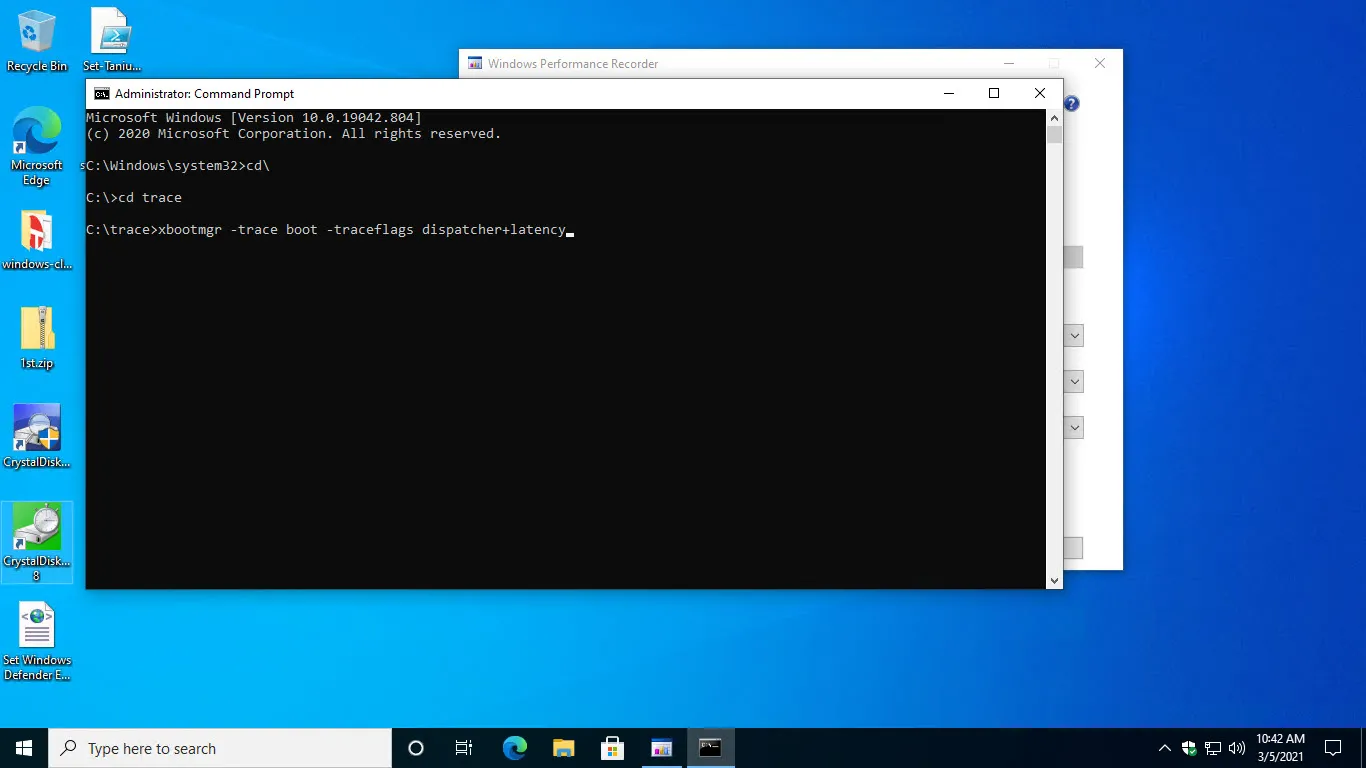
If your PC is taking longer than usual to start up and you want to find out exactly what's happening during those seemingly endless seconds, the best thing to do is perform a detailed boot analysis . Here, I'll explain in detail how to do this with BootTrace (WPR/WPA boot scenarios), how to compare it with classic alternatives like BootVis and practical tools like BootRacer, and also what steps to take if you detect startup errors to repair Windows boot.
Beyond simply measuring startup time, the key is being able to see which drivers, services, and applications are running, in what order, and how much time is being spent on each . Professional approaches based on ETW (Event Tracing for Windows) exist for this purpose , capable of recording kernel and driver activity from startup. We will complement this approach with diagnostic methods such as clean booting , and with recovery tools like Startup Repair and Bootrec.exe.
What is BootTrace and why is it the professional way to analyze boot?
When we talk about "BootTrace," we're referring to the use of a boot trace profile that captures system events using the Windows ETW infrastructure . Today, the most robust and modern way to do this is with Windows Performance Recorder (WPR) and Windows Performance Analyzer (WPA), where the Boot scenario allows recording from power-on until the desktop is ready, accurately capturing the activity of the kernel, drivers, and services.
This approach is the natural successor to historical tools like BootVis (which Microsoft created to diagnose boot processes in older versions). Unlike "stopwatch-only" solutions, a boot trace with ETW allows you to see, with graphs and timelines, which components are causing bottlenecks, how drivers are impacting the system, and which processes are delaying login.
It's important to note that boot capture can technically rely on the global logger's tracking session . This session has specific limitations that should be understood before using it; when in-depth analysis is needed, the WPR Boot Profile is the most comprehensive option due to its integration with WPA and its views of CPU, disks, services, and drivers.
Before measuring: prepare the system with a clean boot
When there are conflicts between drivers, services, and startup programs, the system may boot incorrectly or fail to load updates altogether . A clean boot helps isolate interfering software by running only essential Microsoft services and drivers. To review which applications start with Windows, see how to configure programs to launch at startup.
Steps for a clean boot in Windows 10/11 ( msconfig and Task Manager ):
- Right-click the Start button and choose Search, type msconfig and press Enter.
- In the Services, check “Hide all Microsoft services” and then click “Disable all”.
- Go to the tab Home and open “Task Manager”.
- Disable any startup programs you suspect (repeat for all that may interfere with starting).
- Close Task Manager, click msconfig, and reboot.
To return to normal, repeat the process, but instead of disabling, select "Enable all" under Services (keep the conflicting service unchecked) and reactivate the programs at startup. This process sometimes reveals that the problem wasn't Windows, but a third-party service that was consistently blocking or slowing down the startup process.
How to capture and read a BootTrace with WPR/WPA and what BootVis provides
Capture with WPR: Open Windows Performance Recorder, select the Boot scenario, set the appropriate level of detail for CPU, disk, and drivers , and start recording. The computer will restart, and the session will record the entire sequence until the desktop is ready. Upon completion, an ETL file is generated that you can open with Windows Performance Analyzer to analyze the complete timeline.
In WPA, explore views such as CPU Usage (Precise), Disk Usage, Generic Events, Services, and Winlogon/Explorer Readiness. Here you'll see how long critical drivers take to load, which services are blocking, or when the system is ready for the user . This method allows for precise action: uninstalling or updating a specific driver, delaying a service, or removing an application that's hogging disk space at startup.
BootVis, Microsoft's classic tool, also offered a boot-oriented trace and an optimization module . The traditional workflow was simple: install, open, and from File > New select "Next Boot Trace" or "Next Boot + Driver Traces" for a more in-depth analysis. After a countdown, the system would restart, and BootVis would collect data, displaying graphs of times, processes, and drivers involved from the BIOS POST phase.
Once the data was reviewed, automatic optimization could be invoked from the "Trace > Optimize System" menu, and the system restarted. This function reordered the prefetch/layout to improve boot time. Although BootVis is now legacy software, its philosophy lives on in Windows Prefetch Profiles (WPR) and in Windows' ability to optimize startup using its internal prefetch and superfetch mechanisms.
ETW Boot Monitoring: Kernel, Drivers, and Global Logger Limits
Windows allows the use of software tracing features to map kernel and driver activity during the boot process. This method does not rely on "new tools" but rather on using ETW sessions to capture low-level events as the system initializes subsystems.
The “global logger tracking session” can be used to start tracking very early, but its limitations must be known: not all sources broadcast so early or with the same reliability, and it is advisable to assess when to use more complete startup profiles such as those from WPR, which better integrate the timeline and subsequent inspection with WPA.
In practical terms, the goal is to correlate CPU and disk usage spikes with the startup of drivers and services. This allows you to determine whether a storage controller , an antivirus solution, or shell initialization is consuming the time. With this data, the action plan becomes precise: update a problematic driver, delay non-critical services, or remove startup software.
Measuring without complications: BootRacer for slow startup times and apps
If you simply want a reliable timer to know how long it takes your PC to reach the login screen and desktop, BootRacer is a practical option . It stands out for its ability to log measurements to the system registry , display your best time, and offer an "invisible" measurement mode that won't interfere with your testing.
Among the drawbacks, several guides point out that it lacks comparative graphs , that exporting data is not so immediate, and that its English translation could be improved, but its interface is clear and simple.
How to measure with BootRacer in Windows 10: First, download it (for example, from repositories like softonic.com), install it, and open it. To perform the test, use "Full Boot Test" and follow the wizard that prompts you to restart with "Start Test." Then, you can run "Clean Boot Test" for a clean boot without startup programs. When finished, check "Check Results" and "Find Slowdown" to see the results and times of the applications that launch with Windows. This is a way to find out in minutes if startup apps are slowing down your PC.
Some publications even include support contact information if you prefer to delegate the diagnosis. For example, they mention centers in Madrid (Manuel Becerra Metro Station, Calle Doctor Esquerdo 12, Local 6; landline 910174686; mobile 651531890; and Cuatro Caminos Metro Station, Calle Hernani 13, Local 97; landline 910237098; mobile 620679252) and firms like Miguel Bermejo or Miguel Salvador associated with the content. If you need assistance, there are technical services that can run tests and guide you step by step.
When the system won't boot: Startup Repair and Bootrec.exe
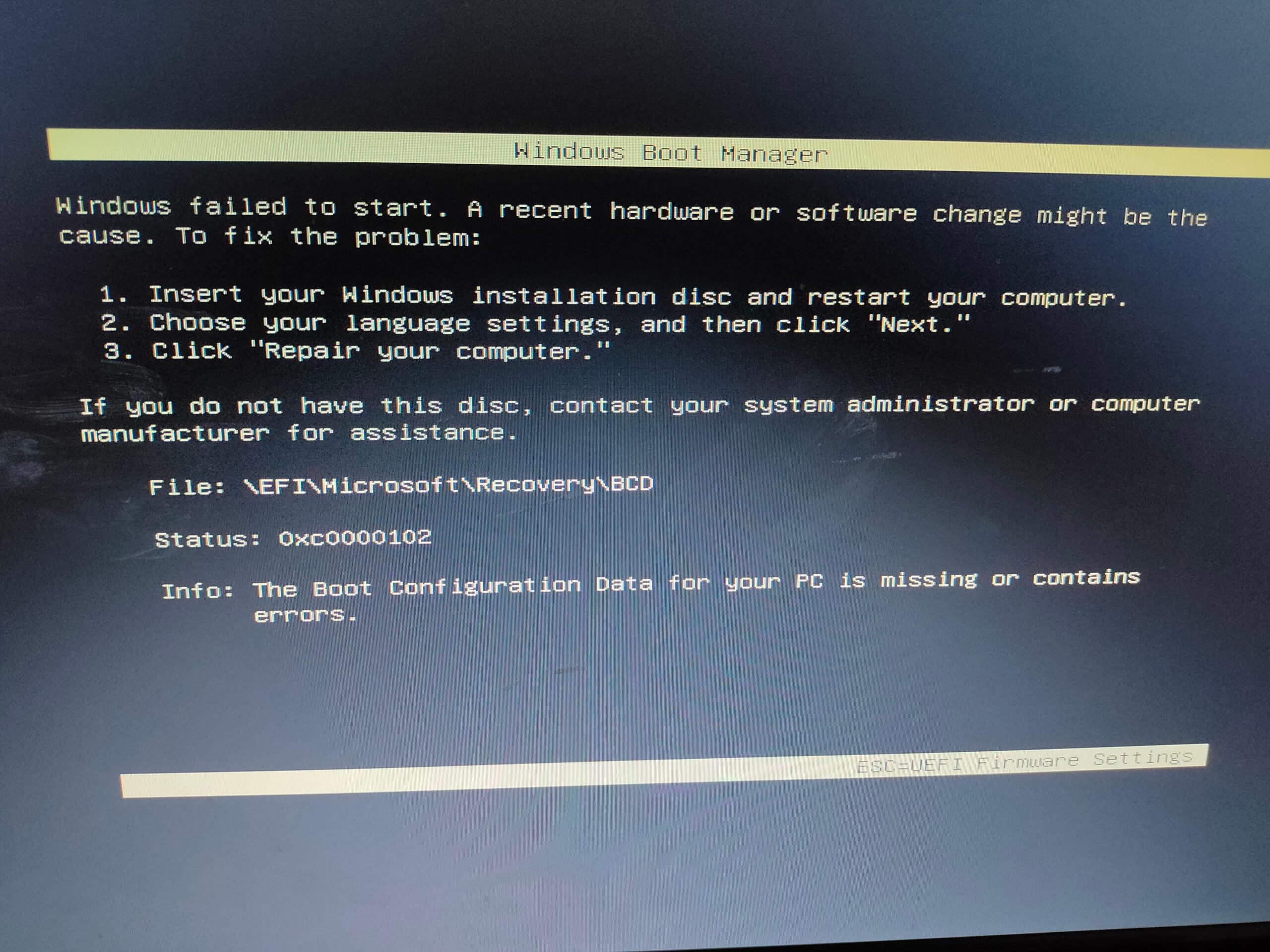
If, after troubleshooting, you find the problem is more serious—for example, Windows won't load—Windows includes Startup Repair. It's designed to quickly resolve common causes: damaged registry entries, missing or corrupted system files or drivers, damage to disk metadata (MBR, partition table, boot sector, or file system), or corrupted boot configuration data (BCD). It can even detect memory and disk hardware errors.
However, it does have limitations: it doesn't fix hardware failures (hard drives with bad sectors, incompatible RAM), problems caused by failed Windows installations or updates that can't be automatically repaired, or situations where the computer boots into Windows but won't let you log in. It's also not a backup tool; back up your data regularly, and if the repair fails, back up and reinstall.
There are several ways to start Startup Repair:
- From Settings: Settings > Update & security > Recovery > Advanced startup > Restart now; then Troubleshoot > Advanced options > Startup repair.
- From the desktop or lock screen: Start > power button > hold Shift and press Restart, then Troubleshoot > Advanced options > Startup Repair.
- Using an installation disc/USB: Create the media, boot to F12 or the One Time Boot Menu, select your language, and click “Repair your computer,” then Troubleshoot > Advanced options > Startup Repair.
On Dell computers, for example, you can create the USB drive using the Dell OS Recovery tool and use F12 to enter the one-time boot menu . After the process, it's normal for Startup Repair to need to run several times to resolve the issue.
If Startup Repair isn't enough, you'll need to use Windows RE and Bootrec.exe to manually repair the boot process (especially applicable to Windows Vista/7, although the concepts are still useful). First, boot from the Windows DVD/USB, choose your language/keyboard, click "Repair your computer," go to " System Recovery Options ," and open Command Prompt . Type Bootrec.exe and use its options as needed.
- /FixMbr: Writes a Windows 7/Vista compatible MBR to the system partition without overwriting the partition table. Useful for corrupted MBRs or for removing non-standard code from the MBR.
- /FixBoot: Writes a new boot sector compatible with Vista/7. Use this if the sector is non-standard, damaged, or if you installed an older Windows version after installing Vista/7 and the computer tries to boot with NTLDR instead of Bootmgr.exe.
- /ScanOs – Scans all disks for Vista/7 installations that are not in the BCD store, perfect if they don’t appear in the boot management menu.
- /RebuildBcd: Rescans the installations and allows you to add them to the BCD, useful for rebuild completely the depot. If the error is “Bootmgr is missing” or “Required information not found in the BCD file,” and rebuilding doesn’t fix it, you can export and delete the BCD and run RebuildBcd again to force a full rebuild of the depot.
Remember to configure your BIOS/UEFI to boot from the DVD/USB drive to run Windows RE and Bootrec. If you're unsure how to do this, consult your manufacturer's documentation or official support for your specific model, as the procedure for selecting the boot device varies.
A real note: “No boot media found” after limiting FPS
It's possible that after restarting, a message may appear indicating that the boot device cannot be found , but the computer then boots successfully after several attempts. One reported case coincides with having previously limited the FPS in the NVIDIA control panel . In principle, changing the FPS shouldn't affect the boot sequence; this warning is usually more related to the UEFI boot order , a drive that took longer to initialize, or a loose cable/connector.
If this happens, check the boot order in UEFI, verify that the system disk is correctly identified, update the firmware/BIOS if new versions are available, and run a SMART disk check. If the problem doesn't recur, it may have been a one-off glitch; if it does, try running Startup Repair , verifying the integrity of the BCD (using Bootrec), and, if necessary, temporarily disconnecting any external drives that might be interfering with the boot order.
Common equipment and environments where all this can be applied
The procedures described apply to a very wide range of desktop and laptop computers , including those from manufacturers like Dell: Alienware, Inspiron, OptiPlex, Vostro, XPS, G Series, Latitude, All-in-One, Tower, Slim, Micro, and "Pro" ranges, as well as fixed and mobile workstations, and even specific models from their "Pro Max" and "Plus" series. In short, any modern PC running Windows 10 or 11 can benefit from a thorough boot diagnostic.
Best practices to speed up and stabilize startup
After identifying the culprit with BootTrace (WPR/WPA) or measuring with BootRacer, remove anything non-essential from startup, update drivers (storage, chipset, GPU), adjust antivirus settings to avoid blocking startup, and consider enabling scheduled drive optimization/defragmentation (on HDDs) or Windows automatic maintenance. All of these measures contribute to a smoother startup.
If you're coming from the BootVis school of thought, remember that Windows already integrates boot layout optimization mechanisms, but it's still useful to use modern tools to check for bottlenecks and review boot modes . And if you detect boot corruption, don't hesitate to use Startup Repair and Bootrec: one or two passes can restore normality without having to reinstall or lose your configuration.
With a combination of ETW-based boot traces, a properly executed clean boot, and Windows' built-in repair utilities, you can go from feeling like "my PC takes forever to boot" to clearly identifying which module or service is taking up the time and how to fix it easily. With the right tools, streamlining startup is easier than it seems.

Passionate writer about the world of bytes and technology in general. I love sharing my knowledge through writing, and that's what I'll do on this blog, show you all the most interesting things about gadgets, software, hardware, tech trends, and more. My goal is to help you navigate the digital world in a simple and entertaining way.