- Ditto Clipboard Manager expands the clipboard de Windows with a complete and persistent history of texts, images, and other formats.
- It is free, open source and can be installed from the Microsoft Store, classic installer, portable version, Chocolatey or Winget.
- It uses an SQLite database, offers encrypted synchronization between computers, is translated into Spanish, and is actively maintained.
- It increases productivity by preventing the loss of copied information and facilitating the intensive use of copy and paste in professional environments.
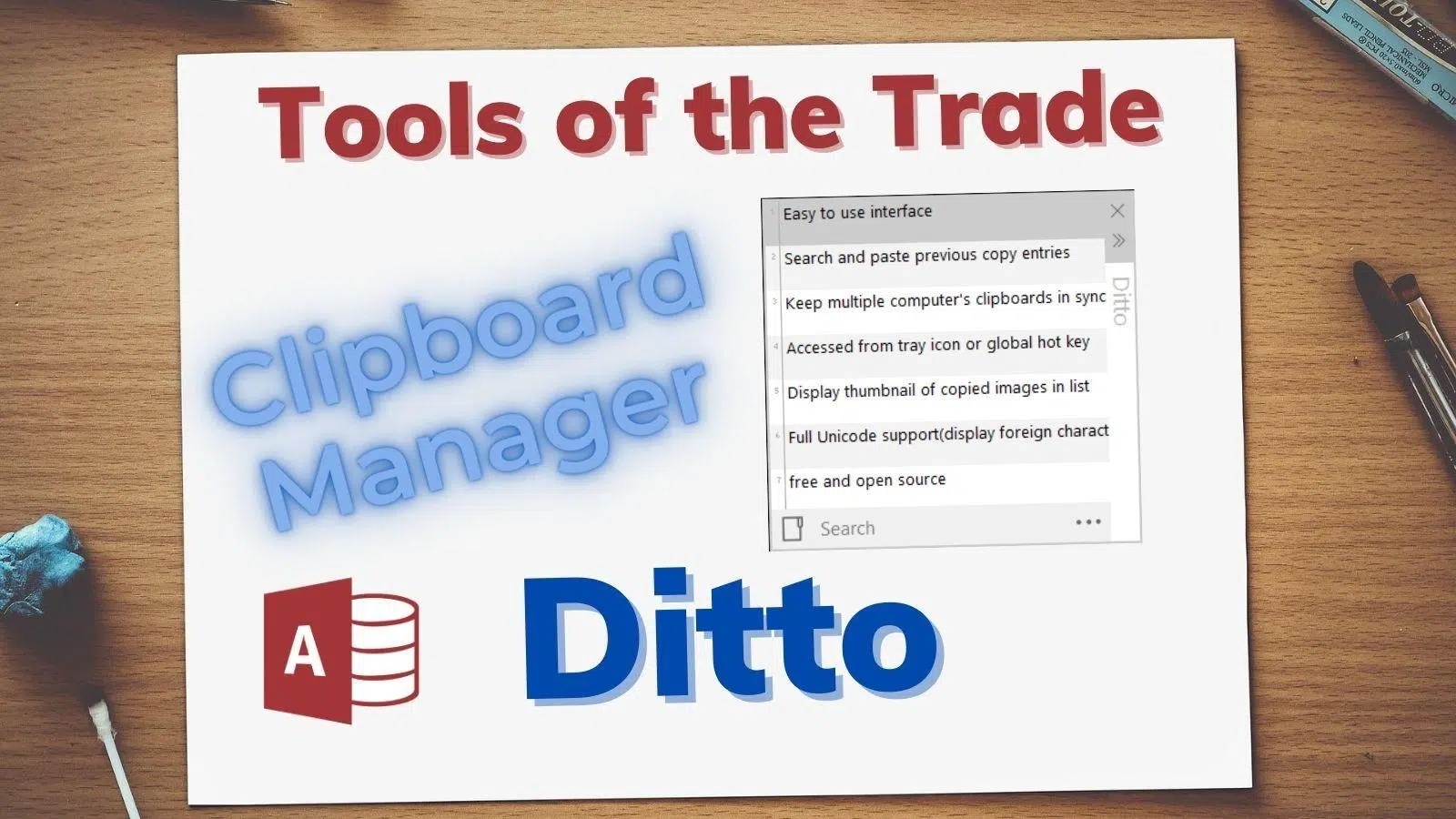
Ditto Clipboard Manager has become one of those essential tools for anyone who spends their day copying and pasting text, images, passwords, or code snippets. If you've ever lost something important from your clipboard by copying something else right after, you know how frustrating it can be. With Ditto, that problem almost completely disappears: every item that passes through the clipboard is saved, and you can retrieve it whenever you want.
Unlike the standard Windows clipboard, which only keeps the last copied item, Ditto acts as a history archive of your clipboard usage in Windows 11. It's also free, open-source, available in both installable and portable versions, and offers advanced features like cross-computer synchronization and support for multiple formats (text, HTML, images, and custom formats). All of this comes with a very gentle learning curve and user-friendliness that will hook you after just a couple of days of use.
What is Ditto Clipboard Manager and what is it used for?
Ditto Clipboard Manager is an extension of the native Windows clipboard , developed as an open-source project and distributed free of charge. Its main purpose is to permanently store all the elements you copy (plain text, HTML snippets, images, data in custom formats, etc.) so you can easily retrieve them later.
While the Windows clipboard only retains the most recently copied content, Ditto manages a complete history list , organized and accessible in seconds via a keyboard shortcut or a system tray icon. This "infinite list" of copies is saved in a local database, allowing you to shut down your computer or restart Windows without losing your previous copied data.
A key feature is that Ditto isn't limited to just plain text : it also handles images (like screenshots), HTML snippets (preserving styles, links, and basic formatting), and other special formats used by some applications. This makes it very useful for office environments, programming , graphic design, password management, or any activity involving a lot of copy/pasting.
Furthermore, Ditto allows you to synchronize clipboard contents between different computers over a network or the internet, encrypting the information during transmission to maintain privacy. This means you can copy something on your work PC and paste it on your personal computer without using email or external services.
Main ways to download and install Ditto
One of Ditto's advantages is the number of installation and execution options it offers, making it suitable for both end users and system administrators deploying software across multiple machines. You're not limited to the standard installer: it also includes a portable version and installation via popular package managers for the Windows environment.
If you want the simplest option, you can download Ditto from the Microsoft Store for Windows to improve your clipboard in Windows 11. This version installs like a modern app, updates automatically from the store, and is ideal for users who don't want to deal with traditional installers or extra configurations.
For those who prefer the traditional method, Ditto offers a standard installer for Windows (with support for both 32-bit and 64-bit architectures, Win32 and Win64). Simply run the file, follow the installation wizard, and in just a few clicks, the program will be integrated into your system with its icon in the system tray and a shortcut.
A portable version of Ditto is also available . This version is downloaded as a set of files that you can place in any folder, on a USB drive, or on an external hard drive and run without installing anything on your system. It's perfect for use on computers where you don't have installation permissions, for carrying your clipboard manager with you, or for keeping the entire program isolated from other applications.
More advanced users, and especially system administrators, will appreciate that Ditto can be installed using package managers like Chocolatey and Winget . With Chocolatey, you can use commands like `choco install ditto` or `choco install ditto.portable` to deploy either the standard or portable version in seconds. With Winget, the command `winget install -e --id Ditto.Ditto` allows you to install it from the command line, following the official Microsoft ecosystem.
How to use Ditto in your daily life
Getting started with Ditto is very easy , even if you've never used a clipboard manager before. The basic workflow is almost identical to the standard copy and paste function in Windows, but with the added benefit of history and a very convenient selection panel.
The first step is to run Ditto so it becomes resident in the system tray . Once it's running, it "listens" to everything that passes through the Windows clipboard. In other words, every time you use the classic Ctrl + C key combination (or cut with Ctrl + X) on text, an image, or other content, Ditto saves a copy to its internal database without you having to do anything else.
To access the history, you can click on the Ditto icon in the notification area (next to the Windows clock) or use the default keyboard shortcut: Ctrl + ` (that is, hold down Ctrl and press the tilde or grave accent key, the same one where the ~ symbol is usually located). Pressing this shortcut opens a window with all the items you have previously copied.
Within that window, simply search for the item you want to reuse . You can navigate with your mouse, scroll up and down with your keyboard, or use a search box to filter by text, which is very useful when the history is long. When you find the item you're interested in, simply double-click on it or press Enter to have Ditto send it to the current clipboard and automatically paste it into the application you were working in before opening Ditto. If you are unable to paste the content, see what to do if you cannot paste external content.
With continued use, it becomes clear that Ditto is designed to improve productivity without disrupting your work habits . You still use Ctrl+C and Ctrl+V as usual, but you have a safety net: even if you overwrite the clipboard with something new, the previous text remains available in Ditto's list, ready to be retrieved instantly.
Internal architecture: SQLite database and performance
One of Ditto's most interesting technical aspects is its use of an SQLite database to store the entire clipboard history. Instead of storing separate files or complex structures, the program centralizes almost all the information in a single, lightweight database, making data management and persistence much easier.
Choosing SQLite offers several clear advantages: it simplifies program code, facilitates read and write operations , and allows for the relatively efficient handling of hundreds or thousands of elements without the need for an external database system. SQLite is very stable, thoroughly tested, and specifically designed for this type of desktop application.
However, this choice also has its nuances. As history items are added and deleted, the database can become fragmented , which, in certain scenarios, can lead to some performance degradation. This behavior isn't unique to Ditto: other programs that rely on SQLite, such as some feed readers (for example, FeedDemon back in the day), can also suffer when the database grows unchecked and isn't maintained.
In real-world use, some users have observed that when handling many medium-sized or large images (for example, continuous screenshots), accessing the history can become somewhat slower. This makes sense considering the volume of data that needs to be stored and retrieved from the database, as well as how SQLite internally manages those image logs.
One possible way to mitigate this behavior is to keep the SQLite engine used by Ditto up to date . It has been reported that upgrading to more recent versions, such as 3.7.9, results in significant improvements in storage management and performance. Furthermore, the program's own configuration options allow you to limit the number of saved items, reduce the size of the history file, or clean up old records, helping to keep the database lighter.
Advanced functions and outstanding features
Beyond simply maintaining a copy history, Ditto stands out for its advanced features that differentiate it from other clipboard managers. Some of these features can make all the difference in professional environments or for tasks that demand high productivity.
On the one hand, Ditto supports a wide variety of input and output formats . It's not limited to typical plain text, but can work with HTML (preserving links, bolding, lists, etc.), images in various formats, and other types of data that certain applications send to the clipboard using custom formatting. This makes it very useful, for example, when you copy styled text from a browser or document editor and want to preserve that formatting when pasting.
Another highly valued feature is clipboard synchronization across different computers . Ditto can be configured to share clipboard history with other computers, either over the local network or the internet, and also offers data encryption to prevent unencrypted transmission. This is a very powerful feature if you work with multiple PCs simultaneously, if you have a desktop and a laptop, or if you collaborate with others and need to quickly share text snippets or data.
Regarding user interaction, Ditto allows you to customize keyboard shortcuts , appearance, and even visual themes , along with other useful shortcuts for selecting all text . Theme support lets you change colors and some aesthetic elements of the interface, giving it a look more in line with your personal tastes. While the visual design may not be the most minimalist or modern, it's functional and configurable, and importantly, the history window is clear and quick to use.
It's also worth mentioning that Ditto is translated into multiple languages, including Spanish , making it easier for users who prefer to work in Spanish to adopt. Furthermore, the capture of standard Windows keyboard shortcuts (Ctrl + C, Ctrl + V, etc.) generally works reliably, without significant conflicts with other applications, as long as no other programs are attempting to capture the same keys simultaneously.
Performance, limitations, and user experience
In day-to-day use, Ditto offers a fairly solid and reliable experience , but it's worth knowing its strengths and potential drawbacks to understand what to expect and how to get the most out of it. It's a tool that's constantly in use while the system is running, so any improvements or issues are quite noticeable.
Many users who came from other solutions, such as the veteran ClipX, highlight that Ditto offers more features and improved compatibility with modern versions of Windows , especially with the clipboard extensions introduced in Vista and Windows 7. While it may not be as ultra-lightweight or as fast as some minimalist alternatives, it compensates with a much wider range of options and stable integration with current systems.
Visually, Ditto is adequate without being particularly flashy . It's not the most spectacular or polished interface you'll find, but it's pleasant and clear enough to work with. The use of themes and color changes helps to liven it up, although some people would prefer an even more minimalist approach, without relying on XML for themes and settings, or on certain libraries (like MFC) that increase the program's size.
In terms of stability, Ditto is actively maintained by its developer , resulting in continuous bug fixes, improvements, and refinements. Details such as the addition of x64-specific manifests and optimized integration with Visual C++ runtimes are refining the program's performance on modern systems and reducing potential compatibility issues.
It's important to keep in mind, however, that excessive copying of very large images or allowing the history to grow without limit can negatively impact performance. The database has to manage more information, and loading the history can become slower. Adjusting the maximum number of items, database size, and cleanup frequency settings is a good practice to keep it running smoothly.
Use cases: productivity, passwords, and intensive work
Ditto shines especially in environments where copy/paste is a central part of daily work . We're talking about activities like customer service, data management, programming, digital marketing, systems administration, intensive office tasks, and many other office jobs where you're constantly moving information from one place to another.
For example, if you spend your day copying usernames, passwords, URLs from open tabs , verification codes, or repetitive text snippets , having an instantly accessible history saves you countless minutes throughout the week. Instead of having to search for the same information repeatedly in emails, documents, or applications, you simply open Ditto, locate the relevant entry, and paste it instantly.
It's also incredibly useful when working with extensive documentation, reports, or web content and you need to retrieve paragraphs you copied earlier and then overwrote. The typical case of "I just copied something important and accidentally deleted it" is no longer a problem, because Ditto keeps previous versions in its history.
On a more technical level, developers and administrators appreciate that Ditto allows them to organize code snippets, console commands, file paths, and configurations , and retrieve them as needed. It's like having a small personal library of code snippets that's automatically created as you work, without having to manually paste everything into a separate document.
Even on a personal level, any user who frequently uses the clipboard benefits from this small safety net . The simple fact of not losing copied information and being able to review what you've used throughout the day makes you feel freer to experiment, cutting and pasting without fear.
Security, privacy, and code signing
Since this tool records everything that passes through the clipboard , it's logical to consider security and privacy concerns. Passwords, sensitive data, account numbers, internal company information… all of that may have passed through Ctrl+C at some point (for example, use password managers like KeePass and a key file for added security).
In this regard, Ditto offers encryption options when syncing information between different devices , ensuring that data travels securely and is unreadable to third parties during transmission. It's important to configure these options correctly if you plan to share your history over the internet or networks that aren't fully controlled.
From a software integrity standpoint, the Windows versions of Ditto feature code signing provided free of charge by SignPath.io, with a certificate issued by the SignPath Foundation. This signature helps the operating system recognize the executable as trustworthy, reduces unnecessary security warnings, and ensures that the file has not been modified by the developer since its release.
In daily use, it's also wise to apply some common sense: if you work with highly sensitive data , you might want to configure Ditto not to save certain types of content or limit how long certain items are kept in the history. The balance between convenience and security will depend on the work environment of each individual or company.


Passionate writer about the world of bytes and technology in general. I love sharing my knowledge through writing, and that's what I'll do on this blog, show you all the most interesting things about gadgets, software, hardware, tech trends, and more. My goal is to help you navigate the digital world in a simple and entertaining way.