- El clipboard native of Windows 11 is limited; Ditto provides advanced history, search, and organization.
- Ditto saves text, links, and images, allows raw pasting, and encrypted network syncs.
- Turn on history (Windows + V), sync across devices, and use shortcuts for smoother operation.
- Tools like CopyQ, ClipAngel or ShareX scale the flow to suit your needs.
Millions of users copy and paste almost automatically every day, but when you rely on it for work, study, or creation, its limitations quickly become apparent: the classic Windows clipboard only holds one item at a time (although you can enable multiple clipboards ), and if you replace it, the previous item is lost. Microsoft has improved the history experience, yes, but if you require advanced search, organization, and fine-tuning, it falls short.
If you've ever lost important text by overwriting it, you know that frustrating feeling and the disruption it causes to your workflow. That's where Ditto comes in: an open-source clipboard manager that transforms copy and paste into a powerful and versatile system , capable of saving, finding, organizing, and syncing what you copy without interrupting your flow.
What problem does Ditto solve and why use it on Windows 11?
The Windows 11 clipboard has improved with history and synchronization, but it remains fundamentally basic: it doesn't offer powerful search capabilities, its organization is limited, and control over what is saved is minimal . This clashes with the reality for those who copy text, links, images, or code snippets extensively.
In practice, Ditto fills that gap with a very simple premise: everything you copy is automatically saved and instantly available via a shortcut . You stop fumbling with the last item on the clipboard and gain a navigable and reusable history, with features that go far beyond simply pasting the latest thing.
This approach aligns perfectly with microproductivity: small changes to everyday tools that add up to minutes each day . Retrieving a link you copied the day before yesterday, pasting the plain text version with a single click, or finding an image copied hours ago without navigating through folders are details that reduce friction and keep you focused.
Furthermore, Ditto doesn't complicate things or replace what you already use: it works in the background and respects the Windows clipboard . Your copying and pasting process remains the same; you simply gain a panel where everything is located and a search function that works as expected, with options to pin, clear, or securely sync over the network.
Ditto in depth: key features and how to get the most out of it
Ditto is lightweight, free, and open source, which translates into reliability and performance: it installs in seconds, consumes very few resources, and its code is published on SourceForge. It doesn't replace the clipboard; it extends it with a quick interface that appears when you press its configurable shortcut and disappears when you choose what to paste.
By default, it automatically saves everything you copy: text, URLs, images, code snippets, and common formats . If you work with Unicode, UTF-8, XML, or other common standards, you won't have any problems: the program supports and respects them. You'll even see a thumbnail preview when it comes to images.
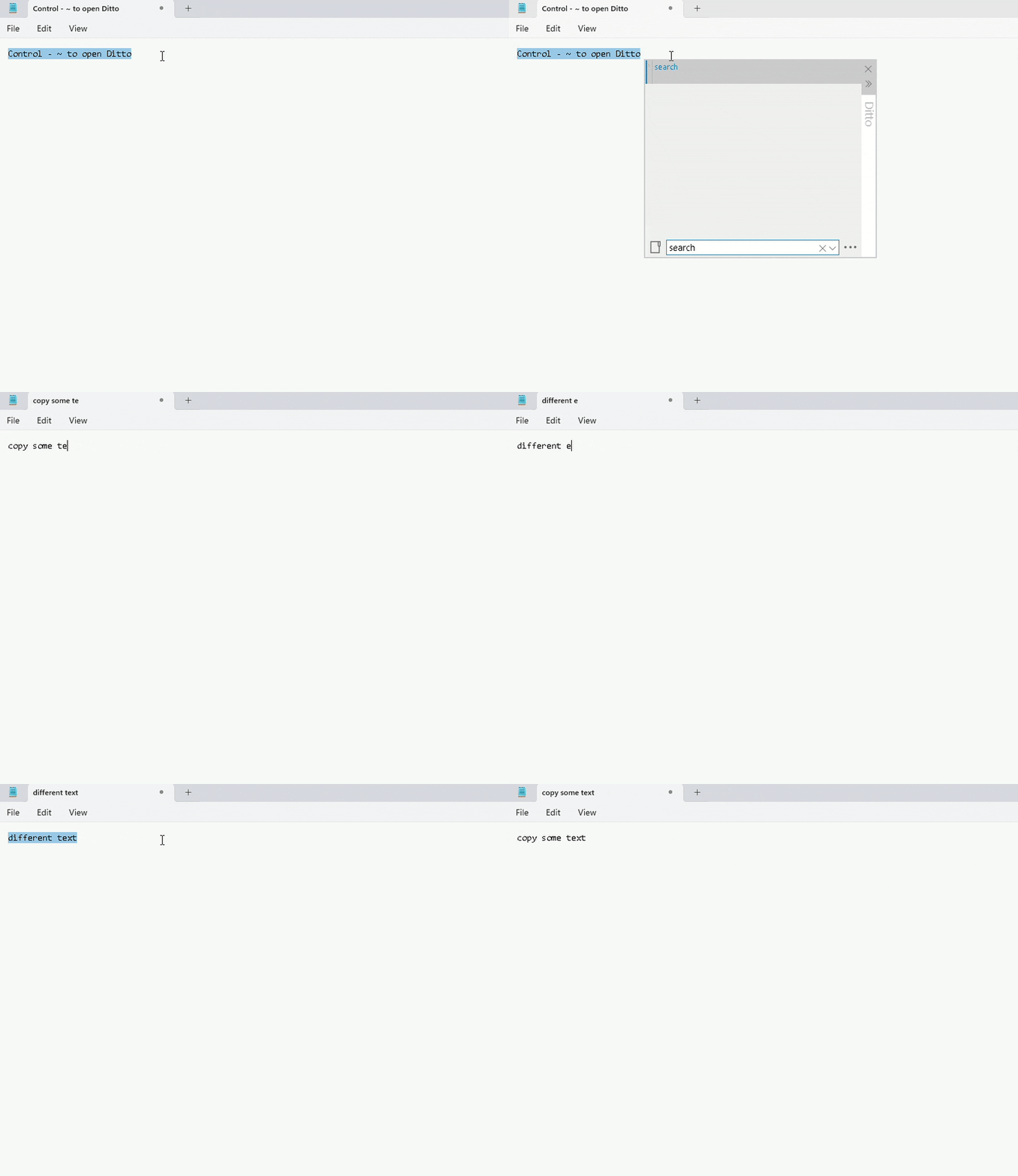
Accessing your backups is instantaneous. By default, it opens with a convenient shortcut (often Ctrl + the tilde key, configurable), and from there you can: search by keywords, filter, sort, and paste without touching the mouse if you don't want to. The search is fast and allows you to retrieve content from hours or days ago in seconds.
Organization is another strength. Not everything you copy is created equal, so Ditto lets you pin frequently used items to the top , group content, and keep unnecessary items out of the way. When it's time to clean up, you can remove individual items or clear your history without hesitation.
Beyond storage, Ditto includes quick editing features that make a real difference in everyday use: pasting as plain text to avoid strange styles , converting to uppercase or lowercase on the fly, or removing extra spaces. These are small but constant actions that save clicks and fix messy pasted files.
If you work across multiple devices on the same network (laptop and desktop, for example), the app offers encrypted clipboard synchronization between devices . You copy on one PC, paste on another, without having to send emails or messages to yourself. Everything is encrypted in transit to protect your information.
The workflow is also streamlined with quick pasting methods: you can select and paste with a double-click, the Enter key, or by dragging and dropping , whichever is most convenient for you. And if you don't want to open the interface, customizable shortcuts let you paste the last item or a specific one directly.
In day-to-day use, Ditto's integration with the system tray is a welcome feature: it has an easily accessible icon for opening it, pausing monitoring, or adjusting options on the fly. This allows you to decide when to save what you're copying, which is useful if you're managing sensitive data and need to temporarily disable capture.
For those who handle more than one type of content, there are details that add up: full support for Unicode (accents, special characters and emojis don't get messed up), image previews and compatibility with common formats for consistent pasting between apps.
If you're used to managers with "secondary keys" for copying directly to the history without affecting the active clipboard, you can replicate something similar thanks to Ditto's flexible shortcut configuration . Define different combinations to display the history, paste without formatting, or recall the last clip, and adapt the tool to your workflow.
In short, their proposition is clear: save time, reduce errors, and give you complete control over what you copy , without disrupting your workflow. From students compiling bibliographies to journalists managing links or developers saving snippets, Ditto acts as an external storage system for everything you're working on.
Native Windows 11 clipboard features you should enable
Before diving into Ditto, it's worth activating and mastering the options already included in Windows 11. Starting with the most important: clipboard history . Go to Settings > System > Clipboard and enable Clipboard history; from there, pressing Windows + V will show you a list of your most recently copied items.
This panel lets you make quick decisions: pin items so they don't get lost , delete individual entries, or clear everything when you finish a task. Plus, from there you can "paste as text" so the content comes in without inherited styles that could ruin the document's formatting.
If you work with multiple computers, enable synchronization: Setting up "Sync across all devices" in the same menu allows you to transfer content from one PC to another. You can choose to automatically synchronize text or do it manually by pressing Windows + V on each entry.
What about your mobile device? You have two options. With some Samsung phones (and certain select HONOR phones), when you link your PC using Mobile Link, you can enable copy and paste between devices . Alternatively, with the Microsoft SwiftKey keyboard for Android , you can sync your clipboard with your account and complete the process with Windows.
Don't forget that images are also part of the clipboard . Copying them between applications is as easy as copying text: Ctrl+C, Ctrl+V, with compatibility in editors, messaging apps, and documents. You can also pin or delete them in the history (Windows+V) just like any other item.
Screenshots are closely linked to the clipboard. There are several useful shortcuts: Print Screen copies the entire screen to the clipboard , Alt + Print Screen does the same but only with the active window, and Win + Print Screen automatically saves an image to the screenshots folder.
When you need precision, use the modern crop tool with Windows + Shift + S: rectangular, freeform, window, or full screen . It's the fastest way to capture exactly what you need and have it ready to paste into Paint, Word , Canva, or wherever.
There's also the option to capture video of what's happening on the screen using the Game Bar (Windows + G). Recording is ideal for tutorials or quick clips , and while its focus is on gaming, it can be a lifesaver when you need to demonstrate a process step by step.
Finally, here's a round of essential shortcuts you should memorize so you don't have to put down your keyboard: Ctrl + C (copy), Ctrl + X (cut) , Ctrl + V (paste without formatting in compatible apps), and Windows + V (open history). With these, you'll instantly gain speed.
Alternatives and tools that complement Ditto
If you want to look further or have specific needs, there are very capable third-party utilities. Starting with ClipAngel: free and open source, with an arsenal of features . It supports text, HTML, RTF , files, and images; saves their source (window or URL), filters, allows favorites, edits clips, pastes original or raw files, and encrypts the history. It even includes translation.
CopyQ is another gem if you're a cross-platform user: it's available on Windows, macOS, and GNU/Linux . It lets you store text, HTML, images, and other formats, sort and edit entries, tag them, apply filters, and modify their appearance. Of course, you can create custom shortcuts to suit your workflow.
If you're into taking screenshots, LightShot is a classic thanks to its speed and simplicity: quick captures, basic editing (arrows, boxes, text), and sharing options , including uploading to the cloud or searching for similar images on Google . It's ideal for taking quick notes and pasting them to the clipboard.
If you're looking for something more ambitious, ShareX combines advanced capture with productivity and publishing: it captures windows, monitors, scrolling pages, and records your desktop . It also adds OCR for text recognition, image editing, and sharing to over 60 services; it even generates QR codes to access content from other devices. And yes, it's open source.
1Clipboard makes syncing between Windows and macOS incredibly easy: history synced via Google Drive, a clean design, and offline mode if you don't want anything to leave your computer. It's open source and delivers exactly what it promises without any distractions.
CLCL is a veteran, lightweight freeware alternative: it features folder-based history, a customizable menu (Alt + C) , and a developer extension system that expands its capabilities. Ideal if you want something very simple and fast, without any frills.
ClipClip stands out for letting you manipulate what you save: edit text and images from the clipboard without having to open other programs. It includes OCR for extracting text from images, built-in translation, multi-clip management, and cloud synchronization if needed.
For those who want an "all-in-one" solution, Clipboard Master is powerful and demanding: multiple clipboards, a password manager , templates, FlexiKeys, and quick paste , with advanced search and filtering. It requires a bit of a learning curve, but in return, it becomes a Swiss Army knife.
In many of these tools, and of course in Ditto, customizing keyboard shortcuts is key . Don't hesitate to define specific combinations for copying to history, pasting without formatting, recalling the last clip, or pasting the third or fourth most recent entry without opening panels; those are seconds that add up during long workdays.
The final choice depends on your mix of needs: if you want simplicity and speed with features that matter, Ditto is hard to beat; if you're looking for cross-platform compatibility, visual editing, or capture and sharing ecosystems , there are alternatives to complement or replace the workflow. The important thing is that your clipboard works for you, not the other way around.
A smarter clipboard isn't a whim, it's efficiency: with Windows 11's history properly configured and Ditto as an accelerator , copying and pasting ceases to be a bottleneck and becomes an organized system, with agile searches, clean pasting, secure synchronization, and shortcuts that keep pace when you need it most.


Passionate writer about the world of bytes and technology in general. I love sharing my knowledge through writing, and that's what I'll do on this blog, show you all the most interesting things about gadgets, software, hardware, tech trends, and more. My goal is to help you navigate the digital world in a simple and entertaining way.