- StartAllBack and other programs allow you to restore a classic start menu and taskbar in Windows 11 with extensive customization options.
- Third-party tools are more flexible and reliable than those Tricks registration, although they should always be downloaded from their official websites.
- Modifying the interface involves touching sensitive system components, so it's advisable to create restore points and avoid mixing too many utilities.
- Major updates of Windows They may cause temporary conflicts, but these are usually resolved by updating or reconfiguring these applications.
If you use Windows 11 and are a bit tired of its modern look, you've probably considered going back to a more classic taskbar and Start menu experience, like in Windows 7 or Windows 10. Microsoft doesn't exactly make it easy: the official options are very limited and often force you to go through the Registry or accept changes you don't like.
That's where StartAllBack and similar utilities come in. With them, you can move the taskbar , change the Start menu layout, restore the classic context menu, and generally give Windows 11 the look and feel you prefer. However, it's important to understand what each program does, its potential functional risks, and how to avoid problems like the dual Start menu in Windows 11 and Windows 7.
What is StartAllBack and why do so many people use it in Windows 11?
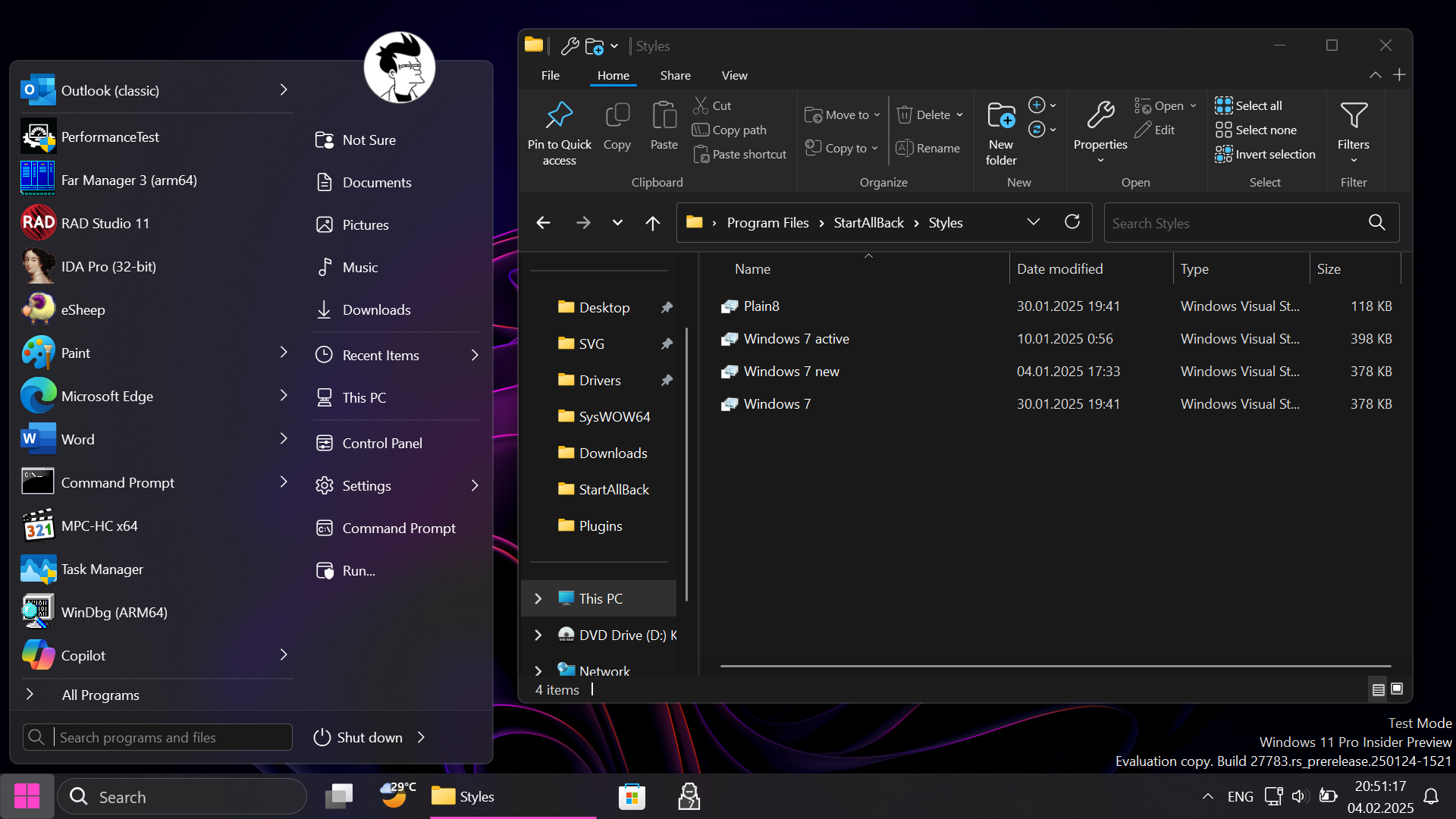
StartAllBack is a paid tool that has gained considerable popularity because it restores Windows 11 to an environment very similar to that of Windows 7 or Windows 10 , including the Start menu, taskbar, and File Explorer. It's not free, but its price is quite low considering everything it offers.
By default, the Windows 11 Start menu is centered, with icons pinned at the top and a recommended apps section at the bottom—quite different from what we had from Windows XP to Windows 10. With StartAllBack, you can choose between three Start menu designs : one more consistent with Windows 11, one like Windows 10, and another inspired by Windows 7 but completely revamped.
Accessing the settings is simple: just right-click the Start button and select "Properties" to open the StartAllBack settings panel. From there, you'll find tabs dedicated to the Start Menu, Taskbar, File Explorer, and an Advanced section, each with its own set of options.
In the "Start Menu" tab, you can hide or show classic links, adjust icon size , group modern apps into a single folder, limit the scope of internal search, and modify the overall behavior when opening the menu. The goal is to make the menu a productivity tool again, not just a grid of pretty shortcuts.
StartAllBack isn't freeware: it requires a paid license of around $4,99 for permanent use, but it includes a generous trial period (up to 100 days in some versions) that lets you see if it suits your needs without commitment. For many users who value productivity over out-of-the-box aesthetics, that small investment is well worth it.
How to customize the taskbar with StartAllBack
One of StartAllBack's most striking features is its ability to thoroughly modify the Windows 11 taskbar , including its position, style, and button behavior. Something that Windows 11 severely restricts, StartAllBack completely unlocks.
From the "Taskbar" section of Settings, you can change the design of the Start button, enable dynamic transparencies that adapt to the wallpaper, and, most importantly, change how the buttons for open applications are grouped or displayed. If you're interested in the translucent effect, you can find out how to achieve a transparent or acrylic taskbar in Windows 11.
One of the most sought-after features is the ability to change the taskbar's position . The official StartAllBack website indicates that it allows you to move it to the top, left, or right edge, something many users miss after upgrading from previous versions of Windows. However, in some Windows 11 builds and with certain configurations, this option isn't readily available or may be limited by internal system changes.
Many older tutorials explained how to move the taskbar to the top by editing the Registry ( regedit ) in paths like HKEY_CURRENT_USER/Software/Microsoft/Windows/CurrentVersion/Explorer/Advanced, changing values related to its position. The problem is that, with modern Windows 11, and especially when tools like StartAllBack are installed, these registry tricks either no longer work or cause strange behavior.
The best approach nowadays is to use StartAllBack's native options instead of trying to combine old registry hacks with the program's own customizations. If StartAllBack controls the taskbar, let it handle moving, aligning, and changing the appearance of the icons , thus reducing conflicts with the Windows 11 shell. If you encounter problems, there are guides available to troubleshoot issues with the taskbar or Start menu.
In addition to positioning, StartAllBack lets you combine or uncombine taskbar buttons , restore icon styles with text, adjust the bar size, and remove modern elements you don't want, such as the ubiquitous search or shortcuts you don't use.
Restore the classic Start Menu in Windows 11: methods and alternatives
Beyond StartAllBack, many users simply want to restore the Windows 10 or Windows 7 Start Menu to their Windows 11 system, without focusing so much on the taskbar. There are several ways to achieve this: from modifying the registry to using well-established third-party programs.
Restore the classic menu by editing the Registry
A classic, though somewhat more technical, method involves adjusting certain values in the Windows Registry to force a menu closer to that of Windows 10. It's not the most convenient solution, but it's an option for those who don't want to install extra software.
The usual procedure involves opening the Registry Editor with the command regedit (Windows + R) and navigating to the path HKEY_CURRENT_USER/Software/Microsoft/Windows/CurrentVersion/Explorer/Advanced. In the right pane, create a new 32-bit DWORD value named Start_ShowClassicMode and assign it the value 1.
After applying this change, you must restart your computer for Windows to read the new settings . Depending on the version and installed updates, the result may be more or less similar to the classic menu, as Microsoft has been reducing these types of "shortcuts" in recent versions.
This approach has the disadvantage of not being particularly flexible : each modification requires going back to the Registry, there is no convenient graphical interface, and furthermore, any major update can undo or ignore these settings without warning.
Programs to restore the classic appearance to the start menu
For all the reasons mentioned above, most users end up opting for applications dedicated to restoring the classic Start Menu . These tools originated in the Windows 8 era and have been refined over the years, offering far greater stability and customization than any registry trick.
Open Shell: a free and open-source option
Open Shell (formerly Classic Shell) is one of the most popular and long-standing solutions. It's a free, open-source tool, available in Spanish , that quite faithfully replicates classic Start menus up to Windows 7.
During installation, the wizard asks which components you want. It's common to keep only Open Shell Menu , unchecking Classic Explorer, Classic IE, and the updater if you don't need them. This prevents you from installing modules you won't use.
In its settings panel you can choose between three main menu styles : a basic Windows XP style, a classic two-column style with extra shortcuts, and a Windows 7 style that replicates the most well-known design of that version.
Each style can be finished off with different "skins": Classic, Metallic, Metro, Midnight, Windows 8, Windows Aero… Extra options include settings such as displaying small icons, using larger fonts, or making the menu opaque , depending on the look you want.
Open Shell also lets you change the Start button : you can use the Aero one, the classic one, or even upload a custom image to create your own icon. Once you've finished adjusting the settings, apply the changes and you'll have the classic Start menu working in Windows 11.
However, to make the whole thing look coherent, it's usually necessary to reconfigure the taskbar so that the icons are aligned to the left, emulating the traditional design we've been used to for years.
StartAllBack as a comprehensive Start Menu and Taskbar solution
If you're looking for more than just a Start menu change, but a complete redesign of the taskbar and File Explorer , StartAllBack offers a much more comprehensive package, though it's a paid app. Upon installation, the "StartAllBack Settings" panel appears with all the available configuration options.
From there, you can choose a theme inspired by Windows 10 or a refreshed Windows 7-style theme . As soon as you select one, the taskbar and Start menu instantly change to reflect that look. You're not stuck, though: you can always revert to the original Windows 11 Start menu if you're not happy with the result.
Within the "Start Menu" section, StartAllBack allows you to modify the visual style, size and number of visible icons , search behavior, how "All Programs" is displayed, and how pinned items are managed.
The program also works on File Explorer, restoring the classic context menu, command bars , and Control Panel applet shortcuts that Windows 11 increasingly relegates. This is key for those who dislike modern simplified menu layers.
Finally, the Advanced tab contains color settings and recent items lists for both the Start menu and the taskbar. This area is designed for fine-tuning user experience details rather than making drastic appearance changes.
Start11: a highly polished commercial alternative
Another well-known paid option is Start11, developed by Stardock, a company with a long history of customizing Windows interfaces . It offers a 30-day trial version followed by a paid license costing approximately €5,99.
Once Start11 is installed, the initial wizard asks you where you want to align the taskbar (centered or left) and what type of start menu you prefer: Windows 7 style, Windows 10 style, a modern look of your own, or the Windows 11 look, but with extra features.
From the "Home Button" section, you can change the menu logo by choosing from an image gallery or downloading more from their website. It also offers controls to modify the bar's appearance: blur, transparency, color, textures, and size.
The changes are applied almost instantly, so you can see live how the menu and bar transform until you find the most comfortable and least intrusive combination for your workflow.
Start Menu X: Flexible approach with a free version
Start Menu X is another option for those who want a Windows 10-like menu in Windows 11 without too much hassle. It has a free version and a paid Pro version, although the free edition is sufficient for most users.
One interesting advantage of this tool is that it allows you to quickly switch between its menu and the standard Windows menu using the Shift + Win key combination. This is very useful for comparing on the fly and deciding if the change is worthwhile.
After installation, Start Menu X offers a multitude of settings: you can apply different themes, change the Start button icon by choosing from the included ones (or adding your own), and add shortcuts to shut down, restart, or suspend your computer more quickly.
If all you want is a menu similar to Windows 10's , that's also possible without having to wrestle with too many advanced options. You leave the settings almost at their defaults, and the program does the rest.
The Pro version adds some extra features, but they are not essential to achieve the main goal, so you can easily stick with the free edition if your priority is the nostalgia of the classic menu.
StartAllBack security and other personalization programs
It's understandable that when installing programs that modify the Windows interface, the Start menu, or the registry , you'd be concerned about security. Nobody wants to sneak malware onto their PC just by changing the taskbar's location.
In the case of established tools like Open Shell, StartAllBack, Start11, or Start Menu X , we're talking about projects with a solid track record, maintained for years and widely used by the community. There are no significant reports of them containing malicious code when downloaded from official sources.
Open Shell, being open-source software, is subject to community review . This makes it more difficult to hide malicious functionality undetected, and it's also completely free, with no aggressive installers or added adware.
StartAllBack and Start11 are commercial products from developers well-known and recognized by Microsoft . Stardock, for example, has been in the industry for years. To date, no serious security issues have been observed in these applications, and they receive frequent updates, which helps to fix bugs and patch potential vulnerabilities.
Start Menu X, although less famous to the general public, also has a long history and a fairly good reputation , as long as you download it from its official website and do not resort to dubious "shortcuts".
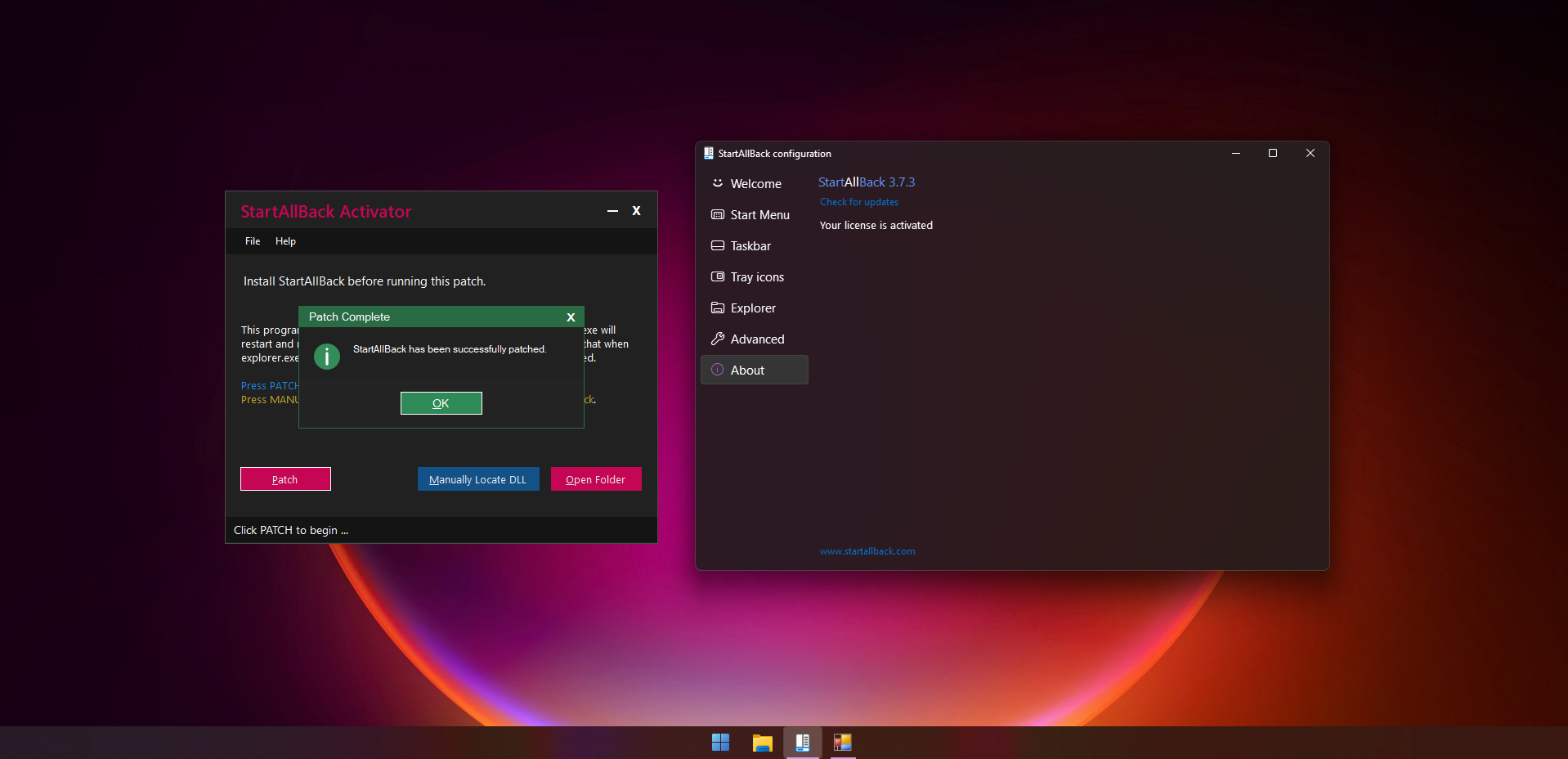
The risk usually arises when using pirated versions, cracks, or modified installers obtained from third-party websites. This is where Trojans, keyloggers, or other disguised unwanted programs can easily slip in. Therefore, it's crucial to always download these tools from their official website.
For added peace of mind, it's advisable to scan executable files with services like VirusTotal and, if you have any doubts, test the software first in a virtual machine or a test environment before installing it on your main PC. It's a quick practice that can save you a lot of trouble.
Functional risks when modifying the taskbar and start menu
Although these programs are malware-free, it's important to understand that they modify sensitive parts of the operating system , such as the Windows shell, Explorer, and the Registry itself. This can cause functional problems if certain combinations occur.
Many of these tools are forced to modify the internal code of Windows 11 to restore behaviors that Microsoft has removed or hidden. On computers with unusual configurations, specific drivers , or many installed utilities, this extra intervention can cause graphical glitches, strange behavior, or minor interface crashes.
Furthermore, they affect sensitive components such as the system registry, which can conflict with other settings or company policies if you work in a corporate environment. Sometimes a single major Windows update is enough to cause certain interface patches to stop working or generate visual errors.
For this reason, it's highly recommended to create a system restore point before installing or fully configuring these types of programs. If something goes wrong, you can revert to a previous state relatively easily without having to reinstall all of Windows.
It's also a good idea to back up important data , especially if you're going to be using multiple tools at once or manually editing the registry. In rare cases, shell problems can affect startup and leave your PC unstable—something more common than we'd like.
Typical problems with StartAllBack: top bar and double start menu
Among the most frequently asked questions from StartAllBack users are two that appear time and time again: how to place the taskbar at the top of the screen and what to do when both the classic Start menu and the Windows 11 Start menu are displayed.
Regarding the top bar, StartAllBack promises the ability to move the taskbar to the top, left, or right edges . However, some users cannot find this option or discover that the changes are not applied correctly, especially on certain Windows 11 builds or with hybrid display configurations.
The problem becomes more complex when old registry tricks for moving the progress bar are combined with the logic of StartAllBack . If the Registry tries to force one position and StartAllBack tries to force another, strange behavior can occur, or nothing may change at all. The best course of action is to undo the registry changes related to the progress bar and leave only StartAllBack in control.
Another very annoying issue is when, after installing StartAllBack to have a Windows 7-style menu, the original Windows 11 menu still appears below or next to the new one . In other words, if you don't click exactly on the "classic" icon, the modern menu opens, making the experience chaotic.
This usually happens if the StartAllBack integration hasn't completely replaced the Start Menu handler, or if Windows 11 has reverted to some of its original behavior after an update. To fix this, check the StartAllBack settings to ensure it's enabled as a full Start Menu replacement and not just a visual add-on.
In extreme cases, it may be necessary to uninstall StartAllBack, restart, and reinstall it cleanly , avoiding having other menu or toolbar customization tools running simultaneously. The fewer overlapping customization layers, the less chance there is of conflicts like a double menu.
Ultimately, all these utilities demonstrate that Windows 11 can be customized far beyond its official configuration, but at the cost of adding an extra technical layer that's worth understanding. If you download the tools from their official websites, create a system restore point before making any changes, and avoid installing too many "patches" at once, it's perfectly possible to have a taskbar and Start menu tailored to your liking, with the convenience of Windows 7 or Windows 10 built on the modern foundation of Windows 11.


Passionate writer about the world of bytes and technology in general. I love sharing my knowledge through writing, and that's what I'll do on this blog, show you all the most interesting things about gadgets, software, hardware, tech trends, and more. My goal is to help you navigate the digital world in a simple and entertaining way.