- Failures in MSI and Appx installations are usually due to untrusted certificates, missing dependencies, or problems with the installation service.
- The specific version of Windows 10 determines the support for .appinstaller, sideload methods, and App Installer capabilities.
- Correctly configuring MIME types, HTTP headers, and URLs for .appx and .appinstaller files is key to avoiding deployment errors.
- PowerShell, the Event Viewer, and tools like wsreset allow you to diagnose and fix most errors without reinstalling Windows.
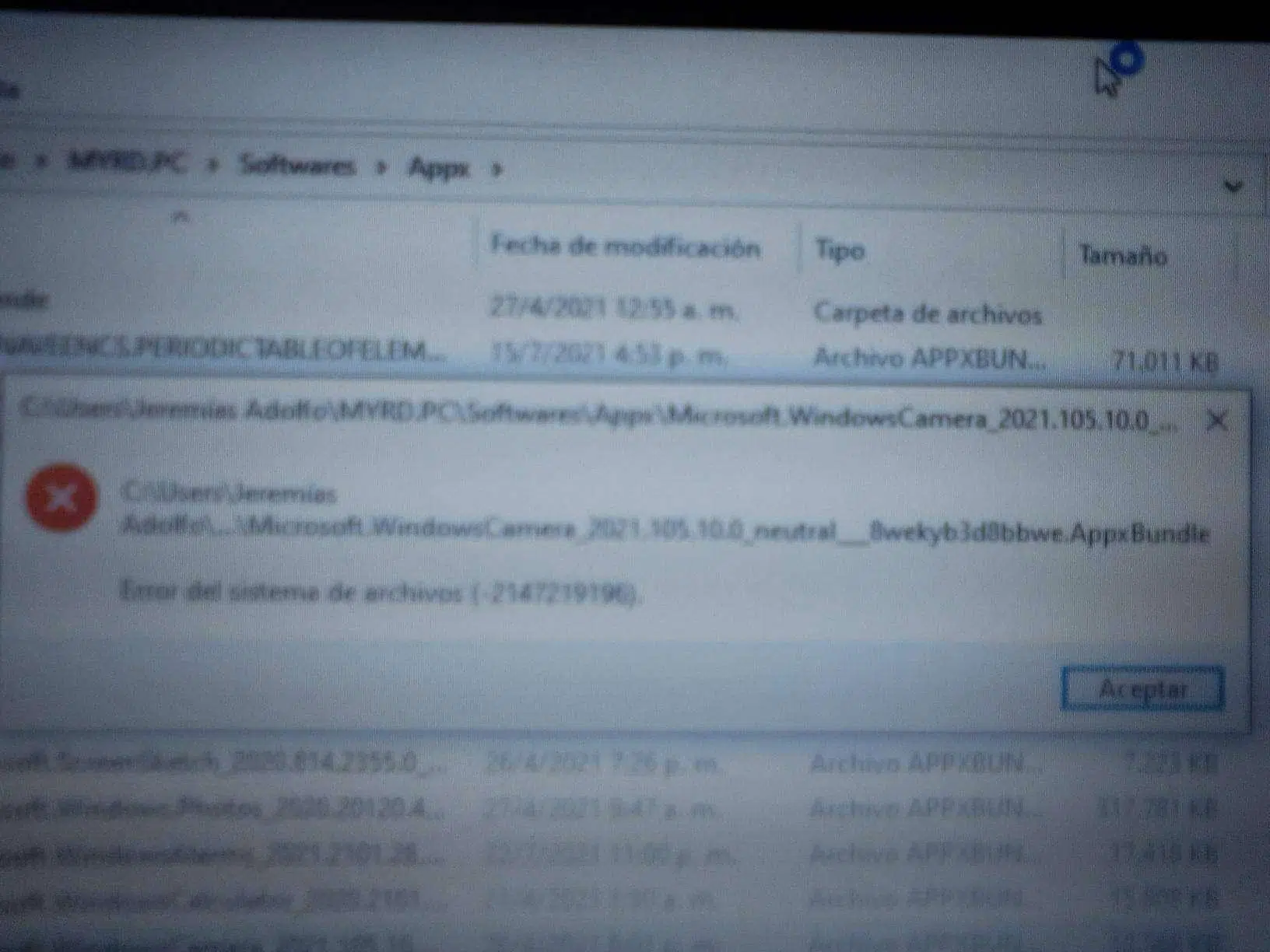
When a Windows installation fails with cryptic messages, hexadecimal codes, and logs full of data, it's easy to get frustrated. Errors with MSI, APPX, and MSIX packages can stem from a multitude of different causes: from an untrusted certificate to a missing framework, or even problems with the Windows Installer service itself or the distribution protocol used for the .appinstaller file.
In this article, we'll calmly and thoroughly break down the most common causes of failures when installing MSI and Appx/MSIX applications on Windows 10 and Windows 11, and how to fix them step by step. You'll see how to check the Windows Installer logs and use PowerShell to install packages, and we'll cover what to do when the problem lies with the server or the sideloading configuration itself.
MSIEXEC.EXE and msi.dll errors when installing MSI packages
One of the most frustrating scenarios is when the classic Windows installer, MSIEXEC.EXE , crashes or generates errors in the Application Registry. A typical error log might show data similar to this (adapted): failing application name MSIEXEC.EXE, failing module msi.dll , exception code 0xc0000005, application path C:\WINDOWS\SysWOW64\MSIEXEC.EXE, and module path C:\WINDOWS\System32\msi.dll.
When the exception code 0xc0000005 appears , it usually indicates a memory access problem (access violation). In the context of Windows Installer, this can be due to a corrupted component, antivirus interference, conflicting DLLs, or drivers that are not properly registered during installation. In these cases, before attempting to reinstall the system, it's advisable to run several tests and checks.
A very common error when installing MSI packages is Error 1721 , which is usually displayed with a message similar to: “There is a problem with this Windows Installer package. A program required for this installation to complete could not be run. Contact your support personnel or the package vendor.” This message indicates that the MSI is attempting to run a custom action that calls an executable or script (for example, a PowerShell command), and something is preventing it from completing.
In real-world scenarios, such as installing the Surface Dock Updater or Surface Book 2 drivers, the installer launches an action called InstallDriversPnP, located in a path like C:\Program Files\SurfaceUpdate\, with a PowerShell command that runs pnputil on all .inf files found. If this command cannot be executed (due to permissions, policies, antivirus software, or restricted PowerShell), the installation aborts with Error 1721.
When the user has already tried restarting the Windows Installer service, using installation/uninstallation troubleshooters, and testing program compatibility without success, the cause is usually further down the line: execution permissions, system integrity, or conflicts with manufacturer tools that modify the installation stack.
Troubleshooting basic problems with MSI installers in Windows
To address errors with MSIEXEC.EXE and msi.dll in an organized manner, it's advisable to follow a series of basic steps that, in many cases, resolve the problem without needing to reinstall Windows. The goal is to ensure that the Windows Installer service is functioning correctly, that system components are not corrupted, and that nothing external is blocking the execution of the MSI's custom actions.
The first step is to verify that the Windows Installer service is not disabled or stuck. Even if the user has already tried stopping and restarting it, it's worth checking that no group policy or third-party software has changed its startup settings or permissions, because a restricted service can cause intermittent failures when running certain packages.
It's recommended to use built-in system tools to check the health of critical files. Running SFC /scannow and, if necessary, DISM /RestoreHealth from an elevated command prompt can repair corrupted components related to msi.dll or other Windows Installer dependencies. Many 0xc0000005 errors linked to the installer disappear after correcting inconsistencies in these binaries.
Another diagnostic step is to check the installed antivirus or security solution. Some security suites can silently block the execution of PowerShell scripts, pnputil, or temporary MSI executables, triggering errors like 1721. Trying to temporarily disable the antivirus or add exceptions for the specific installer can help rule out this cause without requiring drastic system changes.
When the problem occurs only with installers from a specific manufacturer (such as Surface Dock Updater or driver packages), it's advisable to check for any remaining previous versions, remnants of old installations, or partially uninstalled packages. A scan using specialized utilities designed to clean up orphaned MSI installations, along with manually removing obsolete entries in Programs and Features, can resolve situations where the installer mistakenly believes previous versions already exist that need to be updated or uninstalled.
Requirements for installing and loading APPX and MSIX applications
When we talk about .appx, .appxbundle, .msix, and msixbundle files , we're entering the realm of modern Windows applications (UWP and similar) and their distribution and sideloading mechanisms. In Windows 10 and later, installing these types of packages, especially outside the Microsoft Store, requires meeting a series of often overlooked prerequisites.
First, the device must trust the certificate used to sign the package . If the certificate comes from a certification authority recognized by the system, Windows usually considers it trusted automatically. The problem typically arises with self-signed certificates or certificates issued by an internal authority within the organization, which are very common in development and testing environments.
Furthermore, it is essential that the version of Windows 10 used supports both the .appinstaller file scheme and the distribution protocol employed. Not all versions of Windows 10 support the same set of features for the App Installer, so sideloading an app using a method that doesn't exist in your specific build will result in a deployment error, even if the package appears valid.
On systems prior to Windows 10 version 1607, sideloading could only be performed via PowerShell using the Add-AppxPackage command, without a graphical interface or installer application. As versions progress, new capabilities are added, such as installing from HTTP, configuring update checks, or using the .appinstaller file, meaning the recommended installation method depends on the specific build.
Therefore, before blaming the package or the server, it's essential to determine whether the user's Windows 10 edition and build support the installation process being attempted. A package designed for advanced deployment scenarios may not work on older versions that don't yet implement those features.
Windows 10 version compatibility with .appinstaller and sideload
The experience of installing Appx and MSIX applications has improved with each Windows 10 update, and this is reflected in the support for features like HTTP access, shared folders, and automatic updates. Understanding what each version offers prevents wasting time with methods that are simply not supported.
In build 10240, which corresponds to Windows 10 version 1507, sideloading is only available via PowerShell and the Add-AppxPackage command . There is no graphical App Installer application for .appx files yet, so any attempt to use the .appinstaller file or automatic installation protocols will fail.
With update 1511 (build 10586) this situation persists: sideloading remains limited to Add-AppxPackage from the command line, forcing administrators to work directly with local scripts and packages without the convenience of a dedicated installer.
The major leap forward comes with build 14393 (Anniversary Update, 1607). This build introduces the App Installer application , capable of installing .appx and .appxbundle files. While the use of an .appinstaller file is not yet supported, installation via the graphical interface is simplified, especially in environments with end users unfamiliar with PowerShell.
In version 1703 (build 15063, Creators Update), the App Installer gained the ability to download app dependencies from the Microsoft Store (in release mode). This is very useful for apps that require additional frameworks, as the system itself will search for and download them without manual intervention.
The Fall Creators Update (version 1709, build 16299) introduces the .appinstaller file , which is key to providing automatic updates. Currently, the only supported distribution method is HTTP endpoints, and update checks are not configurable, occurring automatically every 24 hours.
Finally, starting with version 1803 (build 17134, April 2018 update), support for the .appinstaller file is expanded, allowing access from shared folders and UNC paths , and options are added to configure the update check frequency. These improvements make deploying enterprise applications using App Installer much more flexible.
Trust certificates and untrusted package errors
One of the most common reasons why the Application Installer refuses to install an Appx or MSIX package is that the signing certificate is not trusted by the device. The typical symptom is a message indicating that the package is not trusted, and the installation is blocked without providing much further information.
When using certificates issued by recognized certification authorities (the usual internet CAs), these certificates are typically already in Windows' trusted certificate stores, and the system accepts them as valid without intervention. The problem becomes more complex when the certificate is self-signed or generated locally , which is very common in development projects, test environments, or internal company deployments.
For the device to trust these non-standard certificates, a user with local administrator privileges must use the Computer Certificate Management tool (Computer Certificates MMC) and import the certificate into one of the allowed stores. The recommended locations are "Local Computer: Trusted People" and, less advisablely, "Local Computer: Trusted Root Entities."
The computer certificate console can be easily located by searching for "certificates" from the Start menu and choosing the option that opens the administration snap-in for the computer, not just for the current user. Once there, simply import the signing certificate from the package (usually with the .cer extension) into the appropriate container and complete the wizard.
After a successful import, when you run the Application Installer again, the system will recognize the certificate as trusted. At that point, the interface will indicate that the package is trusted and will allow you to complete the installation without displaying any risk warnings or prior blocking.
Framework dependencies not installed
Modern Windows 10 applications can rely on different frameworks depending on the language and technology used to develop them. If these dependencies are not present on the computer, the installation may fail with unclear messages or simply display that the app deployment cannot be completed.
Applications written in C# or VB.NET typically require the .NET Runtime and .NET Framework packages corresponding to the version with which the app was compiled. Although Windows includes several versions of .NET by default, some applications use specific runtimes packaged as Appx or MSIX dependencies.
Applications developed in C++ typically require the Visual C++ runtime library packages, known as vclibs. These dependencies can be distributed as part of the package or installed separately from the Microsoft Store or the Microsoft website.
When these dependencies are not installed correctly, the error can manifest as a deployment failure, an application crash on startup, or a generic message that doesn't explicitly mention the framework. To avoid these kinds of problems, it's advisable to always verify that the dependencies listed in the package manifest are accessible and that the device has permission to download or install them.
In scenarios where internet access is restricted or the App Store is disabled by policy, the App Installer may not be able to obtain these frameworks automatically. In such cases, the strategy is to distribute the dependencies along with the main package , either via PowerShell or through an internal repository accessible via HTTP or UNC.
File access problems and incorrect MIME types
Another common source of installation failures for Appx and MSIX applications lies in how the files are served from the server or how they are accessed. When installing from an HTTP endpoint, each component (appinstaller, packages, bundles) must be available and served with the correct MIME type and headers.
First, it's a good idea to check, in the simplest way possible, that all the necessary files are accessible . If an HTML page was generated with Visual Studio to publish the application, it usually includes links to the various resources. By following these links in a browser, you can verify that the .appinstaller file, the .appx or .appxbundle file, or the .msix and msixbundle files are working correctly and downloading without errors.
It is crucial that the web server assigns the correct MIME type to each extension. If an .appx file is served as plain text or with a generic Content-Type, the application installer may reject it or misinterpret its contents. Adjusting the server configuration (IIS, Apache, Nginx, or another) to include the official MIME types for .appx, .appxbundle, .msix, msixbundle, and .appinstaller is an essential step in professional deployment environments.
In addition to the MIME type, all relevant HTTP responses must include a correct Content-Length header , in both GET and HEAD requests. If the server does not set this value or does so incorrectly, errors such as “App installation failed with error message: Appinstaller operation failed with error code 0x80072F76. Detail: Unknown error (0x80072f76)” or similar errors related to partial download problems may occur.
When the installation is done from a shared folder or UNC path instead of HTTP, the approach changes, but the core idea remains the same: all files must be accessible with the appropriate permissions for the user running the installation, without antivirus blocks or network filters cutting off access to the necessary resources.
Errors with URLs and the message “The parameter is incorrect”
In some cases, the problem lies not with the package, the certificate, or the server, but with the URL used to start the installation . This is especially true when using the ms-appinstaller protocol to launch the app from a browser or a link on a webpage.
Currently, so-called "vanity URLs" are not supported by ms-appinstaller, which means a very specific rule must be followed: the URL's source parameter must end exactly with .appinstaller . A subsequent redirect to a .appinstaller file is not sufficient; if the original URL does not end with that extension, the installation attempt will still fail.
When this condition is not met, the Application Installer often returns a generic error stating that "the parameter is incorrect." This message usually confuses the user because it doesn't directly mention the URL, but the root of the problem lies precisely in the format of the link that triggers the installation.
The solution is technically simple, although it requires adjusting how the links are generated: you must ensure that the value of the source parameter passed to the ms-appinstaller protocol points to an address whose last fragment (path) literally ends in .appinstaller. Any intermediate redirects must also adhere to this format to avoid breaking the flow.
In corporate environments where URL shorteners or publishing proxies are used, it is important to check the configuration to ensure that the final extension of the links is not modified or replaced by aliases without .appinstaller, otherwise the installation will systematically fail on all computers that depend on those paths.
Advanced diagnostics with App Installer and PowerShell
When the Application Installer fails to complete the installation beyond displaying basic messages on the screen, further diagnostics are necessary. This involves both directly checking package files and analyzing specific logs generated by the Appx Deployment infrastructure on Windows.
An effective method is to manually download the package file (e.g., the .appx or .msix file) to a local folder and attempt to install it using PowerShell with the Add-AppxPackage command. If the package also includes an .appinstaller file, you can download and run that as well with Add-AppxPackage -AppInstaller, allowing you to determine whether the problem lies with the App Installer interface or the deployment engine itself.
When these commands fail, the error message returned by PowerShell usually provides much more detailed information than the simple graphical warning in the Application Installer. It may include references to missing dependencies, inaccessible paths, version conflicts, or policy restrictions that are not reflected in the standard interface.
In addition to PowerShell testing, Windows generates specific events that greatly help in understanding what's happening. Within the Event Viewer, in the Application and Services Logs -> Microsoft -> Windows -> AppxDeployment-Server tree, events are logged that describe every attempt to install, update, or remove modern applications.
In this same area, the system may create additional log files in locations such as %LocalAppData%\Packages\Microsoft.DesktopAppInstaller_8wekyb3d8bbwe\LocalState\DiagOutputDir. These logs contain detailed information about the installation process, the results of deployment API calls, and the precise causes of errors.
By analyzing these logs, administrators can identify whether the problem is due to a package identity conflict , an already installed version that prevents the update, restrictions imposed by organizational policies, or failures in downloading intermediate files, making it easier to apply an appropriate fix without trying solutions blindly.
Using wsreset and related Microsoft Store issues
Sometimes, problems installing or updating apps that use App Installer are intertwined with issues in the Microsoft Store itself or its internal cache. While the Store may not seem directly related to a specific MSI or Appx installer, there are scenarios where clearing its internal cache resolves seemingly unrelated errors.
A common recommendation in support forums is to run the wsreset command . To do this, simply open the Start menu, type “wsreset”, right-click on the result, and select “Run as administrator”. A black window (console) will open briefly and then close automatically, while the Microsoft Store restarts.
This procedure resets the Store cache without deleting already installed applications or user data, but it can correct inconsistencies that prevent the correct detection of updates or that block the correct interaction between the Store, App Installer and other system components.
On some systems, periodically running wsreset and restarting has resolved recurring problems where the user always saw the same installation errors despite having tried other solutions such as restarting services or running diagnostic tools from Surface or other manufacturers.
While not a panacea for all MSI or Appx errors, including wsreset in the quick check list is a non-invasive option that, while it doesn't always fix the problem, helps rule out that the source of the failure lies in the Store management or its integration with the system.
Manufacturer diagnostic and support tools
When errors affect specific products like Surface devices, many users turn to official diagnostic utilities, such as the Surface Diagnostic Toolkit . These tools can detect firmware, driver, or hardware-specific configuration problems that aren't apparent just by looking at generic Windows Installer messages.
It's not uncommon that after running the Surface Diagnostic Toolkit, the report indicates that something has been repaired and prompts the computer to restart. However, users report that when they try to reinstall the problematic MSI package, they encounter the exact same error as before, which can be quite frustrating.
In these scenarios, it's important to combine the use of these utilities with the general diagnostic steps described above: verifying the Windows Installer service, running SFC and DISM checks, scanning antivirus software, analyzing permissions, and running the installers as administrator. The toolkit can fix specific device components, but it doesn't always resolve third-party software conflicts or problems at the application deployment layer.
When searching for solutions in forums, keep in mind that many threads end up linking to the same generic answers: restart the service, run the troubleshooter, use compatibility mode, etc. While these tips are a good starting point, they often don't address the underlying causes, such as certificates, MIME types, dependencies, or protocol errors, that we've discussed.
If, after completing all checks and applying possible fixes (certificates, Windows versions, dependencies, server, URL, PowerShell, and logs), the problem persists only with a specific product, then it makes sense to open a support case with the manufacturer, attaching detailed logs from AppxDeployment-Server and the Windows Application Registry, so that the provider can investigate whether there is a defect in the installation package.
With all these factors in mind, it becomes clear that MSI and Appx application installation errors, while seemingly random or unsolvable at first glance, usually stem from very specific causes: a misplaced certificate, an incorrect MIME type, a missing HTTP header, a Windows version that doesn't support a feature, an uninstalled framework dependency, or a blocked PowerShell command. Addressing the problem methodically, using the Event Viewer, PowerShell, and correctly configuring certificates and the server, allows you to resolve most issues without resorting to drastic solutions like a complete operating system reinstallation.

Passionate writer about the world of bytes and technology in general. I love sharing my knowledge through writing, and that's what I'll do on this blog, show you all the most interesting things about gadgets, software, hardware, tech trends, and more. My goal is to help you navigate the digital world in a simple and entertaining way.