- Animated backgrounds depend on drivers graphics, power and system animations.
- Lively Wallpaper is free and customizable; Dynamic Wallpaper provides timely/context changes.
- Quality and consumption are balanced with appropriate pauses, FPS, and formats.
- If it fails, follow a checklist: drivers, animations, power, screen, apps and repair.
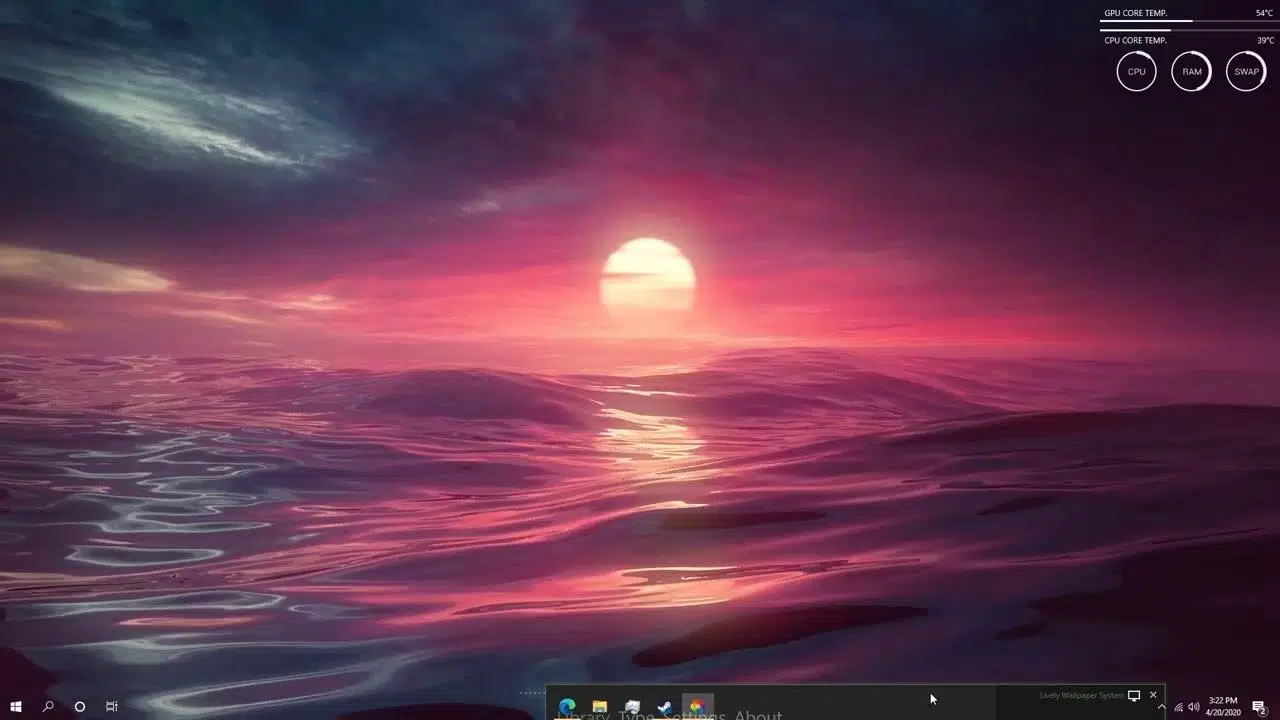
Animated wallpapers have gone from being a novelty to a practical way to personalize Windows in style. If names like Dynamic Wallpaper or Lively Wallpaper sound familiar, you're in the right place: we'll see what they are, how to install them, and, most importantly, how to solve the most common problems when they don't apply the wallpaper or don't work as they should.
This article combines guidance and troubleshooting with a clear focus: helping you achieve smooth, error-free moving backgrounds without sacrificing performance. In addition to essential instructions, you'll find a comprehensive diagnostic section based on official recommendations and best practices, ensuring you cover all the bases.
What are Dynamic Wallpaper and Lively Wallpaper?
Lively Wallpaper is a free app available on the Microsoft Store that lets you use videos, interactive scenes, and web pages as your desktop background. Its strength lies in its efficiency: it pauses or slows down animations when you're not on your desktop and offers fine-tuning to balance resource consumption and quality.
Dynamic Wallpaper refers both to the idea of backgrounds that change with the time or context and to apps with that name in the App Store. The concept is simple: automatically alternating images or scenes based on conditions (for example, sunrise/sunset), creating a desktop that adapts to the time of day.
Both solutions rely on the GPU to smoothly render animations. This means that the state of the drivers, power, and certain Windows effects directly influence whether you see an animated background or a static desktop.
If you plan to use 4K videos or complex scenes , it's a good idea to make sure your computer meets certain minimum requirements: a modern integrated or dedicated graphics card with up-to-date drivers, enough RAM, and a power plan that doesn't throttle performance.
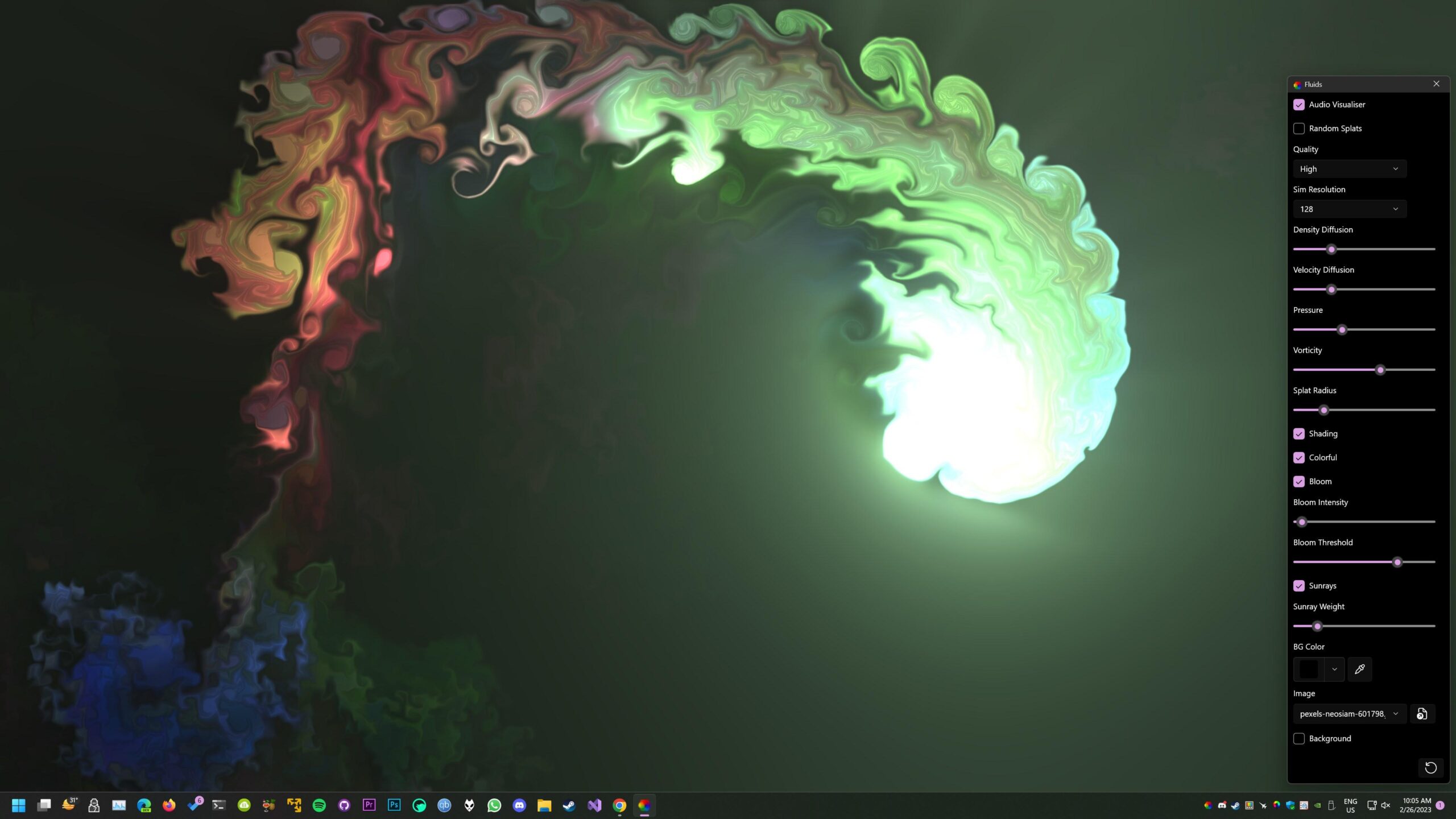
Requirements, performance and important graphics settings
The graphics card driver is key . Many issues with animated backgrounds are due to incomplete, corrupted, or outdated drivers. Before you go crazy with configurations, make sure your GPU is properly installed and running a stable version.
If you are using integrated graphics (for example, Intel or AMD integrated into the processor), you can update from Device Manager : open WIN + X > Device Manager > Display adapters > right-click on the device > Update driver > Search automatically for drivers.
If automatic updates don't help , try reinstalling the generic driver: In Device Manager, right-click > Remove device and select the option to remove the driver software if it appears. After restarting, Windows will install a working generic driver.
For complete control, install the driver manually : download the installer from the manufacturer's official website. For laptops , use the page for your specific model; for desktops with integrated graphics, go to the motherboard or chip manufacturer's website (Intel/AMD). Start with the latest version; if the problem persists, try older versions known for their stability.
If you have a dedicated graphics card ( NVIDIA , AMD), the most effective recommendation is a clean installation. Uninstall the driver using DDU (Display Driver Uninstaller) in safe mode , and then install the latest version from the manufacturer's official website. If the problem persists, install a previous stable version.
Enable Windows animations : Some apps with moving backgrounds may be affected if system animations are disabled. Go to Settings > Accessibility > Visual effects and make sure Windows Animations is turned on.
Check your power plan : Power saving plans can limit the GPU and CPU, affecting animated backgrounds. In Settings > System > Power & battery, select High performance or a balanced mode that doesn't limit the hardware.
Adjust your display settings : Some scenes may have issues if the resolution or refresh rate is incompatible. Right-click on the desktop > Display settings and confirm that the resolution and refresh rate match the recommended values, or try different values to rule out any specific incompatibilities.
Installation and first steps with Lively Wallpaper and Dynamic Wallpaper
Installing Lively Wallpaper is very simple : open the Microsoft Store, search for "Lively Wallpaper," and install it for free. When you launch it, you'll see a library of pre-made backgrounds and a button to add your own (videos, websites, or scenes).
To apply a background , choose a scene and tap Set as background. Lively lets you configure behavior based on the window's state (for example, pausing animation when an app is maximized) to save resources without sacrificing aesthetics.
To add your own videos , drag them to the Lively window or use the Add Background button. Formats like MP4 or WEBM are common; if you notice high resource usage, use videos with lower resolution or bitrate to balance quality and performance.
Dynamic Wallpaper (as a concept or app) lets you alternate images based on the time of day or conditions: prepare a set of backgrounds (day/evening/night) and configure the intervals. It's ideal if you're looking for dynamism with minimal resource impact.
Quick performance tips : Enable battery pause if using a laptop, limit background FPS, and use static or semi-animated scenes when you need maximum performance in gaming or editing.
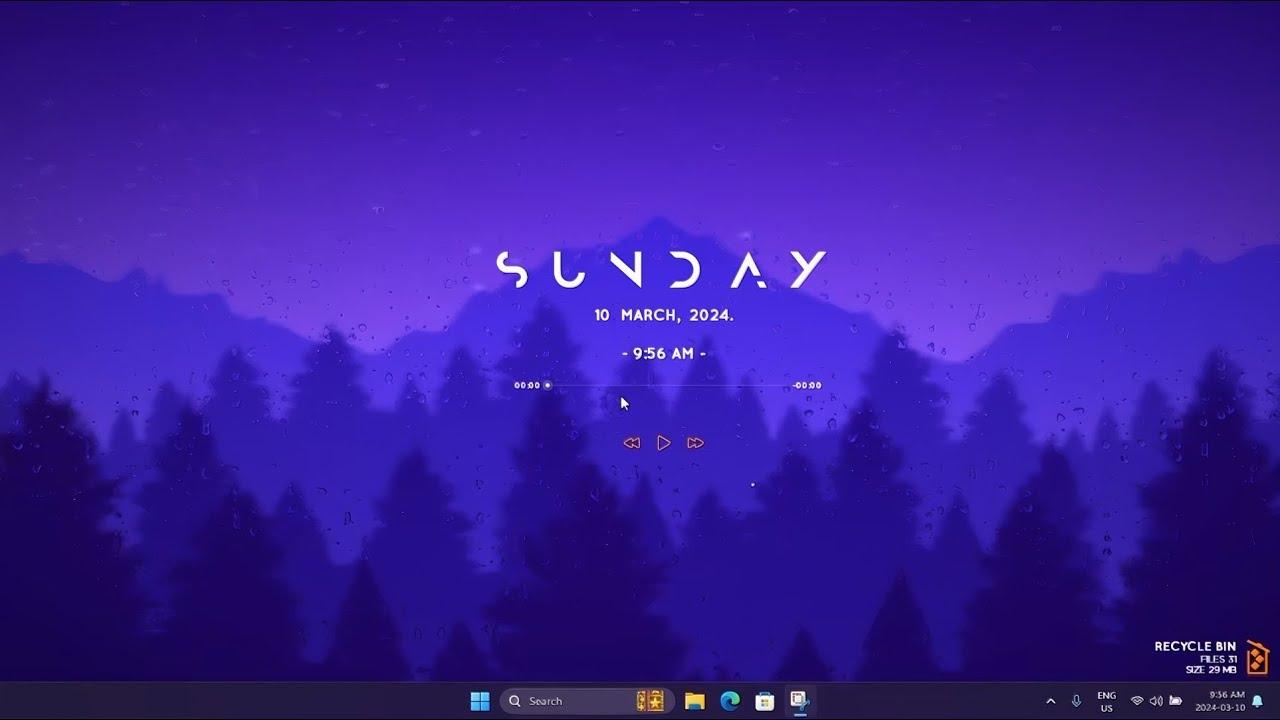
Step-by-step troubleshooting
If the background doesn't change, isn't applied, or appears frozen , follow this ordered checklist. It's based on best practices and covers everything from the most likely causes (drivers/animations) to more complex scenarios (system files or service conflicts).
1) Update or reinstall the graphics card (integrated) driver . Use Device Manager to: a) Update the driver automatically; b) Uninstall the device by selecting "Delete driver software" and restarting so that Windows installs the generic driver; c) Manually install the official driver from the website of the laptop manufacturer, motherboard manufacturer (for desktops), or the hardware manufacturer itself.
Practical note : Try the latest version first. If the problem persists, install older versions known for their stability with your specific model.
2) Reinstall drivers on dedicated graphics cards (NVIDIA/AMD) using DDU . Completely uninstall in safe mode with Display Driver Uninstaller, and then install the latest official driver. If problems persist, try a known stable older version.
3) Enable system animations . Settings > Accessibility > Visual effects > turn on Windows Animations. Some background apps rely on this setting for rendering.
4) Check the power plan . In Settings > System > Power & battery, use High performance or a balanced plan that doesn't throttle GPU/CPU power. On laptops, avoid aggressive power-saving modes while using animated backgrounds.
5) Adjust your display settings . Right-click on the desktop > Display settings. Confirm that the resolution and refresh rate (Hz) are compatible with your monitor and test different settings if you notice flickering, tearing, or stuttering in the animation.
6) Temporarily disable third-party antivirus/optimizers . Some packages prevent background apps from starting or inject components. It's best to uninstall them temporarily and cleanly to avoid leaving any traces of services. Remember: disabling protection reduces security; re-enable it after testing.
7) Reinstall the wallpaper app . Go to Settings > Apps > Apps & features, locate Lively Wallpaper (or the app you use), uninstall it, and reinstall it from the Microsoft Store or another legitimate platform. This often fixes corrupted profiles and settings.
8) Review the advanced options within the app . Some internal settings may prevent the app from running in the background: check FPS limits, pauses when maximizing, battery behavior, and multi-monitor support.
9) Repair system files . Run DISM and SFC with administrator privileges. These are Windows tools for detecting and repairing corruption that can affect graphics services or the desktop shell itself.
DISM /Online /Cleanup-Image /ScanHealth
DISM /Online /Cleanup-Image /CheckHealth
DISM /Online /Cleanup-Image /RestoreHealth
sfc /scannow
Important : Repeat the command sequence 5 or 6 times if necessary until there are no outstanding errors and the scans complete without incident.
10) Perform a non-destructive Windows 11 repair (in-place upgrade) . Download the official ISO file from the Microsoft website, double-click to mount it, and run setup.exe. When prompted for updates, choose "Not now" to speed up the process, and under "Select what to keep," check "Keep personal files and apps."
Please note : If a key is requested, the ISO likely doesn't match your installed version; download the correct one. This repair reinstalls components without deleting your data or apps.
11) Create a new user profile . There may be corruption in the current profile preventing the funds from being applied. Open CMD as administrator and run:
net user USUARIO CONTRASENA /add
net localgroup administrators USUARIO /add
You can omit the password if you don't need it (it would be "net user USERNAME /add"). Log in with the new administrator account and test the wallpaper app to see if the problem was with the profile.
12) Perform a clean boot . A startup with minimal services and drivers helps detect conflicts with third-party software. After the clean boot, enable services and startup items one at a time (dichotomy strategy) until you locate the one causing the problem and keep it disabled.
Remember : a clean boot is not normal PC use; use it for one-off diagnostics and restore the normal startup when you're finished.
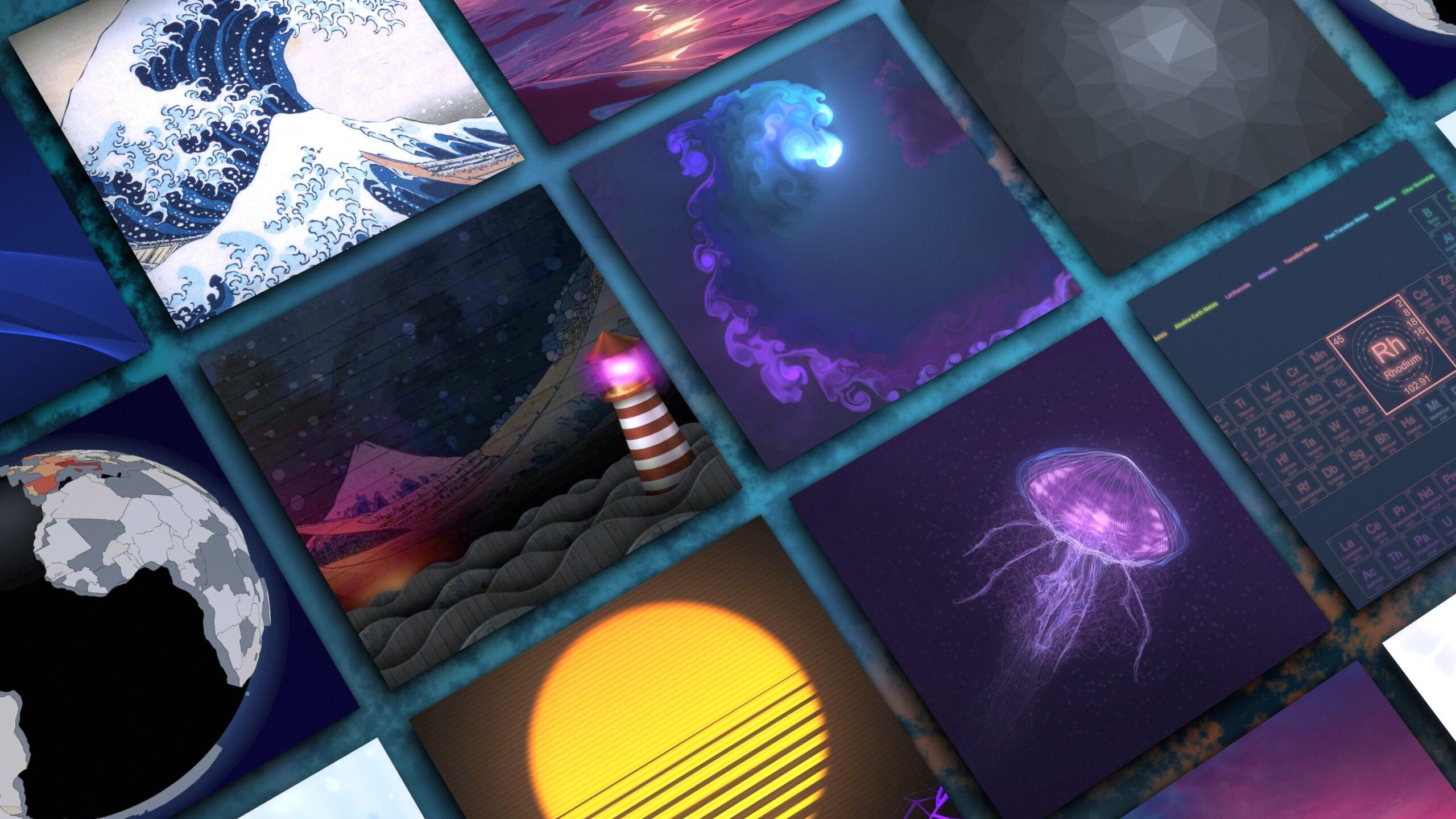
With a few well-chosen settings —correct drivers, enabled system animations, and a power plan that doesn't throttle the GPU—Lively Wallpaper and Dynamic Wallpaper-type configurations run smoothly, adding personality to your desktop without compromising stability. If a problem does arise, the roadmap above allows you to methodically isolate it and bring your animated background back to life in just a few minutes.

Passionate writer about the world of bytes and technology in general. I love sharing my knowledge through writing, and that's what I'll do on this blog, show you all the most interesting things about gadgets, software, hardware, tech trends, and more. My goal is to help you navigate the digital world in a simple and entertaining way.