- The Surface Pen lets you write, draw, and navigate Windows 11 with sensitivity to pressure and palm rejection.
- The Surface app and the Pen panel and Windows Ink allows you to adjust pressure, shortcuts, and touch signals.
- The LED light and Bluetooth settings help diagnose pairing and battery problems.
- If the pencil fails at the level of hardwareIt is possible to request a replacement or purchase a new compatible model.
Properly configuring the Surface Pen in Windows 11 makes all the difference between feeling like you're writing on glass and having the natural feel of pen and paper. With Microsoft's current options (Surface Pen Classic, Surface Slim Pen, and Slim Pen 2) and the changes between Windows 11 , it's normal to have questions about where each setting is located, how to pair the pen, or what to do if the pressure sensitivity or eraser isn't working as expected.
In this guide, you'll find everything you need to get your stylus working perfectly in Windows 11: how to pair it via Bluetooth, customize the top button, adjust the writing pressure, check the battery, use the Slim Pen 2's haptic feedback, test compatible apps, and even what to do if something stops working or you need a replacement stylus. Everything is explained in clear, easy-to-understand Spanish (from Spain), so anyone can follow along without getting overwhelmed.
What is the Surface Pen and which models can you use with Windows 11?
The Surface Pen is an active stylus designed for Surface devices , intended for handwriting, drawing, annotating documents, and navigating Windows with the precision of a mouse. Depending on your Surface model and the type of pen, the features may vary slightly, but the core functionality remains the same: pressure sensitivity, palm rejection, and customizable buttons.
Currently, several Surface Pen models coexist : the "classic" Surface Pen (like the Microsoft Pen v4), the Surface Slim Pen (first version), and the Surface Slim Pen 2, in addition to some previous generations. All communicate with the Surface using MPP (Microsoft Pen Protocol) technology and, in most cases, use Bluetooth for the top button and shortcuts.
In Windows 11, you can continue using your Surface Pen without any issues , but some settings that were previously only found in the Surface app or Windows 10 settings have now changed location or have limitations depending on the device. This particularly affects pen pressure customization and certain shortcuts, which has caused considerable confusion among users who have upgraded from Windows 10.
If you're unsure which Surface Pen you have , Microsoft recommends checking the official Surface Pen identification guide, which details the physical differences (shape, buttons, LED, tip, charging method, etc.) and specific features of each model. This is important because some features, such as the haptic feedback of the Slim Pen 2, are only available with certain Surface devices and an updated version of Windows 11.
These styluses and other official accessories can be purchased from the Microsoft Store and authorized resellers. Whenever possible, it's best to choose genuine products to ensure full compatibility with Windows 11 and Microsoft 365 apps.
Writing and drawing with the Surface Pen in Windows 11
The primary use of the Surface Pen in Windows 11 is for writing and drawing in any application that supports handwriting input. This includes apps like OneNote, Microsoft Whiteboard, many design apps, note-taking applications, and even web tools that recognize pen input.
To start writing by hand, place your palm on the screen as you would on a paper notebook. Surface devices are designed to ignore palm input and prioritize the pen, a feature known as palm rejection . This allows you to write or draw naturally without accidentally touching the screen.
The pointer you see just below the stylus tip guides you to precisely place each stroke. It's especially useful when selecting text, tapping small icons, or drawing fine details. In drawing apps, you'll also notice variations in line thickness thanks to pressure sensitivity.
To erase with Surface Pen models that have an eraser on the back , simply turn the pen over and rub the eraser over what you want to erase, just like you would with a regular pencil. In many applications (for example, OneNote or Whiteboard), this action is automatically recognized as an eraser.
If you prefer writing text instead of typing , Windows 11 offers a touch keyboard with handwriting mode. You can activate this keyboard in the taskbar, select the handwriting panel, and start writing with the stylus; the system will convert your strokes into digital text. For more details, Microsoft refers you to the "Get to know the touch keyboard" help section.
Navigating Windows 11 using the stylus as a mouse
Beyond writing and drawing, the Surface Pen functions as an input device throughout Windows 11, similar to a mouse or your finger on the touchscreen. This means you can open programs, select files, or drag items without touching the trackpad or mouse.
Basic pen actions in Windows 11 are very intuitive : to click or select something, simply press the tip on the item; to open a file or press a button, the action is the same as with a traditional left click.
To simulate a right-click, many Surface pens include a side button . If you press and hold this button and tap on an item, Windows interprets it as a right-click and displays the context menu. This is very useful for renaming files, accessing properties, or opening quick options in applications.
The drag-and-drop gesture can also be done using only the stylus . Place the tip on the element you want to move, hold it down until the circle around the pointer completes (indicating that the system has recognized the long press), and without lifting the stylus, slide it to where you want to release it.
If you need to select multiple items at once (for example, multiple files or blocks of text), press and hold the side button of the stylus and drag over the items to include them in the selection. This gesture replicates the multiple selection you would make with the mouse by holding down the left button.
Pair the Surface Pen via Bluetooth in Windows 11
Most modern Surface Pen models use Bluetooth to manage the top button and shortcuts, as well as some advanced features like the Slim Pen 2's haptic feedback. While you can write and draw without pairing in some cases, if you want to get the most out of it, you need to pair it properly with your Surface.
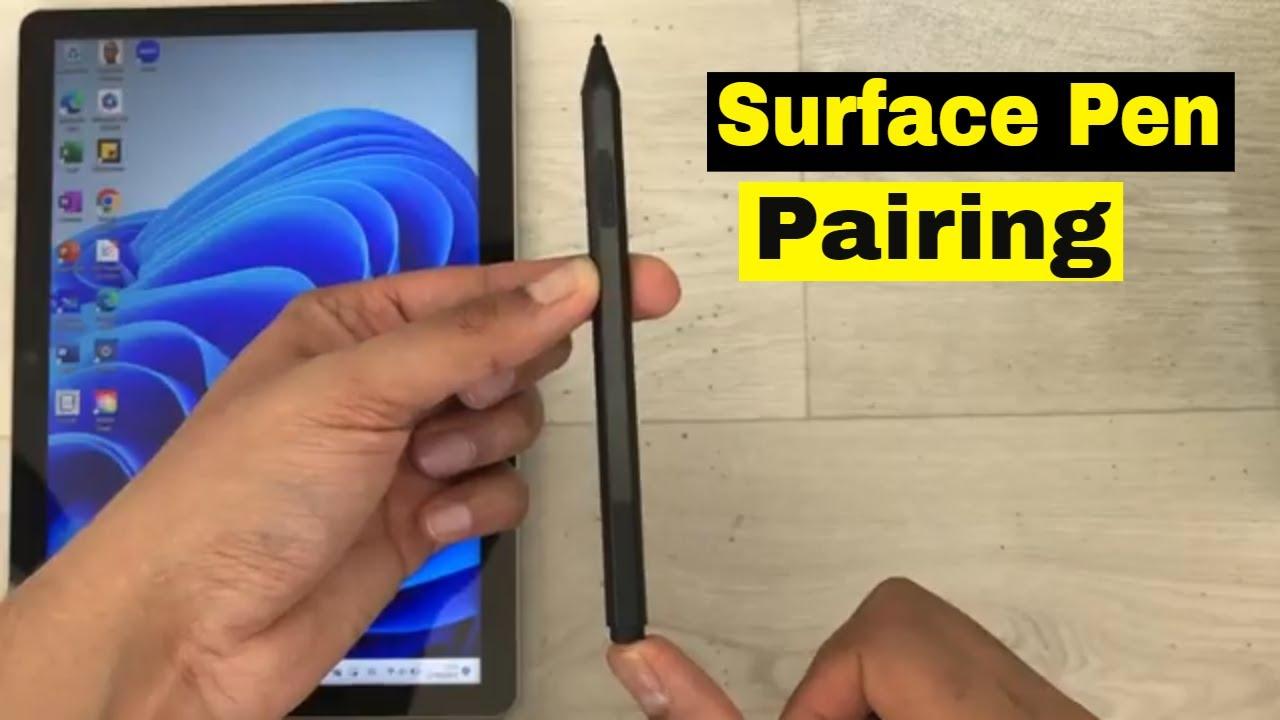
In Windows 11, the standard procedure for pairing the stylus is as follows : open the Start menu > Settings > Bluetooth & devices , click Add a device , and choose the Bluetooth option . Make sure Bluetooth is enabled on your Surface before proceeding.
Next, activate pairing mode on the pen . To do this, press and hold the top button on the Surface Pen (or Slim Pen/Slim Pen 2) for about 5 to 7 seconds, until the LED light starts flashing white continuously. This light indicates that the pen is ready to pair.
In the list of available devices that appears in Windows 11 , select your stylus (for example, “Surface Pen”, “Surface Slim Pen”, or “Surface Slim Pen 2”) and wait for the process to finish. When pairing is complete, the LED will usually show a solid white light or stop flashing, indicating that it is now paired.
The steps in Windows 10 were very similar (Start > Settings > Devices > Add Bluetooth or other device > Bluetooth), but in Windows 11 the section is called “Bluetooth & devices” and the interface is slightly different. If you're coming from Windows 10, the change might be confusing, but the logic is the same.
Configure the top button shortcuts
Once the stylus is paired, the top button becomes a powerful shortcut for opening specific apps or functions without having to go to the Start menu or search for icons. Windows 11 lets you customize what that button does when you press it once, double-click it, or press and hold it.
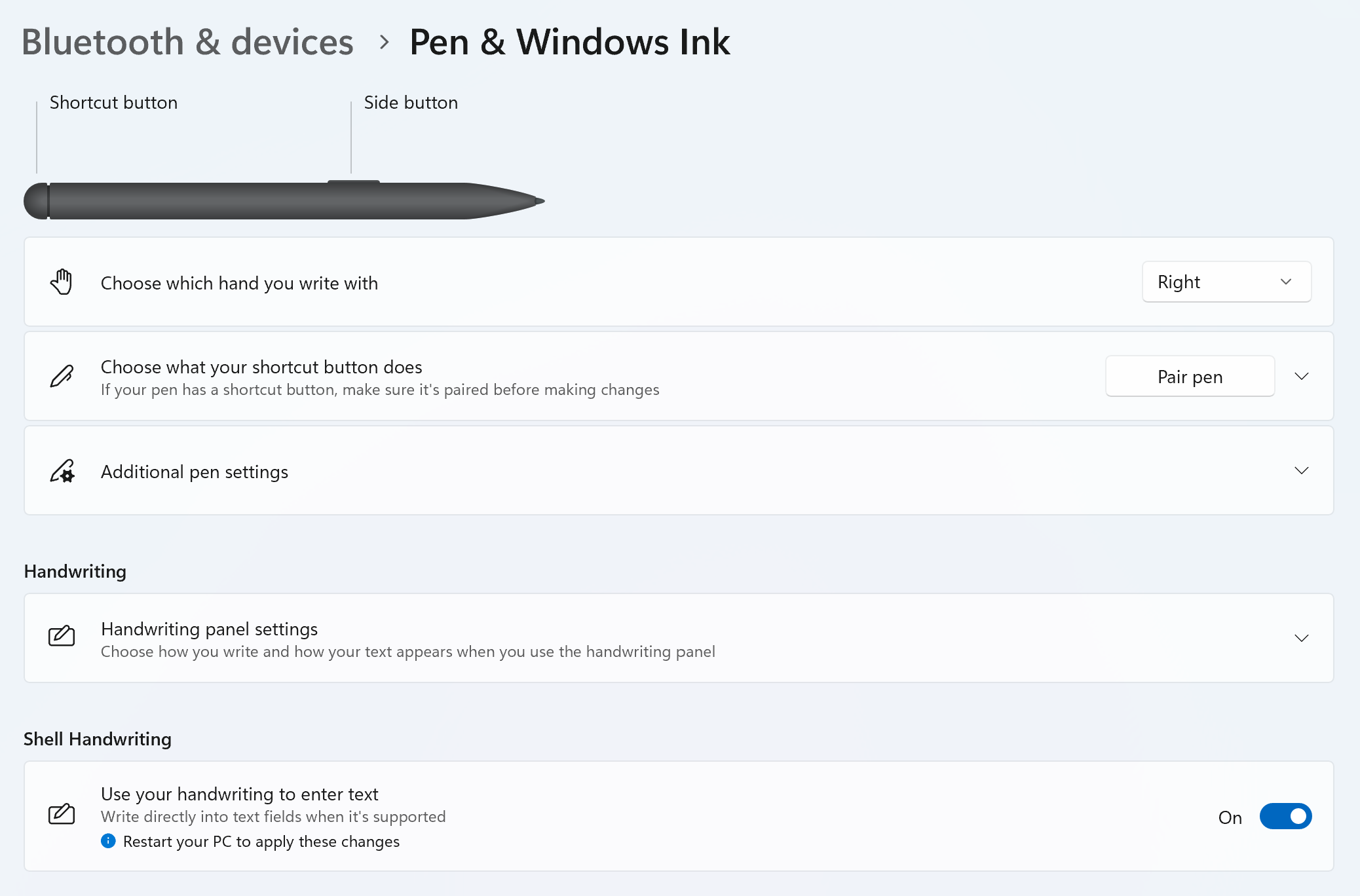
On many devices, the top button settings are located in Start > Settings > Bluetooth & devices > Pen & Windows Ink . From there you can choose which app opens with a single click, a double click, or a long press of the button.
By default, the most common shortcuts are opening Microsoft Whiteboard with a single click, launching the Snipping Tool (Snipping and Annotation) with a double click, and launching OneNote Sticky Notes by pressing and holding the top button. These actions can be changed according to your preferences.
If you're coming from Windows 10, you might remember that the classic path was Start > Settings > Devices > Pen & Windows Ink. In Windows 11, the structure has changed slightly, but the idea remains the same: to centralize the pen and top button functions in a single panel.
The Surface Slim Pen and Slim Pen 2 also take advantage of this top button for shortcuts, and in some cases Windows displays a guided setup experience the first time you write with the pen, offering you the option to customize what that button does right from the start.
Customize pen pressure and check battery
One of the most important settings for many users is the pen pressure curve , which determines how much pressure you need to apply for strokes to appear and how the line thickness varies with pressure. This setting is typically managed through the Surface app.
To open the Surface app in Windows 11, go to Start and type “Surface” in the search bar. If the app isn't installed, you can download it from the Microsoft Store. Once open, go to the Pen tab , where you should see options to adjust pressure sensitivity and, in many cases, a short drawing test to check the changes.
In that same Pen tab, the Surface app also displays the pen's battery level. This is especially useful with rechargeable models like the Slim Pen and Slim Pen 2, but also with some battery-powered Surface Pens, provided they are properly paired via Bluetooth. Make sure the pen appears in the list of connected accessories within the app itself.
In some cases, especially on older devices updated to Windows 11 (such as an unsupported Surface Pro 3 ), the Surface app may display error messages like, “Something happened and the app isn’t recognizing pen input. Go to Device Manager to check for problems.” Even if everything appears fine in Device Manager, the app may be imposing limitations because the hardware isn’t officially compatible with Windows 11.
Some users have resolved these issues by installing older versions of the Surface app downloaded from repositories of older app versions in the Microsoft Store. Upon finding a version of the app that still correctly recognized the Slim Pen 2 on the Surface Pro 3, they regained the ability to adjust pressure. This is an unofficial workaround, but it illustrates that in certain scenarios the limitation stems more from the software than from the pen itself.
Touch signals and specific functions of Surface Slim Pen 2
The Surface Slim Pen 2 is an improved rechargeable model with a thinner design, a sharper tip, and better overall performance. Its main difference from other models is the presence of haptic feedback —small vibrations or sensations while writing and drawing that mimic the texture of paper or certain tools.
To charge the Slim Pen 2, place it in a compatible accessory , such as the Surface Pro Signature Keyboard (for the latest 12-inch models), the Surface Laptop Studio, dedicated charging docks, and other official accessories. When docked, the pen's LED light will gradually illuminate, indicating that it is stored and, if necessary, charging.
Pairing the Slim Pen 2 with Windows 11 is also done via Bluetooth : Start > Settings > Bluetooth & devices > Add a device > Bluetooth, then press and hold the top button on the pen until the LED flashes white. Select “Surface Slim Pen 2” from the list and you're done.
To adjust touch cues in Windows 11 , go to Start > Settings > Bluetooth & devices > Pen & Windows Ink and look for the Touch cues section . From there you can turn this feature on or off, decide when you want to feel the cues (for example, when writing, highlighting, etc.), and adjust the intensity for a stronger or weaker sensation.
On older devices, such as the Surface Pro 3, the Slim Pen 2 has been shown to work at a basic level (pressure-sensitive writing), but features like tilt and fine pressure control are lost in the Surface app under Windows 11. Furthermore, the app may display errors or simply prevent you from adjusting these settings because it doesn't consider the combination "officially supported."
Interpreting the LED lights of the Surface Pen and Slim Pen
The LED light integrated into the different Surface Pen and Slim Pen models indicates pairing, charging, and battery status. Understanding what each color and pattern means helps you quickly diagnose what's happening with your pen.
On the Slim Pen and Slim Pen 2, a white flashing light after holding down the top button indicates that the pen is in Bluetooth pairing mode and can connect to your Surface. When you select the pen from the Bluetooth device list and the light turns solid white, it means pairing has been successful.
When you place the stylus in its storage tray or charging base , the light usually flashes white on and off gradually. This means the stylus is docked and, if its battery requires it, is charging automatically. If the light flashes amber, it indicates that the battery is running low and needs a full charge.
In the case of the battery-powered Surface Pen, the LED can blink in different ways when you hold down the top button for 5-7 seconds: a continuous white blink indicates that the pen has enough power and is looking for a device to pair with; a brief blink of 2-3 seconds usually indicates that it is already paired with another nearby device and you should remove it from that device's Bluetooth list; a steady red or amber light indicates a low battery.
If the LED doesn't light up at all when you try to enter pairing mode , even after changing the batteries or fully charging the Slim Pen, it's very likely that the pen has a hardware fault and you need an official replacement. In that case, it's best to check your warranty and service options first.


Passionate writer about the world of bytes and technology in general. I love sharing my knowledge through writing, and that's what I'll do on this blog, show you all the most interesting things about gadgets, software, hardware, tech trends, and more. My goal is to help you navigate the digital world in a simple and entertaining way.