- Microsoft Family Safety allows you to create a family group with organizer and member roles to manage children's accounts in Windows, Xbox and mobile.
- The key to parental control is that each child uses their own Microsoft account linked to the group and the Windows device they use.
- From the Family Safety website and app, you can configure screen time limits, content filters, spending controls, and location features.
- Activity reports offer detailed usage and navigation data, helping to adjust rules and educate on healthy digital habits.
Microsoft Family Safety has become the key tool for those who want their children (and not-so-children) to use the home computer with peace of mind, without having to constantly look at the screen. Thanks to this parental control system integrated into the Microsoft ecosystem, you can set limits, filter content, and better control how Windows, Xbox, and mobile devices are used.
Setting up Family Safety on Windows isn't complicated, but there's a trick to it if you want to take full advantage of everything it offers: from creating family groups and assigning different roles, to controlling screen time, content filters, spending, and location. Throughout this guide, we'll see, step by step and in detail, how to fine-tune everything so your son or daughter has a safe and age-appropriate experience.
What is Microsoft Family Safety and how does the family group work?
Microsoft Family Safety is a parental control platform designed to help parents and guardians monitor and regulate their children's digital lives. It goes beyond simply blocking websites or setting time limits; it also aims to promote healthy digital habits and a more balanced relationship with technology.
The heart of the system is the so-called family group , which is simply a set of linked Microsoft accounts. Rules are applied within this group, settings are shared, and all activity reports are centralized. The group can include children, teenagers, and adults, and everyone is connected through the Family Safety website, the mobile app, Windows, and Xbox.
Within the family group, there are two distinct roles : organizer and member. Organizers act as administrators; they create the group, invite others, and manage the arrangements. Members can be minors or adults, but minors are subject to the restrictions and controls established by the organizers.
Family Safety is available on several platforms : on Windows it unleashes its full potential, on Xbox it focuses mainly on age-appropriate games and content, on Android it allows you to manage mobile phone usage and location, and on iOS it is much more limited, basically serving as a monitoring panel for what happens on other devices.
Microsoft's goal with this tool is not only to protect , but also to educate, helping to make screen time more productive and balanced. To this end, it offers a mix of technical limits (blocks, schedules, filters) and clear information (activity reports, summaries, spending alerts) that allow families to make informed decisions and discuss technology use.
Prerequisites and creation of the family group
Before tinkering with anything in Windows, it's important to understand one basic requirement : each family member you want to monitor needs their own Microsoft account. This account is the identifier that will allow you to associate every activity, every device, and every setting within the family group.
The first step in setting up Family Safety in Windows is usually to visit account.microsoft.com/family in your browser. From there, you can sign in with your adult account (the one that will be the organizer) and start the process of creating the group, or join one that already exists if another adult in the household has already set it up.
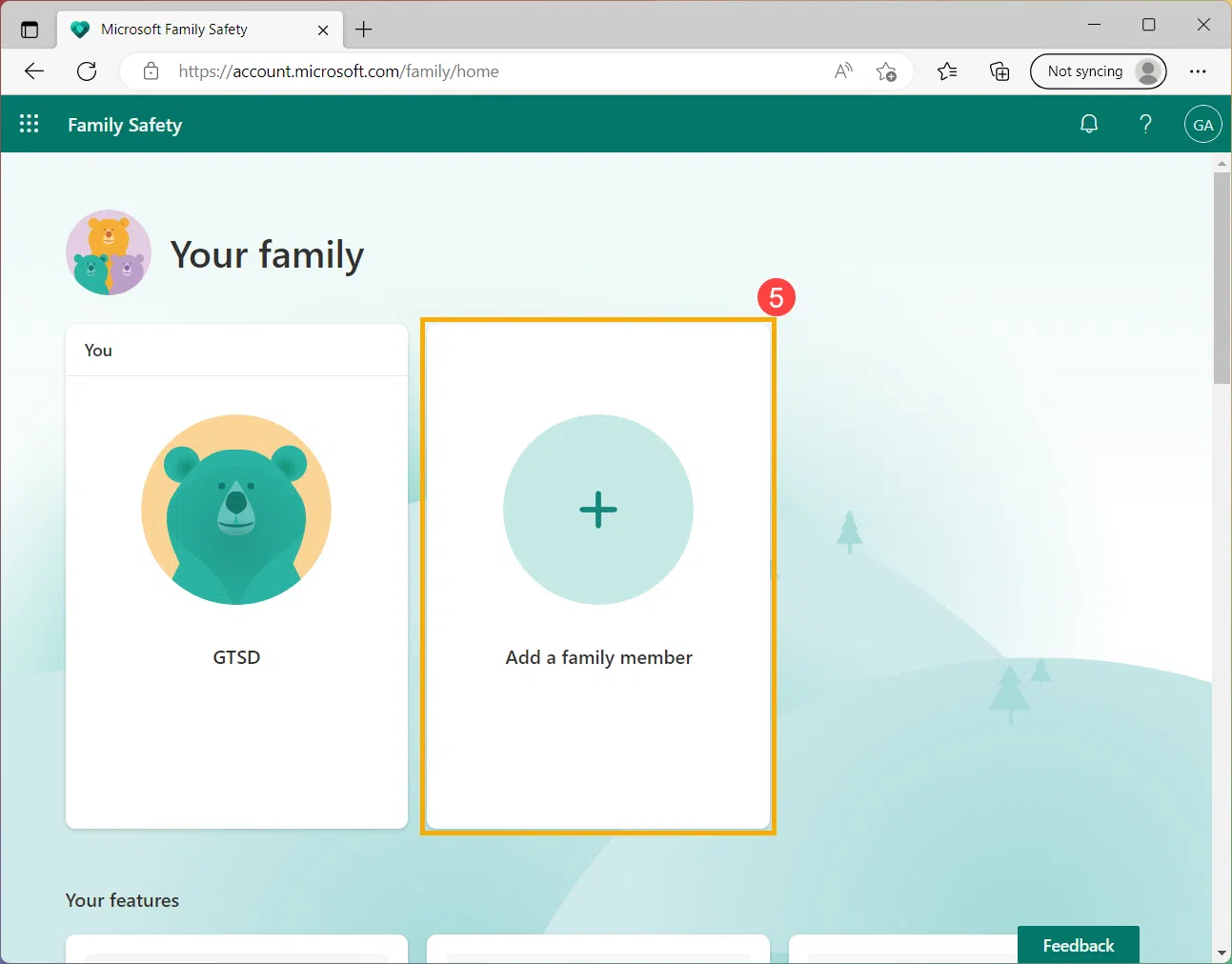
Once you're on the family page, you'll see the option to add members . By clicking on "Add a family member," you can enter the email address or phone number of the person you want to add. The system will ask you to indicate whether they will be a Member or an Organizer; for minors, it's usually best to select "Member" and reserve the Organizer role for the adults who will be managing the rules.
When you send the invitation, the recipient receives an email with a link to accept and join the family group. They will need to sign in with their own Microsoft account to complete the process. If they are a minor and don't yet have an account, you can create one at that time, indicating their date of birth so the system knows they are a child or teenager.
Alongside the website, Microsoft offers the Family Safety app for mobile devices on Google Play and the App Store. While not required to use parental controls on Windows, it's quite convenient, allowing you to review reports, change time limits, approve requests, or view location from anywhere, without needing to be at your computer.
Creating and adding a child account in Windows 11 and Windows 10
For the restrictions to work correctly on the computer, it's essential that the child uses their own account when logging into Windows. There are two ways to do this: create the account from the Family Safety website or do it directly from the Windows 11 or Windows 10 settings.
In Windows 11, you can start by going to Settings and then Accounts . There you'll see the "Family" section, which includes the "Your family" subsection. From there, you can click "Add someone" to link a new child profile to the computer. If the child doesn't have a Microsoft account, you'll see the "Create one for a child" option, which will guide you through the necessary steps, following our guide to setting up parental controls in Windows 11.
During the creation of the child's account, you will be asked for their date of birth , which is important for applying the correct age restrictions. You can also indicate that you are their parent or guardian, and you will need to add your own email address to manage parental consent. In this process, you can even choose whether to allow the child to use non-Microsoft applications, thus limiting the installation of third-party software.
Another option is to do it through the classic user account settings . For example, in Windows 10, you can sign in with your Microsoft account, press Win + I to open Settings, go to Accounts, and then to "Family & other users." From there, you can select "Add accounts" next to "Add other users" and then "Create a user for this PC," entering your email address, password, name, and date of birth.
Once the child's account is created, you'll see that user listed as a family member in the Settings window. There you'll find a link like "Manage family settings or remove account" or "View family settings"; clicking it will open the official Microsoft Family Safety website so you can finish adjusting parental controls from your browser.
Link the child's Windows device to the family group
Having the child create an account is only half the battle ; the other half is linking their Windows device to the family group so Family Safety can measure usage time, apply filters, and display activity reports. Without this link, parental controls are only partially effective.
In Windows 11, the linking process goes through the Family Accounts section . After adding the child on the web, go back to Settings > Accounts > Family. In the "Your family" list, you'll see their account and, to the right, a drop-down menu that will usually indicate that this person can't sign in to the device. You need to click "Allow sign-in."
Selecting “Allow login” will open a confirmation window asking if you want to allow this person to use the computer. Accept the request, and if you want to take further action, you can also click “Change account type” to ensure the child has a standard profile and not an administrator account, preventing them from modifying system settings.
In Windows 10, the process is very similar : from the Windows search bar, type "Family Options" and open the corresponding panel. Then, click on "View family settings" to access the website, log in with your organizer account, and once the child has accepted the invitation, return to Settings > Accounts > Family & other users. There, select the family member and click on "Allow sign-in."
Once the child has permission to log in to the computer , it's important that they do so at least once (ideally twice) with their own account. The first login will set up the profile on the device and register the PC with Family Safety. It's not uncommon for the system to fully complete the setup and registration process after a second restart and login.
Importance of the minor always using their own account
The entire parental control system relies on the child using their own account and no other when they turn on the computer. If they access the adult account or an unrestricted local account, all the rules you've set up in Family Safety won't be very effective.
On a practical level, this means you'll need to spend some time explaining how to log in with their username, what their PIN or password is, and what they should do each time they sit down at the computer. It's the adults' responsibility to protect all other accounts with strong passwords, avoiding simple passwords that the child could guess, and you can block access to the control panel when necessary.
If your child needs to install something or make administrator changes , the idea is that you enter your administrator account password when prompted, instead of giving them direct access to your user account. This way, your child maintains a controlled environment but isn't permanently locked out if, for example, they need to install a specific application for school.
Consistency in the use of the child's account is key for the reports displayed by Family Safety to be meaningful. If one day they use the adult's account, another day their own, and another day a guest account, screen time and online activity will be spread out, and you'll lose sight of what's really happening.
Using the Microsoft Family Safety app on mobile
Even though you configure almost everything from your PC, the Family Safety mobile app offers great convenience for everyday use. You can download it from Google Play on Android or the App Store on iOS, log in with your organizer account, and see what's happening in your family group at a glance.
With the app, you can manage virtually the same sections as on the website: activity, screen time, content filters, spending, and location, or use apps to control mobile usage time . It also allows you to receive notifications when your child requests more screen time, wants to install an app, or makes a purchase that requires approval.
On Android, the integration is quite comprehensive , as the app can intervene more significantly in mobile device usage, location, and certain permissions. On iOS, however, the active functions are much more limited, and it's primarily used as a monitoring console for what's happening on Windows, Xbox, and other linked devices.
Regardless of the platform, the app's goal is to keep you informed without requiring you to constantly go to your computer. From the comfort of your couch, at work, or on public transport, you can modify schedules, grant extra time on occasion, or block an app that's causing problems.
Complete family group management from Windows and the web
If you ever want to review who is part of the family group or change who is in charge, you can do so from Windows or directly from the account.microsoft.com/family website. Organizers have access to a central dashboard where they can see the list of members, their roles, and the option to manage each profile.
On Windows, you can open the search bar and type "Family Options" to quickly access this section. From there, using the "View family settings" button, you'll be taken to the Family Safety website, where you'll see cards for each family member and, in the upper right corner of each card, a "More options" icon.
Clicking "More options" on a family member lets you select "Go to overview" to access all their settings: screen time, content filters, spending, location, and other details. From this same menu, you can also remove someone from the family group using the "Remove from family group" option.
When you choose to remove a member, the system will ask for confirmation by clicking "Remove." This action removes the person from the family group, so they will no longer be subject to any policies and limitations you may have applied, and they will no longer appear in activity reports.
Activity reports: what the child does on their devices
One of the most interesting features of Microsoft Family Safety is the activity report. It allows you to see, in considerable detail, how your child uses their devices: which apps they open, how much time they spend on the computer, which websites they visit, and what searches they perform on Bing.
For these reports to work correctly, there are two basic conditions : first, the child must use their own Microsoft account on the device; second, the device must be connected to the family group. From there, you can activate activity reporting from the child's dashboard, and even receive a weekly summary via email.
The report is divided into several sections . The "Apps and Games" section shows which apps the child uses and for how long, ordering the list by most frequently used apps. If you have age-based content filters, you'll also see apps that have been blocked for exceeding the permitted rating.
The "Web and Search" section records visited pages and Bing searches, provided the user is browsing with Microsoft Edge and logged into the child's account. Attempts to access websites blocked by filters are also recorded, which can help identify specific interests or risks.
Finally, the "Screen Time" section provides daily and weekly data on how much time the child has spent using the device and during what times. This information is very useful for deciding whether to tighten limits or relax certain schedules based on routines such as homework, extracurricular activities, or weekends.
Screen time limits on Windows, Xbox, and mobile devices
Screen time limits are the primary tool for balancing device use at home. With Family Safety, you can decide which days and for how long your child can use their Windows PC, Xbox console, or even connected mobile devices .
These schedules can be as detailed as you like . You have the option to set a global daily limit for all devices (for example, two hours split between PC and console) or set different rules for each machine. You can also use the same schedule from Monday to Sunday or configure special days, such as more flexible weekends.
To create or edit these screen time limits, you can go to family.microsoft.com or use the Family Safety app. After signing in, select the child's profile and go to the "Screen Time" section. There you'll see tabs or sections for each platform: Windows, Xbox, or Mobile.
When you select a platform, you can choose a specific day and define both the total allowed hours and the intervals during which the device can be used. For example, you could allow one hour between 17:00 PM and 19:00 PM from Monday to Thursday, and extend the time frame on Saturdays and Sundays. Once you have finished adjusting the time slots, the configuration is saved with a "Done" button.
In addition to the overall device limit, Family Safety lets you set specific limits for individual apps and games. From the "Apps and Games" section, you can set how much time your child can spend on a particular title or block it entirely. This is especially useful when a specific app is consuming most of their screen time.
Content filters on websites, apps, and games
Another key aspect of parental controls in Windows is content filtering , which focuses primarily on browsing with Microsoft Edge and age ratings for apps and games. The goal is to prevent children from encountering material that is inappropriate for their age.
In the browsing section, Family Safety can automatically block adult websites and activate a safe search filter in Bing. This protection only applies when the child uses Microsoft Edge with their account logged in; if they use other browsers, this data will not be reflected in the reports and the filters will not be activated unless the alternative browsers are blocked from the dashboard itself.
Within the content filter panel, you can further refine your settings . You can create a list of allowed websites, so the child can only browse those addresses, or a list of blocked sites, to prohibit specific pages even if they don't fall into the adult categories. You can also keep educational or trusted websites permanently accessible, or use DNS solutions like OpenDNS to filter at the network level.
In the "Apps and games" tab of the content filters, you can set a maximum age for the apps and games that can be installed or used. Titles that exceed that rating will be blocked by default, although you can always make exceptions by manually allowing a specific app or game for that child.
It's important to remember that enabling inappropriate website filtering in Family Safety may disable or severely limit other browsers besides Edge for that child user. This forces browsing to occur within the environment that Family Safety can control.
Digital spending and purchasing management
Family Safety also helps keep track of the money children spend in the Microsoft Store and on Xbox, which is especially useful if games, downloadable content, or digital subscriptions are purchased at home.
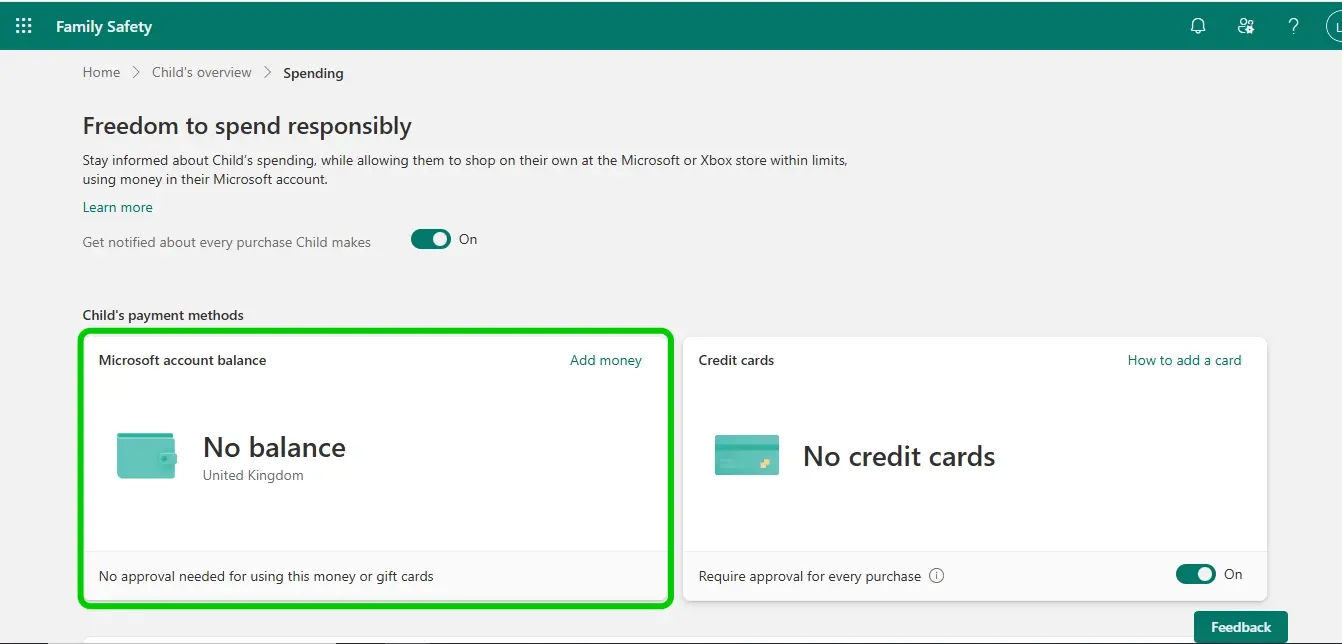
The system is based on the idea of giving them "freedom to spend responsibly ." As the organizer, you can add money to the child's Microsoft account balance, which they can then use to buy games, movies, or in-app content, always within the available balance limit.
Another option is to link a payment method like a card , but configured so that your approval is required for each purchase. This way, even if the child sees something that interests them, the payment won't be completed until you give the go-ahead from the website or app.
In the spending dashboard, you can also adjust age filters , so that purchasing a game with a rating above a certain range requires organizer approval, even if you have sufficient funds. You can also activate notifications to alert you every time there's a transaction, including free downloads of new apps or games.
If you prefer to play it safe, you can always choose not to add funds or link a card to the child's account. This way, they simply won't be able to make paid purchases, and any attempt to do so will be blocked or require your intervention.
Location, location alerts, and driving safety
Beyond content and screen time control , Microsoft Family Safety includes location features designed for families who want to know where their children are at certain times of the day.
To use location sharing, each member must have the Family Safety app installed on their mobile device and enable location sharing. From there, organizers can see on the map the approximate location of the members who have agreed to share that data.
The platform allows you to save frequently visited locations such as school, grandparents' house, work, or the gym, and associate arrival and departure alerts with those locations. These location alerts are part of the additional benefits of a Microsoft 365 Family subscription and are useful for knowing, for example, when your child has arrived at school.
In addition to all this, Family Safety offers driving safety reports designed for family members who drive, highlighting habits such as harsh braking or speeding. While not the core function of parental controls in Windows, it adds an extra layer of awareness for families with teenagers who are already driving.


Passionate writer about the world of bytes and technology in general. I love sharing my knowledge through writing, and that's what I'll do on this blog, show you all the most interesting things about gadgets, software, hardware, tech trends, and more. My goal is to help you navigate the digital world in a simple and entertaining way.