- Windows Boot Manager relies on BIOS/UEFI, MBR, and BCD to manage system boot and multiple boot menus.
- The boot order can be adjusted from BIOS or UEFI to boot from USB, external disks, or other devices when needed.
- Tools such as Bootrec.exe, BCDEdit, and third-party utilities allow you to repair MBR, correct boot manager errors, and manage custom entries.
- Proper management of BCD entries (creation, copying, sorting, and deletion) ensures a flexible and stable boot even in environments with multiple operating systems.
If you use Windows daily, sooner or later you'll have to struggle with it. system startup, the BIOS and UEFI and the famous Windows Boot ManagerWhether it's installing Windows from a USB drive, booting from another disk, setting up a system with multiple operating systems, or fixing a boot error, understanding how all this works can save you a lot of trouble.
In this tutorial you will find a complete explanation of What is it Windows Boot Manager, how it relates to BIOS and UEFIThis guide covers how to change the boot order, how to create custom boot entries with BCDEdit, and, most importantly, how to fix common errors when Windows won't start. The goal is for you to be able to follow along at your own pace, without unnecessary technical jargon, but without missing any important details.
What is Windows Boot Manager and why is it so important?
When you turn on your computer, it's not Windows that appears out of nowhere: before that, a small program called Windows Boot ManagerIt is responsible for locating the operating system on the disk and loading it correctly into memory.
In modern systems, this boot manager relies on several key components such as the MBR (Master Boot Record) or the EFI partitionDepending on whether you use classic BIOS or UEFI, if any of these components fail, the computer may get stuck on a black screen, reboot in a loop, or display error messages indicating that the operating system cannot be found or that the boot manager has failed.
In addition to starting Windows normally, the boot manager may also display a menu with several startup entries (for example, various Windows, Linux, debugging environments, etc.). Behind that menu is the BCD warehouse, which stores all the boot configuration.
BIOS, UEFI and boot order: how to boot from USB or external disk
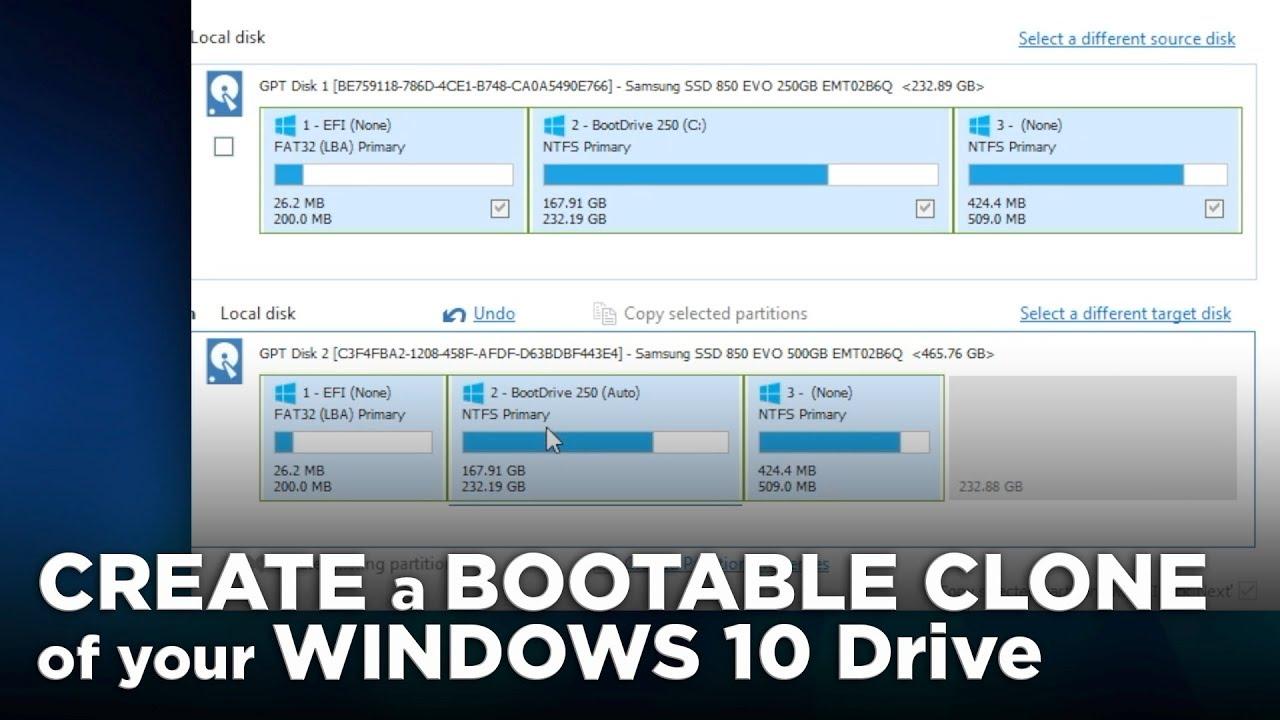
In slightly older equipment, the startup is controlled through the Classic BIOS, whereas in current teams almost everything now depends on the UEFI (Unified Extensible Firmware Interface)Both systems allow you to change the boot order, but the way to access them and the options they display are not exactly the same.
When you change the boot order in BIOS or UEFI, you are essentially telling the computer that the first place you should look for a boot manager It's the device you specify. If you place the USB drive in front of the hard drive, the PC will boot from that USB drive as long as it's connected and bootable.
How to configure the BIOS to boot from USB in Windows 10
On most traditional PCs, when the computer is turned on, the following appears for a few seconds: Manufacturer's display (Asus, MSI, HP, Dell, etc. logo)That screen almost always indicates the key you need to press to enter the BIOS or the boot menu.
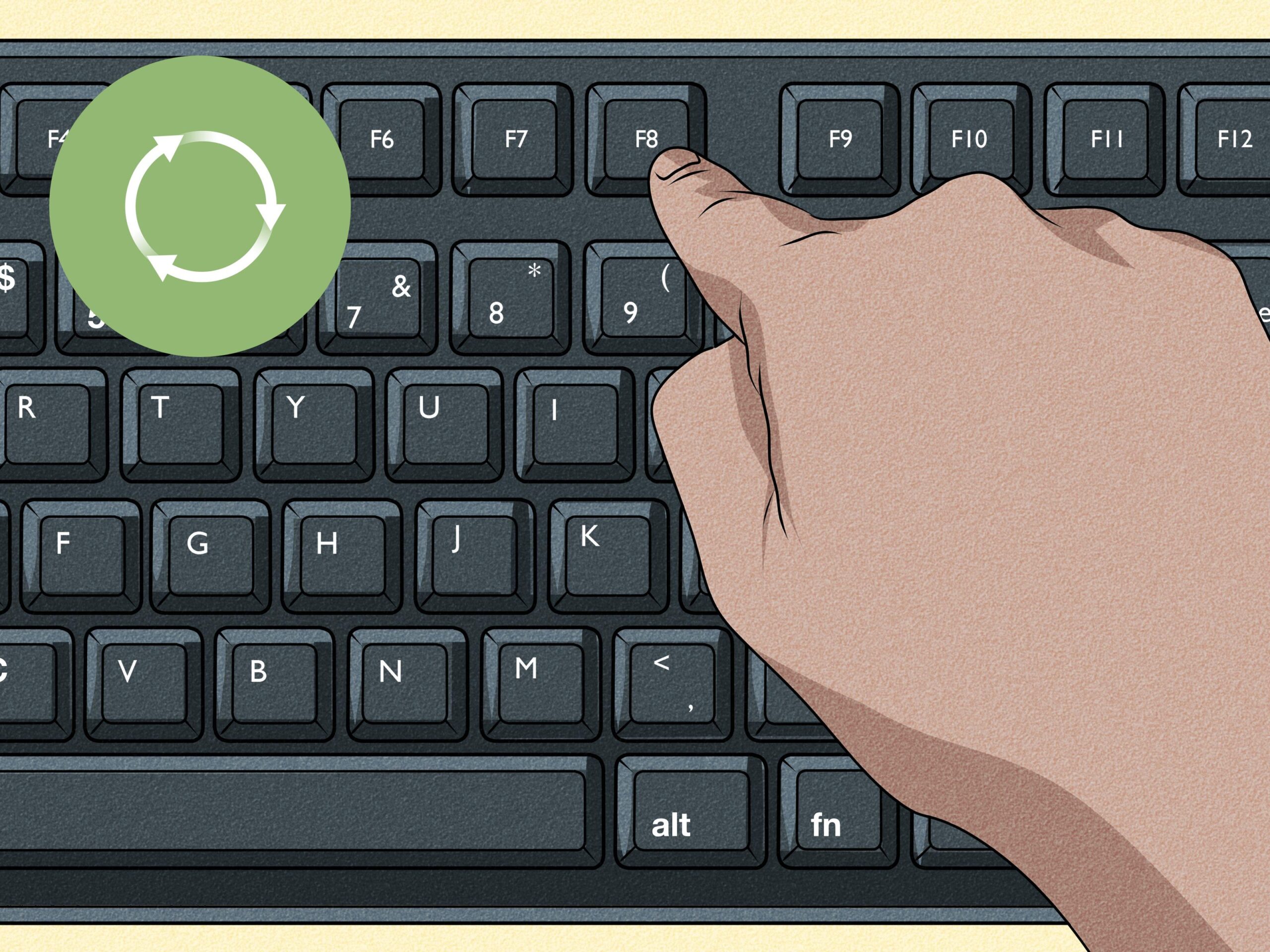
The most common keys to access the BIOS are DEL, F2, F8, F12 or ESCAlthough it may vary depending on the brand. Normally, you should try DEL and F2 first; if not, look closely at the first boot screen, where a message like "Press F2 to enter Setup" usually appears.
Once inside the BIOS, you'll have several tabs; the one we're interested in is almost always called “Boot” or “Start-up”There you will see a list with the different boot options: internal hard drive, USB drives, DVD, sometimes network drives (PXE) and additional devices.
To change the order, you normally select the device (for example, your Windows 10 installation USB) and you use the keys indicated on the screen, which are usually + and − or F5/F6, to move it up until it is first in the list. Each BIOS displays the instructions on the bottom or side.
When you're finished, it's essential to save your changes. Almost all BIOSes use the key F10 to save and exitBy doing so, the computer will restart automatically and, if the USB drive is bootable, the system will no longer boot from the hard drive, but from that USB drive that you have set as priority.
Configuring UEFI and Windows Boot Manager on modern computers
On recent devices with UEFI, although the concept is the same, the way to access the settings changes slightly. Instead of hastily pressing keys at startup, you can access the UEFI firmware configuration directly from Windows 10, using the advanced boot options.
To do this, go to Home> SettingsGo to the "Update & Security" section and, in the left-hand menu, select "Recovery". In the "Advanced startup" section, you'll find a button that says "Restart now"; clicking it will not restart Windows normally, but will instead put it into a special recovery environment.
In that environment, you'll see a blue screen with several options. What you need to do is go to “Troubleshooting” > “Advanced options” Then, within that menu, look for “UEFI Firmware Settings.” Selecting this option and clicking “Reboot” will shut down the system and boot directly into your motherboard’s UEFI interface.
The appearance of UEFI varies greatly depending on the manufacturer, but almost all include a section for managing the boot order and Windows Boot Manager itselfYou will often see an entry called precisely “Windows Boot Manager”, associated with the drive where Windows is installed, in addition to possible entries for USB, DVDs and other drives.
To change the order, you usually have a "Boot" section or something similar where each boot option is listed; you just have to place the desired device above Windows Boot Manager If you want to boot from it (for example, an installation or repair USB drive). In other cases, you directly select “Boot Manager” and, within it, choose which device to use for the next boot.
Multiple startup and startup change in equipment with multiple systems
Many users choose to have multiple operating systems on the same PC, for example various operating systemsFor example, Windows 10 alongside a Linux distribution or even another version of Windows. In these cases, when you turn on the computer, a boot menu usually appears allowing you to choose which operating system to load.
That menu, when we talk about several Windows installations on different partitions or disks, is managed by the BCD store and Windows Boot ManagerFrom there you define the default system, how long the menu is displayed, and the order in which the different entries appear; if you need to adjust the menu time, you can see how to do it in boot menu wait time.
In addition to what can be done from BIOS or UEFI at the physical level (choosing disk or device), within Windows itself you have the possibility of modify which system will load by default when you boot from the main hard drive. This is useful if you have, for example, one Windows installation for daily use and another for testing or lab work.
The goal of a well-configured multiboot system is that, without needing multiple computersYou can change your environment depending on what you need at any given time, whether for work, testing, development, or simply for comfort.
Boot and repair Windows from the CMD console
You can't always rely on the Windows graphical interface to troubleshoot startup problems. When the system crashes, you'll often have to resort to... Command Prompt (CMD) from the recovery environment to repair damaged files or rebuild the boot configuration.
From CMD, using the appropriate tools, it is possible to diagnose what is failing and apply specific commands to Fix MBR, rebuild BCD, correct boot sectors or check disksThese commands are usually more direct and offer clearer error messages than the graphical interface.
Using the command prompt is especially useful when your PC gets stuck in automatic repair loops, freezes on a black screen, or when certain Graphical recovery tools fail to complete the repairHaving a basic understanding of CMD and startup utilities is a significant lifeline.
If you notice that the computer starts malfunctioning, shuts down abruptly, or displays strange screens at startup, it's advisable to perform a diagnostic check. review from CMD As soon as possible. That way you can detect disk or configuration errors before they turn into a complete boot failure.
Typical Windows Boot Manager errors and their main causes
When the Windows boot manager fails, you will most often encounter error messages on the screen or, in some cases, the system will simply freeze. stuck on a black screen and unable to progressBehind these failures there are almost always specific problems that can be identified.
One of the most common causes is that the MBR (Master Boot Record) is damaged or corruptThe MBR is a structure located in the first sector of the disk that indicates where the partitions are located and how the system should boot. If this small block becomes corrupted, the boot manager may stop working.
There may also be a physical problem, such as a hard drive cable damaged or improperly connectedIf the system cannot correctly read the disk where Windows is installed, the boot manager will not have access to the files necessary to start the operating system.
Another very typical source of problems are the improper shutdowns or sudden power outagesIf the computer shuts down while writing to disk, it is relatively easy for certain system files to become corrupted, including those related to booting.
Finally, sometimes the failure comes from a missing, incorrectly installed, or defective hardware componentSuch factors as a faulty RAM module, a misconfigured new drive, or an incomplete firmware update can prevent the boot manager from locating and loading Windows correctly.
Effective solutions when Windows Boot Manager fails to start
Once the possible causes have been identified, it's time to get to work. There are several strategies for to bring the Windows boot manager back to life and get the system up and running normally. It's best to start with less risk and gradually increase it, always proceeding with caution.
Among the most efficient solutions are Rebuild the MBR, repair the boot manager with Bootrec.exe, and edit the BCD configuration with BCDEdit. And lastly, update the BIOS or UEFI when necessary. For severely damaged systems, specialized third-party tools can also be helpful.
Rebuild the MBR (Master Boot Record)
If the problem is in the MBR, one of the most direct solutions is rebuild it to replace the damaged version with a new oneThis can be done with both third-party tools and built-in Windows utilities.
Partition management applications like EaseUS Partition Master include a specific function for repair or rebuild the MBR of a hard driveThey are useful when you prefer a graphical interface and a more guided process instead of struggling with manual commands from the console.
With these types of tools, the procedure usually involves create a WinPE boot disk or USBFrom this program, you boot your PC, select the problematic disk, and run the "Rebuild MBR" option. The program then writes a new master boot record compatible with your version of Windows.
Another option is to use Windows commands directly, such as Diskpart and Bootrec, although this requires some familiarity with the command line. Even so, tools like EaseUS simplify the process and allow even less experienced users to use them. can recover a system that won't start without getting into too many technicalities.
Repair the Boot Manager with Bootrec.exe
When the failure is related to the boot manager itself, in addition to the MBR, a very powerful solution is to use the utility Bootrec.exe from the Windows Recovery Environment (WinRE)This tool allows you to repair both the MBR and the boot sector and the BCD store.
To use it, you need to boot your computer with a Windows installation media (USB or DVD)When booting from that medium, on the first screen you select language, time format and keyboard layout, and then instead of installing you choose the option “Repair your computer”.
Within the repair environment, go to “Troubleshooting” > “Advanced options” > “Command Prompt”A command prompt window with elevated privileges will open, from which you can launch Bootrec.
The key commands you should know are: bootrec.exe / fixmbr to rewrite the MBR, bootrec.exe / fixboot to repair the starter sector and bootrec.exe / rebuildbcd to rebuild the boot configuration data (BCD) store. Running these three commands, one after the other, usually resolves a large number of boot errors.
When you're finished and no serious errors are displayed, simply close the CMD window, remove the installation media, and Restart the computer normallyIf everything has gone well, Windows should restart without any boot manager failure messages appearing.
Edit the Windows Boot Manager with BCDEdit
In some cases, rather than physical damage, what you have is a corrupt or incorrectly configured BCDThat's where BCDEdit comes in, the native Windows tool for managing boot entries and their parameters.
To begin troubleshooting with BCDEdit, also go to the Windows Recovery Environment and open Command PromptFrom there you can use the command bcdedit /? to view general help and list available options.
If you want to review the current entries, simply run bcdedit Without parameters. You will see the “Windows Boot Manager” section and, below it, one or more “Windows Boot Loader” sections with the configuration of each installed system and the order in which they appear in the menu.
To set a specific entry as the default, for example if the default value has been lost or an unwanted system appears, you can use bcdedit /default {ID}where {ID} is the identifier (GUID) of the corresponding entry. With bcdedit /timeout You adjust the time in seconds that the boot menu is displayed before the system starts by default.
During the repair phase, it is common to use bcdedit /export to back up the BCD and then rebuild it if necessary. And if you only want to know the specific commands for creating or editing entries, you can use bcdedit /? default or the context help variants depending on what you need to modify.
Updating BIOS or UEFI: When does it make sense?
Updating the BIOS or UEFI is not something you should do lightly, but in some situations it can resolve boot incompatibilities, known errors, or problems with new hardwareIt can also improve the overall stability of the system.
First of all, it's a good idea to check the website of your motherboard or laptop manufacturer to see if there are any updates. New BIOS/UEFI versions and what problems they fixIf the improvements include anything related to startup, support for new drives, or critical bug fixes, it may be worth upgrading.
On some computers, such as certain MSI models, you can manage part of this process using official utilities available in the Microsoft Store, such as MSI CenterFrom there you can check for updates and, sometimes, start the BIOS update from Windows, although it's usually safer to do it directly from the UEFI itself.
In any case, it is important to be very clear that a failed BIOS or UEFI update can render the system unusable If something goes wrong (power outages, corrupted files, etc.). That's why you should only take this step when absolutely necessary and following the manufacturer's instructions to the letter.
Create and manage custom boot entries with BCDEdit
Beyond fixing errors, BCDEdit allows you to create custom boot entries for advanced situationsDebugging environments, test scenarios, booting with different kernel parameters, etc. This is especially useful in professional environments or when working with multiple boot processes.
Windows automatically creates a standard boot entry during installation, but you can add additional entries without touching that primary entry. In fact, it's highly recommended to Do not modify the standard input and instead, clone that entry and make the changes to the copy.
Keep in mind that to manipulate the BCD you need administrator privileges and an elevated Command Prompt window (Right-click on Command Prompt > “Run as administrator”). Additionally, if you have BitLocker or Secure Boot enabled, you may need to disable or temporarily suspend them for certain changes.
Before doing anything complicated with BCDEdit, it's a good idea to review the official documentation about it. boot options editing And, if you can, make a backup of the BCD with bcdedit /export, in case you need to revert.
Add new boot entries by copying an existing one
The simplest and safest way to create a new entry is to copy an existing boot entry and then modify only what you want to change. This ensures that all the basic parameters are correctly configured.
To do this, open an administrator console and run a command like this: bcdedit /copy {current} /d “DebugEntry”Here {current} refers to the entry with which the system was started and "DebugEntry" is the description that you will see later in the boot menu.
If everything goes well, BCDEdit will return a message indicating that the entry has been copied successfully and displaying a New GUID in bracketsSomething like {55556666-ffff-7777-aaaa-8888bbbb9999}. That GUID is the identifier of the new entry and you will need it for subsequent commands.
When you copy a bootloader entry that already appears in the menu, the new It is automatically added to the end of the boot menuFrom there, you can change their order or parameters according to your needs.
If the command returns an error, check that you are in a command prompt with administrator privileges, that you have typed the parameters correctly, and that you have always included the curly braces around {current} or any other identifier.
Create boot entries from scratch with BCDEdit /create
Another way to create entries is to use bcdedit /createHowever, this method is more advanced because you have to specify from the beginning what type of startup application you are creating and several additional parameters.
For example, to create a new operating system entry you could use a command like: bcdedit /create /d “My Windows Vista” /application osloaderThis generates an operating system loader entry with the description “My Windows Vista”.
When using the /create option, BCDEdit It does not automatically add the entry to the boot menuIt simply generates the GUID and the corresponding record in the BCD store. Then you'll need to adjust its options (device, osdevice, path, etc.) and add it to the display order using other commands.
As always, a new GUID is generated for that entry, which you'll need to continue configuring it. To see specific help on the /create parameters, you can run bcdedit /? /create and review the syntax and available options.
Configure the boot menu display order
Once you have created several entries, you'll want to decide the order in which they appear in the Windows boot menu. This is controlled with the option /displayorder from BCDEdit, which establishes the order in which the boot manager displays the different entries.
The basic syntax is bcdedit /displayorder {ID} {ID} …where each {ID} is the GUID of an entry or a reserved identifier such as {current}. You must separate them with spaces and always remember to include the curly braces.
For example, if you want the current entry to appear first in the menu, followed by the new "DebugEntry" entry, you would use something like bcdedit /displayorder {current} {55556666-ffff-7777-aaaa-8888bbbb9999}In PowerShell, you must ensure that you correctly enclose the GUID in quotation marks.
You also have modifiers such as /addlast, /addfirst and /removeThese commands allow you to add an entry to the end, the beginning, or remove it from the display order, respectively. A typical example would be: `bcdedit /displayorder {55556666-ffff-7777-aaaa-8888bbbb9999} /addlast` to make that entry the last one in the menu.
If you want to quickly check that the order has been set correctly, simply run bcdedit Without parameters. In the “Windows Boot Manager” section, you will see the “displayorder” list with the entries in the same order in which they will be displayed when the computer starts up.
Delete or delete boot entries
When you no longer need a boot input, you can Remove it from the menu without deleting it from the BCD store or remove it completely, depending on your preference. To hide it from the menu, simply use /displayorder along with /remove.
For example, if you want the entry {44445555-eeee-6666-ffff-7777aaaa8888} to stop appearing, you would use a command like: bcdedit /displayorder {44445555-eeee-6666-ffff-7777aaaa8888} /removeThis prevents the boot manager from displaying it on screen, but the entry still exists in the store.
If what you want is
After any such change, it is recommended to run again. bcdedit Simply to ensure that the display order and active entries match what you expected and that you haven't left any references hanging.
Understanding and managing Windows Boot Manager, BIOS, UEFI, the MBR, and tools like Bootrec.exe and BCDEdit gives you enormous control over How to start your PC and how to react when something breaksFrom changing the boot order to install Windows from a USB drive, to creating custom entries and repairing complex boot errors, it's all part of the same puzzle. Once you get the hang of it, having a properly configured boot manager It ceases to be a mystery and becomes another tool to keep your team in shape.


Passionate writer about the world of bytes and technology in general. I love sharing my knowledge through writing, and that's what I'll do on this blog, show you all the most interesting things about gadgets, software, hardware, tech trends, and more. My goal is to help you navigate the digital world in a simple and entertaining way.