- Efficient cache management allows you to reclaim vital space and improve system fluidity without deleting personal data.
- Using external storage and removing outdated applications are key strategies to avoid device crashes.
- Regularly cleaning up temporary files and unnecessary downloads prevents the overall slowdown of the user interface.
Having an Android TV device is fantastic for entertainment, but there's one problem that can drive us crazy: the internal storage filling up almost without us noticing. It's frustrating to try to install a new app and have the system tell us there's no space, especially when we feel we haven't installed enough to fill up the memory.
Many people think the only solution is to format the device, but that's going to extremes. In reality, there are much simpler and less invasive methods to recover space and make the interface run smoothly, focusing primarily on managing temporary memory and organizing applications.

Understanding cache memory and its impact
To begin, it's helpful to know that the cache is essentially a storage area for temporary files that the system saves so it doesn't have to download or process the same thing repeatedly. For example, when you open Netflix, the series covers are stored there so they load instantly the next time you access the app.
The problem arises when these files accumulate too much. Although they aren't viruses or harmful junk, they take up considerable space , which becomes critical on devices with limited internal memory (like those with 8GB). If the storage is full, the TV not only prevents app installations but also starts to run slowly or stutter.
The best thing about clearing the cache is that you don't delete important data . You won't have to re-enter your password or lose your preferences; you're simply forcing the app to regenerate those temporary files, freeing up immediate space.
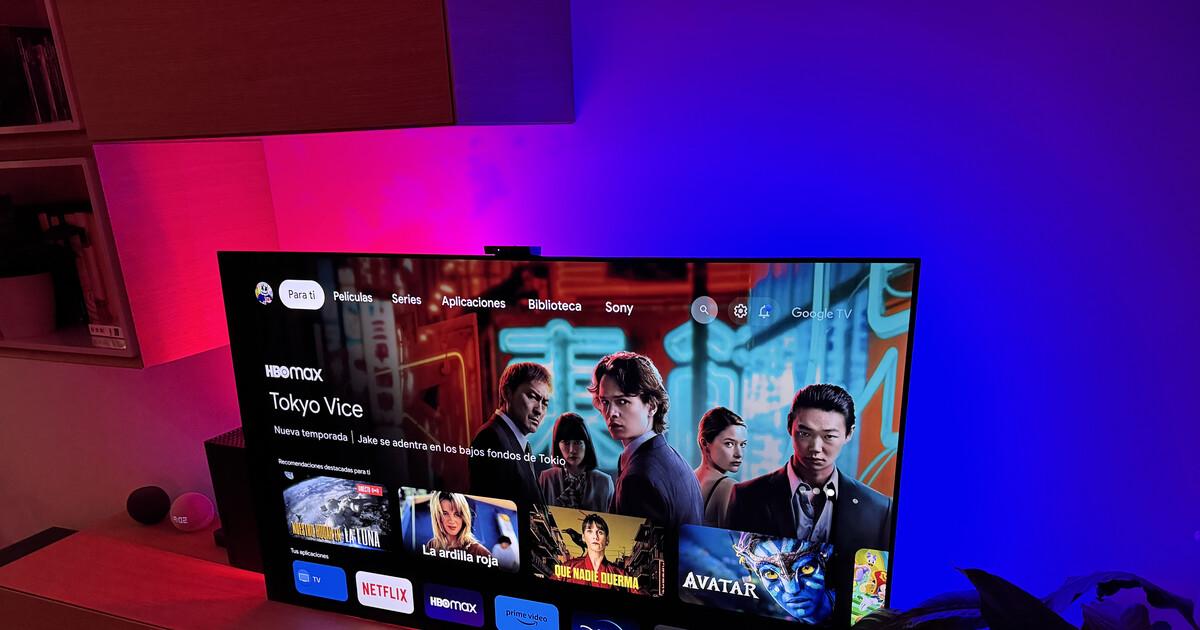
Steps to clear cache on Android and Google TV
The process is very similar to what you would do on a smartphone. To organize your apps, simply go to your TV's settings menu and look for the Applications section. From there, you'll see a list of everything that's installed.
To free up space, open each app and select the "Clear cache" or "Clear cache" option. Doing this with your largest or most frequently used apps will quickly free up valuable megabytes. This method is fully compatible with both Android TV and the Google TV interface.

How often should you perform this maintenance? There's no hard and fast rule, but ideally you should do it when you notice the system sluggish or when you get a "memory full" warning. If you're someone who constantly installs and tests apps, you'll need to clear the cache more often than someone who only uses YouTube and Netflix.
Advanced strategies to reclaim space
If clearing the cache isn't enough, it's time for a thorough cleanup. The first step is to uninstall apps you no longer use. Sometimes we install things to try them out for a day, and they just sit there gathering digital dust, taking up space we need for more demanding apps.
Sometimes, some apps come pre-installed and don't allow complete uninstallation. In these cases, the "Disable app" option is a lifesaver, as it deletes the app's data and hides it, significantly reducing the load on internal memory.
Another very effective solution is to use external storage . If your Android TV box has USB ports or an SD card slot, you can connect a USB drive and configure the device to move certain apps to that drive. This is essential for those who manage large content libraries or want to use an old hard drive with Android TV.
- Delete data: It's a more drastic measure than clearing the cache. This removes everything, including open sessions, leaving the app like new.
- Download management: We often have videos, photos, or APKs in our downloads folder that we've forgotten about. Using a file explorer like X-Plore helps locate and permanently delete these files.
Maintaining a balance between loading speed and free space is key. By combining cleaning temporary files with using external storage and removing unnecessary software, we can prevent the TV Box from becoming overloaded and ensure that even the most demanding applications run smoothly without crashing or encountering installation errors.


Passionate writer about the world of bytes and technology in general. I love sharing my knowledge through writing, and that's what I'll do on this blog, show you all the most interesting things about gadgets, software, hardware, tech trends, and more. My goal is to help you navigate the digital world in a simple and entertaining way.