- Configure developer permissions and unknown sources to enable the installation of external software.
- Methods for transferring APK files using USB, network applications, or direct downloads to the device.
- Implementation of security layers using Google Play Protect to analyze the integrity of installed apps.
- Using alternative launchers to access apps that don't appear in the main Google TV menu.
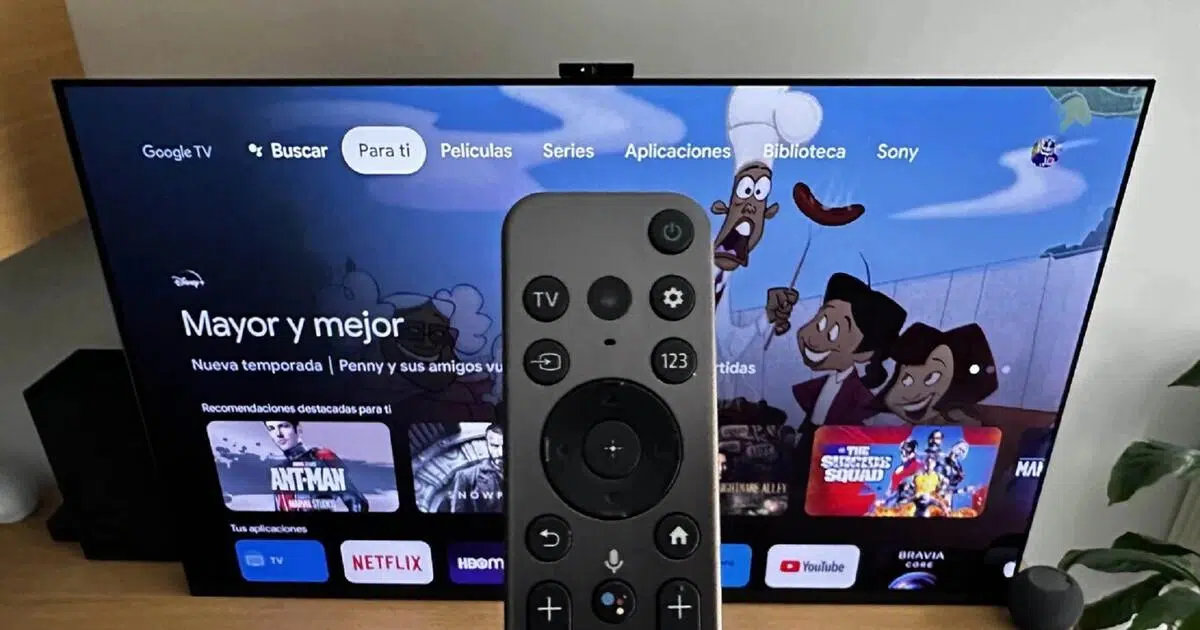
Having a device with Android TV, Google TV, or a Chromecast is a huge advantage, as it essentially gives you a giant mobile phone in your living room. Thanks to this, you're not limited to what the official store offers, and you can install apps via APKs from external sources to expand your TV's capabilities.
Sometimes the Play Store falls short, and we need tools that independent developers only upload to sites like GitHub or their own websites. This process, technically known as sideloading , allows us to customize the system to the fullest extent, although we should always do so with caution and at our own risk to avoid compromising the device.

Preparing the ground: Developer mode and permissions
Before we start installing anything, we need to tell the TV to trust us. The first step is to enable developer options . To do this, go to Settings, then to 'Device Preferences', and then to 'About'. Once there, tap the Build Number option seven times in a row until the system notifies you that you are now a developer.
Now that the secret menu is visible, go back to 'Device Preferences' and enter the new 'Developer Options' section. This is where the magic happens: you need to find and enable the installation of apps from unknown sources. Without this permission, the system will block any attempt to install a file that doesn't come from Google.
How do I transfer the APK file to my TV?
There are several ways to transfer an APK file from your computer or mobile device to your TV. One of the most common is to use the Downloader app , which allows you to download the file directly from the best browser for Android TV . However, navigating with the remote can be a real headache, so there are more convenient alternatives.

If you have a smartphone handy, the Send Files to TV app is the fastest option. Simply install it on both devices and transfer the file in seconds using 'Send' mode on your phone and 'Receive' on your TV. Alternatively, you can use a USB drive , connecting it to the TV box's port and opening the file with any file manager you have installed.
For more advanced users, there are P2P websites that allow you to transfer data between devices without installing anything. Regardless of the method, remember that if you use an intermediary app for installation, you'll need to go to Settings > Applications and grant that app specific permission to install external packages.
Maintaining security with Google Play Protect
Sideloading doesn't have to be dangerous if you know what you're doing. To prevent performance drops or viruses, it's essential to keep Google Play Protect active and implement key strategies to protect your devices . This tool constantly scans your device for malicious software or malware that may have been included in third-party APKs.

If you have Android 11 or later, you can manage this by opening the Play Store , going to the Play Protect menu, and adjusting the app scanning settings. It's highly recommended to enable the option to improve detection of harmful apps , which allows Google to analyze the code of unknown apps and warn you if there's a real risk.
In older versions (Android 10 or earlier), the process is simpler: go to Settings > Apps > Security and restrictions and make sure the 'Verify apps' option is turned on. This way, the system will alert you if it detects that an app violates privacy policies or attempts to steal data.
The problem of invisible icons and the solution
It's very common that, after successfully installing an APK, you'll notice the icon doesn't appear in the Google TV main menu. This happens because the official launcher hides apps that don't come from the official store. Don't worry, the app is still there, it's just hidden.
The simplest solution is to download Sideload Launcher from the Play Store, a free tool that shows you all your unofficially installed apps in one place. If you don't want to install anything else, you can access them by going to your system settings, entering the Applications section , and launching them from the complete list of installed software.
This process is virtually identical if you use a Fire TV, since being based on Android, it allows you to install apps like SmartTube or Kodi following the same permission and file transfer steps, similar to how it is currently done for streaming TV and IPTV.
Properly configuring developer permissions and using security tools like Play Protect ensures we can enjoy third-party software without compromising system stability. By combining efficient transfer methods and alternative launchers, we transform our TV into a much more versatile and powerful multimedia center.


Passionate writer about the world of bytes and technology in general. I love sharing my knowledge through writing, and that's what I'll do on this blog, show you all the most interesting things about gadgets, software, hardware, tech trends, and more. My goal is to help you navigate the digital world in a simple and entertaining way.