- The evolution of macOS has progressed from 32-bit architecture to Apple Silicon chips, creating compatibility gaps with older software.
- The choice of the ideal operating system depends strictly on the year the hardware was manufactured and the technical requirements of the professional tools.
- Recent updates have introduced critical conflicts with runtime environments such as Java and cloud synchronization services.
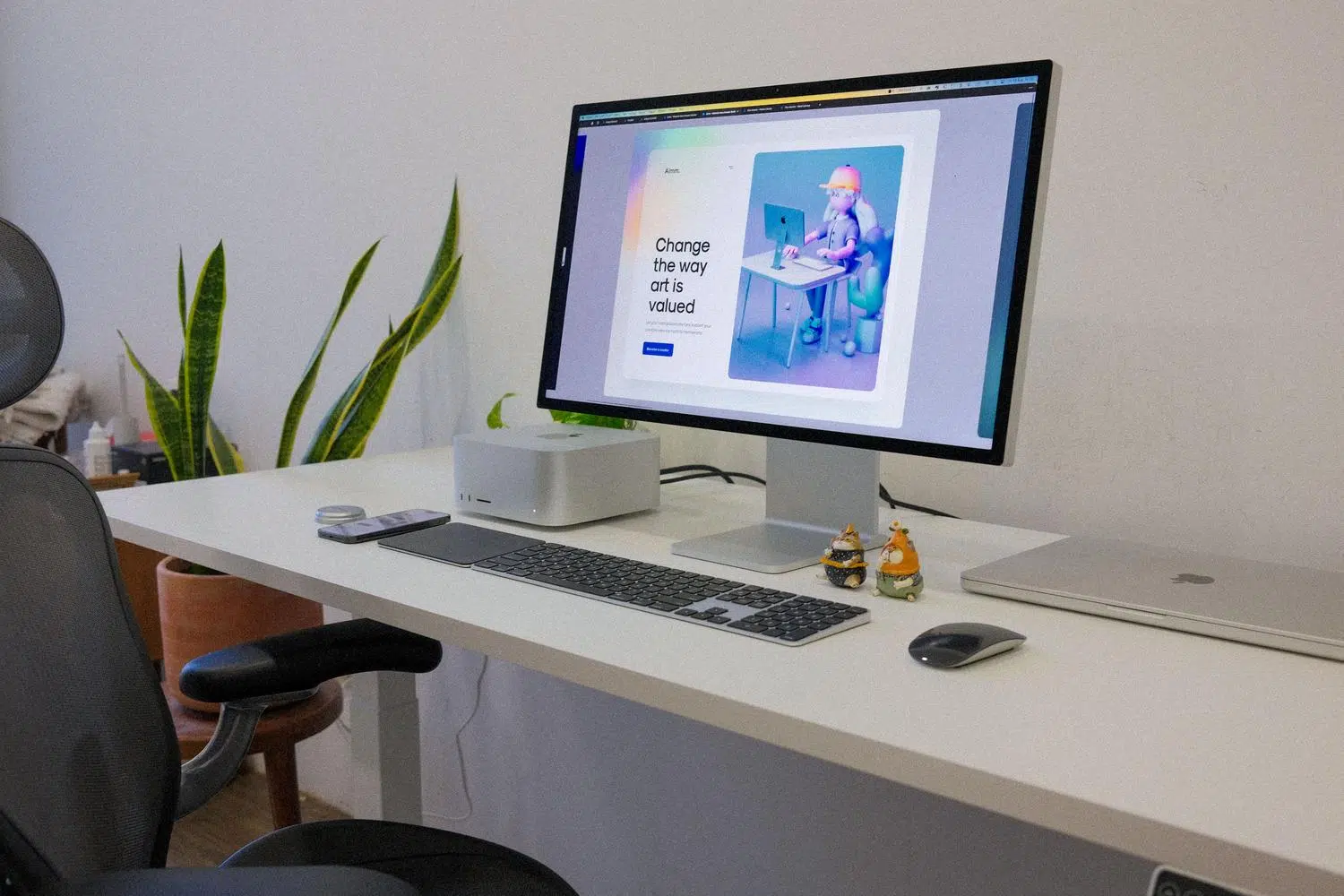
If you've ever felt that your Mac is lagging behind, or that after clicking the update button, your work programs started acting strangely, you're not alone. Navigating the Apple ecosystem can be a real labyrinth, especially when you're trying to balance the stability of your workflow with the desire to try out the latest technological innovations.
The reality is that the newest option isn't always the best for everyone. Depending on whether you have an older computer or the very latest model, installing a new version of macOS can be a productivity boost or, conversely, a monumental headache that leaves you unable to open your editing or management software.

How to find out which version of macOS you have and which one you should get.

To avoid going in blind, the first thing to do is know where you stand. If you go to the Apple menu in the upper-left corner and choose About This Mac , you'll see your system name and version number. If you need the exact build number, simply click on the version number.
Compatibility isn't random; it's tied to the year your hardware was manufactured . Apple typically supports its machines for about 10 years, but there are nuances. For example, the most recent Intel models (2018-2020) can support up to Sequoia or Tahoe, while machines from 2015 to 2017 usually run better with Monterey or Big Sur to avoid slowing down the system.
The historical map of macOS: from felines to AI
Apple's journey has been long. We began with the era of the cat (Mac OS X), where versions like Snow Leopard were legendary for their professional stability. Then we moved on to the California place names, with milestones like Catalina, which made a splash by removing support for 32-bit applications, leaving countless users of older software behind.

Recently, we've seen huge leaps forward with the arrival of Apple Silicon chips (M1, M2, M3, and M4). Versions like Sequoia introduced iPhone Mirroring and the long-awaited Apple Intelligence. And we already have on the horizon the shift to an annual naming convention, as with macOS 26 Tahoe, which marks the end of the road for Intel processors , leaving only a few compatible models before the complete switch to ARM.
The drama of professional applications and incompatibilities
This is where things get serious. Many creatives use older versions of Adobe or Microsoft software because they're used to them and they work flawlessly. However, when upgrading to systems like Catalina, any 32-bit app simply stops running . This affected classic versions of Photoshop CS5, Premiere CS4, and Office 2011.
To avoid surprises, you can go to System Reports, find the Applications section, and check the 64-bit column. If you see "No" in that column , be prepared because that application won't be compatible with modern versions of macOS. It's crucial to check the developer's website before updating, as many essential plugins may stop working, leading professionals to prefer sticking with older versions for the sake of their job security.

Critical bugs in recent versions: Java and iCloud
Not everything is an architectural transition; sometimes the problem is a software bug. A clear example was the update to macOS 14.4, which became a nightmare for those using Java-based applications , especially on Macs with M1 and M2 chips. The flaw lay in how the system handled dynamically generated code, causing unexpected crashes.
In addition, serious iCloud failures were reported, including data loss and file corruption. For those who rely on the cloud for work, this is unacceptable. In these cases, the recommendation is to avoid blindly updating and, if you're already on a problematic version, try solutions to Java version compatibility issues or temporarily migrate to Dropbox or Google Drive.
Tips to optimize the life of your Mac

If you have an older Mac and want it to keep performing, it's not just about the operating system. Upgrading to an SSD and increasing the RAM (if your model allows it) can make your Mac run incredibly well, even on older versions. Physical maintenance, such as cleaning the fans and replacing the thermal paste , is vital to prevent the processor from overheating and slowing down.

For the more adventurous, there's the option to create an additional APFS volume using Disk Utility. This allows you to install a version of macOS on a separate partition or an external drive, setting up a dual boot. It's the safest way to test a new system without risking your main production environment.
Final recommendations based on your profile
If you're a home user, you can update almost anytime, but wait a week or two for the first security patches to be released. If you're a creative professional , the golden rule is not to update right before a deadline and to wait a few months to confirm that Lightroom, Photoshop, or Final Cut Pro are working perfectly.
For those seeking the full potential of AI, the path is clear: Apple Silicon is the requirement . While some Intel models support recent versions, features like Apple Intelligence are exclusive to M-chips. If your computer is very old, remember that you'll continue to receive security patches for a while, so don't despair if you can't install the latest version.
Maintaining a balance between system version and hardware capabilities is the only way to ensure your work tools don't become a hindrance. Whether it's optimizing your system with an SSD, verifying your apps are 64-bit, or being cautious with macOS updates, the goal is always to prioritize the stability of your professional workflow over aesthetic novelty.


Passionate writer about the world of bytes and technology in general. I love sharing my knowledge through writing, and that's what I'll do on this blog, show you all the most interesting things about gadgets, software, hardware, tech trends, and more. My goal is to help you navigate the digital world in a simple and entertaining way.