- The macOS menu bar is dynamic and changes automatically depending on the active application.
- Bartender is the leading personalization tool, although it has generated debate due to changes in its ownership and privacy.
- There are free and lightweight alternatives like Ice, Vanilla or Hidden Bar to avoid visual clutter and the notch problem.

Whether you're new to the Apple ecosystem or have been using your computer for a while, you know that the top portion of the screen is the operating brain of your machine. Properly managing this area is crucial to prevent your system from becoming a visual mess, especially when you start installing apps that add their own icons and controls, filling the available space until there's not even room for a pin.
To bring order to this digital desktop, there are powerful tools like Bartender , which allow you to control the menu bar with an iron fist. It's not just about hiding things, but about creating a work environment where only what you need appears when you need it, thus optimizing your productivity and preventing the infamous notch on modern MacBooks from stealing vital space.

How the macOS menu bar works

Unlike Windows, the Mac uses a dynamic menu bar. This means that the left side of the menu bar changes automatically depending on the app you have open in the foreground; for example, if you're using Safari, you'll see navigation options, but if you switch to Finder, the menus adapt to file management. It's a very intuitive system that doesn't require manual configuration to change the application menu.
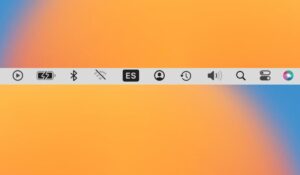
On the right side, you'll find the system controls and Control Center . From here, you can manage Wi-Fi, volume, and battery. If you want to customize the Dock and menu bar in macOS , go to System Settings > Menu Bar , where you can drag and drop the icons you prefer to have readily available or let Control Center manage the rest for a clean look.
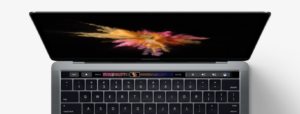
Advanced tricks and system secrets

There's a little-known secret that few users take advantage of: using the Option (Alt) key . If you hold this key down while navigating through drop-down menus, you'll see that some options change to more advanced versions. A classic example is the File menu, where you can find the option to close all windows at once instead of one by one.
Furthermore, when you feel lost, the Help menu is an incredible ally. It's not just a boring manual; you can directly type what you're looking for and the system will take you to the exact function, or access Apple's official guide to better understand how your hardware and software work.

The Bartender ecosystem and the recent controversy

Speaking of advanced management, Bartender has been the reigning app for years. It allows you to create display profiles , assign keyboard shortcuts, and use spacers to prevent icons from being too close together. However, in early 2024, the tool went through a turbulent period after being sold to a company called Applause.
The problem arose from a lack of transparency in the security certificate changes and the inclusion of telemetry code to analyze user data without notification. This raised concerns in communities like Reddit and Hacker News. Although the company subsequently removed the analytics framework in version 5.0.53 and apologized, many users prefer to remain on version 5.0.49 , which is the last version signed by the original developer and free of trackers.
Reliable alternatives for organizing your menu bar
If you don't trust Bartender or are looking for something lighter, the market offers some very solid options. For those seeking maximum simplicity, Vanilla is ideal; it allows you to hide icons simply by dragging them with the Command key. Its Pro version adds features like automatic hiding after five seconds, keeping your desktop looking clean.
For fans of free and open-source software, Ice is a superb alternative that offers hidden sections and highly detailed appearance options. Meanwhile, iBar is designed specifically for MacBooks with a notch, creating a floating bar that utilizes the space just below the notch, preventing icons from disappearing behind the hardware.

- Barbee: A very affordable payment option with an interface similar to Bartender and Spotlight-style search.
- Hidden Bar: Extremely lightweight, it uses a divider to separate the visible from the hidden.
- OnlySwitch: More than a manager, it's a switch panel to quickly activate dark mode or mute the microphone.
- BetterTouchTool: For expert users who want to automate the bar using advanced gestures.
- Dozer: Although it appears to be abandoned, it is still functional for creating groups of drop-down icons.
Solutions to common problems with external displays
It's common to encounter problems with the menu bar's placement when connecting a MacBook M4 Max to additional monitors. Some users report that the menu bar doesn't move to the secondary display even after configuring the system. To resolve this, it's essential to check in the display settings that the "Displays have separate menu bars" option is enabled, allowing the system to recognize each monitor as an independent workspace.
Mastering the organization of the top of your screen, whether through macOS's native settings or by using external utilities like Ice or the long-established Bartender, transforms the user experience by eliminating visual clutter. From leveraging Option key shortcuts to choosing the management app that best suits your privacy concerns, the goal is always the same: to have technology work for us, not for us to waste time searching for a lost icon between the notch and the clock.

Passionate writer about the world of bytes and technology in general. I love sharing my knowledge through writing, and that's what I'll do on this blog, show you all the most interesting things about gadgets, software, hardware, tech trends, and more. My goal is to help you navigate the digital world in a simple and entertaining way.