- The H.264 codec with Main or Baseline profile ensures maximum compatibility on televisions and multimedia devices.
- The use of Constant Quality (RF) allows maintaining visual fidelity by adapting the bit rate according to the complexity of the scene.
- Audio optimization using AAC and integrated subtitle management prevent common playback errors.
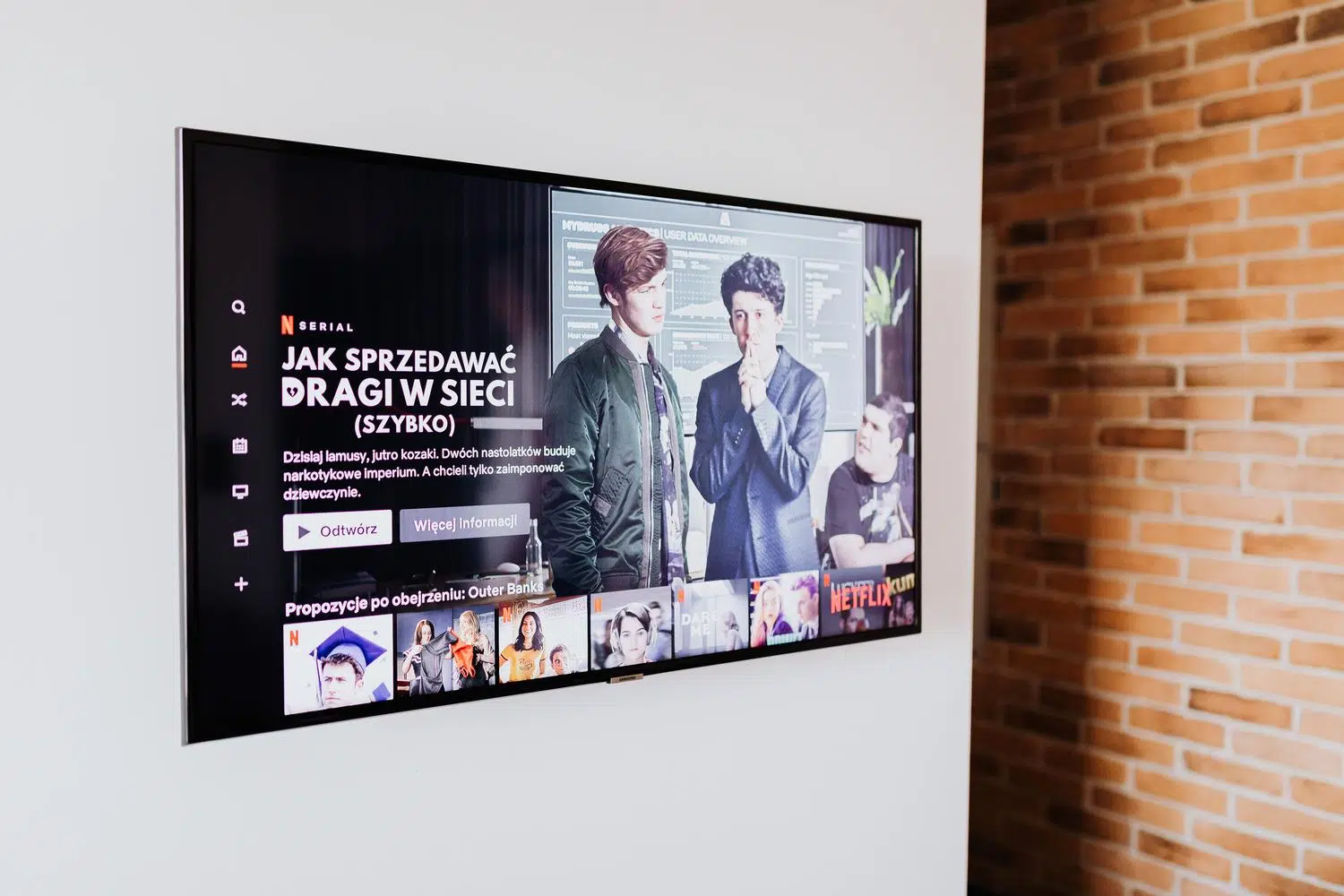
I'm sure it's happened to you: you try to play a video you've transferred to a USB drive on your TV, and to your frustration, the device doesn't recognize it , or the audio and video are out of sync. This happens because Smart TVs and other media centers are quite particular about formats, and not just any MP4 file will work for smooth playback without stuttering or errors.
To solve this headache, the star tool is HandBrake. This free and open-source software is like a Swiss Army knife of transcoding , allowing you to compress videos to adapt any video to the exact specifications of your screen, whether it's a modern television, a game console, or even an old tablet, ensuring that the quality remains at optimal levels.

Essential configuration for full compatibility
If you don't want to complicate things, the easiest thing to do is take advantage of the presets . HandBrake includes a huge list of configurations already optimized for devices like Apple TV, Android, Roku, and PlayStation. If you're looking for standard quality that works almost anywhere, it's best to aim for a resolution of 720p or 1080p (Full HD) , since trying to increase the resolution of an original video is pointless; the program can't perform miracles and can only maintain or lower the quality of the source file.
For those seeking more precise control, the H.264 (x264) codec remains the undisputed king of compatibility. While H.265 is more efficient and saves space, it can cause problems on older hardware or in scenes with heavy grain and darkness. Therefore, if you want to play it safe, stick with H.264 and use profiles like Main or Baseline , avoiding the High profile if you notice your TV's processor is struggling and the video starts to stutter.

Advanced tricks to maximize quality

Once you've mastered the basics, you can delve into advanced settings for professional-quality results. A critical point is the reference frame rate ; increasing this value improves quality but can break playback on devices with limited capabilities. Ideally, check your device's profile level (for example, Level 4.1) to avoid exceeding the player's memory limits.
- B-Frames: Setting them to adaptable or optimal levels helps the encoder manage space better.
- Movement estimate: The Unequal Multi-Hexagon (UMH) method is the perfect balance between quality and processing time.
- RF (Constant Quality): Instead of setting a bitrate, use the RF. A value between 20 and 22 is standard, while 16-18 is for image purists.
As for audio, keep it simple: the AAC format (CoreAudio on Mac or faac on Windows) is the safest bet. Stick to a bitrate of 160 kbps for clean sound and a sampling rate of 48 kHz. If you have a very powerful home theater system, you could use Passthru for AC3 or DTS , although you run the risk that the device might not support it.

Subtitle management, chapters, and image cleanup

HandBrake not only changes the format, but also cleans up the video. If the original file has a lot of noise or grain, the Denoise filter in weak mode can work wonders, smoothing the image and, incidentally, reducing the final file size. For subtitles, you have two options: leave them as optional tracks or use the Burned In option , which burns them directly into the image, guaranteeing they will be visible on any Smart TV.
If you're ripping a DVD or Blu-ray, the chapter tab is essential. You can trim unnecessary sections , such as end credits or trailers, to reduce the file size and make navigation smoother. Always remember to check the " Optimized for Web" box if you're uploading the video to platforms like Vimeo or YouTube, as this allows playback to begin before the entire file has downloaded.
Steps for a successful conversion
The process begins by loading the source using the Open Source button . Once the video has been analyzed, you must choose the MP4 format, which is the universal standard. In the dimensions tab, make sure the aspect ratio is maintained to prevent the image from appearing stretched or compressed. If the original video file is very large, you can adjust the average bitrate (for example, 5000-10000 kbps for 720p) and enable two-pass encoding , which allows the program to analyze the video first and distribute the bits more efficiently.
For those who need to process many files, the job queue feature is essential. You can add multiple videos, configure each one, and then start the queue so your computer can work on it while you do other things. Just remember to check the final result with a player like VLC to enjoy high-quality videos before transferring it to the USB drive, making sure the sound is synchronized and the image doesn't have any strange artifacts.
Mastering HandBrake allows you to transform any multimedia file into a smooth, compatible video, adjusting everything from the H.264 codec and AAC audio to scene cropping and subtitle burning. By balancing resolution, encoding profile, and bitrate, you can ensure your content plays flawlessly on Smart TVs, consoles, or mobile devices, optimizing storage space without sacrificing visual fidelity.


Passionate writer about the world of bytes and technology in general. I love sharing my knowledge through writing, and that's what I'll do on this blog, show you all the most interesting things about gadgets, software, hardware, tech trends, and more. My goal is to help you navigate the digital world in a simple and entertaining way.