- Bluetooth cuts in Windows 11 They are usually due to drivers incompatible, recent updates, or aggressive power adjustments.
- Update or reinstall the driver from the manufacturer's website and keep BIOS y Windows It solves most of the problems daily.
- Diagnostic tools, troubleshooting, and proper interference management help stabilize the connection.
- If after trying everything it still fails, a dongle USB or the manufacturer's technical support are the best alternatives.
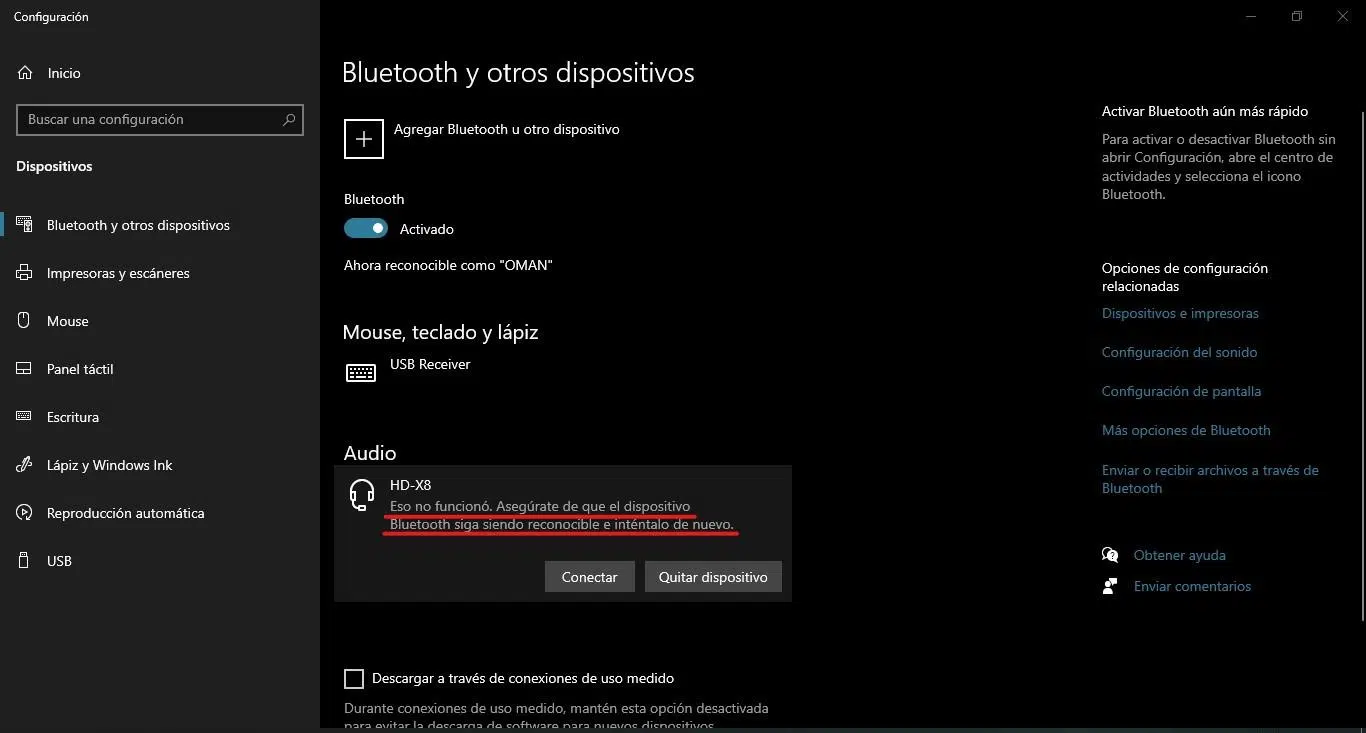
Si tu Bluetooth keeps disconnecting on its own in Windows 11Devices stop responding mid-game, or headsets connect and disconnect in a loop—you're not alone. Many users have noticed strange glitches since [date/date missing]. certain Windows updates: lag in games, mice that move on their own, keyboards that stop responding for a few seconds, or headphones that disappear as audio output.
In this article you will find a A very complete and practical guide This guide will help you diagnose and fix most Bluetooth problems in Windows 11 (and also in Windows 10 if you're still using it). We'll cover everything from basic checks to advanced steps involving drivers, BIOS, manufacturer tools, system restore, and specific solutions for gaming. portable gaming and desktop computers from different brands.
Typical Bluetooth problems in Windows 11
One of the most talked-about cases is that of users who, after updating to Windows 11, begin to notice brief but constant disconnections Using a wireless keyboard and mouse, in the middle of demanding games (for example, shooters like BF2042), the character stops moving for a couple of seconds, the keys don't respond, and after that pause everything returns to normal... until the problem repeats itself.
It is also the case that the Bluetooth keyboard keeps disconnecting and reconnecting on its ownThis can be easily observed by checking the system notification or reviewing the device's behavior in "Bluetooth & devices." Even if the peripherals are new and high-end (like gaming mice), the issue persists. Razer or Logitech wireless keyboards), the problem may persist, pointing to a software, driver, or Windows issue, rather than a problem with hardware of the peripheral.
Another rather annoying symptom is that the mouse moves abruptly Without touching it: sudden upward or downward movements, especially when entering a vehicle or changing scenes in a game. This makes it very difficult to play or work accurately and, again, is usually related to momentary interruptions in Bluetooth communication.
Beyond the gaming environment, many laptop users, such as those using HP Omen laptops or other gaming models, find that Bluetooth headphones randomly disconnect when they're not being used constantly. It doesn't matter what brand of headphones they are: the laptop seems to "decide" it no longer wants to maintain a stable connection, and the headphones either reconnect repeatedly or simply disappear as an option. audio output.
In other cases the problem is that the Bluetooth icon disappears from taskbaror that in the Device administrator The Bluetooth adapter appears with an exclamation mark, or it doesn't appear at all. This usually indicates a serious problem with the driver or system configuration.
Most frequent causes: drivers, updates, and interference
One of the most common reasons for these failures is that the bluetooth driver It might be designed for a different version of Windows. If you've upgraded from Windows 10 to Windows 11, or installed a major update recently, your driver might have worked fine before but is now outdated or not fully compatible with the system changes.
They also have a significant influence Windows updates that affect performanceSome users have noticed FPS drops in games and, at the same time, strange problems with wireless peripherals after some controversial updates. Although performance usually improves with subsequent patches, Bluetooth dropouts can persist if the driver isn't properly configured for the new version.
We must not forget the physical aspect: the Bluetooth signal interference These are very common. This type of connection is especially sensitive to obstacles (walls, metal furniture, PC towers in enclosed spaces) and other devices that emit on similar frequencies: WiFi routers, mobile phones, game consoles, other Bluetooth accessories, etc. Having too many active devices near the equipment at the same time can degrade the signal and cause disconnections.
Another factor is the Windows power managementTo save battery, especially on laptops, the system may temporarily turn off the Bluetooth adapter or put it into a low-power state. This can cause the connection to drop if there is no continuous activity (for example, with headphones paused), even if you still need the device.
Finally, in certain desktop and laptop computers from specific brands (Dell, Alienware, ASUS, HP, etc.), the failures may be related to a Outdated BIOS or with manufacturer-specific driversThese drivers are integrated with the motherboard or network/Bluetooth card hardware, and if they are not updated along with Windows, incompatibilities and strange behavior will occur.
Basic checks: Activate Bluetooth and verify devices
Before getting into deeper changes, it's worth making sure of the obvious: that Bluetooth is enabled and your device supports itIt may seem silly, but many times the icon disappears or the option is deactivated without us noticing.
In Windows 11, open the application of Configuration From the Start menu, go to the "Bluetooth & devices" section. Make sure the Bluetooth switch is set to "On." If it's off or grayed out and you can't change it, or if the Bluetooth section doesn't appear at all, the adapter may be disabled or Windows may not be recognizing it correctly.
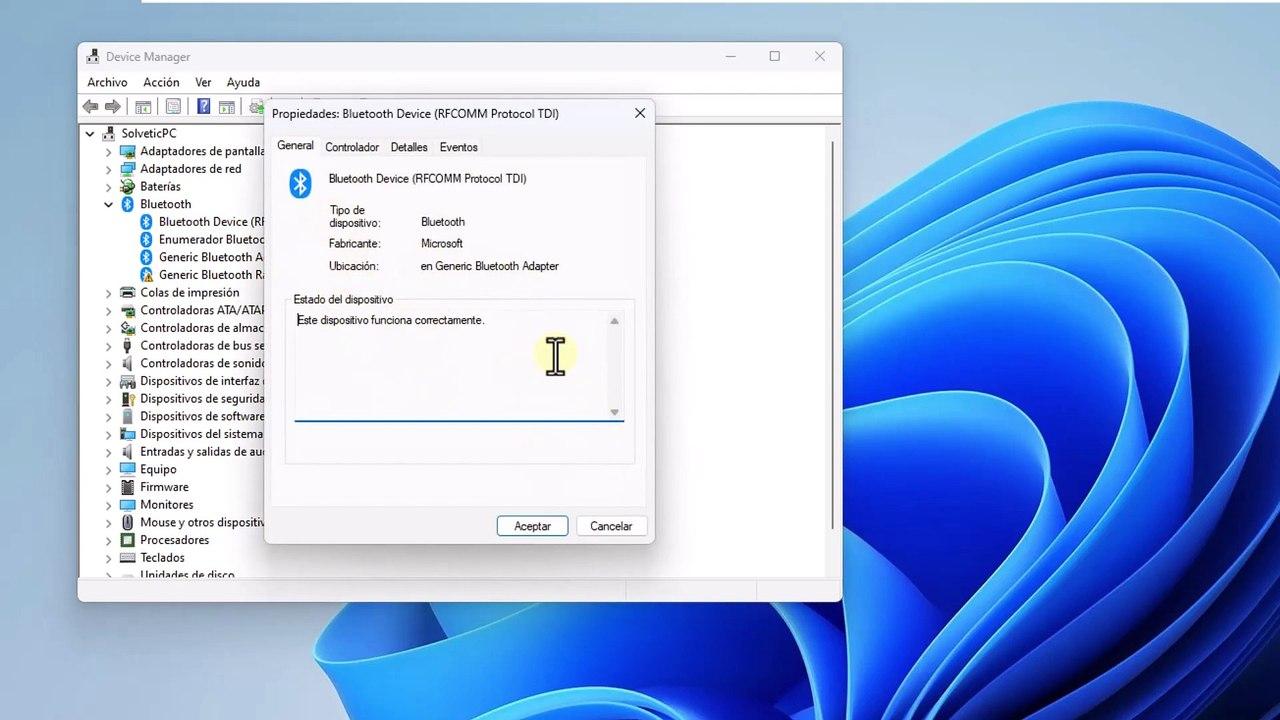
To verify, write "Device administrator" Type "Bluetooth" in the search bar on the taskbar and open it. In the list of categories, you should see one called "Bluetooth." If it doesn't appear, or you see the adapter under "Other devices" with a warning icon, there's a problem with the driver or the hardware.
If you see the "Bluetooth" category, expand the list and look for the name of your adapter (for example, "Intel(R) Wireless Bluetooth(R)" or something similar). If the icon has a downward-pointing arrow, it means it's disabled: right-click on it and select «Enable device»After a few seconds, the Bluetooth icon should reappear in the taskbar and in Settings.
If the warning symbol is a yellow triangle with an exclamation mark, that indicates a driver problemWindows may have a corrupted, incompatible, or improperly installed driver, which we will address in the following sections.
Update the Bluetooth driver from Windows
If you suspect the problem is with the driver, the next logical step is to try to get Windows to download and install it. the latest version of the Bluetooth controller available through Windows Update.
In Device Manager, locate your adapter under "Bluetooth," right-click it, and choose "Update driver." In the window that opens, select the option "Automatically search for updated driver software"The system will connect to the Internet and check if there is a newer version on Microsoft's servers.
If an update is available, let it finish the process and restart your computer when prompted. Sometimes, a simple version change is enough to resolve random disconnections, missing icons, or device recognition issues with devices like headsets, mice, or keyboards.
If Windows tells you that you already have the best driver installed or can't find anything new, all is not lost. PC manufacturers usually release newer versions of their drivers. Bluetooth drivers on their own websitesespecially for specific series of laptops, desktops or MiniPCs.
In that case, visit your computer manufacturer's support page (Dell, HP, ASUS, etc.), enter your exact model number, and download the latest Bluetooth driver. If the file is an executable (.exe) file, simply double-click it and follow the on-screen instructions. If it consists of individual files with .inf and .sys extensions, you'll need to go back to Device Manager and use the "Browse my computer for driver software" option, specifying the folder where you saved them.
Reinstall the Bluetooth driver from the manufacturer's website
When automatic updates don't fix anything, a very effective tactic is completely uninstall the Bluetooth driver and then install the correct version from scratch from your computer manufacturer's website.
To do this, in Device Manager, right-click on the Bluetooth adapter (for example, "Intel(R) Wireless Bluetooth(R)") and choose "Uninstall device". In the confirmation window, check the box that says “Remove the driver software for this device” and confirm the removal. This ensures that Windows doesn't reuse the old driver that's causing problems.
Next, go to your computer manufacturer's support site: in the case of ASUS, Dell, HP, or others, they usually have a section for downloads where you choose the model (laptop, desktop, All-in-One, MiniPC, etc.). It's important to pay attention to the Bluetooth chip supplier (Intel(Qualcomm, Realtek, etc.), because on that same page there may be several drivers and you need the one that matches your hardware.
Download the recommended driver package for your model and operating system (Windows 11 or Windows 10, as applicable) and install it. Once the installation is complete, restart your computer. When Windows Boot Again, try pairing your Bluetooth devices and see if the disconnections, micro-cuts, or audio errors have disappeared.
This procedure is especially useful for equipment from specific ranges such as Alienware, Inspiron, XPS, OptiPlex, Vostro or the various ASUS MiniPC series (PN, PB, PL, etc.), which rely heavily on very specific drivers for WiFi and Bluetooth to function stably.
Update BIOS, Windows, and manufacturer drivers
Beyond the Bluetooth driver itself, many manufacturers recommend maintaining BIOS, Windows and all other drivers up to date to improve overall system stability and prevent unusual behavior with wireless devices.
Updating the BIOS can seem intimidating, but manufacturers have simplified the process considerably. For example, ASUS motherboards and laptops offer tools like EZ-Flash These are integrated into the BIOS itself, allowing you to safely load the update from a USB drive. For desktop computers with ASUS motherboards, the documentation often refers to "ASUS Motherboard EZ Flash 3" as the recommended method.
On the other hand, in Windows it is very important to run the Windows update From the Settings app, you can download security patches and compatibility improvements. Some Bluetooth issues are fixed directly with these cumulative or quality updates.
In addition, many manufacturers include their own tools such as MyASUSDell Update, HP Support Assistant, and other utilities check for new network, Bluetooth, chipset, or graphics drivers available for your specific model. Running these utilities and applying the recommended updates often resolves issues such as frequent disconnections, missing icons, or non-appearing Bluetooth features.
If the problem persists after updating the BIOS, Windows packages, and manufacturer drivers, you can largely rule out that it's a bug that's already been fixed and focus on other possible causes, such as power settings, interference, or even a physical problem with the adapter.
Completely shut down the computer and reset the hardware
Sometimes the system enters a strange state where the Bluetooth adapter gets "stuck" and doesn't respond properly. In these cases, it can be very helpful to perform a Complete shutdown of the equipment instead of a simple restart.
In Windows 11 and Windows 10, click the Start button, then the power icon. Next, press and hold the key Shift Press the keyboard while selecting the "Shut down" option. This forces a complete shutdown, without the quick start which sometimes leaves certain components in an intermediate state.
After a few seconds, turn the device back on and check if Bluetooth is working normally again. This technique is especially useful when, after an update or driver modification, the system doesn't seem to fully implement the changes to the wireless hardware.
If your PC has a physical power switch on the power supply or you can unplug it, leaving it without power for a few seconds also helps. completely download the hardwareThis can solve occasional Bluetooth module blockages, especially on desktop computers.
In laptops, if the model allows it, turning it off and disconnecting the charger, and even removing the battery (in those with a removable battery), can serve the same purpose: to force a total reset of all internal components.
Use diagnostic tools and troubleshooters
Windows includes its own Bluetooth troubleshooterThis can be useful for detecting incorrect settings or basic errors. In Windows 11, go to Settings, then to "System," and then to "Troubleshoot." From there, open "Other troubleshooters" and click "Run" next to the Bluetooth option.
The assistant will perform a series of automatic checks: it will review the status of the Bluetooth support service, device activation, potential configuration conflicts, and so on. If it finds anything unusual, it will suggest changes that can be applied with a single click. While it doesn't always resolve complex problems, it's a good first filter and sometimes fixes issues that seemed more serious.
Some manufacturers go even further and offer specific diagnostic toolsASUS, for example, integrates a "System Diagnostics" section into the MyASUS app where you can select Bluetooth as an item to check. This tool analyzes both the software and hardware and, if it detects errors, offers specific suggestions based on the model.
To use this feature, type "MyASUS" in the Windows search bar, open it, and go to the Diagnostics section. Within "Diagnostic Tool," select Bluetooth and click "Check" or "Review" depending on your language. When it's finished, review the results and apply the recommendations shown by the application.
If your device does not display the diagnostics section in MyASUS or a similar tool, it is possible that That model may not be compatible with this featureIn that scenario, you can rely more on the Windows troubleshooter and the manual driver updates we discussed earlier.
Adjust power and avoid interference with other devices
When Bluetooth drops out during periods of low activity (for example, with headphones connected but not playing any music), it's likely that the Windows power saving mode or some energy policy of the manufacturer.
To mitigate this, open Device Manager, locate your Bluetooth adapter, right-click it, and select "Properties." On the tab of Power managementUncheck the option that allows Windows to turn off the device to save power. This can prevent random shutdowns, especially on laptops where the system is more power-hungry.
It's also worth checking your overall power plan: if you're using a maximum power-saving mode, try switching to a balanced or high-performance plan, as these tend to treat wireless adapters better and reduce power-saving shutdowns.
At the same time, make sure to minimize the interference with other Bluetooth devicesIf you have multiple phones, headphones, controllers, speakers, and other devices connected while your PC is trying to maintain a stable connection, dropouts are more likely. Try turning off or moving devices you're not using further away while you're testing your computer.
Additionally, try to ensure that the distance between the PC and peripherals is not excessive and that there are no large metal objects or thick walls in between. Manufacturers recommend keeping devices close to the computer and with as little obstruction as possible to improve signal quality.
Check the external Bluetooth device
Although we often immediately blame Windows, it doesn't hurt to verify that the The external Bluetooth device is working correctly.Each brand usually includes a manual or online documentation that explains how to pair it, how to update its firmware, and what to do if it disconnects.
If it's a keyboard, mouse, or remote control, check that the battery is charged or, if it uses batteries, that they are new. Low power levels can cause connection drops even if the device appears to power on correctly.
In the case of Bluetooth headphones, check if they have multiple pairing mode...if they remember multiple devices at once or if they need to be factory reset to troubleshoot. Sometimes, delete pairing on PCResetting the headphones and re-pairing them from scratch is enough to end the connection and disconnection loops.
If the device works perfectly with other computers, mobile phones, or tablets, and only has problems with your Windows 11 machine, it's a pretty clear indication that the problem lies with your computer. the system or hardware of the PC itself and not in the accessory.
Conversely, if the fault occurs on any device you connect it to, then you will have to contact the device manufacturer's support (headphones, keyboard, mouse, etc.) because it is very likely that it has a physical or firmware problem.
Use an alternative USB Bluetooth adapter
When you've tried all the software solutions and are still experiencing constant disconnections, a practical alternative is to try a different USB Bluetooth dongleThese small adapters are inexpensive and, if you choose one that is well supported by Windows 11, they can completely bypass problems with the laptop's internal module or motherboard.
To do this properly, disable the internal Bluetooth adapter in Device Manager (right-click > "Disable device") and connect the new dongle to a free USB port. Windows should recognize it and, in many cases, automatically install the drivers from Windows Update.
Once set up, pair your headphones, keyboard, mouse, or other accessories with the new adapter and check if the disconnections disappear. If the connection is stable with the external dongle but continued to fail with the internal adapter, it's quite likely that the problem is a hardware issue in the original module.
At that point, you can choose to continue using the dongle as a definitive solution (especially on desktops or laptops where having a USB port occupied is not a problem), or contact your manufacturer's technical service to assess the repair or replacement of the internal component.

Passionate writer about the world of bytes and technology in general. I love sharing my knowledge through writing, and that's what I'll do on this blog, show you all the most interesting things about gadgets, software, hardware, tech trends, and more. My goal is to help you navigate the digital world in a simple and entertaining way.