- Acer Care Center centralizes the maintenance and support of Acer equipment in Windows 11, including battery, diagnostics and updates.
- There is a vulnerability (CVE-2021-45975) in versions V4.00.3000 to V4.00.3034 that is fixed in V4.00.3038 or higher.
- The update can be performed automatically or manually from the drivers and manuals section of the official Acer website.
- If the app doesn't appear or there's no specific version for Windows 11. It is possible to combine native Windows tools with support and downloads from Acer.
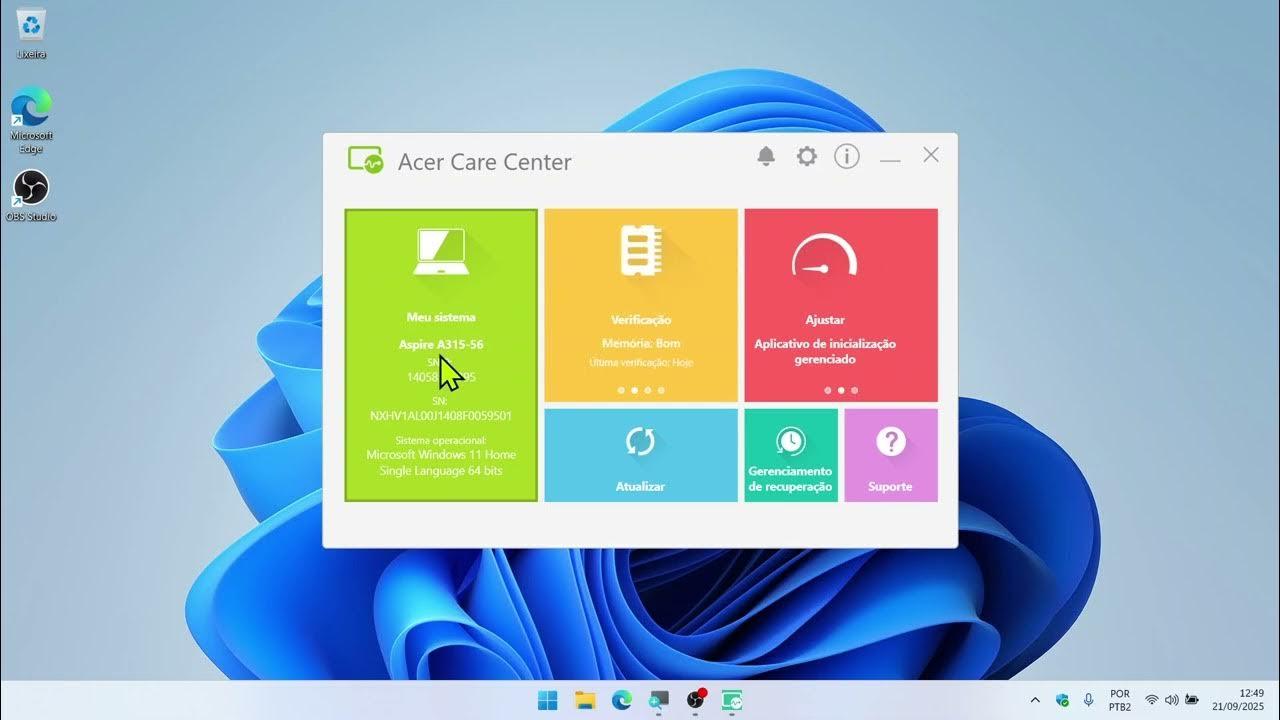
If you have an Acer computer with Windows 11 and the term Acer Care Center sounds familiar, but you're not sure what it is, how to use it, or if it's still compatible, you'll find a complete and straightforward explanation here. We'll cover what it's for, how to install it or recover it if it's disappeared, how to update it correctly, and what security issues have been identified in older versions.
Throughout this guide, we'll walk you through using Acer Care Center on Windows 11 , including options for managing battery life, updates, backups, and, very importantly, how to ensure you're not using a vulnerable version of the program. We'll also cover what to do if the tool doesn't appear on your computer, or if the Acer website indicates that your model isn't fully compatible.
What is Acer Care Center and what is it used for in Windows 11?
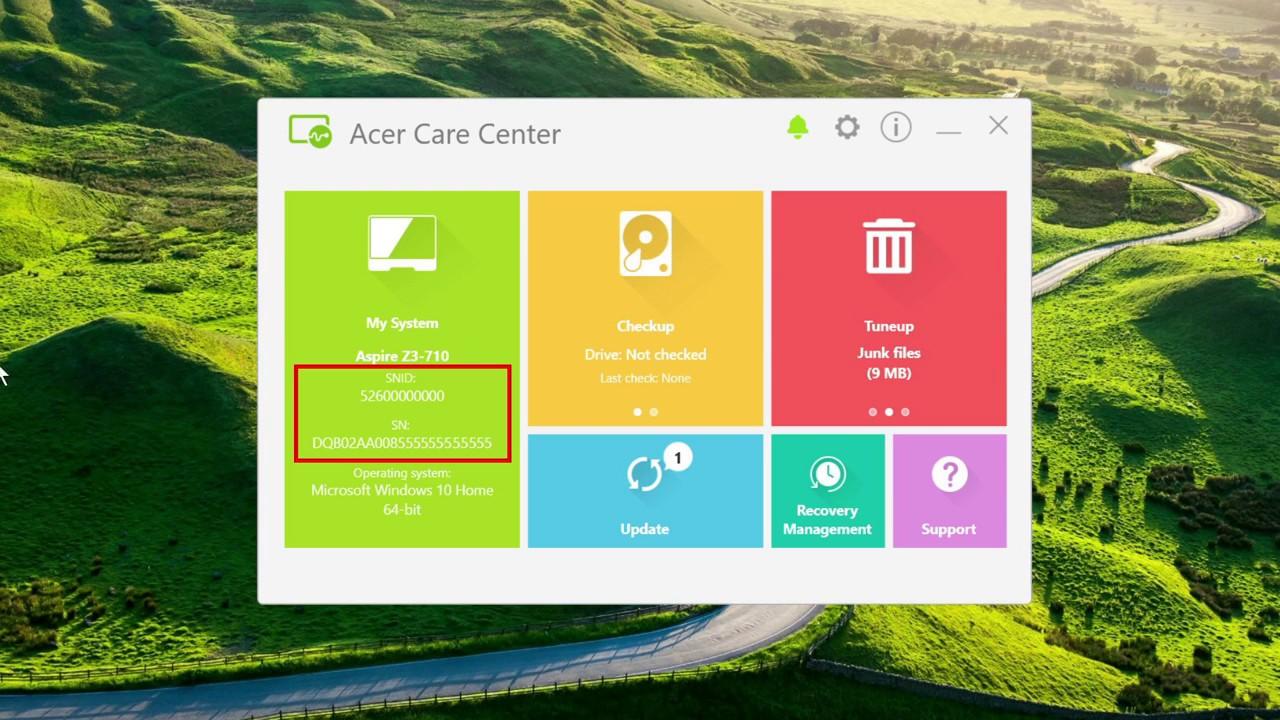
Acer Care Center is an official Acer application designed to centrally manage and maintain your PC : diagnostics, system status, driver updates, support, and, on some models, battery settings and system recovery.
In Windows 11, it remains useful as long as you have an updated version compatible with your model . It comes pre-installed on many Acer laptops , but after upgrading from Windows 10 or performing a clean reinstall, it often disappears, requiring you to find and reinstall it.
It's important to understand that it's not an essential tool for the computer to function, but it is very practical for centralizing maintenance tasks and taking advantage of specific Acer features, such as battery health monitoring or shortcuts to technical support.
In some newer devices, Acer also offers related applications such as Acer Control Center or simplified versions, but the operating logic is very similar: to bring together in one place the health, support and device update utilities.
Security vulnerability in Acer Care Center: what you should know
Acer has acknowledged a security vulnerability affecting certain versions of both Acer Care Center and Acer Control Center . This vulnerability has been registered under the identifier CVE-2021-45975 and requires you to update the program if you are using an affected version.
The problem is found in a specific range of software versions, so simply having Acer Care Center installed is not enough; it is essential to check the version number and ensure that a corrected or later version is being run.
The affected versions of Acer Care Center range from V4.00.3000 to V4.00.3034 . If your computer has a version within this range, Acer's official recommendation is to update as soon as possible to mitigate the security risk.
To close the security hole, Acer indicates that you must update to at least version V4.00.3038 of Acer Care Center, or any later version available for your model. Starting with that build, the vulnerability CVE-2021-45975 will be resolved.
This type of vulnerability often allows for privilege escalation or manipulation of internal system processes, so it's best not to ignore it. If you have a relatively recent Acer laptop and have never used the application, it's very likely that it's running one of the affected versions and you'll need to update it manually.
How to check if you have Acer Care Center and which version you are using
Before downloading anything, you should confirm whether Acer Care Center is already installed on your Windows 11 PC and, if so, which exact version you have. This information will tell you whether or not you fall within the range affected by the vulnerability.
To check this in Windows 11, you can use the system settings and the app's interface. The steps are simple and don't require advanced technical knowledge; just follow the correct order to locate the program.
First, you need to open Windows settings. Press the Windows key (⊞) and select the gear icon to open the Settings app. You can also right-click the Start button and choose "Settings" from the context menu.
Within Settings, access the Apps section . In Windows 11, you'll usually see "Apps" in the left column; go there and then open the "Installed apps" section or something similar, where you'll find a list of everything you have installed.
In the list of programs, scroll down or use the search bar to find the entry “Acer Care Center” . If it appears in the list, it's installed. Click on the entry or, if you prefer, launch the program from the Start menu by searching for “Acer Care Center”.
Once the application opens, you'll find an information icon (usually represented by a symbol similar to or an "i" in a circle). Tap that icon to see information about the application and the exact version number installed on your computer.
If the version number you see is between V4.00.3000 and V4.00.3034 , it means you are using a vulnerable version and need to update. If it is V4.00.3038 or higher , you already have a patched version and don't need to do anything else.
It's possible that Acer Care Center won't appear anywhere in your list of installed programs . In that case, it's not a version issue: you simply don't have the program on your computer, and you'll need to install it using the methods described below.
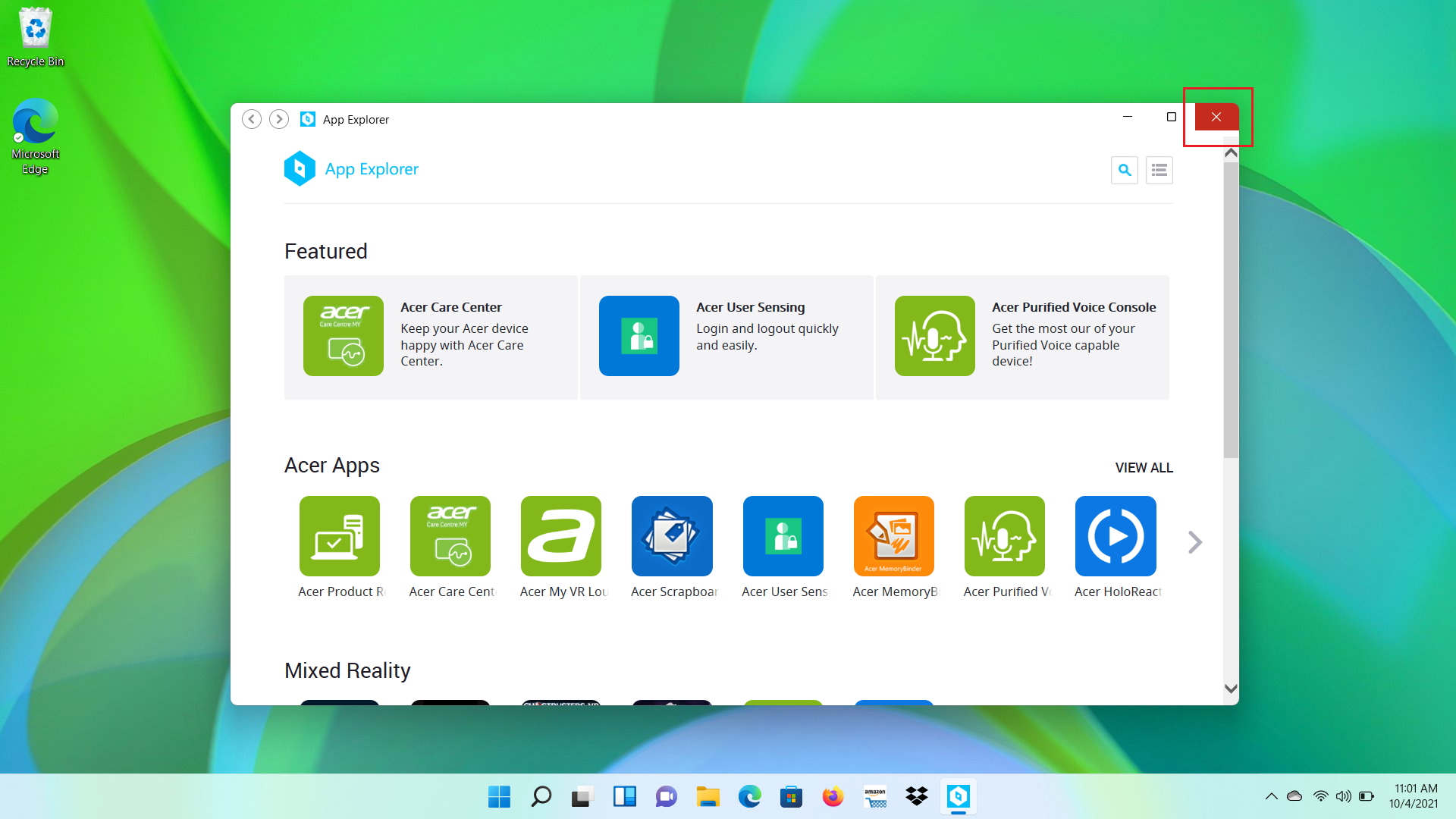
Method 1: Automatic Acer Care Center update on Windows 11
Acer Care Center is designed to update automatically in most cases. This means that if you already have it on your computer and the live update system is working correctly, the program should automatically download and install new versions as Acer releases them.
The live update mechanism usually activates automatically, so the user typically doesn't notice the process. However, it's advisable to manually verify that the update has indeed been performed on the latest available version, especially if you're concerned about the CVE-2021-45975 vulnerability.
To check, first make sure your PC is connected to the internet and open Acer Care Center from the Start menu. Once inside, take a moment to check if the program displays any pending update notifications or any buttons such as "Update now" or "Check for updates."
On many models, the application performs this process in the background, so simply leave it open for a few minutes to connect to Acer's servers. When it's finished, tap the information icon again () to check the currently installed version and verify that it's V4.00.3038 or a newer version.
If, after giving the live update system some time, the version is still outdated, or the program doesn't even show an update option, the best course of action is to go directly to the manual update method by downloading the installer from the official Acer website.
Method 2: Manual update and installation from the Acer website
If automatic updates don't work, if Acer Care Center doesn't appear in your list of applications, or if you've done a clean installation of Windows 11 and lost the Acer utilities, you'll need to download the installer from the brand's official website and configure it manually.
To do this, you need to go to the Acer support section and locate the "Drivers and Manuals" page . This is the starting point for downloading both drivers and specific software for your computer, including Acer Care Center when available for that particular model.
Once on the drivers page, use the search box to enter your serial number or SNID . This is usually printed on a sticker underneath your laptop or on the back/side of your desktop computer. Type the code into the corresponding field and click the "FIND" button or press Enter to have the website identify your device.
Once the page recognizes your model, you'll see different sections with downloads organized by type. Look for the section called "Application" and click on it to display the complete list of programs you can download for that computer, which should usually include Acer Care Center.
In the list of applications, locate the Acer Care Center entry and click the "Download" button next to it. A compressed file (usually in ZIP format) containing all the necessary files to install the application will be saved to your computer.
When the download is complete, open File Explorer and go to the folder where the ZIP file was saved (by default, the Downloads folder ). Right-click on the file and choose the "Extract all" option or something similar to extract the contents to a new folder.
Inside the extracted folder, you'll see several files; the one you're interested in is the installation executable, which is usually called "setup.exe" or "setup.exe/configuración.exe" depending on the language and package. Double-click on that file to start the Acer Care Center installation wizard.
Follow the on-screen instructions, accepting the license terms and choosing the default installation path unless you have a specific preference. When the wizard finishes, you should have Acer Care Center installed and ready to use on Windows 11 , with the latest version Acer has released for your model.
What to do if Acer Care Center does not appear or seems incompatible with Windows 11
In some cases, after upgrading from Windows 10 to Windows 11, users discover that Acer Care Center has completely disappeared from the system. When searching for it in the Start menu or the list of applications, it's simply not there, even though it was previously pre-installed.
Additionally, when attempting to check compatibility on the Acer website, the online tool may display a message indicating that the device is not officially compatible with Windows 11, or that the Acer Care Center suite is not offered for that specific model under this operating system.
The fact that the compatibility tool displays this warning doesn't mean the computer can't run Windows 11, but rather that the manufacturer doesn't guarantee 100% support for all its utilities in the new operating system version. This could affect applications like Acer Care Center, which may lack a dedicated Windows 11 version.
In these situations, you have several options. The first is to try downloading directly from "Drivers and Manuals" using the serial number or SNID, as we saw earlier. If Acer Care Center appears there, you can still install it, even though the general compatibility page isn't very promising.
If Acer Care Center for Windows 11 isn't listed in the applications section for your model, it's likely that Acer has officially discontinued support for that specific device. In this case, you'll usually have to use standard Windows tools (Settings, Diagnostics, Windows Update , etc.) to access most of the features the app offered.
Some users are also wondering if they can use alternative apps like Care Center S from the Microsoft Store , or other maintenance tools . Generally, these apps are designed for specific functions, and it's important to verify that they are official Acer apps before installing them to avoid mixing third-party solutions that might cause conflicts or not offer the same level of integration.
If your priority is adjusting things like battery management, it's also worth checking out Windows 11's native power and battery options , which have improved compared to previous versions and can partially replace what Acer Care Center offered in some areas.
Battery management and other key features of Acer Care Center
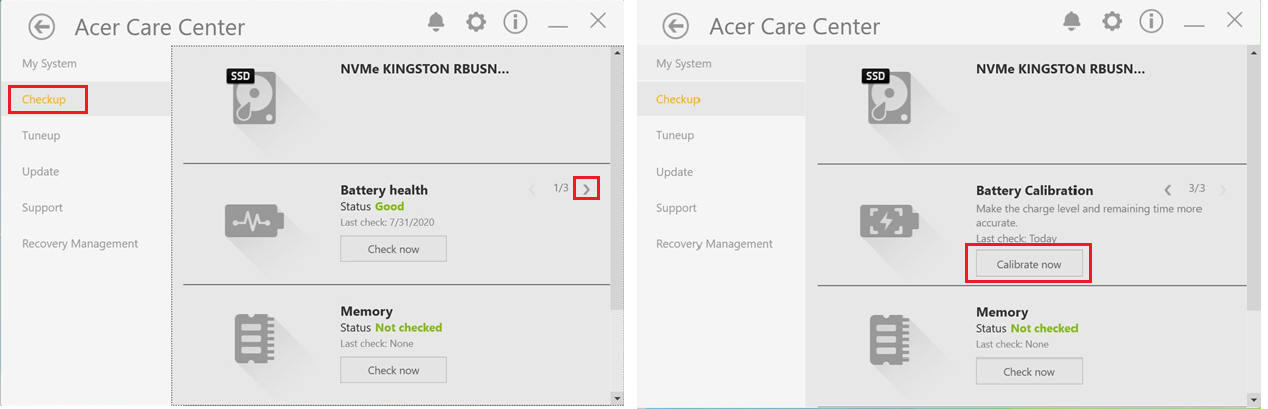
One of the features that generates the most interest in Acer Care Center is battery configuration , since some laptop models allow you to adjust charging limits or modes designed to extend battery life when the computer is mostly used plugged in.
These options usually appear in sections related to system health or device care. Depending on the model, you may find usage modes that restrict the maximum charge to a certain percentage (for example, 80%) to reduce the battery's chemical degradation over time.
In addition to battery testing, Acer Care Center includes tools for checking hardware health , such as basic memory, hard drive, and SSD tests , as well as quick system diagnostics. These tools don't replace professional technical support, but they do provide an initial indication of whether everything is functioning correctly.
The application also centralizes access to driver and BIOS updates specific to your Acer model, saving you the trouble of searching for them manually. While Windows Update performs many of these tasks, manufacturers sometimes release optimized versions that are only available through their own software.
Another set of features typically included in Acer Care Center is related to backups and recovery . From the application, you can create restore points or access Acer recovery tools, which is very useful if the system starts experiencing serious problems or if you want to restore the computer to its factory settings.
Finally, the app provides direct links to official Acer support , manuals and specific documentation for your device, as well as model information, serial numbers and other useful data you will need if you have to process a warranty or request technical assistance.
With all of the above, it becomes clearer why many users want to recover Acer Care Center after upgrading to Windows 11 or reinstalling the system: it brings together in one place many maintenance tasks that would otherwise have to be done by combining several different tools.


Passionate writer about the world of bytes and technology in general. I love sharing my knowledge through writing, and that's what I'll do on this blog, show you all the most interesting things about gadgets, software, hardware, tech trends, and more. My goal is to help you navigate the digital world in a simple and entertaining way.