- Use usoclient in Windows 10/11 and wuauclt on 7/8.1; for maximum flexibility, PSWindowsUpdate on PowerShell.
- Automate with Task Scheduler and manage at scale with WSUS and GPO, filtering by products and classifications.
- Troubleshooting with DISM, wusa and commands re-registration; respect security with appropriate execution policies.
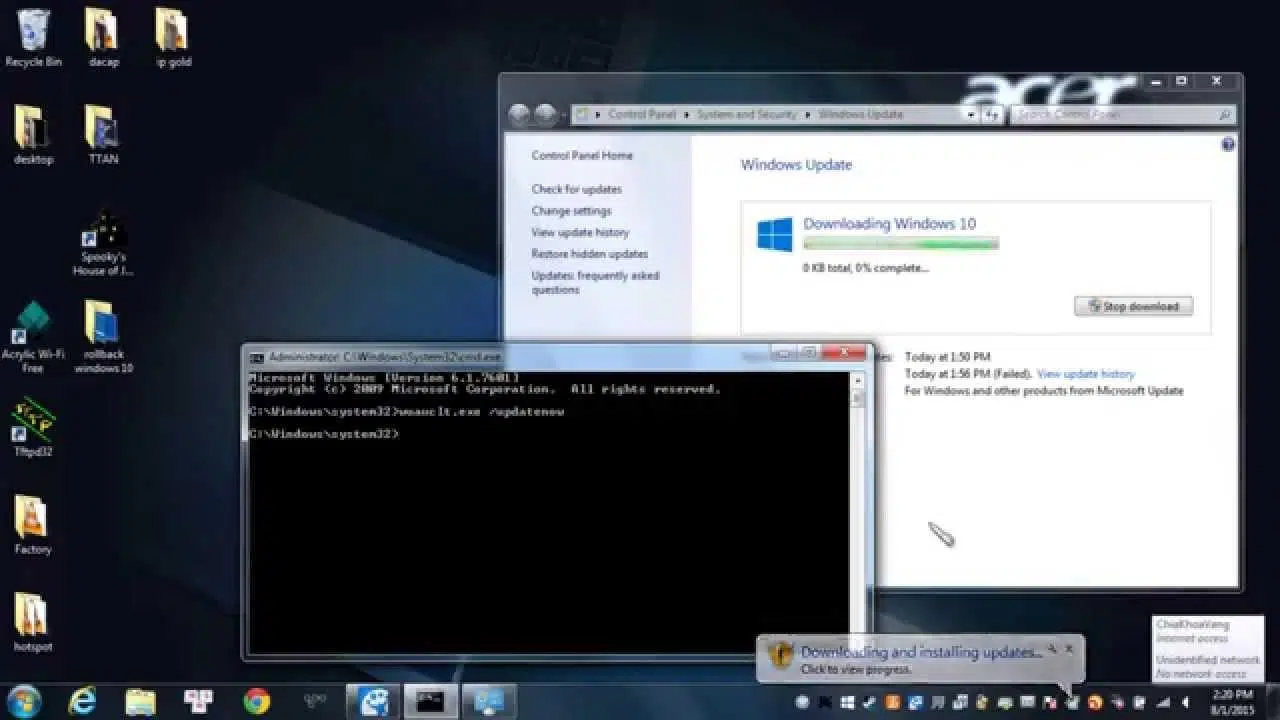
If you need to precisely control how and when Windows updates are downloaded and installed, there are several paths: the graphical interface of Windows Update, the classic commands (wuauclt and usoclient) and the power of PowerShellEach approach offers advantages, limitations, and security nuances that should be understood before automating anything on personal devices or corporate fleets.
In this guide you will find a detailed explanation, with examples and warnings, for using usoclient in Windows 10/11, wuauclt in Windows 7/8.1, the PSWindowsUpdate module in PowerShellas well as tactics for scheduling tasks, managing WSUS through policies, and resolving common errors. All of this with a focus on granular control, without losing sight of Microsoft's official recommendation: prioritize the use of Windows Update.
What are wuauclt and usoclient, and when to use each one
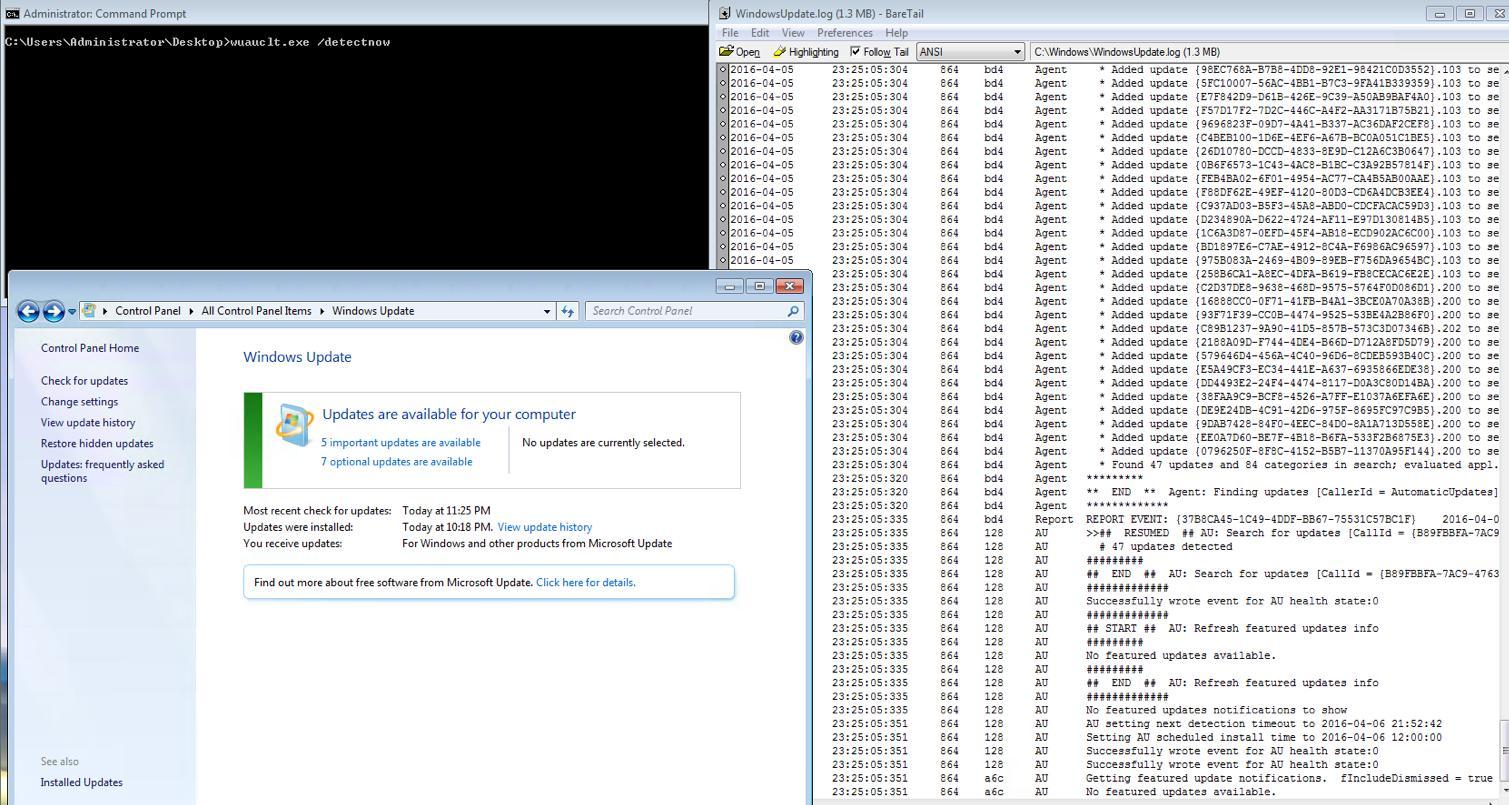
For years, the command-line client for managing Windows Update was WUAUCLT (Windows Update Automatic Update Client)This binary system functioned fully until Windows 7 and Windows Server 2012 R2, but in Windows 10 and Server 2016 it was deprecated in favor of the new USO Client (usoclient.exe), which is part of the modern version update orchestration system.
The practical rule is simple: in Windows 10 and Windows 11 uses client, And in Windows 7/8.1 uses wuaucltEven so, in current environments the most flexible and scalable option is PowerShell with the module PSWindowsUpdatewhich allows you to write scripts, filter by KB, register reports and manage remote computers.
Keep in mind that several commands require elevated privileges. Always execute CMD o PowerShell “as Administrator” Or you'll see permission errors, operations that won't start, or actions blocked by policies.
usageclient commands in Windows 10 and 11
The binary useclient.exe It resides in %windir%\System32 and is responsible for tasks such as scanning, downloading, and installing updates under the umbrella of the update orchestration service. From an elevated CMD or PowerShell console, you can invoke:
UsoClient startscan— detection begins of updates.UsoClient startdownload— begins the patch download.UsoClient startinstall— throws the installation of downloaded files.UsoClient RefreshSettings— reload configuration Yes, there have been changes.UsoClient RestartDevice— restart the computer to complete installations.UsoClient ScanInstallWait— scan, download and install in a single step.
These commands are usually executed in a logical order, waiting for each phase to finish before moving on to the next. ScanInstallWait is very useful For quick manual processes because it chains everything together. If you notice that "nothing happens" except that the Windows Update interface refreshes, don't worry: USO Client delegates tasks to the orchestration service and some phases may be managed asynchronously or conditioned by policies.
If you get an error, check the exact spelling of the subcommand and that the console is elevated. Often the problem is a misplaced capital letter or space, or that the session lacks administrator privileges.
Force updates in Windows 7 and 8.1 with wuauclt
In previous systems, the practical equivalents are:
wuauclt /detectnow— Check for updates.wuauclt /updatenow— download and install the pending.wuauclt /detectnow /updatenow— chains detection and update.wuauclt /resetauthorization— restores authorization Client.wuauclt /reportnow— report the state to the WSUS server (if applicable).
It's best to launch them sequentially (detection → download/installation) and, when finished, Restart if the system prompts you to. to complete changes. That said, it is critical to emphasize that Windows 7 reached its end of support in January 2020 and Windows 8.1 in January 2023.Therefore, even if you execute these commands, You will not receive new security updatesUse them only in laboratories or isolated environments and under your own responsibility.
PowerShell: PSWindowsUpdate for fine control
For administrators and power users, PowerShell offers the best balance between automation, granular filters, and remote execution capabilities. The recommended module is PSWindowsUpdate, available in the PowerShell Gallery and integrated with modern Windows 10/11 and Windows Server.
Basic installation from the module (requires elevated console):
Install-Module PSWindowsUpdateSometimes, additional departments will be requested; accepts the questions to complete the installation. Then, import the module:
Import-Module PSWindowsUpdateTo use Microsoft Update (includes Office and other products), adds the service:
Add-WUServiceManager -ServiceID 7971f918-a847-4430-9279-4a52d1efe18dList of available cmdlets in the module:
Get-Command -Module PSWindowsUpdateThere are two families of names depending on the module version; you'll see commands like Get-WindowsUpdate / Install-WindowsUpdate and also Get-WUInstall / Invoke-WUInstallBoth coexist through aliases. Key examples:
- View available updates:
Get-WindowsUpdateoGet-WUInstall -ListOnly. - Install everything available:
Get-WindowsUpdate -InstalloGet-WUInstall -AcceptAll. - Install and restart if necessary:
Get-WindowsUpdate -Install -AcceptAll -AutoReboot. - Check if a restart is required:
Get-WURebootStatus.
If you want to act on a specific KB, Filter by item ID:
Get-WindowsUpdate -KBArticleID KB2267602,KB4533002 -InstallTo hide an update specific and that the system ignores it:
Hide-WindowsUpdate -KBArticleID KB5002324If you're looking for prevent certain KB files from being installed when applying a general batch:
Install-WindowsUpdate -NotKBArticle "KB5002324, KB5002325" -AcceptAllTo see what's installed and its historial, strip of:
Get-HotfixBeyond the basics, the module shines in fleet scenarios: remote equipment management, report generation, email notifications, programming and complianceThese capabilities make life easier for MSPs and IT departments:
- Remote management: orchestrates installations across multiple computers using remote PowerShell sessions.
- Automation: combines with the Task Scheduler for maintenance windows.
- Reports and notices: records results and sends status notifications.
- Compliance: creates compliance reports for audits and management.
Implementation policy: security before and after
PowerShell includes policies to control which scripts can run. By default, Get-ExecutionPolicy usually returns RestrictedThis blocks scripts and some newly installed modules. If you receive errors when importing or running PSWindowsUpdate, you may need to temporarily relax the policy.
Set-ExecutionPolicy UnrestrictedAfter completing the tasks, it is essential to restore a secure configuration. RemoteSigned This is the usual recommendation, allowing local scripts and requiring a signature for those downloaded from the Internet:
Set-ExecutionPolicy RemoteSignedCheck the change with Get-ExecutionPolicy. Remember Leaving Unrestricted permanently is not a good ideaespecially on systems with users without privileges or with careless download habits.
Automate with the Task Scheduler
If you want the machines to update automatically in specific windows, create a scheduled task that calls PowerShell. taskschd.mscSelect “Create task”, check “Run with highest privileges”, and define the trigger (daily, weekly, at startup, etc.). In “Actions”, specify:
Programa o script: powershell.exe
Argumentos: -Command "Install-WindowsUpdate -AcceptAll -AutoReboot"
In “Conditions” you can force it to only run if there is internet connectivityThis recipe downloads and installs everything pending and restarts automatically if necessary, which fits very well with periodic maintenance.
WSUS: Group Policy, Templates, and Client Registration
In enterprise networks, WSUS reduces bandwidth consumption and centralizes control. The recommended way to configure it is with GPO in Active Directory to point the computers to the WSUS server and define the behavior of Automatic Updates.
Typical steps in the GPMC (Group Policy Object Editor): Template loading, Windows Update configuration, and intranet WSUS orientationAlthough ADMX is used today, the classic documentation mentions wuau.adm as an administrative staff.
Set up "Configure Automatic Updates"It allows you to choose between notifications, automatic downloads, and scheduled installations. It is also key..."Specify the location of the Windows Update service on the intranet”, where you enter the WSUS URL, for example http://NombreDeServidor in both boxes (detection service and statistics server).
After applying the GPO, wait for the update cycle (approximately 90 minutes with random scrolling) or speed it up with gpupdate / forceTo initiate manual detection on the client, launch:
wuauclt.exe /detectnowIf a computer does not appear in WSUS or does not register correctly, try this sequence on the elevated client: gpupdate / force → wuauclt / detectnow → and if it persists, wuauclt /resetauthorization /detectnowThis forces the client to re-authenticate and communicate with WSUS.
In addition, WSUS offers filtered by products and ratingsFrom PowerShell (on the WSUS server) you can list products (Get-WSUSProduct), classifications ( )Get-WSUSClassification), synchronize with Microsoft Update (Set-WSUSServerSynchronization -SyncFromMU -Confirm) and check for updates (Get-WSUSUpdateWith that approach you can, for example, distribute only security updates.
Don't forget the role prerequisites: .NET Framework, IIS and (optionally) SQL ServerWSUS allows working without a direct internet connection in specific topologies and managing groups for different approval rings.
Troubleshooting: Repair, uninstall, and diagnose
If Windows Update fails to download or apply patches, there may be corruption in components. Repair the system image with DISM and try again:
dism.exe /Online /Cleanup-image /RestorehealthTo uninstall a problematic update when you know the KB number, use the Windows Update standalone installer (wusa):
wusa /uninstall /KB:1234567If you don't know the identifier, list what's installed with:
Get-HotfixRemember that many operations require ReiniciarAnd if you work with WSUS and see duplicate computers or inconsistent states, the commands wuauclt /reportnow y wuauclt /resetauthorization They help force a clean re-registration with the server.
Strict control: disable automatic searches of UsoClient.exe
In Windows 10/11, the orchestrator schedules tasks such as “UpdateOrchestrator\Schedule Scan"that they call UsoClient.exeIf you need to "step on the brakes" and the system cannot scan automaticallyThere is an advanced procedure that modifies the ownership and permissions of that binary. Note: it is sensitive and may break with future updates.
From an elevated CMD, take ownership and reduces inherited permissions (localized names for Spanish systems):
takeown /f "%windir%\System32\UsoClient.exe" /a
icacls "%windir%\System32\UsoClient.exe" /inheritance:r /remove "Administradores" "Usuarios autentificados" "Usuarios" "System"
As a result, the system will not be able to launch the planned searches. Windows Defender will continue updating signatures because of its own channel, so that part doesn't stop with this trick. To return to the original state, reset permissions and owner:
icacls "%windir%\System32\UsoClient.exe" /reset
icacls "%windir%\System32\UsoClient.exe" /grant Administradores:f
icacls "%windir%\System32\UsoClient.exe" /setowner "NT SERVICE\TrustedInstaller"
icacls "%windir%\System32\UsoClient.exe" /grant "NT SERVICE\TrustedInstaller":f
Use it as a last resort and document the change well. Modifying system files involves risksSo consider alternatives such as postponing restarts and pausing updates from the interface.
When is it best to use Windows Update "plain"?
Microsoft recommends using Windows Update by default. The reason is that the platform detects the architecture and publishing It scans your computer and downloads only what's relevant, preventing you from downloading unnecessary packages. It also offers practical extras: history, uninstallation of recent updates, and pause controls.
Commands and scripts make sense if Windows Update fails, if you want automate fleets Or if you need repeatable scripts with error handling and logging. Even so, avoid forcing it. patches not applicableIn theory the system rejects them, but it's not a good idea to play with fire in production machines.
Microsoft Update Catalog and other alternatives
Another way is the Microsoft Update CatalogWhere downloads Manually package MSU or CAB packages for your version and architecture. It offers complete control and is useful for offline devices or with prior validation requirements. The trade-off is that you lose automation and have to monitor dependencies and restarts.
Finally, if your questions are very specific or you encounter unusual errors, it's a good idea to contact the Microsoft technical community or their support team. Q&A forumYou will often find documented cases with proven solutions for WSUS scenarios, policies, and non-reporting clients.
Master these pieces —usoclient, wuauclt, PSWindowsUpdate, WSUS and the Task Scheduler— It allows you to adjust the update experience to your reality: from the advanced user who wants to trigger a ScanInstallWait From punctual to the administrator who generates compliance reports, hides problematic KBs, and schedules windows with automatic restarts. Keep security in mind (execution policy and permissions), and support deployment on Windows Update whenever possible, and reserve system “hacks” for truly justified situations.

Passionate writer about the world of bytes and technology in general. I love sharing my knowledge through writing, and that's what I'll do on this blog, show you all the most interesting things about gadgets, software, hardware, tech trends, and more. My goal is to help you navigate the digital world in a simple and entertaining way.