
File Explorer is one of the many useful tools that Windows provides , allowing you to access files and folders on your PC. However, it sometimes malfunctions and stops working. In this post, we'll see what to do when File Explorer in Windows 10 isn't working.
We will offer you the main causes of this problem, as well as several methods that you can apply to try to solve the problem yourself.
In addition, we also present a list of Windows-compatible applications and software that perform the same function and can be used as a viable alternative to File Explorer . Let's begin.
What is File Explorer?
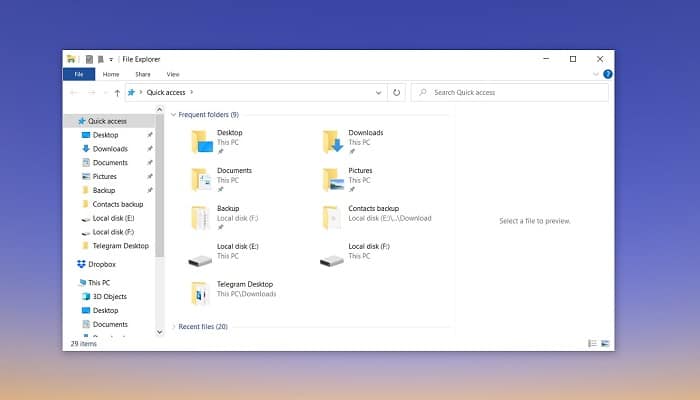
File Explorer , also called " Windows Explorer ", is a file management application that is natively integrated into the tools offered by Windows.
This tool was launched by Microsoft, in its Windows 95 operating system, and due to its great acceptance, it remained as part of the system, in later versions.
The File Explorer has a very easy-to-use and convenient graphical interface for users to access and manage drives, folders, and the files contained on your hard drive.
As we already mentioned, this tool is already part of the Windows operating system, and this system presents it from the same desktop interface.
All Windows users open File Explorer to manage all their documents from there.
How to Access File Explorer in Windows 10
There are several ways to access Windows File Explorer , let's take a look at them:
- From “This PC”. When your computer is on, you will find an icon called “This PC” on the desktop. Double-clicking it will bring you the “File Browser".
- From the taskbar. Normally, you can start some programs from the taskbar, including the “File Browser”. You will get these programs, anchored natively.
- From Cortana. Every edition of Windows 10 comes with Cortana intelligent assistance. If you don't have “This PC” on the desktop or “file browsing” on the taskbar, you can type “File Browser” into the Cortana search box and use it from there.
- From the Start menu. By clicking on the Windows Start menu, you can easily find the item called “File Browser".
- From the Power User Tasks menu. Press the “Windows and X” keys together to load the Power User menu. In this menu you will see the “File Browser".
- From your shortcut. Pressing the “Windows and E” keys together will cause the “File Browser” will appear immediately.
You might also be interested in How to Create a File in the Command Prompt in Windows
Windows 10 File Explorer Not Working
Even though File Explorer is used frequently every day, you'll sometimes find that it doesn't work. One of the most common problems is that File Explorer freezes for no apparent reason.
Let's look at some methods that will help you solve the problem.
1. Use CMD
You can use the Command Prompt to unlock File Explorer . This method is usually very effective, although many people dislike using the Command Prompt . Let's see the steps.
- Press the “ keysWindows + X” at the same time to launch the advanced user menu.
- Then choose the option “Command Prompt (Admin)” from the list of options.
- In the line window commands, writes the following:
-
netsh
-
- Then press “Enter".
- Then write the following
-
Winstock Reset
-
- And press “Enter".
- Now restart your computer and check if the problem is resolved.
2. Restart File Explorer in Task Manager
You can also use the " Task Manager " to restart the "File Explorer" if you notice that it is frozen and unresponsive.
- Press "Ctrl + Shift + Esc” to start the “Task Manager".
- Right click on “File Browser” in the “Task Manager”.
- Then select "Finish homework".
- Click on the tab “Archive” in the top left corner and choose “Run new task".
- Now write "explorer.exe” in the box and press “Log in".
- Click on "Accept".
This way, File Explorer will restart quickly. Then, you can check if the problem has been solved.
3. Restart the Explorer.exe process with the command prompt
Few people know that File Explorer can be restarted using commands in the command prompt. If you can't start File Explorer normally or it's unresponsive, you can restart the explorer.exe process with a few simple commands.
- Writes "cmd” in the Cortana box in Windows 10.
- Now click on the best result to open the Command Prompt window.
- Type the following in the command prompt window:
-
taskkill /f /im explorer.exe
-
- Then press “Enter”. This command will terminate the process exe. You will see a blank screen behind the Command Prompt window.
- To start the process exe again, write:
-
start explorer.exe
-
- And then press "Enter".
Then your desktop icons, taskbar, and all other desktop items will reappear.
4. Run System File Checker
The System File Checker is a built-in Windows utility that allows users to scan Windows system files for damage and restore corrupted files.
If your Windows 10 File Explorer is unresponsive, it could be due to corrupted files on your system. Many users report that they have fixed this error using the System File Checker . You can try this method and see if it works for you as well.
- Writes "cmd” in the Cortana search box in Windows 10.
- Find the best result, right click and choose “Run as administrator".
- Then write the following
-
SFC / scannow
-
- Now press "Enter".
- After verification, restart your computer and confirm that the issue has been resolved.
5. Clear File Explorer history
Most of the Windows users who encounter Windows Explorer stuck or not responding said that this method worked for them. So, if you have tried all the above solutions and none of them worked for you, you can try this method.
- Writes "Control” in the Windows 10 Cortana search box.
- Then click on “Control panel” in the best result found.
- Look for the "File Explorer Options” in the interface and click on that function.
- In the new window, go to the “Privacy policy”, and click the “Delete".
- Now, click on “Accept".
These steps will clear the history of File Explorer . Now check that File Explorer is working.
6. Change display settings
It may seem like display settings have nothing to do with File Explorer stopping working, but they have a big impact on your computer if they're not set to the recommended sizes for text, apps, or other items.
As a result, unsupported text and display sizes may crash File Explorer. If you have changed the size of text, apps, and items to sizes that are not recommended, reset them by following the steps below.
- Right-click the Windows Start button.
- From the drop-down menu, choose “Configuration".
- In the “ windowConfiguration” Windows, select “System".
- In the display panel, change the text size to 100% or reset to the recommended point.
Check if you can now access File Explorer.
7. Create a new user account
Creating a new user account can also resolve the issue of File Explorer not working. After creating and logging into a new account, Windows 10 File Explorer may function normally again.
If you only have one user account on your PC, you can follow Microsoft's instructions to create a new local user account and verify that File Explorer works normally as before.
Using a new account will remove recently used files in Quick Access. If this method resolves the error, you can try moving all data from your old account to the new one later.
The only problem is that you may need to reinstall some programs on your new account. If you find this inconvenient or complicated, try the solutions below.
8. Update Windows 10 to the latest version
If you're not running the latest version of Windows 10, it's recommended that you upgrade immediately, as Microsoft fixes most known issues through updates.
- Right click on the windows start menu.
- Select now “Configuration".
- When you view the “Configuration” Windows, select “Updates and security".
- Then click on "Windows Update".
- Now click on the button “Search for updates” to install the latest updates.
After performing the pending update, check if Windows Explorer is working.
9. Uninstall the update
Sometimes it may happen that the latest update performed by Windows Update comes with an error, or was not executed correctly. Remember that these updates are performed automatically.
In order to resolve the issue, you need to find the update and uninstall it. Let's look at the steps to follow.
- Click on Windows Start menu.
- Then go to “Configuration".
- In the “ windowConfiguration", Choose "Update and security".
- In the left panel, select “Windows Update".
- Now on the right panel, select “View update history".
- Then click on “Uninstall updates".
- Then, in the new window, check for the most up-to-date item. If you can find one, right-click on it and select “uninstall".
- Now, restart your computer and then check if the problem has been removed. Windows 10 File Explorer Not Working.
10. Restore Windows 10 to an earlier date
If the " System Restore" feature is enabled on your PC, you can try restoring Windows 10 to a previous date when it was working normally. Follow the steps below to perform this method.
- Writes "Create system restore” in the Windows 10 Cortana search box, and choose the best result to open the System properties.
- In the section "System protection”, Click on“System Restore”. If restore is not enabled, you will find this button grayed out and disabled.
- Follow the on-screen instructions and select a restore point to restore your system to a date before your File Explorer was working normally.
After the restore is complete, restart your PC and then check if File Explorer is working properly.
Alternatives to Windows File Explorer
File Explorer in Windows 10 is a very useful tool for users. However, for many people, it lacks customization and features that would make it more efficient.
When Windows 10 File Explorer doesn't work, many people prefer to try other similar applications. That's why we've brought you some alternatives.
1. Multi Commander

Multi Commander is a file manager replacement for Windows 10 and other versions of the Windows operating system. Multi Commander 's main advantage over the default Windows 10 file manager is its customizable interface.
While the default file manager has a fairly decent user interface, it's not customizable. Multi Commander , however , lets you create a layout that suits your needs and preferences.
Multi Commander also has a multi-panel interface, allowing you to work comfortably with multiple folders without having to launch multiple instances of the application.
What's also noteworthy about Multi Commander is its scripting engine , which allows you to automate tasks. It also supports plugins for extending its functionality.
In terms of file compatibility, Multi Commander lets you browse common file types, view images, and edit MP3 tags . Multi Commander also treats FTP as a virtual file system, allowing you to explore network servers and shared resources.
2. Frigate3

Frigate3 is fairly old software and doesn't appear to have received updates in quite some time. However, it seems to work well on Windows 10 machines.
In terms of functionality, Frigate3 has been outstanding in the past, and it's still quite enjoyable. It has a flexible and customizable interface, several built-in file viewers for Excel, HTML, RTF , and other files, a built-in calculator and notepad, and more.
Frigate3 also supports an unlimited number of simultaneous file operations, CD burning, file comparison, file formats, folder synchronization, and even has a size manager that lets you find large files on your disk.
Frigate3 is also compatible with Total Commander add-ons, so the two applications are interchangeable. Best of all, this application is completely free.
3.Total Commander
Total Commander is updated relatively frequently, which is a very positive sign as it demonstrates the developers' commitment. Therefore, this is a modern piece of software that will work perfectly with Windows 10.
Total Commander is especially good for working with multiple files. The application features a convenient user interface with two side-by-side file windows, which is excellent if you often work with several folders simultaneously.
The application also lets you compare files and synchronize directories. Another great feature of Total Commander is that it allows you to rename multiple files simultaneously.
Total Commander supports regular expressions, allowing you to create shortcuts for frequently used actions. It also supports file storage out of the box and allows the use of plugins.
4. Directory Opus

The developers update Directory Opus very frequently; if you take a look at the application's release page, you'll see that Directory Opus receives updates once or twice a month.
So, if you want your file manager application to be compatible with the newest features of Windows 10, Directory Opus might be perfect.
If you have a 4K monitor, Directory Opus is also excellent because its user interface is designed to work with them. Therefore, you shouldn't have to deal with small windows and interface elements.
In terms of functionality, Directory Opus supports all the essentials (filtering, sorting, searching, and reading files) and also has some interesting features. It allows you to color-code files, as well as assign status icons and descriptions to them.
Directory Opus also supports keyboard macros and batch renaming to facilitate high-volume work. The tabbed interface also makes working with multiple folders easier.
5. Free Commander

Free Commander is a simple yet powerful file manager for Windows 10. It shares many features with this and other tools on the list, but it also has some interesting additions.
Perhaps the most useful feature of Free Commander is its portability: you can copy the installation directory to a USB drive and use your settings on another computer.
Free Commander once again features a tabbed interface along with a horizontal and vertical panel structure. The application also provides easy access to system folders and allows you to perform folder synchronizations and comparisons.
For improved searching, Free Commander supports file filters. The multi-rename tool also lets you perform batch renames, while the DOS command-line interface gives you access to more advanced file management commands.
One thing to keep in mind with Free Commander is that, although it's compatible with 64-bit Windows, it's a 32-bit program and therefore doesn't have full access to the Control Panel and doesn't see entries from 64-bit Windows programs.
Please keep these limitations in mind.
6. Xplorer2

Unlike Free Commander, Xplorer2 comes in both 32-bit and 64-bit versions, so it will work seamlessly on a 64-bit system. It's also frequently updated, which is a point worth noting.
Xplorer2 is a paid application that currently costs around $30, although you have the option to try it for free for 21 days.
In its most advanced version, it supports portable/network deployment, fast desktop search, and its users receive priority customer support.
It also supports folder tabs and dual panes, advanced search, file management, and file preview. Xplorer2 is also fully customizable, allowing you to tailor the application to your unique needs and preferences.
It also supports file name color coding and appending.
7.XYplorer

XYplorer is a file manager designed for the latest versions of Windows 10 and Server, and also works with Windows XP and Server 2003, in both 32-bit and 64-bit versions.
One of the features of XYplorer is that it is portable, requires no installation, and can be transferred to another machine via a USB drive.
XYplorer is also programmable, allowing you to define automated actions to save time. The tabbed interface lets you easily manage multiple tabs. The customizable interface allows you to adapt it to any need.
This app is actively supported by the developers: the developers seem to take into account the opinion of each and every user, and the app is updated very frequently.
8. One Commander

The latest update to One Commander is truly excellent, with performance improvements, a more responsive design, and greater customization. It's fully compatible with Windows 10 and Windows 11 , which is a great achievement considering modern and up-to-date systems.
One Commander 's Twitter account posts weekly updates on its development and improvements. It has a free version for personal use and a paid version for professional use. Both plans include both portable and installed versions.
The developer keeps the program up to date, based on user feedback and requested improvements. This ensures that it is constantly evolving, aiming to be one of the best file explorer programs on the market.
To close
You might also be interested in Windows Update Problems | 5 Solutions
Having reached this point, we assume you have a better understanding of how Windows 10 File Explorer works . We hope that one of the methods outlined will help you resolve your issue with Windows Explorer.
And if you can't find a solution, you can choose some of the alternatives we have mentioned. Many of them are even free.

Table of Contents
- 1 What is File Explorer?
- 2 How to Access File Explorer in Windows 10
- 3 Windows 10 File Explorer Not Working
- 3.1 1. Use CMD
- 3.2 2. Restart File Explorer in Task Manager
- 3.3 3. Restart the Explorer.exe process with the command prompt
- 3.4 4. Run System File Checker
- 3.5 5. Clear File Explorer history
- 3.6 6. Change display settings
- 3.7 7. Create a new user account
- 3.8 8. Update Windows 10 to the latest version
- 3.9 9. Uninstall the update
- 3.10 10. Restore Windows 10 to an earlier date
- 4 Alternatives to Windows File Explorer
- 5 To close