
Would you like to know why your WiFi isn't working properly? WiFi connection problems can frequently occur due to faulty hardware , incorrect installation, or a poor network from your internet service provider.
These WiFi issues need to be fixed quickly to ensure a good connection experience. Here we will show you the causes, solutions, and alternatives you can use when this problem occurs.
What are the most common WiFi connection problems?
The main problem with Wi-Fi is a slow connection despite a good internet signal. This Wi-Fi connection problem results from insufficient speed , which reduces connection performance and hinders a good connection experience.
There are several causes that can explain slow Internet speed:
- There are too many connected devices simultaneously
- The Internet network offers a low speed.
- La xDSL connection is bad
Fiber optic is a technology that allows for higher speeds compared to ADSL.
Here you can read about: 9 Types of Internet Advertising That Exist
Why does the Internet network disconnect regularly?
Sometimes, your Wi-Fi network may disconnect frequently , meaning it unexpectedly disconnects your connected device before restarting and reconnecting. This Wi-Fi connection problem is likely due to a poor connection or a faulty internet modem.
- Verifica the power supply
- Verifica the connections
- Check the status of the connected equipment
- Replaces the Internet box (modem) in case of failures
It is recommended to turn the Internet box (modem) off and on after checking the connections to reestablish the WiFi connection.
If the connection keeps disconnecting automatically, it's likely due to an IP address conflict , meaning a loss of IP address. Check the connection settings in your network properties: they should be set to automatic for the IP address.
These settings can be accessed through the Network Manager in Windows or System Preferences in the OS. It's also recommended to verify that the computer is using the DHCP protocol, rather than the boot protocol or a manual IP address configuration.
What is DHCP?
It is a protocol that allows a computer that connects to a local area network to dynamically (automatically) obtain IP settings without the intervention of a third party.
How to troubleshoot connection issues if WiFi is not working?
Now, let's look at the steps to take to fix your WiFi connection problems. We recommend that you follow each of the methods step by step until you find the one that best suits your situation.
Solution 1: Restore the connection if WiFi is not working
Since WiFi connection problems have various and varied causes, the solutions to restore your WiFi connection will depend on the problem identified. In certain cases, a technical intervention will be necessary to repair your WiFi connection problem through your laptop.
A network access problem is the most common Wi-Fi connection issue and the easiest to fix. If you have a poor or nonexistent connection, there are several solutions you can try before contacting your internet service provider's support.
It is recommended to perform these actions in the case of a connected WiFi but without Internet access.
- Step 1:: reconnect your computer to the Internet
- Step 2:: Restart your Internet modem box
- Step 3:: Unlock your address MAC
WiFi connection problems can also result from the connected device being too far from the internet modem. In this case, the WiFi network doesn't reach the connected device optimally and remains unable to provide a satisfactory connection experience.
In this case, it's necessary to install a WiFi range extender to allow the WiFi network to be broadcast throughout the house. Installing a range extender is extremely simple and will allow the occupants of a home to benefit from the internet wherever they are.
Solution 2: Improve the quality of your WiFi network
There are several simple things you can do to optimize and improve the quality of your Wi-Fi network . It's important to take these simple steps before restarting your internet modem or contacting your internet service provider's customer support. Just follow these recommendations:
- Place the Internet box in the center of the accommodation
- do not cover the internet box (modem)
- Choose connecting via an Ethernet cable
- Evita connect multiple devices simultaneously
- Replaces faulty hardware
- Choose Fiber optic (based on eligibility)
- Performs the necessary updates
NOTE : If all the solutions proposed below do not work, it is imperative to contact your Internet service provider: there may be a problem directly on your network.
Solution 3: How to connect to a WiFi network
An excellent signal is not the only parameter to connect to the WiFi network, in fact, it is necessary to connect all your equipment to the Internet box (modem) if you have a password.
All internet modems have a security key that prevents unwanted connections and possible flow reductions inherent in the simultaneous connection of many devices.
The security key appears in the Internet box and allows you to connect to the Internet box.
Sometimes, your internet modem is configured with high security and will prevent connections from MAC addresses not registered on the network. You must configure your computer to allow it to connect to the network. The procedure will depend on your computer's operating system .
- WiFi connection problem in Windows 10: Right click on the desired network ➡ Status ➡ Details ➡ Physical Address
- WiFi connection problem on OSX: System Preferences ➡ Network ➡ Advanced ➡ Hardware ➡ Configure Manually
In case of a problem, it is advisable to contact the customer service department of your Internet service provider for help from an advisor or the intervention of a technician.
WiFi not working: What to do when you no longer have a connection?
We have just seen the simple connection problems. Now we will touch on the most important points that you should consider when your WiFi does not work. Below we show you the most feasible solutions in cases of network connection failure.
Solution 1: WiFi not working due to momentary access point failure
This glitch is very common and easy to fix. For example; let's say you're watching episode 1 of season 3 of GOT, and suddenly without warning, the loading cursor spins, the image freezes, and you notice that you've lost connection.
And yet, at home, your PC connected to your box (modem) by Ethernet cable works perfectly fine! Most likely, it is a temporary defect in the WiFi card of your box (modem) or in the WiFi access point. That is, only the WiFi is blocked and everything else is fine.
- A satisfactory solution: The solution is usually very simple, just restart your box (modem) or your terminal (Router) WiFi following my instructions to make sure it resets properly.
Solution 2: WiFi does not work due to a simple fault with the access point
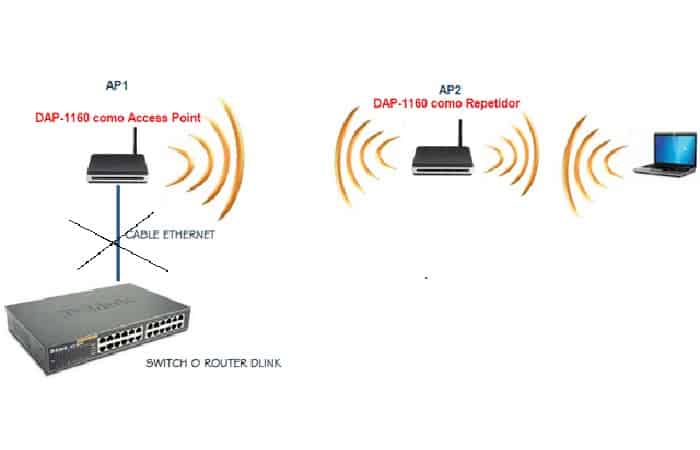
Here things are a little different, your WiFi frequently crashes several times a day and only a reboot of the access point temporarily solves the problem. Just follow these steps
- Step 1:: Connect to the administration interface of your box (modem) or access point, and check for possible updates. If there is one, do it immediately. If the problem is not solved, it is bad luck.
It is advisable to keep these points in mind:
- Does your internet always arrive at the same time?
- how often does it occur?
- Is it still the same event?
If so, you will find out where it comes from, a microwave that we turn on every day at the same time, a virus, a power outage, anything is possible! Yes, yes, you read it correctly: a microwave can damage your WiFi connection, they are also very often responsible for interference in home networks and the reason is that they transmit on the same 2,4 GHz frequency as WiFi.
If there is no logic and these cuts (be careful only with WiFi, eh, you still have internet on devices connected by cables) continue, your box (modem) or your access point probably has a problem.
Contact your ISP to see if they know the problem and if there is a solution. If not, you will need to consider changing your box (modem) or router.
Solution 3: WiFi not working due to operator failures
You should always check if you have internet access on another device on your network using a different connection method. For example, if you no longer have a connection on your smartphone (via Wi-Fi), you should check if your PC (connected via Ethernet) has internet access. Otherwise, you simply won't have internet access at all. Your Wi-Fi is working, but your modem no longer has internet access.
What could be the cause of this internet failure? If you paid your bill, then your ISP has a fault and you have to wait for your provider to fix the problem or it could be that the box (modem) has an error and you should try to restart it.
Solution 4: Device error
What if your WiFi router (or box (modem)) is working, but it was your smartphone that was having connection issues?
You can also try restarting the device where you are having the connection problem. It doesn't take long and fixes many problems like this one this way.
Solution 5: Check the connection with other websites if the WiFi is not working

Have you tried another website or service? Just because YouTube videos are no longer working doesn't mean you no longer have WiFi on your phone, tablet or laptop.
Try opening a browser page and typing anything into the search bar to verify that it is actually working on the device in question.
- You can try writing any word that comes to mind like: car, house, yellow, etc.
Whatever your search, if you get a return with a Google response , it's because your Wi-Fi is working, but the service you were using is having problems. Yes, even websites can go down, and if the problem isn't on your end, it's very likely that the site's server is unavailable.
To verify this hypothesis, you can go to the Downdetector website and enter the address of the site or service causing the problem. The site will tell you if other users have reported the same issue.
Solution 6: Check the wiring if your WiFi is not working
If you can't solve your problem with the above solutions, you should check your wiring. Maybe something got disconnected? Is the RJ45 cable from the WiFi router, from the box (modem) near the power cable? Check the cables, it doesn't cost anything and at least you eliminate a simple fault before calling your operator's customer service.
Solution 7: Other unusual problems
Temporary blackouts are also common problems, we don't necessarily notice them, but Internet broadcasting is a complex thing involving many actors and a lot of equipment. Maybe your repeater cables are rusty? Maybe some network equipment has broken down across the country?
Often, a list of known outages is available on your ISP's website. It may be worthwhile, if you have another means of accessing the Internet (4G phone, for example) to check for these outages.
In any case, you should keep in mind that although the Internet is now an integral part of our daily life, we have lived a long time without it. So, there are other ways to deal with it, while waiting for a repair. Grab a book, call a loved one, play a board game - do all this while waiting for the technical service.
WiFi not working on mobile devices
WiFi connection problems are extremely frustrating, as are any internet access issues. This usually happens at the worst possible moment, when you urgently need to log in. In this section, we'll look at the possible causes and, specifically, how to resolve your WiFi connection problem on your Android smartphone.
Solution 1: Try reconnecting several times if WiFi is not working
This is the most obvious step when you're having trouble connecting to a Wi-Fi network. Disabling and re- enabling Wi-Fi solves the problem in the vast majority of cases, but not necessarily on the first try. So be sure to repeat this several times before exploring other options.
Solution 2: Use the forget network feature if WiFi is not working
Forget network is an option available in Android's WiFi settings. It allows you to reset the current WiFi network settings. You will have to scan again, reconnect by entering the password, as all the network information stored in memory is erased. To forget a network you must do the following:
- Step 1:: Press and hold the icon WiFi in the notification bar
- Step 2:: In the list of available networks, long press on the name of the problematic WiFi
- Step 3:: In the small window that appears, press Forget
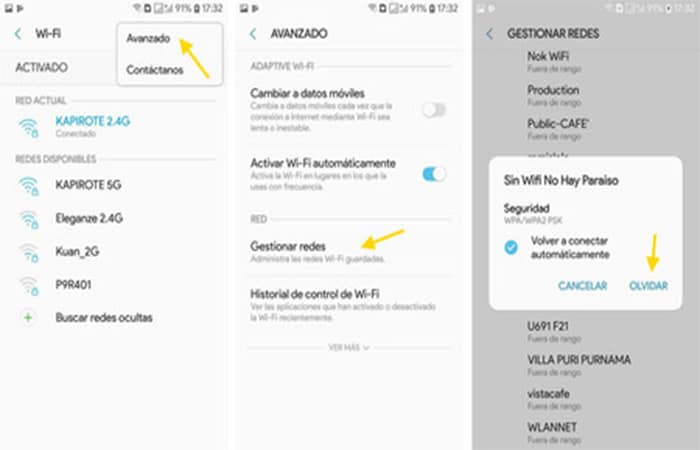
- Step 4:: Reconnect by entering your Wi-Fi connection details.
Solution 3: Restart your router and smartphone if WiFi is not working
It's possible that your router is the source of your WiFi connection problem. This happens quite often and is quite easy to fix by restarting your modem or better, unplugging it for at least 30 seconds before plugging it back in. Wait about a minute for the modem to fully boot up and try reconnecting. If the problem persists, try restarting your smartphone.
Solution 4: WiFi is not working because the hotspot is using a proxy
Are you trying to connect to a school, university or company's WiFi network? Most of the time, organizations use a proxy to secure their network and filter connections. It is not enough to have the password. Before connecting to it, you should make sure that you have properly configured the proxy on your smartphone.
Solution 5: Your Mac address may have been leaked
You've tried several solutions without solving your WiFi connection problem. If all the leads have been explored to no avail, it's a safe bet that your Mac address has been blocked on the router. If you're using a neighbor's, friend's, or family member's WiFi, it's possible that the modem administrator has removed your Mac address from the allowed ones.
The reasons for such an act can be multiple: maybe you are accused of monopolizing the bandwidth or they are trying to temporarily prevent you from accessing the Internet. If so, there is nothing you can do except chat with the administrator to grant you access.
Other solutions to WiFi connection problems
If you're having trouble connecting to Wi-Fi or if you see a Wi-Fi icon with an exclamation mark, try the solutions below. To check if the solution you're trying works, open a web page on your phone.
NOTE : Some of these steps only apply to Android 8.1 or later.
Solution 1: Check your phone settings and restart it if WiFi is not working
- Step 1:: Make sure Wi-Fi is on, then turn it off and back on to reconnect.
- Step 2:: Make sure the airplane mode is off, then turn it on and off again to reconnect.
- Step 3:: Press the power button on your phone for a few seconds. Then, on the screen, tap Restart.
Solution 2: Identify the type of problem if WiFi is not working
- Contact Us: Try connecting to the Wi-Fi network with another device, such as a laptop or a loved one's phone. If you can connect to the network, the problem is probably with the phone.
- Red: Using your phone, try connecting to another Wi-Fi network, such as a loved one's or a public network. If you can connect, the problem is most likely with the network you're using.
- Internet: If you can connect to the WiFi network, but still do not have Internet access, the problem is most likely with your Internet connection.
Solution 3: Solve the problem according to its type
Here it is important to know how to fix the problem when WiFi is not working. Here are the steps you should follow depending on the case of failure:
Connection problems on your phone
Delete a WiFi network from your phone
- Step 1:: Open your phone's Settings app.
- Step 2:: Touch Network and Internet, then WiFi
- Step 3: If necessary, turn on WiFi
- Step 4: At the bottom of the screen, tap Saved networks
- Step 5: In the list, tap the saved network you want to delete.
- Step 6: Toca Delete
Add the WiFi network again
- Step 1:: Open your phone's settings app
- Step 2:: Touch Network and Internet, then WiFi
- Step 3: At the bottom of the list, tap Add network
- Step 4: If necessary, enter the network name (SSID) and other security settings.
- Step 5: Toca Save. If necessary, enter a password.
Check if the problem is with an application.
The problem might be with an app you downloaded. To find out, restart your device in safe mode and follow these steps:
- Step 1:: Enable safe mode.
- Step 2:: Try reconnecting to the WiFi network.
- Open your phone's Settings app.
- Tap Network & Internet Wi-Fi the name of the network.
- Step 3:: Check if the WiFi connection is working in safe mode.
- If your Wi-Fi connection is working in Safe Mode, the source of the problem is most likely an app you downloaded.
- Step 3.1:: Restart your phone to exit safe mode.
- Step 3:.2: Uninstall the apps you recently downloaded one by one. Check if the connection works.
- Step 3.3:: Once you remove the problematic app, reinstall the other apps.
- Step 4: If your Wi-Fi connection is not working in Safe Mode, the problem is likely with your Wi-Fi network or your Internet connection.
- If your Wi-Fi connection is working in Safe Mode, the source of the problem is most likely an app you downloaded.
NOTE : Airplane mode is automatically activated when you switch to safe mode. We recommend turning off airplane mode to continue using features like GPS, Wi-Fi, and phone calls.
Internet and network
Now let's look at the steps for the Internet and Networks part.
Restart the router and modem
If you have both the router and the WiFi modem, try turning them off and back on. Just follow these steps:
- Step 1:: Unplug the power cords from the router and modem for 15 seconds.
- Step 2:: Reconnect the power cables.
- Step 3:: Check that all cables and cords are secure at both ends.
- Step 4:: Wait a few minutes until the indicator lights on the modem and router turn on normally. (Refer to the device manual or the manufacturer's support site.)
If the indicator lights do not illuminate normally, the problem may be with your modem, router, or Internet connection. You should contact your network administrator or Internet service provider. Your connection may need to be reset, or the problem may be due to a service outage.
Connect to a public network
Important : To access a public network, whether in a café or an airport, you often need to fill out a webpage with information. If you log in or accept the terms of this page, you must have internet access.
If the authorization page does not appear after connecting to a public network:
- Check if a notification asks you to log in
- Opens a new page in a new window
If these steps do not resolve the issue, try reconnecting to the network:
- Step 1:: Open your phone's settings app
- Step 2:: Touch Network and Internet, then WiFi
- Step 3:: Long press the network name. Tap Delete network.
- Step 4:: Turn off WiFi and then turn it back on
- Step 5:: In the list, tap the network name.
- Step 6:: A notification will prompt you to connect. Just tap on it.
- Step 7:: To connect to the network, accept the terms of use.
Reset all network settings
- Step 1:: Open your phone's Settings app.
- Step 2:: Touch System -> Advanced Settings Reset-> Options -> Reset WiFi, mobile data and Bluetooth.
- Step 3:: At the bottom of the screen, tap Reset Settings
WiFi access point
Now let's see what you can do when WiFi is not working due to access point issues:
Check if the hotspot option is enabled
- Step 1:: Open your phone's Settings app.
- Step 2:: Touch Network and Internet, then Hotspot and tethering
- Step 3:: Touch WiFi access point
- Step 4: Activate the WiFi hotspot
- If it was already on, turn it off and then back on.
- If you have never set up a hotspot on your phone, first tap Set up WiFi access point
Contact your mobile operator
Important : Not all mobile carriers allow the use of mobile hotspots. If you encounter any problems, you should contact your carrier. Ask if you can connect your device to mobile hotspots and if these hotspots are included in your data plan.
The best alternatives you can use if your WiFi is not working
Is your WiFi still not working? If you notice that the problem is with your box (modem) or router, you can try these alternatives. Each of them can provide you with the connection service you need to extend your wireless signal. Let's see which ones they are:
1. Powerline Extender
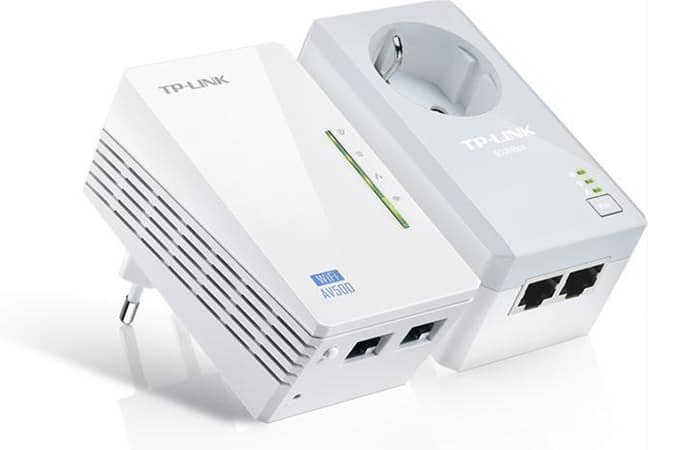
Some homes aren't suited for wireless connections, perhaps due to thick walls or long distances between rooms. Powerline networking takes a different tack, sending data over your home's electrical wiring.
Typically, a Powerline extender system consists of a base station, which connects to your router via an Ethernet cable, and a separate access point that connects to another location to relay the wireless network.
Powerline networking is neat and convenient, but performance is hard to predict. As with WiFi, manufacturer-advertised data speeds convey an idea of which products are faster than others, but real-world speeds will depend on your wiring and are nearly impossible to measure before you buy your Powerline kit and plug it in.
The best connections can provide speeds of 15 MB/s , but speeds of 5 MB/s are common. This is an excellent solution you can use if your Wi-Fi isn't working.
2. Wireless repeater
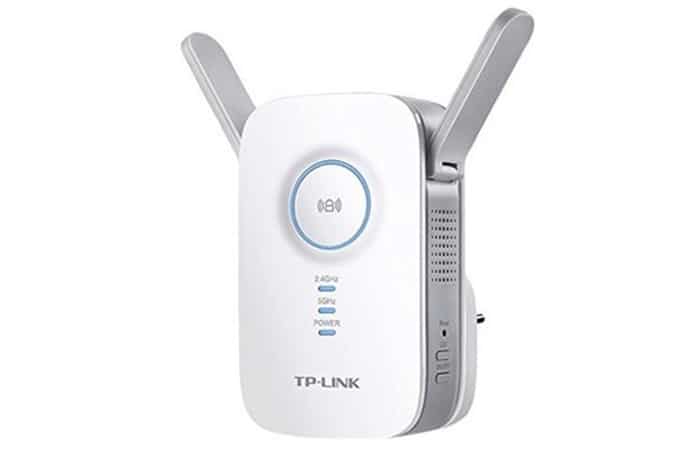
A wireless repeater is typically a small device that plugs directly into a power outlet a few rooms away from your main router.
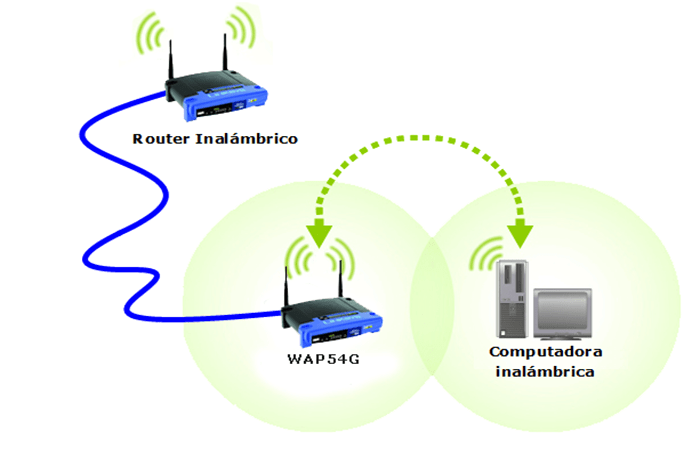
It then rebroadcasts the wireless network, giving nearby devices a stronger signal to latch onto. It’s the same principle as a two-node mesh system, but simpler to set up – many models connect to your main router via WPS, so deployment is literally as simple as pressing a button.
And if you let the repeater broadcast the same SSID as your router, your wireless clients will seamlessly switch to it as needed. That makes it a great alternative to use if your WiFi isn't working.
3. Replacement router
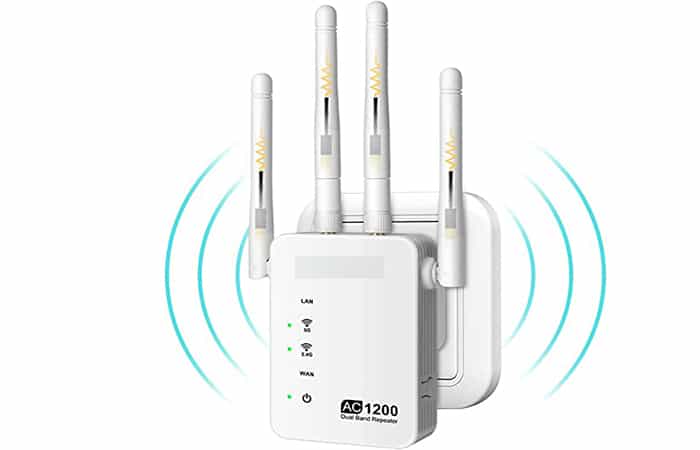
If you have a spare router, you may be able to set it up to act as a wireless repeater. However, this is highly dependent on the model and firmware; you'll need to check the documentation to see if it's supported.
If not, you may still be able to install the open-source DD-WRT firmware or some other third-party operating system to add the feature. If your router doesn't work as a repeater, there is another way to use it to extend your wireless network.
Like a mesh system, most routers offer a bridge mode that tells the router to act as a wireless access point for a main router elsewhere.
The problem is that you'll need to run an Ethernet cable between your main router and your bridge device, so if you need to extend the signal to multiple rooms, this may not be practical.
4. Windows Hotspot
If you're looking for the simplest solution possible, it is possible to make Windows 10 act as a wireless extender. To do so, follow these steps:
- Step 1:: just open the app Configuration
- Step 2:: click Network and Internet and select «Mobile hotspot»In the menu on the left.
- Step 3:: You can now flip a switch to have Windows share its own network connection with other devices within range.
By default, Windows creates a new wireless network, with its own name and a randomly generated secure passphrase, but if you press the Edit button , you can configure them to match your router's network.
However, you should keep in mind that the Windows 10 network remains technically separate and you may encounter issues associated with double NAT.
If you want your PC to function as a true wireless repeater, you'll need a third-party tool like Hotspot.
You might also be interested in reading about: How to Enable Network Discovery in Windows 10
Conclusion
As you can see, these are the alternatives and solutions you can use if your WiFi is not working. Remember that using these features will reduce the bandwidth available for your computer to use, and the extended network will only be available while your computer is on. We hope we have helped you with this information.

My name is Javier Chirinos and I am passionate about technology. Ever since I can remember, I have been interested in computers and video games, and that passion has turned into a job.
I have been publishing about technology and gadgets on the Internet for over 15 years, especially in mundobytes.com
I am also an expert in online marketing and communication and have knowledge in WordPress development.