- Windows 11 widgets offer immediate access to key information and productivity tools without opening full applications.
- There are essential widgets such as Weather, Outlook Calendar, To-Do List, Focus Session, and Mobile Link.
- A good configuration of widgets and notifications allows you to reduce distractions, save resources, and improve daily organization.
- Windows 11 combines widgets, virtual desktops, Focus Assist, and Snap Layouts to create a modern and efficient work environment.
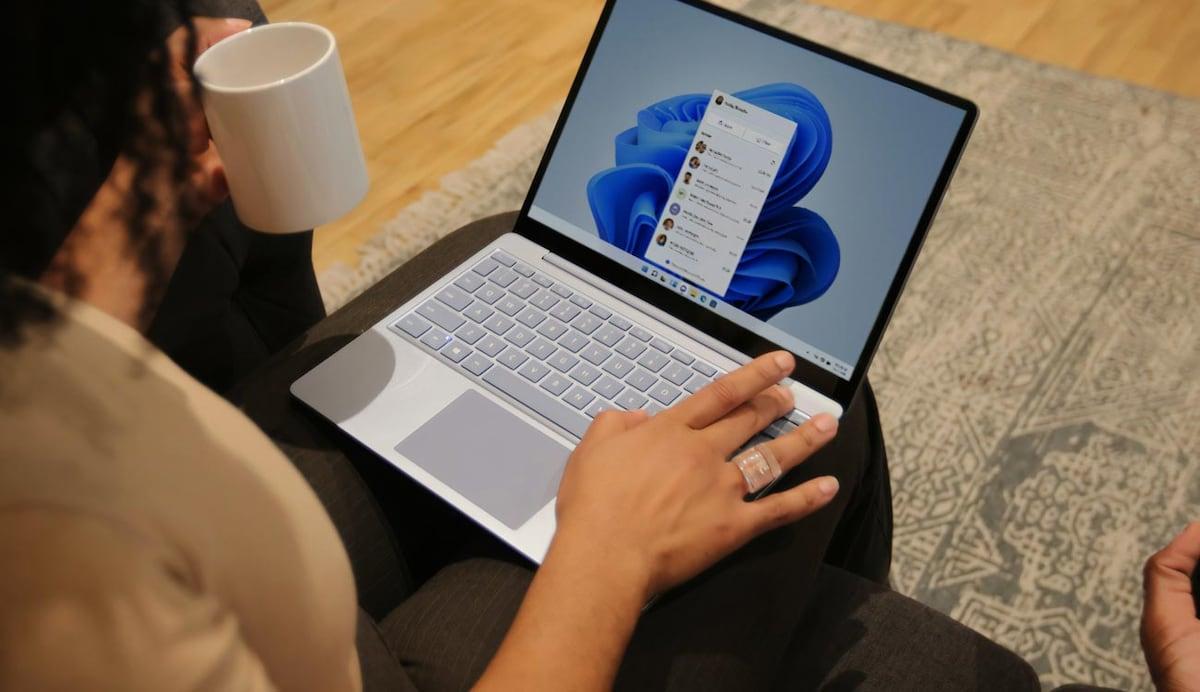
Since they arrived Windows 11 widgetsMany users initially thought they were purely decorative: eye-catching on the taskbar, but of little use for serious work. However, when given a chance and properly configured, these small modules become... a kind of control panel for your day-to-day lifewith real-time information and quick access that saves more time than you might think.
Microsoft's operating system has been growing in productivity-focused features: cloud synchronization, virtual desktops, Snap Layouts, Focus Assist… and widgets fit in perfectly. When used well, They are not a mere visual whim.but a very convenient way to check the time, your schedule, your tasks, your mobile phone or even the performance of your PC without losing focus on what you are doing.
What are Windows 11 widgets and why do they affect your productivity?
In Windows 11, widgets are small applications integrated into a specific panel which you can access from the taskbar icon (left side) or with the shortcut Windows+WThey function as dynamic cards that display real-time data: weather, calendar, tasks, news, stock market, traffic, and much more.
The key is that They allow you to take a quick look at important information Without having to open the browser or the full apps. Instead of jumping from window to window, you lift the widgets panel, see what you need, and get back to what you were doing in seconds, greatly reducing interruptions.
Each widget can add, remove and rearrange as you likeThis way, you end up building a dashboard perfectly tailored to your routine: one for work, another more personal one, or a mix with the essentials of both. Many integrate with services you already use (Outlook, Microsoft To Do, Phone Link, Spotify, OneDrive…), so you don't have to duplicate efforts.
In addition, the panel supports different card sizesSmall, medium, or large. This way, you can give more prominence to what you look at daily (for example, the calendar or tasks) and keep smaller what you only check occasionally, like the stock market or traffic.
For all these reasons, when properly configured it becomes a kind of "personal control center" that It reduces context switching and helps maintain workflow constant.
How to activate, organize, and customize widgets in Windows 11
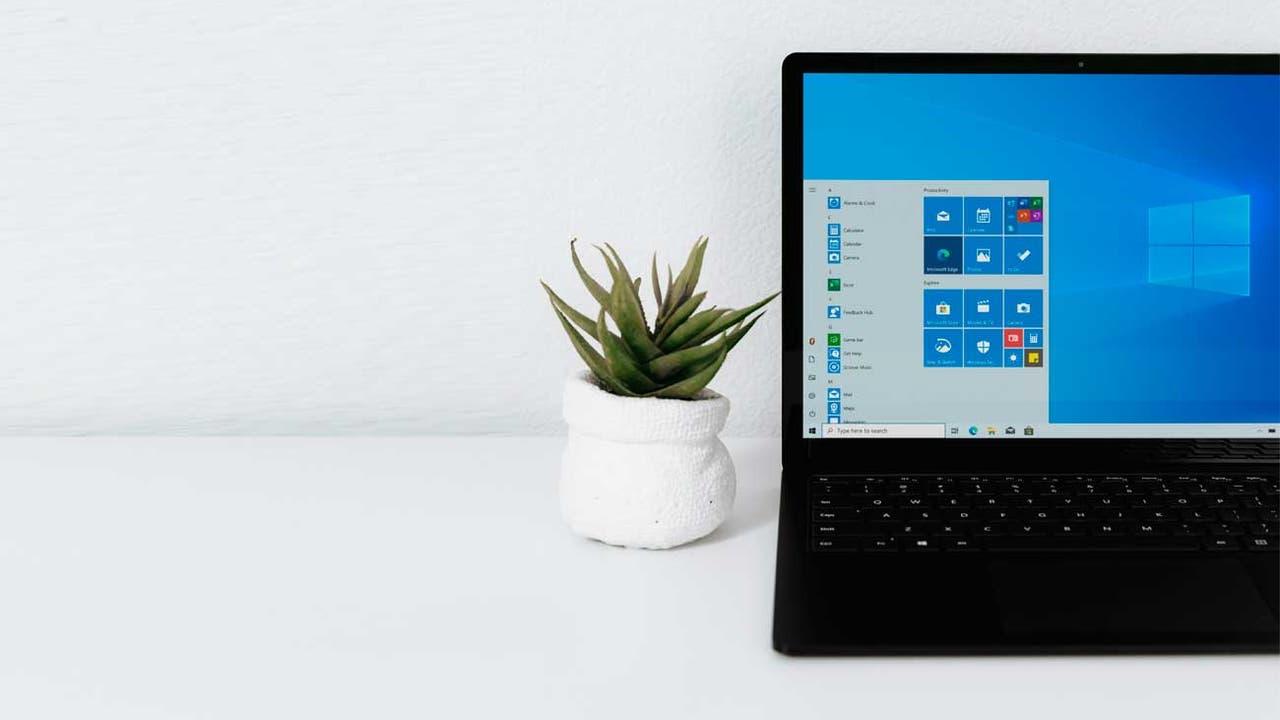
Before you can take advantage of widgets, make sure the panel is active in the taskbar. If you don't see the icon, you'll need to check the Taskbar settings to activate it
The basic process for managing your widgets is very simple and requires no advanced knowledge: just go to the correct options and turn a pair of switches on or offFrom there you can adjust the panel as if it were a board of pieces that you fit together to your liking.
To activate the widgets panel in the taskbar, click with the right-click on the taskbar and go to “Taskbar settings”. Within that menu you will see a specific control called Widgets; if you activate it, The widgets icon will appear on the left side of the bar.
Once the icon is available, you can open the panel from there or using Windows+WInside, you'll see your active cards and, at the top, a "+" button to add new widgets from the gallery. From that same panel... You can drag the cards back. and place them wherever you like.
In most widgets, tapping the three dots in the upper right corner will allow you to change size or access customization optionssuch as the time location, the Outlook account being used, the specific Microsoft To Do list, etc. This small fine-tuning makes all the difference between having a chaotic dashboard and one that actually helps you.
Windows 11 widgets that most improve daily productivity
Among all the widgets available in Windows 11, there is one group that fits particularly well if what you are looking for is work with more order, fewer distractions, and better time managementSome come pre-installed with the system, and others are added through applications like Dev Home or from the Microsoft Store itself.
Below is a detailed overview of the most useful widgets for productivity that appear in the various sources: from classics like Time or Calendar, to more advanced options like concentration sessions or performance monitors.
Weather widget: real-time forecast without opening your browser
The Weather widget is one of the most visible because Windows 11 integrates it directly into the taskbarIt displays the temperature and an icon indicating the current weather conditions (sun, rain, clouds, etc.). If you live in an area where the weather changes from one minute to the next, it becomes almost essential.
Its real advantage is that, with a tap on the icon or with Windows+WYou can expand the panel and see the forecast by the hour and by the day Without having to use your browser or mobile phone. This saves you from having to open external apps every time you want to know if you're taking an umbrella, if you're taking your motorcycle out, or if you're having a meeting outside.
The widget allows you to define your primary location and, in many cases, add multiple cities If you travel a lot or work with teams in other countries, this will give you a quick overview of the weather in your city and your colleagues' cities, which is very useful for coordinating schedules or travel.
Additionally, Windows can use this data to show you important weather-related notifications in the taskbar, such as alerts for severe storms or sudden temperature changes. These notifications appear as badges or brief announcements in the taskbar that you can later review in the panel.
Outlook Calendar: Your schedule visible without opening the app
If you work with meetings, appointments, and deadlines constantly, the widget of Outlook Calendar It's one of the most time-saving. It syncs with your Microsoft account and shows you, directly in the widgets panel, Today's quotes and a summary of the week.
The most practical thing is that you can Check your schedule as soon as you turn on your PC Without opening Outlook completely, which usually takes a few extra seconds. At a glance, you can see if you have free time, if there are overlaps, or if you have a busy day ahead.
This widget also allows add new appointments or check local holidaysThis is great for planning vacations, long weekends, or meetings with people from other regions. The integration with Microsoft Teams also makes managing online meetings easier.
By keeping the calendar always visible on the panel, you greatly reduce the possibility of forget important commitmentsIt saves you from that classic "I had a feeling I had something today" situation because you can check it in a couple of seconds without leaving what you're doing.
To-do lists and Microsoft To Do: total control of what you need to do
Another vital widget for productivity is the one for Pending taskswhich is powered by the Microsoft To Do app. This combination allows you to have a list of personal and professional tasks at hand. organized into lists, with due dates and reminders.
From the widget itself you can add new tasks on the flyMark lists you've finished, move items between lists, or see what's piling up for the next few days. Everything syncs with your Microsoft account, so you'll have the same lists on your PC, mobile, and the web.
The widget can be visually customized to better match your desktop, and you can also decide which list you want to appear by default (for example, "Today," "Work," "Personal," or any other list you've created). This small decision makes the widget function as your daily task dashboard.
Thanks to this integration, you reduce the temptation to write things down in loose notes, different mobiles or apps. Everything goes through a single panel which, being in the widgets, It's always two clicks away without interrupting your concentration as much as opening a full-screen application would.
Concentration session: Pomodoro timer with Do Not Disturb mode
One of the biggest enemies of productivity is constant interruptions. The widget of Concentration session It arrives to bring some order using a simplified version of the Pomodoro Technique: blocks of work followed by short breaks.
With this widget you can set concentration periods, usually of 25 to 60 minutes of workAfter which the system suggests taking a short break. After several cycles, it recommends a longer break to avoid burnout and maintain more stable performance throughout the day.
During these sessions, the widget activates the Windows 11 Do Not Disturb modeThis effectively silences notifications, pop-up badges, and alerts that would normally interrupt your activity. You can also set up exceptions to allow only truly critical notifications to pass through.
The advantage is that you don't depend on external apps to concentrate: everything is integrated into the Windows 11 ecosystem, so It is complemented by Focus Assist and the rest of the notification settings, maintaining a consistent experience between desktop and widgets.
Phone Link: fewer phone distractions
Mobile phones are a constant source of distractions, and having them next to the keyboard certainly doesn't help. The widget of Mobile Link (Phone Link) It's designed for just the opposite: to let you control what's important on your phone without having to pick it up constantly.
With this widget you can see the following in the Windows 11 dashboard: mobile notifications, battery level and coverageThis way you decide whether it's worth stopping what you're doing to answer a message or call, or if it can wait without any problem.
Phone Link is compatible with both Android as with iOSHowever, it's most useful with Android, as it allows you to access photos, send and receive SMS messages, and even manage calls from your PC. All of this is possible after pairing the device using the "Link to Windows" application.
This form of integration greatly reduces that habit of Checking your phone every few minuteswhich often ends up on social media, chats, and other distractions. Having essential information on a discreet panel helps maintain focus without completely disconnecting from your phone.
Spotify and other music widgets: setting the mood at work without losing focus
For many people, working with background music is almost mandatory. Windows 11 includes a mini player in Quick SettingsBut the Spotify widget goes a step further, giving direct access to playback from the widgets panel.
From this widget you can pause, resume or skip songs Without opening the large application, manage the playback of your playlists and adapt the type of music to the moment (concentration, mechanical tasks, more creative moments...).
In some environments the widget doesn't allow you to switch lists directly, but it's still very useful for not having to constantly go to the Spotify windowThis significantly reduces the number of application switches and helps keep the music in the background, where it belongs.
By integrating these more playful widgets alongside those for pure productivity, you get a panel that balances work and comfortwhich makes the day more bearable without losing efficiency.
News, sports, finance and traffic widgets: quick information tailored to your needs
The Windows 11 dashboard also includes information-focused widgets: news, sports, finance or trafficAlthough they may be perceived as noise on some systems, when properly adjusted they add value without saturating.
For example, the news widget it shows to you Relevant headlines based on your interestsThis way, you can stay up-to-date without spending half the morning browsing websites. Similarly, the sports or stock market widget quickly alerts you to results and quotes.
The traffic widget is especially useful if you usually travel by car or motorcycle: you can configure your zone and receive real-time information on the condition of nearby roads, thus avoiding traffic jams just before leaving.
In addition, Windows 11 includes a system of advertisements and distinctive signs in the taskbar for these widgets. You'll usually see the weather icon, but if something relevant happens related to your sources (breaking news, a weather alert, a sudden stock market change), a small notification or badge may appear and remain for a few seconds or until you open the panel.
System performance and monitoring widgets
Microsoft has also refocused on the system performance widgets, somewhat recapturing the idea of the old Windows Vista and 7 gadgets (like the legendary CPU Meter), but with a modern design and greater security.
Through tools such as Dev Home (Preview)Available to members of the Windows Insider program, widgets that display information about can be tested. processor, graphics card, RAM and networkIn some cases, they even allow you to terminate processes that consume too many resources or monitor temperatures.
These widgets are especially useful on laptops or computers that are running low on power, because they allow you to quickly identify what's holding back performance and operate without having to open the Task Manager or third-party apps.
Similarly, applications such as Microsoft PC Manager They offer widgets that integrate into the panel and allow you to review open processes, close resource-intensive programs, and free up memory with a single click. These types of tools help keep your computer running more efficiently during long workdays.
Managing widget notifications in the taskbar
For widgets to truly boost productivity, they need to be properly controlled. how and when they show notifications in the taskbar. Otherwise, you might end up getting notifications for everything and losing focus.
Windows 11 distinguishes between ad rotation (small, fleeting notices) and insignia (badges that remain visible for longer). Normally, the weather is displayed, but if something relevant happens in your news, sports, or finance widgets, the bar may temporarily change to an announcement for that widget.
When the notification is more important or needs to remain, for example severe weather alerts or breaking newsA badge appears on the taskbar icon. When you open the panel, you'll see a banner at the top explaining what triggered that notification.
To configure this, open the Widgets panel, go into the settings icon Then go to the "Notifications" section. There you can enable or disable the "Show notification badges in the taskbar" and "Show ads in the taskbar" options, adjusting the level of interruptions to your liking.
Additionally, in the “Notifications” tab associated with your account within the panel, you can customize what type of notifications you want to receive of each widget, further refining the experience so that only what really interests you pops up.
Widgets and performance: when it's worth disabling them
While widgets greatly enhance productivity, on some resource-constrained systems they can negatively impact performance. The panel itself It consumes RAM and some CPU.especially if you have many widgets loaded with real-time content.
In certain scenarios, it has been measured that disabling the widgets panel can lead to free up between 50 and 150 MB of RAMThis is quite noticeable on machines with limited memory. Therefore, on very basic configurations, it might be better to do without them or use only the essential ones.
To disable the panel completely, simply right-click on the taskbar, go to “Taskbar settings” and turn off the Widgets switchwhich usually appears as one of the first options. As soon as you do this, the icon will disappear and the system will stop dedicating resources to the panel.
The good news is that this decision isn't final: if you want to try the widgets again later, you can reactivate the switch and restore the panel to its original state or reconfigure it to your liking.
Other Windows 11 settings that work well with widgets
Widgets don't exist in isolation: they fit within a set of Windows 11 features designed to transform the system into a complete productivity toolUsing them together multiplies the effect.
On the one hand, the cloud synchronization with OneDrive It lets you have all your files and documents at hand on any device. Whether you work from home, in the office, or on a laptop, you'll always have the latest version available, ready to open along with your widgets and desktop environment.
The characteristics Snap Layouts and Snap Groups Snap Groups make it easy to organize open windows on your screen, dividing it into sections to work with multiple applications simultaneously. Snap Groups remembers window combinations, so if you switch monitors or restart your PC, You can restore your entire workspace with one click.
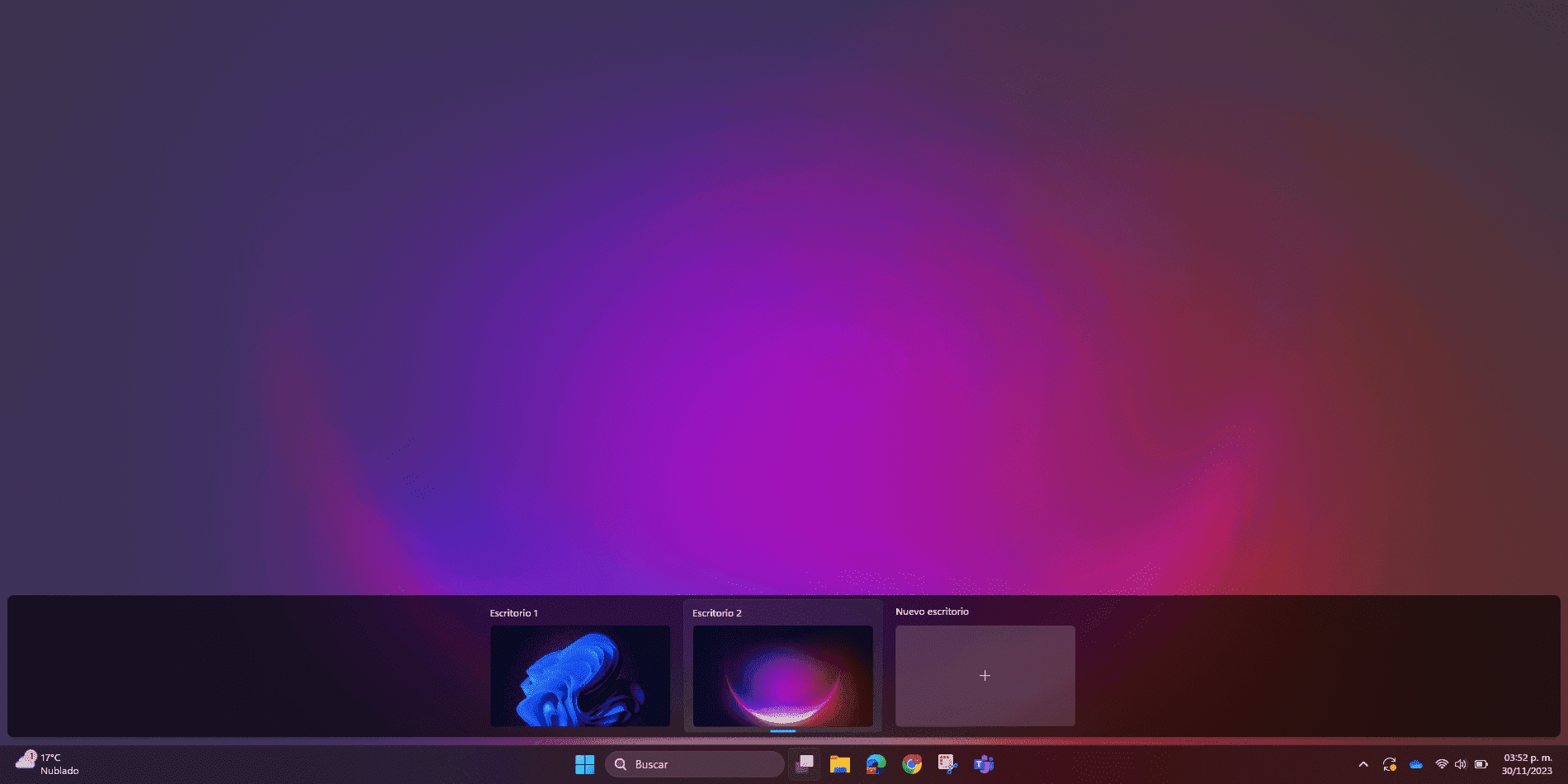
Los virtual desktops They allow you to separate your day into different projects or areas: for example, one desktop for work, another for studies, and another for personal use. You can have different widgets, backgrounds, and applications in each one, helping to keep everything separate and maintain better focus.
The concentration assistant Focus Assist (and Do Not Disturb mode) complements what the Focus Session widget does, allowing you block notifications during specific time periods and define exceptions. It's ideal to combine with your periods of deep work.
Finally, Windows 11's compatibility with Android apps through the Amazon Appstore It expands the possibilities even further. You can bring mobile apps you use for productivity, task management, notes, or communication to your desktop and combine them with the widget panel for a truly comprehensive ecosystem.
All of this is based on improvements in safety and performance Features like Secure Boot, malware protection, and biometric authentication with Windows Hello, along with general system optimization for modern hardware, make Windows 11 a much more robust environment to work in than previous versions.
For many users, the jump from Windows 10 to Windows 11 is no longer just a matter of aesthetics, but of functionality: by combining well-configured widgets, virtual desktops, Snap Layouts, Focus Assist, and security and performance improvements, a significant improvement is achieved. a more organized, flexible work environment designed to reduce distractionswhere every element adds up so you can focus on what matters.

Passionate writer about the world of bytes and technology in general. I love sharing my knowledge through writing, and that's what I'll do on this blog, show you all the most interesting things about gadgets, software, hardware, tech trends, and more. My goal is to help you navigate the digital world in a simple and entertaining way.