
Would you like to know where Messenger photos are stored ? Facebook Messenger is part of Facebook, but over time it has become more of an instant messenger than a true extension of the social media platform.
And all the usual stuff is there: video and voice calls, photos, videos, and even games to play together. Some users were wondering where Facebook Messenger saves photos and videos. And we made sure to provide a detailed explanation below.
Where are Messenger photos stored?
Next, we will show you where Messenger photos are stored, stay with us:
How to save videos and photos from Messenger
First of all, all the photos and videos you've shared or received in a regular Messenger conversation are stored on Facebook's servers and you can access them whenever you want. Not on your device unless you explicitly save them.
Here you can read about: How to Recover Messenger Conversations
You can find all the photos and videos you've exchanged on Facebook Messenger by following these steps:
- Step 1:: Opens Facebook Messenger.
- Step 2:: Select the conversation/chat where you want to get the photos from.
- Step 3:: Tap the icon » i" in the upper right corner.
- Step 4:: Choose View photos and videos
- Step 5:: From there, you can download or forward any photo or video. They are arranged chronologically from newest to oldest.
Unless, of course, they were removed from the conversation. Of course, this only applies to standard chats, not Vanish mode or secret conversations.
The latter offers end-to-end encryption so that no data is stored on Facebook servers. The former is self-explanatory: all messages disappear as soon as you close the chat.
Again, these photos aren't stored in your Gallery or local storage unless you choose to save them. There is an option to automatically save the photos or videos you create in Messenger.
You can find it at:
- Messenger > Profile (Settings) > Photos & media.
Toggle the Save on Capture feature to save all photos and videos created with Messenger to local storage.
Where Messenger photos are stored (devices)
To summarize, you can save photos and videos in Messenger by pressing and holding them and selecting Save Image or Save Video in the chat, or by going to View Photos and Videos and saving them from there. But where are downloaded Messenger photos and videos stored?
- This may differ depending on your device. Android, but the usual locations are the image folders and movies in the internal storage. In both folders, you will find the Messenger folder with your photos and videos, respectively.
From there, you can back up, delete, or edit your photos and videos. It's that simple. Of course, if you can't find your photos and videos there, check the Downloads or DCIM folder at the root of your internal storage, or look in Android > Media . However, these methods are only relevant if you have a very old Android phone.
And, on that note, we can conclude this part of the article.
Where are Messenger videos and photos stored on iOS and Android?
Messenger is the world's largest messaging app and platform. Many people share photos through this platform, but where does Messenger save photos? However, Messenger will not save photos to your gallery or camera roll.
So, if there are any important photos, you might lose those photos. To avoid this problem, Messenger has a special feature to save photos to your gallery automatically. In this part of the article, you can learn how to activate that feature on Messenger.
Storing Messenger Photos on iOS
- Step 1:: First, you need to open the Facebook Messenger app on your iPhone.
- Step 2:: Then open the Settings tab and go to Photos, videos and emoji.
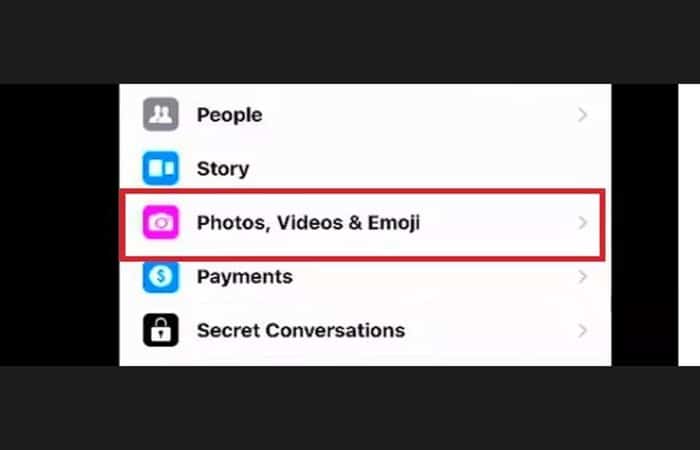
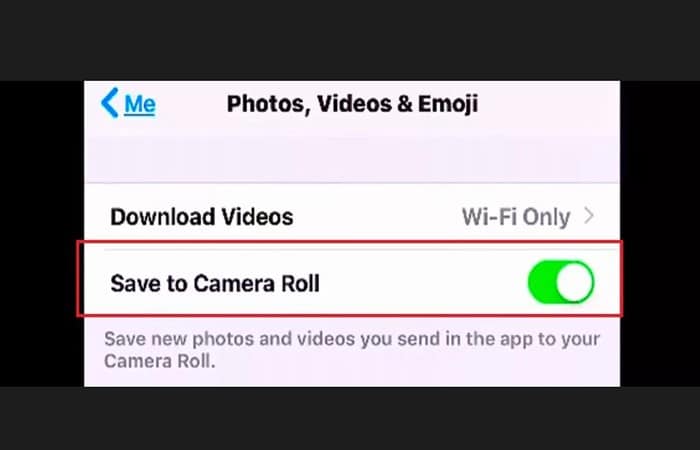
- Step 3:: Now change the option Save photos to camera roll.
- Step 4: Once you turn on this feature, all Messenger photos will be saved to the camera roll on your iPhone.
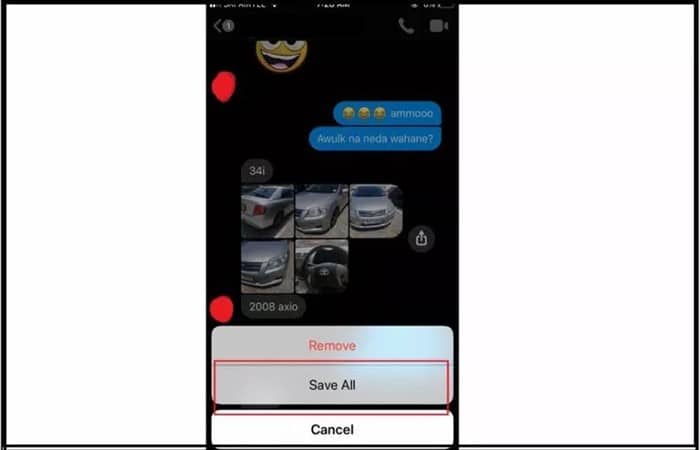
Additionally, you can save Messenger photos by pressing and holding the photo. When you receive a photo from someone, press and hold that photo and tap Save.
Storing Messenger Photos on Android
- Step 1:: On Android phones, you need to open the Messenger app and go to the Settings tab.
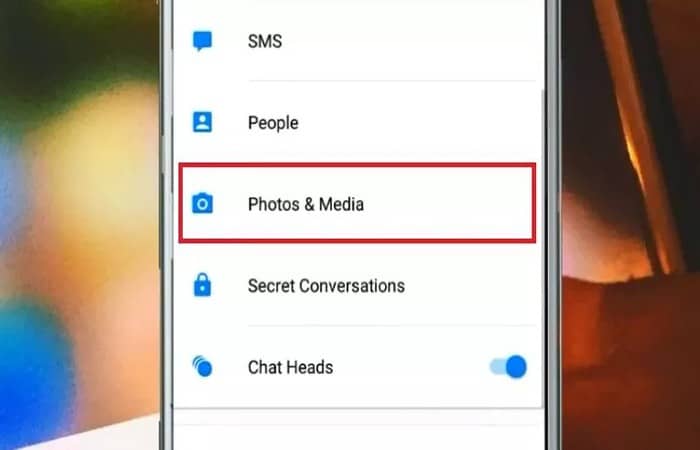
- Step 2:: Then activate the option Photos (Save incoming photos to your Gallery).
- Step 3: Once you have enabled this option, all incoming images will be saved to your gallery.
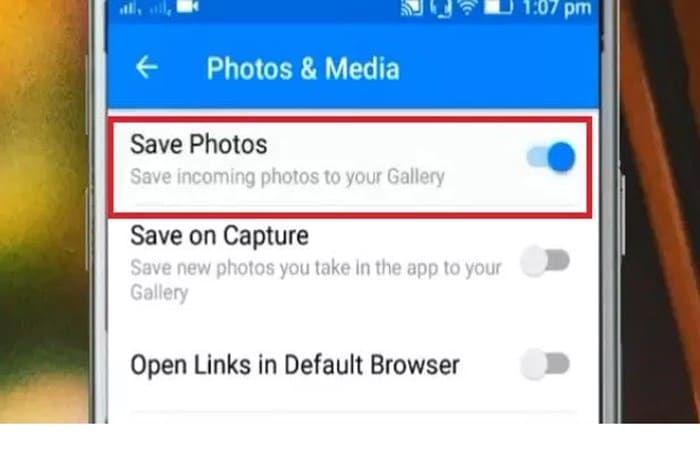
If you need to save outgoing images to your gallery on Android, press and hold the photo you need to save and tap the Save button once it appears.
Android: Location of saved Messenger photos
Now, let's see where the saved Messenger photos are located:
Facebook and SD card
Facebook Messenger saves images in:
- My Files > Storage > Pictures > Messenger
Screenshot:
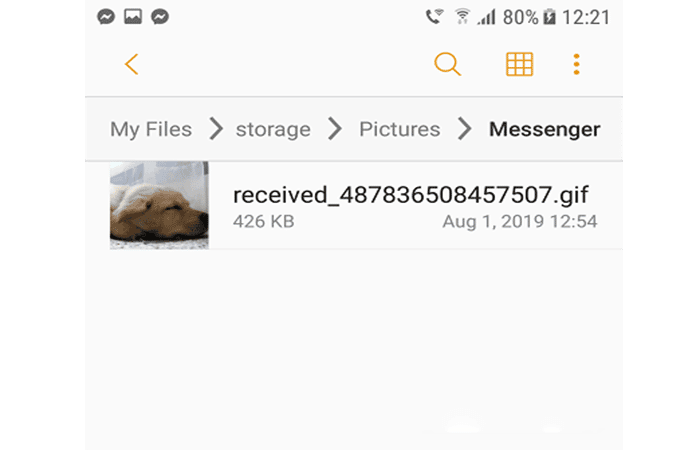
If we use external storage (SD card):
- SD card > storage > images > Messenger
When we connect our Smartphone via USB to our computer:
This screenshot from PC\Samsung Galaxy S7\Phone\Pictures\Messenger:
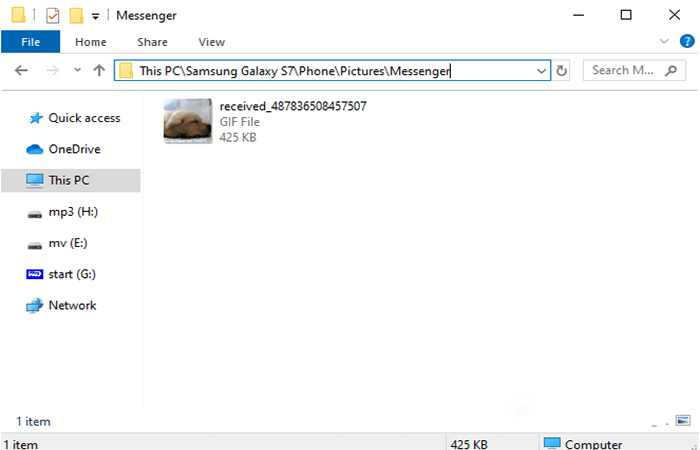
Or if we use external storage:
- This PC\Samsung Galaxy S7\Card\Pictures\Messenger
Tested with Windows 10
You might also be interested in reading about: Error This Person Is Not Available On Messenger
Last words
We hope you've learned how to save and where to save Messenger photos. As you can see, it's very simple to find those images and videos you thought were lost in your conversations. You should also keep in mind that if you deleted the conversation, you won't be able to recover your files.

My name is Javier Chirinos and I am passionate about technology. Ever since I can remember, I have been interested in computers and video games, and that passion has turned into a job.
I have been publishing about technology and gadgets on the Internet for over 15 years, especially in mundobytes.com
I am also an expert in online marketing and communication and have knowledge in WordPress development.