
Would you like to know how to play Dota 2 without Steam and offline? Are you one of the many Dota 2 fans? If so, you've probably wondered how you can play this popular game offline. Usually, you need to be online and have the Steam software installed on your computer to play. However, there is a way to play it even without logging into your Steam account.
Typically, most players who want to play DOTA 2 offline start by logging into their Steam accounts. Once logged in, they simply disconnect their internet connection, click “Go Offline” in the Steam menu, and then start playing.
However, as mentioned above, there is another method you could try. However, first of all, let's talk a little more about DOTA 2 and Steam.
What is DOTA 2?
DOTA 2 is a sequel to Defense of the Ancients (DOTA) . It is a multiplayer online video game developed by Valve Corporation (also known as Valve Software), an American video game developer that has also developed other games, such as:
Here you can read about: How to Fix Error Code 51 on Steam
- Counter-Strike
- Day of Defeat
- Half-Life
- Left 4 Dead
- Portal and Team Fortress.
Valve Corporation is also the developer of Steam, a software distribution platform.
How to play DOTA 2? Well, the game is usually played through matches between two teams, each of which has five players, 10 players in total. Each player controls a “hero,” who has unique abilities and methods of play.
The game involves player-versus-player combat, and players can accumulate items and experience points for their heroes as they progress. The ultimate goal of DOTA 2 is to destroy the opposing team's "Ancient," which is an important structure within the team's base.
What is Steam?
To play DOTA 2 and other similar games, you need to have Steam software installed on your computer. Also developed by Valve Corporation, Steam is a digital video game distribution service. Since it is cloud-based, it allows users to have a large collection of games without consuming too much computer memory.
In addition to being a "game library," Steam offers other features and services such as automatic game updates, video streaming, in-game voice messaging and chat, server hosting, and social networking services.
Play DOTA 2 without Steam and offline
So far, we've talked about DOTA 2 and the Steam software in general, and the fact that players typically need to be online and logged into their Steam account in order to play.
However, there is a way to play even without an Internet connection and without having to log into Steam: using RevLoader. Basically, (revloader.exe) is an executable file, which is part of the DOTA 2 version 580 program.
At this point, we will discuss the specific requirements and procedures involved, as well as some tips for troubleshooting and playing DOTA 2 without Steam using RevLoader.
Requirements for Play DOTA 2 without Steam
You will need some minimum hardware requirements , along with the software that needs to be installed. When it comes to hardware, your PC or laptop must have the following:
- Operating System Windows
- Dual-core processor Intel or AMD at 2,8 GHz
- 4 GB of RAM
- Nvidia GeForce 8600/9600GT for graphics
- ATI/AMD Radeon HD2600/3600 and DirectX Version 9.0c.
As for software, you'll need to download and install DOTA 2 from Steam, DOTA 2 Offline Launcher (Revloader) and GCFscape (optional, if you want to play custom games), along with Microsoft .NET Framework and Microsoft Visual C++ (in case they're not already installed on your PC or laptop).
Below are the links for the software mentioned above:
- Pitcher DOTA 2 offline
- GCFscape: https://4cd3420d-ac31-4d3d-96a8-b014e2cd527a.usrfiles.com/archives/4cd342_c43a27938f234402a8c18aff16993894.zip
- NET framework: https://dotnet.microsoft.com/download
- Microsoft Visual C ++: https://support.microsoft.com/en-us/topic/the-latest-supported-visual-c-downloads-2647da03-1eea-4433-9aff-95f26a218cc0
Procedure for Play DOTA 2 without Steam
Once you have all the requirements, follow these steps so you can start playing DOTA 2 without steam and offline:
- Step 1:: Open the DOTA 2 Offline Launcher installer. In the destination folder, locate or browse to the path of the DOTA 2 win32 folder: «…Steam\SteamApps\common\dota 2 beta\game\bin\win32«.
- Step 2:: Choose "Extract«.
- Step 3:: Copy the file inf updated, which is located at «…Steam\SteamApps\common\dota 2 beta\game\dota«, and paste it in «…Steam\SteamApps\common\dota 2 beta\game\bin\win32\ dota.” Then, perform the procedure for Client Emulator and Item Bin Update.
- Step 4:: Run the desktop shortcut created by the DOTA 2 offline installer. To run as administrator, right-click the icon and click “Run as administrator«.
- Step 5:: That's it! You are now ready to play DOTA 2 without steam and offline. If you are playing solo, you can create a practice match with bots IA. Simply choose «required» and Select the difficulty level of the bots.
To play DOTA 2 offline on LAN as a host, make sure you have performed the item container update. Please note that you need to run revloader.exe as administrator in order to play LAN.
https://www.youtube.com/watch?v=VE3p3Mk4FRQ
Tips for troubleshooting DOTA 2 without Steam
What should you do if you can't launch the DOTA 2 game?
- Step 1:: Don't use the launcher; rather, just open it exe while running as administrator.
NOTE : If you have performed the previous step, but you still cannot start the game, try disabling User Account Control (UAC).
- Step 2:: To do this, click on the Windows start button, search for «uac» and click on «Change User Account Control settings«.
- Step 3:: Drag the slider down to the “Never notify«, then select «Accept» once you're done.
- Step 4:: Then you can open the launcher normally.
additional reminders
While using RevLoader to play DOTA 2 offline and without Steam, you might find some features or options that you can modify . For example, let's say you want to change the language from Russian to English; all you have to do is:
- Step 1:: Go to the DOTA 2 installation directory where rev.ini is located, in “…Steam\SteamApps\common\dota 2 beta\game\win32"
- Step 2:: Using Notepad, edit the file this.
- Step 3:: Find the line that contains the term «Language«.
- Step 4:: Change the value from Russian to English and then save the file.
In the meantime, similar steps can be used to change the player name:
- Step 1:: Go to the DOTA 2 installation directory where rev.ini is located, in “…Steam\SteamApps\common\dota 2 beta\game\win32”
- Step 2:: Using Notepad, edit the file this.
- Step 3:: Find the line that contains the term «Player's name«.
- Step 4:: Change the value to your preferred player name.
Another easy way to play Dota 2 without steam and offline
Dota 2 was designed from the start to be played online. It connects to Valve's servers through Steam, which makes offline play extremely difficult. Despite this, Dota 2 can be played without an internet connection. Offline play against bots and local network battles with friends are supported.
Dota 2 without steam and OFFLINE
- Step 1:: Change your Steam Path: STEAM Fixed Path Location: C:\Program Files (x86)\Steam
- Step 2:: find the steam folder
- Step 3:: find the common folder
- Step 4:: open Dota 2 BETA
- Step 5:: with the trash open choose win32 or win64 depends on your operating system and choose Dota2 rounds
Dota 2 without steam and offline: play with bots and friends
If it is impossible to play Dota 2 online, you can start a training mode against bots. To do this, you need to do the following:
- Step 1:: The game begins.
- Step 2:: Press the button "Play».
- Step 3:: Select the « modeTraining with bots».
- Step 4:: Indicates the difficulty of the enemy AI.
- Step 5:: Choose a side to play.
- Step 6:: The match begins.
To play LAN multiplayer against friends, you'll need to enter console commands , making the process a bit more involved. You also need all the PCs connected to the same network and running Steam. To start a battle, you need:
- Step 1:: Start the game on one of the computers and open the console.
- Step 2:: In the console, enter the command code:
- sv_lan «1;
- dota_bot_set_difficulty «3»;
- dota_force_gamemode «1»;
- dota_start_ai_game «1»;
- map «dota»
- Step 3:: After starting Dota 2 and loading the map, you can select a hero and then type the command "join the "good" team or join the "bad" team" (depending on the side) on the console.
- Step 4:: After that, the second player should start the game and enter “connect IP: port”, where IP is the IP address of the first player and port is the port number.
- Step 5:: The second player must also choose a side using the console controller.
- Step 6:: If two hero icons appear at the top, everything is done correctly and the first player can enter «dota_bot_populate» to add bots.
After completing these steps, you can play Dota 2 without steam with a friend and bots over the local network.
Another method to play dota 2 without steam and offline
Common tutorials on how to play Dota 2 offline without Steam, especially the latest offline mode in Dota 2 Reborn, still require an internet connection as a first step because you need to log into your Steam client account to access the ' Offline ' mode. This is a nuisance for some who are eager to play Dota offline. Here you'll find other methods to play Dota 2 offline without Steam.
Method 1: Typical DOTA 2 Steam Method
Below is the typical Steam method for DOTA 2 'Disconnect' , which requires you to log in to your Steam account; once you have logged in, you can disconnect from the internet and click 'Disconnect' in Steam.
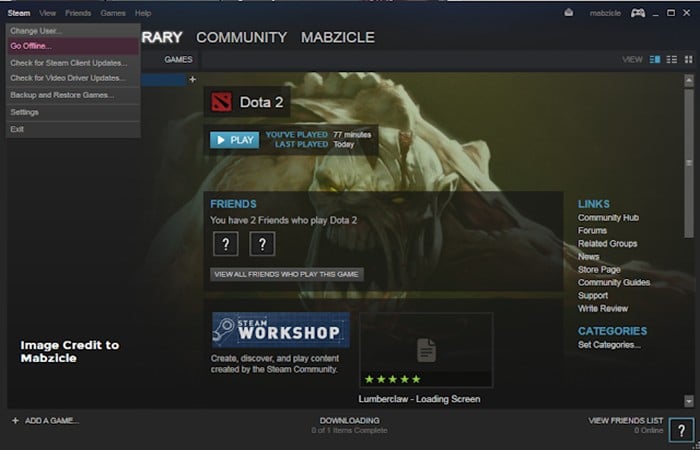
As of this post, you will surely be able to play DOTA 2 offline, internet is required and Steam login is required. With RevLoader, you can play DOTA 2 Reborn AI mode and custom maps/custom games from Valve's DOTA 2 Reborn including Overthrow, Dota 10v10, and Colosseum, as well as community creations including:
- Roshpit Champions
- Angel Beach Reborn
- Angel Spiaggia Black Celebrità
- Reborn Memes
- Spin TD
- Guarding Athena
- Skillshot Wars
- Attack Hero
- battleships
- Crumbling Island Beach
- Custom Hero Survival
- Dota IMBA
- X Hero Siege: Reborn, Epic Capo Fight, Gem TD
- Legends of Dota
- Legends of Dota: Redux, Life Sopra Spiaggia
- Naval Warfare
- Pimp My Pawn
- Warlock Brawl
- Legion TD Reborn, Horde Mode
- Wraith Night: Expansion
- Warchasers
- Tree Tag
- Survival Co-op
- SF Wars
- Dota
- reflex
- Pudge Wars
- Invoker Wars
- Dota Strikers
- Enfos Team Survival
- adventure mode
- Quadroside
- Footmen Frenzy
- Capture Points and many more.
But wait there's more; you can also use cosmetic items including arcana, immortals, sets, terrain, weather effects, cursors, announcer packs and more. Here's how to play DOTA 2 without steam and offline using RevLoader
NOTE : Before continuing, back up your DOTA 2 game and disable your antivirus software.
Requirements to play DOTA 2 without steam and offline using RevLoader:
- PC or Laptop (Windows 7 or higher, and meets the hardware requirements for 64-bit system)
- Processor: dual-core from Intel or AMD at 2.8 GHz
- Memory: 4 GB RAM
- Graphics: Nvidia GeForce 8600/9600GT, ATI/AMD Radeon HD2600/3600, DirectX: Version 11)
- Install/Update DOTA 2 from Steam
Instructions to play DOTA 2 without steam and offline using RevLoader:
- Step 1: Install Dota 2 Offline Launcher. Then find the Dota 2 win64 folder path
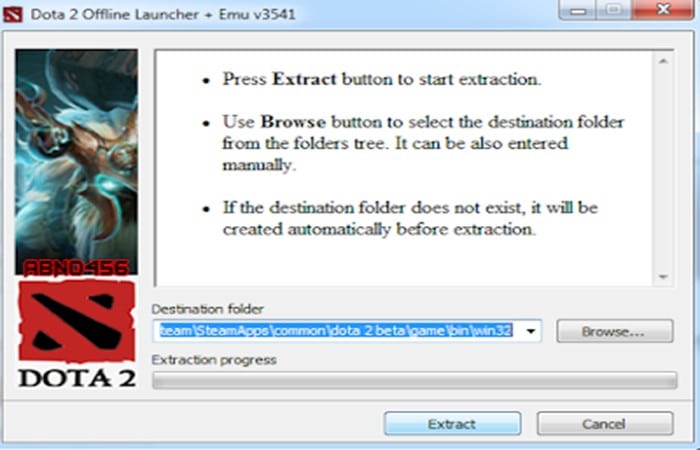
- Step 2:Click 'Extract'. The Aperto Dota 2 Offline Launcher Installer is in the 'Target Folder', find the Dota 2 win64 folder path: click 'Extract'.
- Step 3:Next, Copy the file inf updated located at «…SteamSteamAppscommondota 2 betagamedota» and paste it into «…SteamSteamAppscommondota 2 betagamebinwin64dota«.
- Step 4: After that, perform the procedure for the client emulator and item container update below.
- Step 5: Run the desktop shortcut created by the installer called «Dota 2 offline«. Run as administrator, right click on the icon, Select «Run as administrator«.
- Step 6: Done! Now you can play DOTA 2 without steam and offline directly. For simple players, just create a Practice Gara with AI bots, Select abandon and the difficulty of the bots.
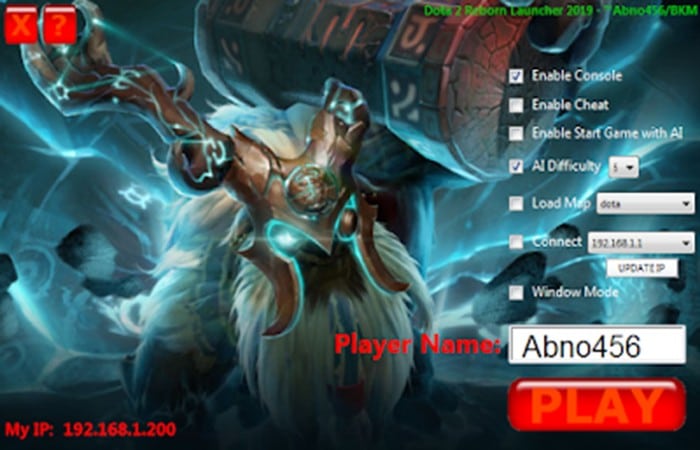
Bugs fixed in installation
For Client Emulator (steamclient dll) and Item Bin v5080 Update (Marci Update):
- Step 1:: Update your DOTA 2 client.
- Problem solving:
- If you can't start it, don't use the launcher, just go directly to exe (run as administrator).
- If you still can't start. Click Windows Start, Search for «uac», then click on the result «Change User Account Control settings«, drag the slider all the way to the « settingnever notify«. Click on «Accept» when you're done). Then open the launcher normally.
- Step 3:: Update your DOTA 2.2 client. Download [steamclient dll update], then extract it and overwrite the old one dll dota 2 win64 path:
- '…SteamSteamAppscommondota 2 betagamebinwin64'3.
- Download [items_570_v5080] and extract it: '…SteamSteamAppscommondota 2 betagamebinwin64platform'
Method 2: Play DOTA 2 without steam and offline as a host:
Make sure you have performed the item container update to play LAN.
IMPORTANT NOTE : Run revloader.exe as administrator for successful LAN play. To prevent slot merging for players, use the client. As the host, do not block Sopra from choosing a hero yet; wait for other players to select their hero first.
- Step 1:: Open by pressing the backslash key “” (without the double quotes) to open the lobby.
Here are the commands:
- (You can set it from 0 to 4: 0 = Passive, 1 = Easy, 2 = Medium, 3 = , 4 = Unfair)
- (120 is time per second, you can change it)
- (Create map)
- (To fill empty space with bot/AI) Skip this if you're playing with another player.
Problem solving
- To change your name in the game, click on the player name at the top left of the football from Angola from the start interface. Click on edit profile, enter the player name you want and select save changes.
- If your LAN is not working, try patching it. Download [SKYNET_steam_api] and extract it. Copy and paste the files into this directory: “…SteamSteamAppscommondota 2 betagamebinwin64"
- To change your name in the game, click on the player's name at the top left of the football from Angola from the start interface. Click on edit profile, enter the desired player name and select save changes.
- (To fill empty space with bot/AI) Skip this if you're playing with another player.
How to connect to LAN host to play DOTA 2 without steam:
- Step 1:: Open by pressing the backslash key “” and type the following commands:
- (Change this IP to the LAN host IP. To see the IP, Windows, press Windows + R button, this will open the run command, then type ipconfig and press Enter. You will see a bunch of information, but the line you want to search for is “IPv4 address").
(The good is for the Radiant faction, the bad is for the Mentire faction)
How to Play DOTA 2 Reborn Custom Maps/Custom Games in Offline Mode:
NOTE: Before continuing, you must first have downloaded the DOTA 2 Reborn custom maps.
- Step 1:Locate the custom maps directory under «SteamSteamAppsworkshopcontent570».
- Step 2: Use 'attempting' sopra the right part of the window and then write «publish_data» (without the quotes), it will show you many results txt, open one of them and you will see the name of the custom map
- Step 3: right click your publication_data.txt selected and click on 'Open File Location'.
For example : open publish_data.txt which contains ' Overthrow ', then 'Open File Location ' and find 455312245.vpk. And that vpk is what we need to extract using GCFScape.
- Step 4.Go to «SteamSteamAppscommondota 2 betagamedota_addons» and then create a new folder.
For example , create a folder called ' Overthrow ' and then open GCFScape.exe , select and open 455312245.vpk and then extract it to "SteamSteamAppscommondota 2 betagamedota_addonsOverthrow"
- Step 5: After extracting, open DOTA 2 using exe and writes:
- Example of dota_launch_custom_game
- Which will appear like this when you open my 'Overthrow' custom:
- dota_launch_custom_game overthrow
Done! Enjoy playing DOTA 2 Reborn Custom Maps or Custom Games in offline mode, internet is absolutely required.
Play custom AI/Bot script to play dota 2 without steam
- Step 1:: Create a folder 'bots' inside the folder 'vscripts'.
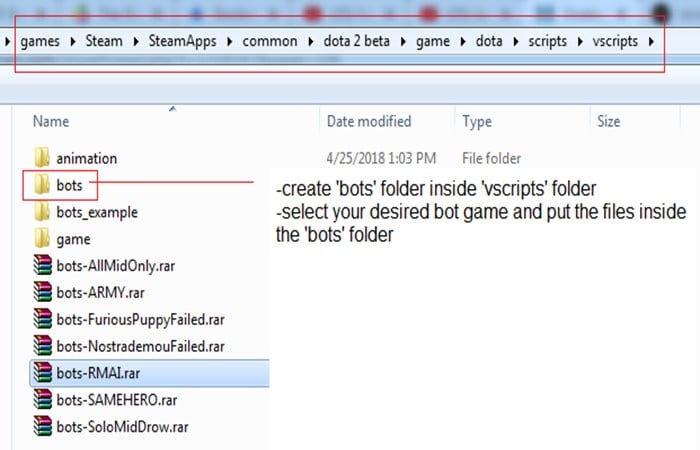
- Step 2:: Download it
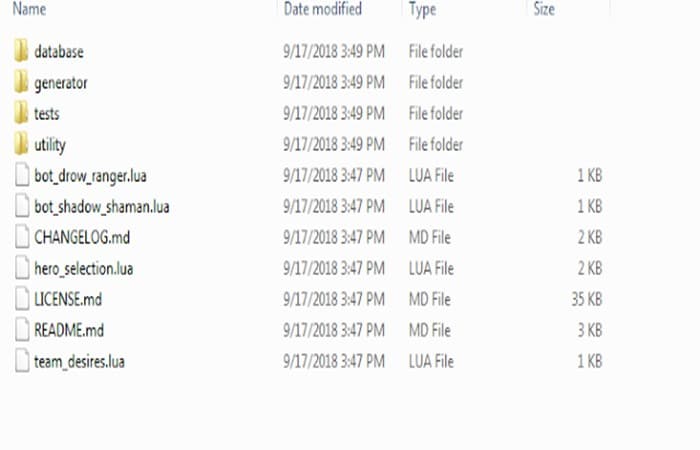
- Step 3:: Play with the Bot/AI or use the command (map dota) and then (dota_bot_populate). The script of the bot will be loaded automatically.
Ready to play Dota 2 versions without steam
- Ready to play DOTA 2 7.30c: This ready-to-play DOTA 2 offline client includes the Dota Plus Fall 2021 update. DOTA 2 v7.30c (8 parts, total size 16 GB, extracted size 32,2 GB)
- Ready to play DOTA 2 7.30b: This ready-to-play DOTA 2 offline client includes the Dota Plus Fall 2021 update. DOTA 2 v7.30b (9 parts, total size 16 GB, extracted size 32,5 GB)
- Ready to play DOTA 2 7.29d: This ready-to-play DOTA 2 offline client includes the Nemestice Battle Pass update. DOTA 2 v7.29d (9 parts, total size 16 GB, extracted size 32,5 GB)
- Ready to play DOTA 2 7.27d:This ready-to-play DOTA 2 offline client features the TI 10 Immortal Treasure 3 update. DOTA 2 v7.27d (13 parts, total size 13 GB, extracted size 27,7 GB)
RevLoader for DOTA 2 7.19 only below
Requirements:
- Download DOTA 2 Offline Direct Links (10,9 GB) – DOTA 2 v7.19co DOTA 2 v7.13
- Download DOTA 2 Offline Direct Links (10.9 GB)
- Download [Dota 2 Offline Launcher + Emu for 7.19x]
Instructions
Play DOTA 2 without steam and offline:
- Step 1:Download DOTA 2 v7.19c, you can find the links about the requirements. If you already have DOTA 2 with a version prior to 7.19, that will serve.
- Step 2:Extract Dota 2 Offline Launcher + Emu for 19x.zip and open Dota 2 Offline Launcher + Emu for 7.19x.exe, extract the files to your DOTA 2 Steam directory «…SteamSteamAppscommondota 2 betagamebinwin32»
- Step 3: Next, Copy the file inf located in “…SteamSteamAppscommondota 2 betagamedota” and paste it into “…SteamSteamAppscommondota 2 betagamebinwin32dota”
Done! Run Launcher RevLoader and now you can play DOTA 2 without steam and offline directly.
LAN Game
- Step 1:: Open the launcher.
- Step 2:: Click Update IP.
- Step 3:: For server/host/abandonment, select your OWN IP.
- Step 4:: For the client, Select the IP of the SERVER, to connect to the server.
- Step 5:: Click TO PLAY.
Extra : Select Connect if you want to connect to the server directly.
FAQ on how to play DOTA 2 without steam and offline:
Now, let's look at some frequently asked questions that can help you understand a little more about how to play DOTA 2 without steam and offline:
1. How to change language in DOTA 2 without steam and offline?
- Step 1:: Go to your Dota 2 installation directory where the rev.ini file is located – “…SteamSteamAppscommondota 2 betagamebinwin64” (win32 for older versions)
- Step 2: edit the file this using Notepad.
- Step 3: Find the line that contains this text: Language
- Step 4: Change the language value, then save the file
2. How to change the player name?
- Step 1:: Go to the Dota 2 directory where the rev.ini file is located – “…SteamSteamAppscommondota 2 betagamebinwin64”
- Step 2:: Edit the file this using Notepad.
- Step 3:: Find the line that contains this text: PlayerName
- Step 4:: Change the value to your desired player name.
3. How to play DOTA 2 modes (All Pick, Captains Mode, Random Draft, Single Draft, All Random)?
- Step 1:: Open by pressing the backslash key “” (without the double quotes) over the lobby.
- Step 2:: Enter the command according to the chosen mode.
- For All Pick: map dota gamemode 1
- For Captains Mode: map dota gamemode 2
- For Random Draft: map dota gamemode 3
- For Single Draft: map dota gamemode 4
- For All Random: map dota gamemode 5
- Step 3:: After choosing the mode, enter the command to join a team.
- For the Radiant faction: good set equipment
- For the faction Mentire: bad joint equipment
4. How to fix the 'Need to update' error?
- Step 1:: First update your Steam using the Internet
- Step 2:: Then Copy the updated “steam.inf” from “SteamSteamAppscommondota 2 betagamedota” and paste it into “SteamSteamAppscommondota 2 betagamebinwin64dota”
5. It doesn't appear, or the revloader gives an error
Please try the following possible solution:
- Step 1:: Go to the Dota 2 installation directory where revloader rev.ini is located. “…SteamSteamAppscommondota 2 betagamebinwin64”
: edit the file with Notepad. - Step 2:: Find the line that contains this string:
- Step 3:: Replace that line
6. Error “Connection to Steam lost.”
The following are the probable reasons why you encounter this error:
- Step 1:: Run dota2.exe instead of revloader.
- Step 2:: You have installed Smart Steam Emu and have not yet deleted your files.
The revloader may not be compatible with your dota 2 client version.
7. It shows “Steam Validation Refused” when I start bot games/join games.
Close Dota 2, restart, close UAC, and run it again (alternatively, you can simply right-click on revLoader.exe in the Dota 2 folder and select " Run as administrator ").
8. Can you use this public/ranked matchmaking sopra?
You CANNOT use it on legitimate Dota 2 servers. Other than first place, you can't join them.
9. Will it be useful forever?
Negative response, therefore we have to wait for an updated version when revLoader does not work properly.
10. It always shows “Connecting to Dota 2 Network”.
- Step 1:: Right click on exe and Select “Run as administrator".
- Step 2:: Alternatively, right-click and select Properties. On the “Compatibility«
- Step 3:: brand "Run this program as administrator«, apply and press Accept.
11. Skin/cosmetics are not showing in-game.
- Step 1:: Edit the rev.ini file Using Notepad
- Step 2:: Look for the parameter called ServerIPNSNet = Under that parameter, enter the IP address of the host
Example : ServerIPNSNet = 192.168.4.45
- Step 3:: Edit the rev.ini file using Notepad
- Step 4:: Find this parameter, ServerIPNSNet = 192.xxx.xxx.xx and add # before it
Example : #ServerIPNSNet = 192.xxx.xxx.xx
[For server/host]
- Step 1:: First make a backup of rev.ini.
- Step 2:: Open the rev.ini file using Notepad, delete the line “ServerIPNSNet = 192.168.1.1” located at the end.
- Step 3:: Save the file.
- Step 4:: Run “Dota 2 Launcher” as administrator, then click “Update IP«, then wait for it to appear «Done updating the network IP«.
- Step 5:: After that, click on the link with the IP (not checked). Find your IP there which is the same as your “My IP address«, then click on TO PLAY.
[For the client]
- Step 1:: Perform steps 1 to 3 as above.
- Step 2:: Execute «Dota 2 launcher» as administrator
- Step 3:: then click on «Update IP«
- Step 4:: then wait for it to appear «Done updating the network IP«.
- Step 5:: After that, click on connect with IP (not checked). Find the IP you created.
You might also be interested in reading about: Finding the DotA 2 game coordinator | Solutions
Conclusion
Playing Dota 2 without Steam and without an internet connection is possible using RevLoader . By following the steps above, you can start playing offline. This is especially useful if you typically have a slow internet connection, a data plan with a limited data allowance, or even no internet connection at all. We hope this information has been helpful.

My name is Javier Chirinos and I am passionate about technology. Ever since I can remember, I have been interested in computers and video games, and that passion has turned into a job.
I have been publishing about technology and gadgets on the Internet for over 15 years, especially in mundobytes.com
I am also an expert in online marketing and communication and have knowledge in WordPress development.