- setupact.log details actions and setuperr.log lists installation and upgrade errors.
- The location of the log depends on the phase (Downlevel, OOBE, rollback, post-upgrade).
- Cross-reference timestamps with MIG, BlueBox, setupapi, CBS, and DISM to find the cause.
- SetupDiag speeds up diagnosis and logs help differentiate upgrade vs. drivers.
If you've ever had a Windows update fail and didn't know where to start, these two files will sound familiar from today onward: setupact.log and setuperr.log . They're the Windows installer's logbook and, if used wisely, allow you to figure out what happened, when, and why.
In the following lines, I'll explain in detail what these logs are, where they're stored depending on the installation phase , how to read them, and how to cross-reference their information with other key logs (BlueBox.log, MIG, CBS, DISM, and more). You'll also see a real-world example with errors 0x8007042B and 0x00000570 , forensic clues to help you determine if a user attempted to reinstall or update from a USB drive , and a practical method for collecting all the logs even if the computer won't boot.
What are setupact.log and setuperr.log?
During each phase of an installation or upgrade, Windows generates several log files; of these, the most comprehensive is setupact.log (installer actions) and the most concise is setuperr.log (error list). Both are essential for diagnosing failures during upgrades, clean installations, out-of-the-box installations (OOBE), or rollbacks.
By default, the folders containing these files are hidden, so you'll need to show hidden items in File Explorer or collect the logs using a tool or from a recovery environment. While there are other useful files, the starting point is almost always to check setuperr.log first and then delve deeper into setupact.log.
Where they are stored depending on the installation phase
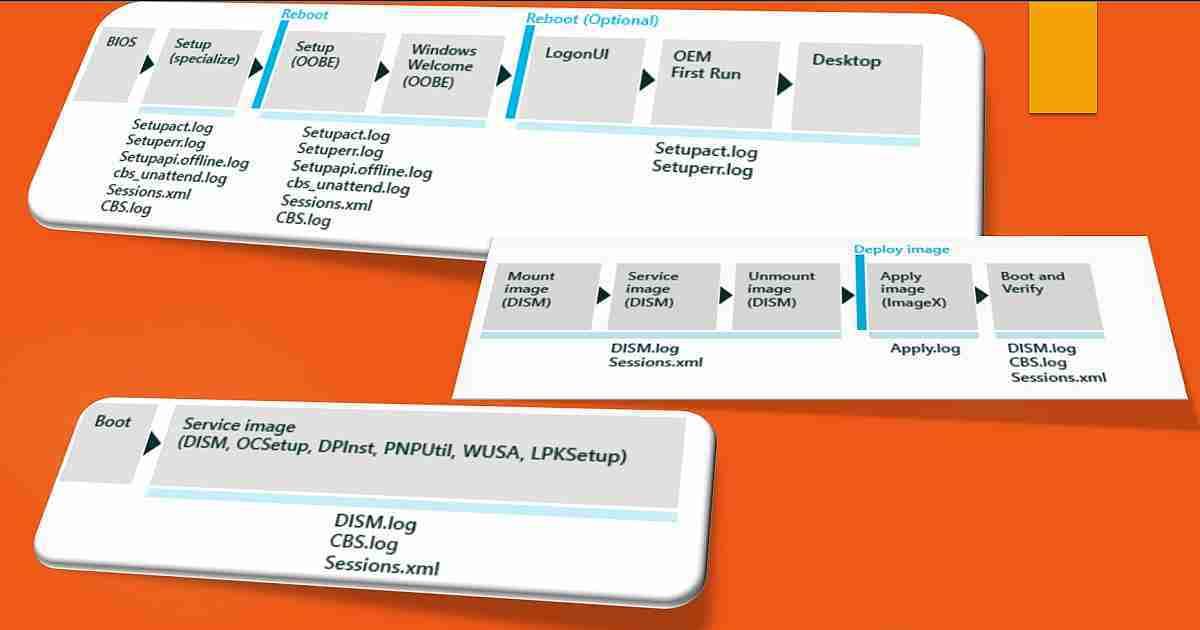
The location of these logs depends on the stage of the process. This clue is critical because the length of the error code (for example, 0x2000D, 0x4001C…) tells you which stage failed and, therefore, which folder to search.
Typical phase locations for setupact.log (and, by extension, setuperr.log):
- Lower level phase: \$Windows.~BT\Sources\Panther
- OOBE (over the top experience): \$Windows.~BT\Sources\Panther\UnattendGC
- Rollback: \$Windows.~BT\Sources\Rollback
- Pre-initialization (before the lower level): \Windows
- Post-update (after OOBE): \Windows\Panther
Additionally, during an update attempt via Windows Update or WSUS, the BlueBox.log file in \Windows\Logs\MoSetup records the communication between setup.exe and Windows Update , being key in errors such as 0xC1900107 or lower-level failures.
How a line of these records is structured
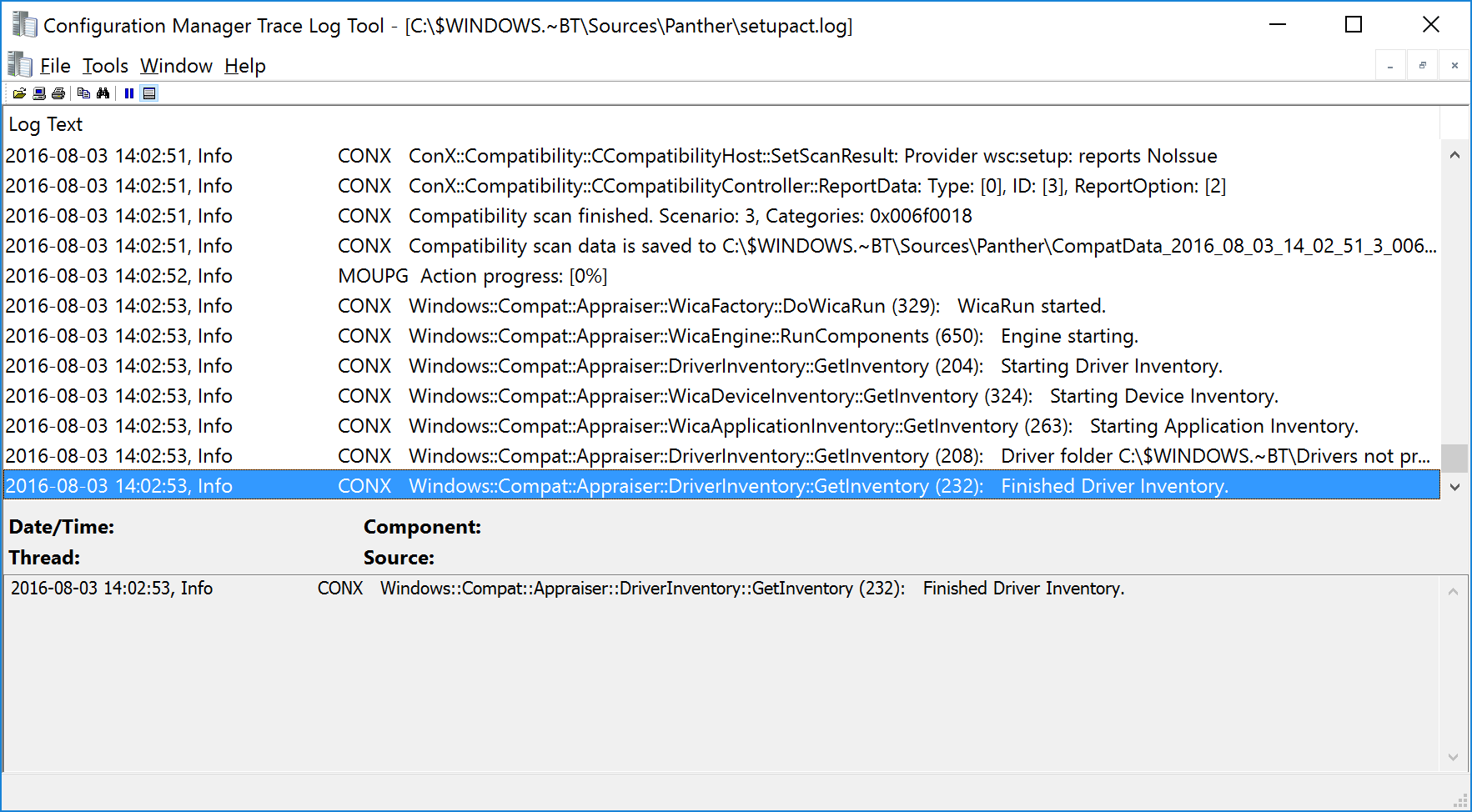
A typical setupact.log or setuperr.log entry includes four pieces: date and time, log level, component, and message. Understanding this structure greatly speeds up analysis.
- Date and Time: for example, 2023-09-08 09:20:05.
- Level: Info, Warning, Error, Fatal (or equivalent to unrecoverable error).
- Components: Abbreviations such as CONX, MOUPG, PANTHR, SP, IBSLIB, MIG, DISM, CSI, CBS.
- Message: description of the action or failure (e.g., “the operation completed successfully”).
In installations and updates, the SP (Setup Platform), MIG (Migration Engine) and CONX (Compatibility) components are usually the most interesting to diagnose, so pay attention to their events and timestamps.
Real-life example (simplified format) of a line with a MIG component warning: 2023-09-08 09:23:50, Warning, MIG, No se pudo reemplazar el objeto C:\Users\name\Cookies. No se puede quitar el objeto de destino. where message explains the cause of the warning and the component points towards migration.
Practical method to analyze them
Guideline steps:
- Identify the installation error code (Setup returns it when it fails.)
- With the extension part (for example, 0x2000D, 0x4001C…), deduce type of phase and folder of log to inspect.
- Open the file in a text editor and look for the last code match (go to the end, search up).
- Review several lines above and locate critical chains , the
Shell application requested abortoAbandoning apply due to error for object, which usually mark the point of no return. - Decode the Win32 errors that you see (for example, 0x00000570 = ERROR_FILE_CORRUPT).
- Take note of the timestamps and crosses with other logs from the same range (MIG, BlueBox, CBS, DISM, setupapi.*).
This methodology, however simple it may seem, is the shortest path between a generic failure and an actionable diagnosis that tells you what to touch.
Real case: error 0x8007042B:0x2000D due to corrupted file
Imagine you see a composite error 0x8007042B: 0x2000D . The 0x2000D part tells you a specific phase, and the 0x8007042B part is a result code that you can trace in the logs.
En setuperr.log lines like this appear: Error 0x00000570 al recopilar/aplicar objeto: File, C:\ProgramData\Microsoft\Crypto\RSA\S-1-5-18 , accompanied by MIG events with Error 1392 and the phrase Shell application requested abort. Everything points to the fact that the cited file is corrupt (ERROR_FILE_CORRUPT).
Jumping to setupact.log and aligning by timestamp reveals the same sequence: the start of the MIG Gather , read errors on that file from the system keystore, and a request from the shell application to abort the operation . The result: the migration framework fails, and the operation queue is abandoned with error 0x8007042B.
Practical solution in this case: the file C:\ProgramData\Microsoft\Crypto\RSA\S-1-5-18\ It is an artifact of the local system certificate and can be safely removed, after which the update will progress again without that stopper.
As a side effect, other logs may reflect the failure environment. For example, a setupapi.dev.log may display an attempt to update a chipset driver Intel QM87 (LynxPoint) and end at Exit status: FAILURE(0xC1900101), typical of problems of drivers or compatibility that cause generic reversions; for fault analysis and BSOD considers use WhoCrashed.
Other useful log files during installations and upgrades
Although setupact and setuperr are the foundation, there are more pieces that are useful to have on hand because they complete the puzzle with migration, drivers, and rollbacks.
- miglog.xml (\Windows\Panther): details of what has been migrated and useful for data problems after upgrade.
- BlueBox.log (\Windows\Logs\MoSetup): dialog between Setup and Windows Update, key in WU/WSUS, errors 0xC1900107 and failures prior to the lower level.
- Setupmem.dmp, setupapi.dev.log, event logs (.evtx) in \$Windows.~BT\Sources\Rollback: are collected during the reversion. They are used to analyze BSOD logs in Windows in the process (mini dump), device failures (0 x 30018) and unexpected restarts (0xC1900101).
- setupapi.app.log, setupapi.dev.log, setupapi.offline.log (\Windows\inf): everything related to Plug and Play, driver installation and driver errors at different stages.
- CBS.log and Sessions.xml: when there is maintenance (online or offline), DISM and CBS leave the trace of each session and the fine details here.
Quick tip: If Setuperr.log doesn't provide enough clues, go directly to setupapi.* and BlueBox.log, and cross-reference the timestamp with what you saw in setupact.log. Often, the culprit is a driver , not the entire system.
Scenario: Initial Windows Installation
In a clean installation that culminates on the desktop (the famous first user experience ), logs are written as the disk is formatted and mounted . Before that, in Windows PE, the logs are temporary and may not persist.
If something goes wrong in this path, always start with Setuperr.log and continue with Setupact.log. Remember that there are several instances of setupact depending on the phase: in X:\Windows\Panther during specialization, in %windir%\panther during OOBE/LogonUI, and in %windir%\panther\unattendGC for automated OOBE.
In parallel, you'll see system events in the classic Windows logs: HardwareEvents.evtx , Application.evtx , Security.evtx , and System.evtx , which help correlate what happened at the kernel, services, and application levels.
Scenario: Offline maintenance with DISM
When you add or remove updates, drivers, or languages without booting Windows , you're in offline maintenance mode. This is ideal for maintaining images on a server without having to constantly recapture them.
The king of tools here is DISM , which writes its activity to DISM.log (\Windows\Logs\DISM or wherever you specify with /LogPath) and coordinates with Sessions.xml to log sessions and with CBS.log for low-level details if needed.
If something crashes offline, first check DISM.log . If there's no clear error, move on to Sessions.xml and then CBS.log. This trio will tell you which package, controller, or component failed and at what exact step.
Scenario: online maintenance
Online servicing lets you boot the system and add drivers, applications, or packages, taking advantage of all the OS dependencies and services (Plug and Play, .NET, driver co-installers, etc.). It's the ideal way to handle .msi or KB.exe packages and complex drivers.
The reference logs are the same: DISM.log as the main one, CBS.log when DISM redirects you for more details, and Sessions.xml as the logbook of every action in that session.
SetupDiag: automated diagnostics
SetupDiag It is a standalone analyzer that reviews Windows Setup logs and suggests the root cause of an update failure. Since Windows 10 2004, it runs automatically with parameters such as /ZipLogs:False /Format:xml /Output:%windir%\logs\SetupDiag\SetupDiagResults.xml and points results to the registry in HKLM\SYSTEM\Setup\SetupDiag\Results.
Use it as a shortcut when you don't have time for manual analysis; even so, it's a good idea to validate your diagnosis by cross-referencing it with setupact, setuperr, and BlueBox.log for key timestamps.
Forensic Investigation: Reinstall from USB or Simple Driver Update?
If you see setupact.log and setuperr.log appear right after the user connects a USB, you need to distinguish between two scenarios: setup.exe starting from that USB to install/update, or simply connecting the USB and installing drivers (which also generates activity in setupapi.*).
Clues to confirm attempted installation/upgrade from USB :
- Creation of the folder \$Windows.~BT\Sources\Panther and intense activity in setupact.log from that route.
- Tickets from MOUPG/PANTHR/SP indicating preparation of the update and phases such as Downlevel, SafeOS u OOBE.
- Presence of BlueBox.log and queries WU/WSUS if the installer validates compatibility or downloads components.
- Events with extension codes 0x2000D, 0x4001C–0x4001F or reversals 0xC1900101, typical of update scenarios.
- Files like miglog.xml and MIG activity (profile/data migration).
Signs that drivers were only installed when the USB was connected :
- Activity concentrated in \Windows\inf\setupapi.dev.log y setupapi.app.log no trace of \$Windows.~BT.
- Messages related to hardware IDs (PCI\VEN_…, USB\VID_…) and INF selection, with exit states that do not use Setup semantics (e.g.,
Exit status: FAILURE(0xC1900101)in the context of drivers, not upgrades). - Events of Kernel-PnP and DeviceSetupManager in system event logs, with no migration or OOBE entries.
So yes: the creation of setupact/setuperr immediately after connecting a USB drive can mean the user started an installation from the media , but you should verify this by looking at the $Windows.~BT tree, BlueBox.log , MOUPG activity, and MIG. If everything is limited to setupapi.* and PnP events, you're dealing with drivers, not an upgrade.
Signs of intentional erasure of evidence and good practices
Some "cleaning" tools promise to improve the system by deleting logs, but often what they actually do is remove useful evidence for support and forensics: setup*.log, setupapi*.log, INFCACHE, .evtx logs, Registry entries, etc.
A code analysis of one of these utilities reveals intents such as deleting setupact.log, setuperr.log, setupapi.app.log, and setupapi.dev.log (located in \Windows, \Windows\inf, \Windows\Panther, \Windows\Panther\UnattendGC, and \Windows\System32\sysprep\Panther\IE) or clearing event logs such as HardwareEvents, Application, Security, and System . See how to identify artifacts in Windows to improve your forensic analysis.
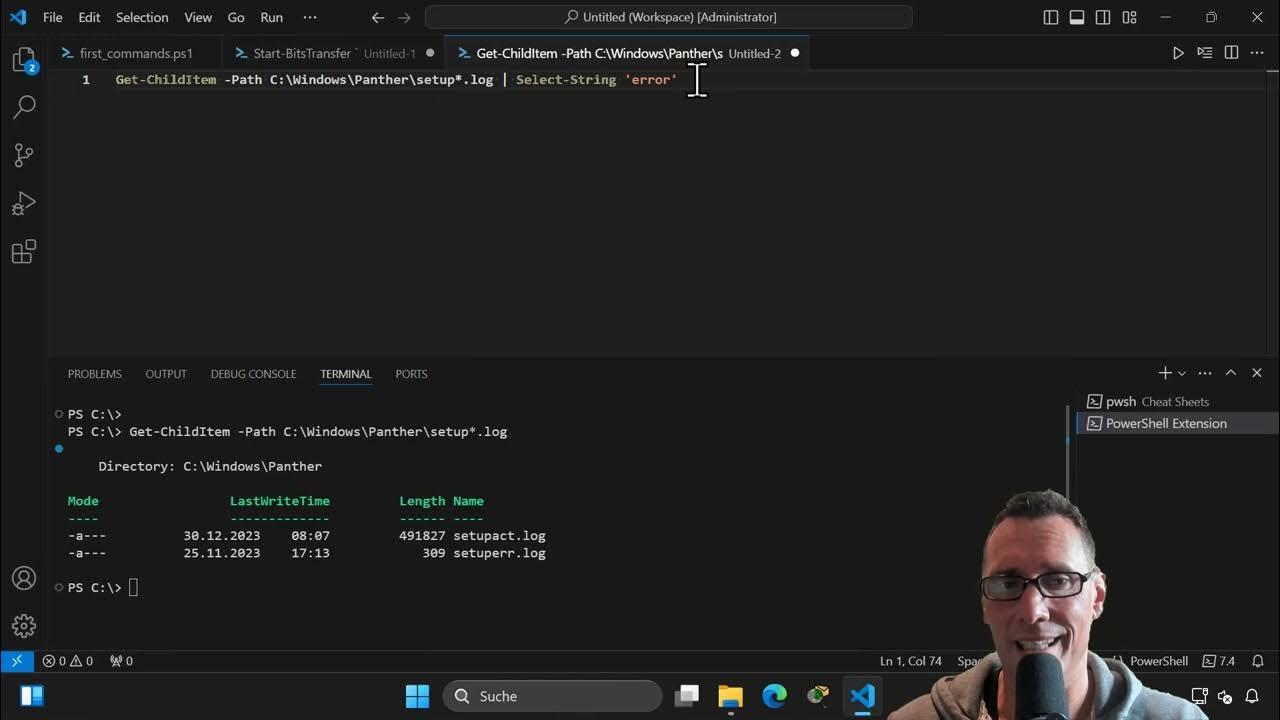
Commandos typical commands that you can use to check for the existence of those files (from a symbol of the system) are of the type: dir /s setup*.log, dir /s setupapi*.log, dir /s INFCACHE.1 o dir /s wmiprov.log, and they will help you confirm deletions or to locate versions in unexpected paths.
An important note: manipulating the Windows Registry (System and Software hives) or sensitive processes such as lsass.exe, smss.exe, csrss.exe, services.exe, winlogon.exe is not harmless; if a tool asks to run as SYSTEM to touch these parts, be suspicious unless it is a controlled procedure.
How to collect Setup logs when the computer won't boot
If the system fails to boot, you can boot into recovery environments (for example, a WinPE environment or the Recovery environment — access the command prompt during installation ) and copy the logs to an external drive or network resource. This is extremely useful for escalating the issue to support or for your own analysis.
Example compilation (adjust the destination drive letter):
xcopy /sei C:\Windows\panther t:\logs\panther
xcopy /sei C:\Windows\system32\sysprep t:\logs\sysprep
copy setupapi.log C:\Windows t:\logs
copy setupact.log C:\Windows t:\logs
copy setuperr.log C:\Windows t:\logs
copy netsetup.log C:\Windows\debug t:\logs
copy dism.log C:\Windows t:\logs
copy setupapi.app.log C:\Windows\inf t:\logs
copy setupapi.dev.log C:\Windows\inf t:\logs
copy setupapi.offline.log C:\Windows\inf t:\logs
copy CBS.log C:\Windows\logs\CBS t:\logs
Compressing the collected folder and sending it to support will allow you to perform a complete diagnostic of the Setup cycle, drivers, CBS, and DISM, without losing context.
The core of this story is that Windows leaves a trace of every installation and upgrade phase, and setupact.log and setuperr.log are the map that guides you through those traces. Knowing where they are located at each phase, how to read each entry, which other logs to consult (BlueBox, MIG, setupapi, CBS, DISM), and how to correlate by timestamp allows you to go from an opaque failure to a specific root cause . Add SetupDiag for speed, use forensic techniques to determine if it was just Plug and Play or a genuine USB upgrade attempt, and protect your evidence by avoiding "cleaners" that delete the logs you need to fix the problem.


Passionate writer about the world of bytes and technology in general. I love sharing my knowledge through writing, and that's what I'll do on this blog, show you all the most interesting things about gadgets, software, hardware, tech trends, and more. My goal is to help you navigate the digital world in a simple and entertaining way.