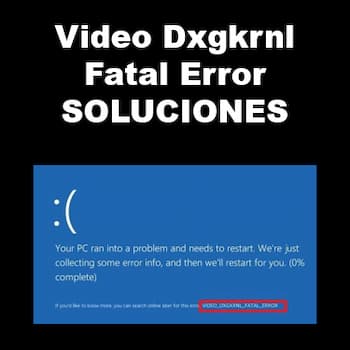
Blue Screen of Death ( BSOD ) errors are always disruptive and can have a sudden impact on Windows users by repeatedly causing system crashes seemingly out of nowhere. Many Windows 10 users are currently encountering one such BSOD error, " Video Dxgkrnl Fatal Error, " accompanied by various error codes. We've compiled a list of effective fixes for this error to help users get their Windows 10 systems working again without any issues.
Video Dxgkrnl Fatal Error
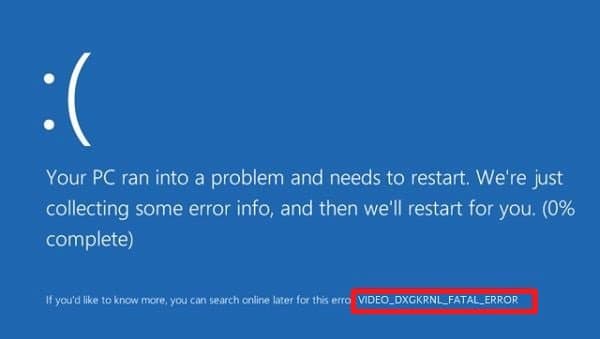
“Video Dxgkrnl Fatal Error” is a blue screen error that indicates the PC has encountered a problem and needs to restart . It is usually accompanied by error codes such as 0xD80310B0, x05F6C614D, 0x680B871E, or 0x96D854E5 and occurs primarily when the user is installing a new program or running a Windows update.
It is usually a bug check by Microsoft to detect issues in the DirectX graphics kernel subsystem on Windows 10 system. But it is annoying for users as it restricts system processing and slows down ongoing updates.
Just like other blue screen errors, the impact of this error is also fatal. It sometimes keeps the system busy with repeated reboot processes and makes it unavailable for users to work.
Causes of Video Dxgkrnl Fatal Error
After a lot of research and reviews on the error, we have compiled some important reasons for the appearance of this error on Windows 10.
- Violation/issues in the DirectX graphics kernel subsystem
- Outdated BIOS
- Corrupted system files
- Corrupted/outdated graphics driver
- Third-party application interference
- Hardware impaired
- Errors when upgrading from lower versions of Windows to Windows 10
Video Dxgkrnl Fatal Error. Solutions
Based on the main causes behind the blue screen error, we propose some effective solutions to fix »Video Dxgkrnl Fatal Error».
Method 1. Run Windows 10 in Safe Mode
If you cannot access your system due to crashes or continuous restarts, it is recommended to start your Windows 10 system in safe mode.
Method 2. Update drivers
The most likely cause behind the Video Dxgkrnl Fatal Error is the non-functioning of the installed graphics card driver. Therefore, you can update the existing graphics driver or reinstall it after trying the update.
Update graphics driver
- Open the box Run Windows (press the Windows key with the R alphabet key simultaneously)
- Write "devmgmt.msc» and click OK. The page of the Device administrator.
- Go to the left panel, go to the section Display adapters, expand it and right-click on the available adapter.
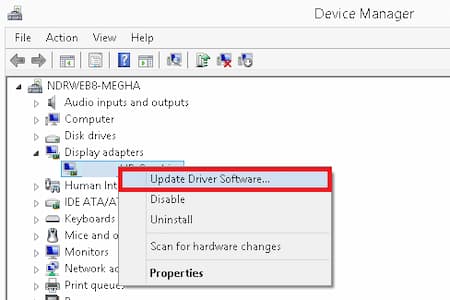
- Then click Update driver software.
- Then select the first option to automatically search for updated driver software on the Internet
- Select from the available software and then perform the installation.
Reinstall the graphics driver
This is another way to troubleshoot driver issues that may be causing Video Dxgkrnl Fatal Error. Follow these steps:
- The first is Note the name and description of the current display driver to make it easier to find it online to download and reinstall.
- Write System information in the search bar on the Windows Start screen and open it.
- On the System Information page, go to the left panel and navigate through Hardware Resources > Components > Display.
- Go to the right panel, check and note the Adapter Type and Description.
- Then open the Device administrator On your system, right-click the Display Adapter device
- Then click on the option uninstall.
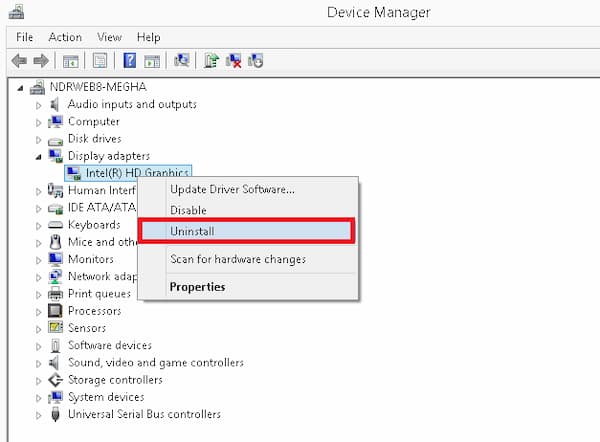
- Wait for the uninstall to complete.
- Go to the Display or Graphics Driver software website online, enter the system and product details (noted above) to install the software on your system again.
Method 3. Run SFC Scan Tool
As we mentioned, corrupted or affected system files can be the reason for Video Dxgkrnl Fatal Error. We can try to run the built-in System Integrity Checker aka SFC Scan to check and fix the Windows 10 file corruption issue.
- click with it Right click on the icon symbol of the system searched in the search bar and select the option Run as administrator.
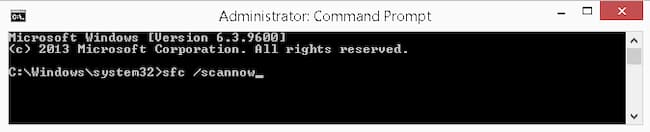
- Execute the command «SFC / scannow» to scan system files for errors
- Once the scan is complete, reboot your system.
Method 4. Perform a system restore
Using the System Restore feature in Windows 10, you can restore your system to a previous restore point, as in most cases, the Video Dxgkrnl Fatal Error occurs after a system update.
- Write "rstruct» in the Windows Run box and click Accept to open the page Restore system.
- Select the restore point if there is one (it is recommended to choose the last one) and click Next.
- Let the system restore complete and then check the difference.
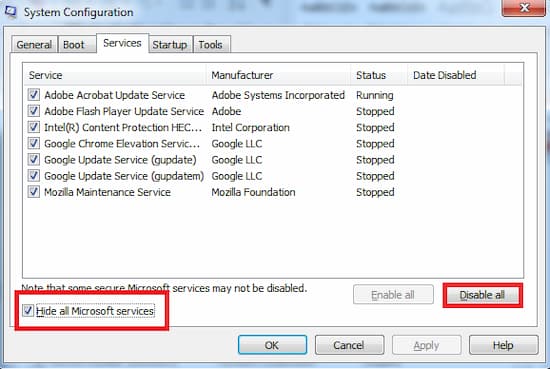
- Note: It is recommended to perform a clean boot before going to the System Restore option. You need to type “IB” in the Windows Run box, go to Services and then continue disabling applications, third-party startups and services.
Method 5. Disable Fast Startup
By modifying a system setting, we can try to resolve the Video Dxgkrnl Fatal Error problem.
- Open the Control panel of your system.
- Click on Energy options.
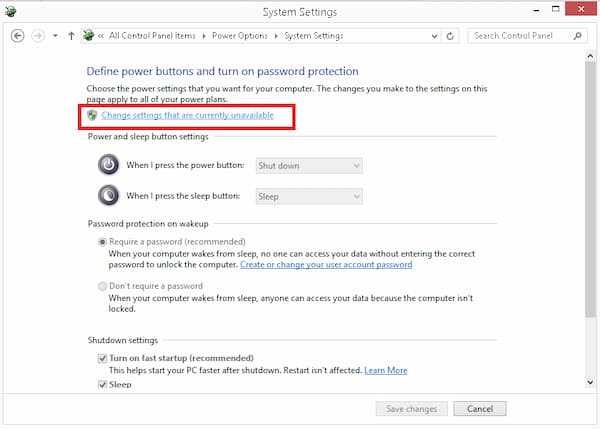
- From the right panel, click on Choose what the power buttons do.
- Do click in the link Change settings that are currently unavailable.
- Click on Yes to confirm.
- In the section Shutdown settings, uncheck the checkbox that says Activate quick start and click on the Save Changes option.
- Reboot the system.
Update BIOS
Outdated BIOS may cause Video Dxgkrnl Fatal Error. Therefore, it is recommended to update the BIOS.
- Collect BIOS details such as version, manufacturer, description, etc.
- Start the manufacturer's website of your motherboard.
- go to BIOS guidelines.
- Enter your motherboard model name in the search bar and with the BIOS details, download the latest BIOS driver for your system and install it.
Don't miss: SysMenu.dll Error in Windows 10 | Solutions
Method 6. Uninstall third-party applications
Interference from third-party applications such as malware , antivirus software, firewall protection, etc., can also cause the Dxgkrnl Fatal Video Error. Here's what you need to do:
- Go to Control panel and click Programs and Features
- Then click with the right button in selected third-party applications for uninstall them of your system.
- then reboot your system once to verify the effects.
Final words
The Dxgkrnl Fatal Error video can be caused by a variety of reasons, and the most effective solutions will be those that address the specific cause on your system. Therefore, we've provided all the methods that can help you resolve this error. If you don't know the specific cause, you can try each method one by one until one of them solves the problem.

My name is Javier Chirinos and I am passionate about technology. Ever since I can remember, I have been interested in computers and video games, and that passion has turned into a job.
I have been publishing about technology and gadgets on the Internet for over 15 years, especially in mundobytes.com
I am also an expert in online marketing and communication and have knowledge in WordPress development.