
A cluttered inbox is bad news for anyone. Not only does it make it harder for you to find important emails, but you'll progressively get less and less motivated to open the Mail app every day.
What can you do to prevent your messages from getting cluttered? Simply learn how to optimize your Outlook inbox by following the 5 easy steps below.
If you've ever felt uncomfortable looking at your incoming emails, this article is for you. Learn how to stop emails from piling up and assaulting you with notifications by simply optimizing your inbox.
You don't have to constantly monitor your email and spend hours trying to delete everything. Just check out the recommendations in Outlook for Microsoft 365 and get the best results imaginable.
Note: Most of these features apply to Outlook for Microsoft 365 / Office 365. However, some are also available through Microsoft's email service, Outlook.com.
Optimize your Outlook inbox in 5 easy steps
Let's take a look at how you can become an Outlook pro at organizing your email and finally achieve that notification-free inbox you've been dreaming of. So take note of the following recommendations:
1.- Clean up by removing duplicate emails
Did you know that Outlook has an automated tool to remove duplicate emails? – Now it’s time for you to do it yourself. Use this feature to quickly reduce the number of emails you need to review every day with just a few clicks.
- Open the inbox you want to clear. Make sure you stay on the tab Home default; you can check which tab it is on by looking at the ribbon header interface.
- Expand the drop-down menu Clear, then choose Clean folder o Clear conversation, according to your needs.
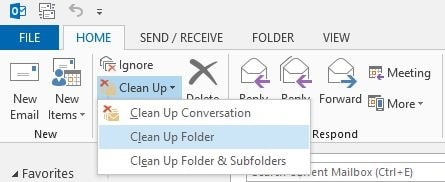
- A message will appear on your screen. Confirm that you want to delete the conversation or folder and watch the number of unread emails in your inbox decrease.
The great thing about the cleanup feature is that all deleted items can be recovered within a certain time period. You can find them in the Deleted Items folder on the side of the Outlook window.
2.- Create folders for emails
Having every single incoming email in a folder can be confusing. Sure, spam usually falls into the junk category, but everything else is entirely up to you. Personally, I recommend setting up a few essential folders and sorting through your incoming mail every day.
By following the Getting Things Done® ( GTD® ) methodology for organizing tasks, you can easily improve productivity with Outlook. First, you need to create three different folders:
- Inbox (default): Leave important emails in your default inbox. These should be messages that you can respond to immediately or that you need to deal with urgently.
- To make: Drag non-urgent emails to this folder. You can keep your inbox clear and deal with these messages later in the day.
- Follow-up: moves emails to this folder that you've put on hold, such as responses you're waiting for or tasks you've postponed.
- Reminders: Some emails don't require you to respond to them at all. Save them in a separate folder so you can always look back and find them easily.
Note: To create new folders, simply click on the folder in your inbox and select New Folder. Then, simply type the name and press Enter.
You should start each day by sorting emails into these categories, then schedule a time to tackle your task folder later. Make sure you are consistent with this! You can continue sorting the emails you receive throughout the day.
If necessary, don't be afraid to create more folders - this method should be customized to you and only you.
3.- Use the task view
Did you know you can create tasks from emails? Whenever you receive an email that you want to turn into a task, simply drag it onto the Outlook task list icon to bring up the task setup wizard. Here, you can give your task a name, description, and even set a reminder.
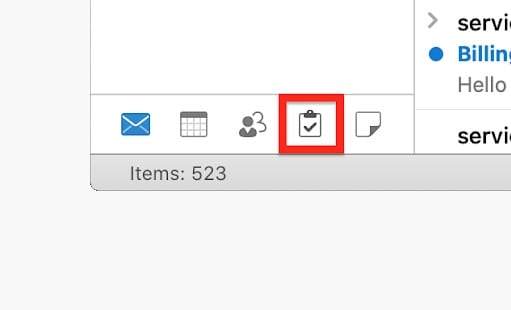
If you set a reminder, tasks will appear similar to a meeting reminder at the specified time. This allows you to stay organized and create tasks easily, directly from incoming emails.
4.- Set rules to automatically sort incoming mail
Rules let you navigate, flag, and respond to email messages automatically, making Outlook much easier to use. You can also use rules to play sounds, move messages to folders, or display alerts for new items automatically.
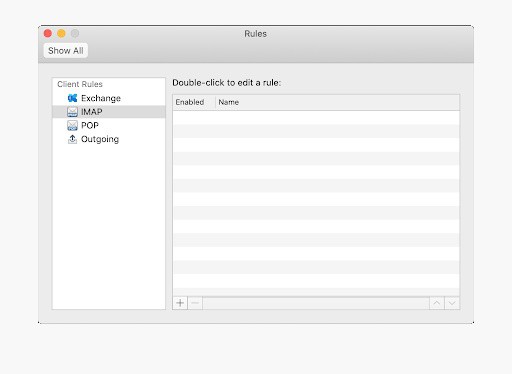
Personally, I find the most useful rule to be the ability to move an item from a certain sender or with certain keywords in the subject line to another folder. This means that if certain criteria are met, an email will be moved to the specified inbox without you having to touch it.
Here is a basic guide on how to set up a rule in Outlook.
- Right-click a message in your inbox or another email folder and select the option that says Rules.
- Now, you are going to select one of the options. To see more options, select Create rule.
- In the dialog box Create rule, select one or more of the first three check boxes.
- Then, in the section Do the following, if you want the rule to move a message to a folder, check the box Move item to folder.
- Select the destination folder in the picture of dialogue Select folder that appears and then do click en Accept.
- Click on Accept once again to save your rule.
5.- Take advantage of the categories
Color coding emails will help you easily identify and group associated items in Outlook. You can choose from a set of default categories or create your own and then assign the categories to Outlook emails.
To assign a color category to the Reading Pane or an open message, select the Categorize option from the Labels group on the ribbon and choose a category from the list. This will help you optimize your Outlook inbox.
Final thoughts
I hope that each of these simple tips will be of great use to you, especially if you are trying to optimize your Outlook inbox. If you are looking to read more articles related to modern technology, consider keeping visiting our portal to get everything you need to know. We regularly publish tutorials, news articles, and guides to help you in your daily technological life. See you in our next post.

My name is Javier Chirinos and I am passionate about technology. Ever since I can remember, I have been interested in computers and video games, and that passion has turned into a job.
I have been publishing about technology and gadgets on the Internet for over 15 years, especially in mundobytes.com
I am also an expert in online marketing and communication and have knowledge in WordPress development.