- Adjusting application protocols to avoid crashes in multi-monitor setups.
- Management of notification permissions and concentration modes to retrieve pop-up alerts.
- Repair, reset, and reinstallation procedures through the Microsoft Store.
- Temporary alternatives to digital certificate errors and opening failures.

I'm sure it's happened to you: you're about to take a quick screenshot to send some important information, and suddenly the Snipping Tool decides to close or freeze on its own without any explanation. It's a frustrating situation, especially when you depend on it for work, and the worst part is that it's not always obvious why this happens in Windows 11.
The truth is, this problem doesn't have a single cause; it can stem from anything from expired certificates to conflicts with external monitor settings or notification issues. Fortunately, there are several ways to troubleshoot the system and get it working again, from simple adjustments in the control panel to complete app reinstalls.

Conflicts with multi-screen configurations
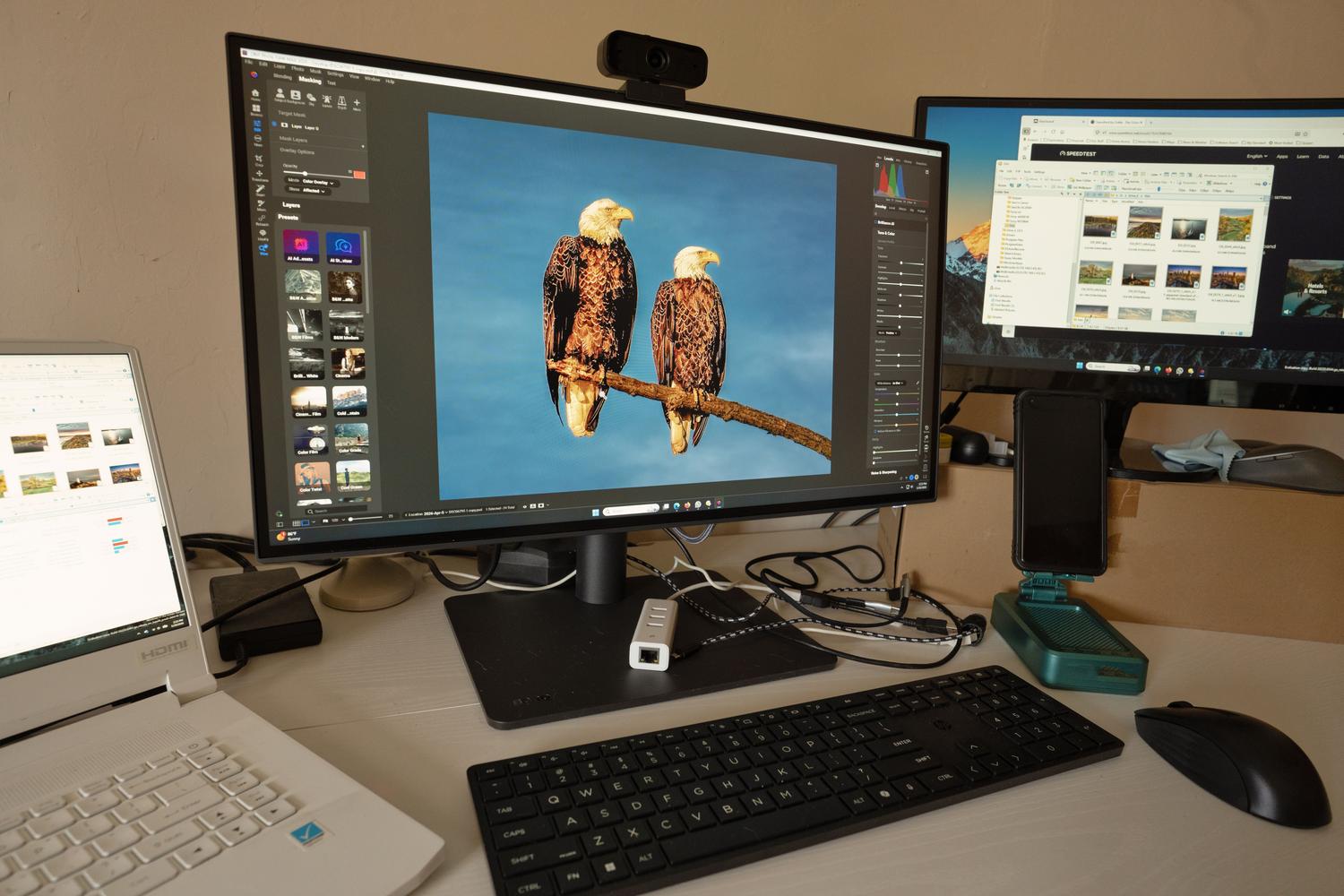
There's a fairly specific bug that occurs when using a laptop connected to additional monitors . In this scenario, if you try to take a screenshot on the external screens while the laptop's main screen is still on, the application can crash completely. The odd thing is that the error doesn't happen if you capture the laptop's main screen , but it does fail when using the Win + Shift + S shortcut or the new capture button on the external monitors.
To fix this problem, there's a trick that involves changing the application's association. Go to Windows settings, then to default apps , and look for the Snipping Tool entry. Once there, locate the MS-SCREENCLIP protocol and, if it's assigned to "Snipping Tool," change it to "Screen Clipping ." This usually stabilizes the tool while Microsoft releases the final patches.

Certificate problems and opening errors

Occasionally, the system displays a frustrating message stating that a Windows problem is preventing Screen Snipping from opening . This has been linked to the expiration of Microsoft digital certificates , which renders the tool and other system functions (such as the emoji panel or the touch keyboard) unusable.
If you find yourself at this impasse, there are two temporary solutions. The first, though it may seem like something out of a movie, is to manually change your computer's date to a day before the certificate expires (for example, October 2021). The second option is to find the classic version of the tool in the Windows.old folder , navigating to System32 to run the SnippingTool.exe file directly from there.
When notifications disappear

Sometimes the tool doesn't close, but something very annoying happens: you take the screenshot, but the pop-up notification doesn't appear in the corner of the screen. This prevents you from quickly accessing the editor to save or annotate the image. Before you panic, check if you have Do Not Disturb mode or Focus Session enabled , as these modes silence Windows notifications so they don't distract you.
If silent mode isn't the problem, check your notification permissions in the System menu. Make sure the Snipping Tool has both banners and the notification center enabled . It's important to remember that if you use the "New" button after opening the app, the image loads directly into the window, and it's normal not to receive any notifications.
Repair, restoration and reinstallation
If none of the above has worked and the app continues to crash, it's likely that internal files are corrupted . Windows 11 offers a rescue option in the Installed Apps section. By accessing the advanced options for Snipping Tool, you'll see the Repair button , which attempts to fix the app without deleting your data. If it still crashes, the next step is Reset , which restores the app to its original state, as if you had just installed it.
As a last resort, the most effective solution is usually to completely uninstall the application and reinstall it from the Microsoft Store. In enterprise environments, this failure often occurs because the app store is blocked and the tool isn't being updated, causing conflicts with Windows Explorer. In these cases, it's vital that the system administrator deploy the latest version using Intune or MSIX.
Whether it's adjusting notification permissions, correcting the MS-SCREENCLIP association for external monitors, manipulating the system date via certificates, or resorting to a clean reinstall from the Store, there are multiple ways to regain control of your screenshots and prevent the application from closing unexpectedly.

