- C:\Users is the primary location for user profiles and data, housing personal settings and critical folders.
- AppData contains key subfolders (Local, LocalLow, and Roaming) that impact the behavior and transfer of settings between devices.
- There are different types of profiles: local, mobile, and mandatory, each with direct implications for data management and synchronization.

Understanding how the C:\Users folder is organized in Windows , as well as its structure and associated functions, is fundamental for any user who wants to efficiently manage their files, profiles, and settings. Although it may seem like a simple folder at first glance, it is actually the central pillar for organizing personal data, profiles, settings, and part of the inner workings of the Microsoft operating system. In this article, I'll explain in detail how this folder really works, how to access and properly manage its contents, the different types of profiles and their differences, what subfolders and files it contains, the role of the Windows Registry in all of this, and I'll answer common questions such as moving, renaming, or deleting user profiles. Get ready for a guide that will make everything much clearer and, of course, help you discover some useful tricks.
The Windows directory structure is designed to keep the system organized and separated by user, as well as improve security and data management. Understanding how each part of this folder tree works will allow you to troubleshoot common problems, restore configurations, create backups, or simply avoid errors that can greatly complicate the lives of any user, whether at home or at work.
What is the C:\Users folder and what is it used for in Windows?
The C:\Users folder is the root directory where Windows stores all the information associated with each user of the computer: personal documents, settings, history, application data, and much more. Each subfolder within C:\Users represents a different user profile. When you create or add a new account (whether local or a Microsoft account), the system automatically creates a custom folder in that location using the account name.
Within these personal folders are all your personal files, as well as specific settings (including application preferences). This allows each person using the computer to have their own environment, desktop, favorites, and documents, without interfering with other users. This separation is key for privacy and to avoid permission issues or data loss between users.
Where is C:\Users and how to access it?
By default, C:\Users is located on the main drive where you installed Windows (usually C:). You can access it in several ways:
- From File Explorer: Simply open Explorer and navigate to “This PC” or “Computer”, then access the C: drive and double-click the “Users” or “Usuarios” folder (on computers where the language is Spanish).
- Using the run box: press Win + R, writes C: \ Users and press enter.
- From the line of commands (CMD o PowerShell): navigate using
cd C:\Users. - With environment shortcuts: To go directly to your profile, use %USERPROFILE%; for another user's profile, enter the full path with their name.
Remember that some folders and files may be hidden by default, so enable the “Show hidden files” option in Explorer if you want to see all of their contents.
Internal structure of the C:\Users folder: profiles and main subfolders
When you open C:\Users, you'll see several folders with the names of the different users, as well as other special folders that Windows creates by default. The most common ones you'll find are:
- One folder per user: Each user who has ever logged in will have their own folder (for example, “John” or “User3”).
- Public (Public Access): Contains items shared among all users, such as public documents, shared music, menu shortcuts, or shared desktop.
- Default or Default User: Used as a template when creating a new user. By customizing this folder, you can ensure that all new accounts have specific default files or settings.
- Administrator, Guest, LocalService, NetworkService: Special (super-hidden) system profiles, normally not visible to the naked eye unless you enable viewing hidden and system files.
Each user folder, in turn, contains a number of default folders:
- Desktop: the files and shortcuts you see on your desktop.
- Documents: storage of personal documents.
- Images, Music, Videos, Downloads: storage of multimedia and downloaded files.
- AppData: A vital hidden folder for the system, where each user stores specific settings and data for their programs. To understand how to manage this folder and its files, visit our section on SoftwareDistribution folder in Windows.
- Links, Contacts, Favorites, Saved Games, Searches: other folders that may vary depending on the version of Windows, each dedicated to a specific user function.
What's in AppData? Local, LocalLow, and Roaming
AppData is undoubtedly one of the most crucial and least known folders in Windows. By default, it's hidden, and inside you'll find three subfolders:
- Local News- Stores app data that shouldn't be synced across multiple devices or that is very large (e.g., cache, local history, temporary files). In the case of a mobile profile, its content doesn't travel with the user.
- LocalLow: Similar to Local, but with a lower security level. Some applications, such as protected mode browsers, store temporary data here.
- roaming- This is where data and settings are stored that the user needs to keep track of when logging in to different computers on a network (e.g., Office templates, email, favorites, portable program settings, etc.). Roaming content can be synchronized between multiple computers if a roaming or redirected profile is used.
Types of user profiles in Windows: local, roaming, and mandatory
It's crucial to distinguish between a user account (credentials, username, and password) and a user profile (the specific folder and content on the computer). A single user can have different profiles on different computers if roaming or network profiles aren't used. The main types of profiles you'll find in Windows are:
- Local profile: This is automatically created when a user logs into a computer for the first time. All settings and changes are saved only on that computer. If you log in on another computer, you'll have a different profile, even if you use the same username/password.
- Mobile profile (roaming): Used in business or educational networks. The profile and its data are stored on a server, so when the user logs in from another computer attached to the domain, their environment, settings, and personal files are still with them.
- Mandatory profile: A variant of the mobile profile, but read-only. The user cannot modify anything, and changes are never saved. It is used for public offices, classrooms, or when maximum consistency is required.
Profiles and special folders: Public, Default, LocalService and NetworkService
Apart from user folders, there are others that perform specific functions:
- Public (Public Access): Used to share files and settings among all users on the computer. Here you can leave files you want to be accessible to anyone, regardless of who's logged in.
- Default and Default User: They serve as a master template. When someone creates a new account on the computer, Windows copies the contents of Default to create the initial profile (backgrounds, shortcuts, settings). Boot, etc.). If you customize this folder, you can pre-configure the environment for new users.
- LocalService and NetworkService: These are system profiles intended for special accounts that Windows uses to run internal services, such as networks or local processes. They are normally invisible and should not be modified or manipulated by the user.
The role of the Windows Registry in profile management and the C:\Users folder

The Windows Registry is essential for managing accounts and profiles. It's a centralized database where the system stores critical settings, profile paths, user preferences, hardware and application information, security controls, and much more.
The most relevant keys for the structure of C:\Users and profiles are:
- HKEY_LOCAL_MACHINE\SOFTWARE\Microsoft\Windows NT\CurrentVersion\ProfileList: List of all profiles, associated physical routes, and profile creation/copy control.
- HKEY_CURRENT_USER: Stores the active settings for the logged-in user. Each time a user logs in, their NTUSER.DAT file, located in their profile root folder, is loaded into this key. This completely customizes the look, preferences, and functionality for each account.
- HKEY_USERS: Contains the data of all users with an open session.
Manually modifying the Registry is delicate and only recommended for experienced administrators, as it can cause critical system errors.
Essential hidden files and folders: NTUSER.DAT, SendTo and others
Each user folder contains hidden files that are essential for its configuration:
- NTUSER. DAT: A key file that stores the "portion" of the Windows Registry corresponding to that user. It controls absolutely all of their preferences and settings. Modifying, deleting, or moving it manually can render the account unusable or erase all personal preferences.
- AppData: This has already been discussed, but it's very important to note that it contains critical program and Windows information. Losing or deleting its contents can cause applications to lose settings, history, or even stop working.
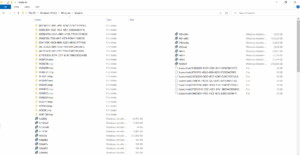
- SendTo: shortcuts for the “Send To” function. On modern systems, it is located in
C:\Usuarios\NOMBRE_USUARIO\AppData\Roaming\Microsoft\Windows\SendTo.
Frequently Asked Questions: Can I rename, delete, or move the user folder?
Renaming, deleting, or moving a user folder isn't as straightforward as with other folders. Windows relies on fixed paths and internal registries to locate and manage profiles. Doing this directly from Explorer can break the association and cause serious errors.
To rename the folder:
- Create a new administrator account.
- Sign out of the account you want to modify.
- Sign in with the new account and rename the old folder from Explorer.
- Access the Registry and change the path associated with that profile in
HKLM\SOFTWARE\Microsoft\Windows NT\CurrentVersion\ProfileList.
To delete a profile, it's recommended to do so from the advanced user account options in the Control Panel ("System > Advanced settings > User profiles"). Manually deleting folders can leave traces in the registry or AppData.
Moving the entire user folder to another drive is an advanced and delicate task. Some users choose to move only subfolders such as Documents, Pictures, or Downloads using the properties of those folders. Moving the entire user profile requires changes to the Registry and can be complicated, so it's only recommended for advanced users (or through tools and group policies in enterprise environments).

Passionate writer about the world of bytes and technology in general. I love sharing my knowledge through writing, and that's what I'll do on this blog, show you all the most interesting things about gadgets, software, hardware, tech trends, and more. My goal is to help you navigate the digital world in a simple and entertaining way.